How to Refresh an Adaptive Card in Microsoft Teams

Some cards that apps post in Teams can update: the app sends you the latest version when you ask. Teams does that by itself for some people. Everyone else can ask for it with Refresh card, in the message's menu.
What a Refresh Does
A card that can refresh carries a refresh action. When it runs, Teams asks the app for a new version of the card, for you, and shows you whatever the app sends back. The app can send the same card with new data, or a card made only for you, with different text or buttons.
Teams runs the refresh by itself for the people the card names in its userIds list, up to 60 of them. Everyone else can refresh by hand. Microsoft's guide: "For users to manually trigger card refresh, they can select Refresh from the message options menu." In the new Teams, the menu item is Refresh card.
The Example
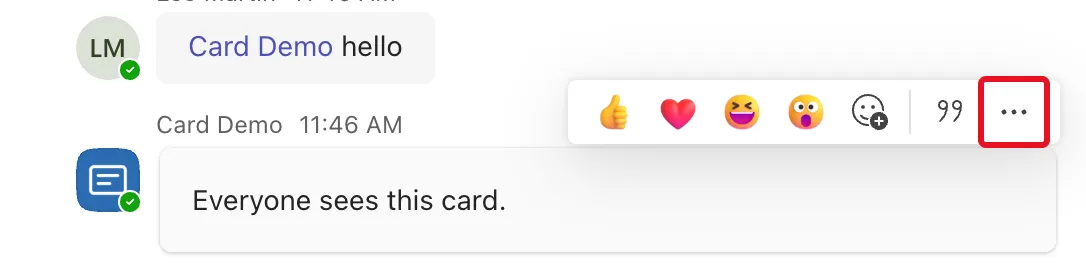
The app Card Demo posted a card in a group chat. Its sender, Leo, got his own view automatically. Maya, also in the chat, sees the card everyone sees: Everyone sees this card. She refreshes it by hand.
Step 1: Open the Message's Menu
Point at the card's message. Above it, a bar of reactions appears, ending with More options (...). Select it:
Step 2: Select Refresh Card
Select Refresh card:
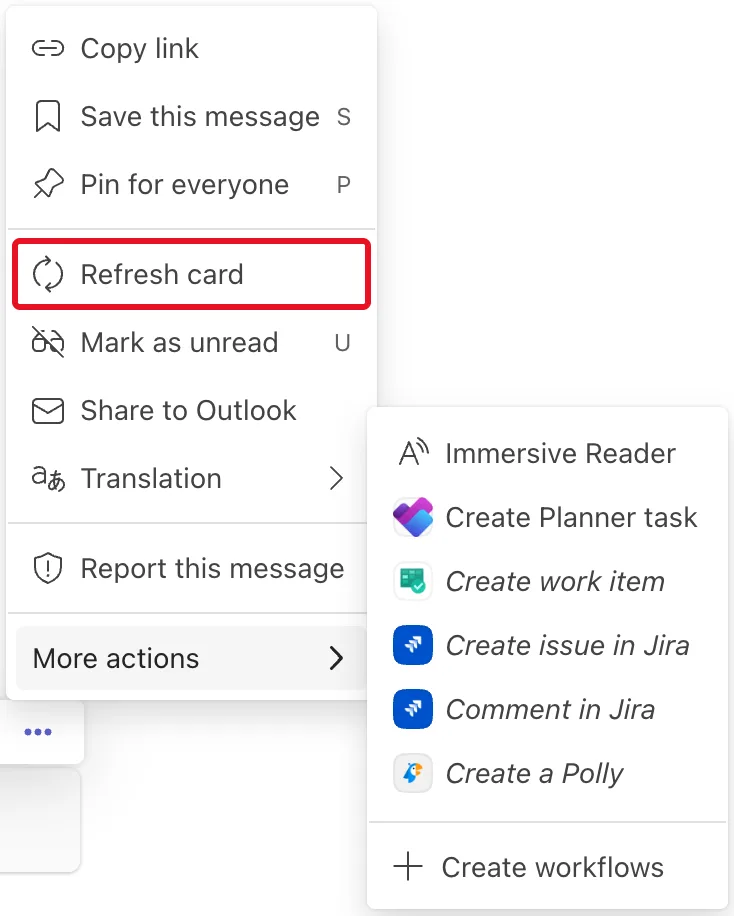
The menu isn't always the same. Here, Refresh card was in the main menu. On another card the same day, the main menu didn't have it, and Refresh card was the first item under More actions. If you don't see it, open More actions.
Step 3: See the Refreshed Card
The card changes to what the app sent back, with Updated next to the time:

Card Demo answers every refresh with a card for the person who asked, so Maya now sees her own view. The others in the chat still see what they saw before. Microsoft's guide: "The User Specific Card returned by the bot is sent only to the specific client that requested for it."
Common Mistakes
| Mistake | What happens | Do this instead |
|---|---|---|
| Looking only in the main menu | Refresh card seems to be missing | Open More actions too |
| Expecting everyone to see your refreshed card | The others keep their own version | Tell them what changed, or let them refresh too |
Troubleshooting
| Symptom | Likely cause | Fix |
|---|---|---|
| No Refresh card anywhere in the menu | The card doesn't carry a refresh action | Ask the app's owner, or check the app's own commands |
| The card looks the same after a refresh | The app had nothing new for you | Nothing to fix |
FAQ
Why does my card look different from my colleague's?
The app can answer each person's refresh with a card made for them, such as one with buttons only the organizer needs. Microsoft calls these user-specific views.
Does Teams refresh cards by itself?
For the people a card lists in userIds, yes, up to 60 people. A card can also leave userIds out altogether: Microsoft's guide says Teams then refreshes it automatically for everyone when the chat has 60 members or fewer. An empty list, "userIds": [], turns automatic refresh off, and everyone refreshes by hand.
What does Updated mean next to a card?
In my tests, a card that had been refreshed or replaced just for me showed Updated. A card the app had changed for everyone, with no version of my own on top of it, showed Edited.
Conclusion
To get the latest version of a card in Teams, select More options on its message, then Refresh card, in the menu or under More actions. What you see afterwards is the app's answer for you, which can differ from what everyone else sees.
Additional Resources
- User Specific Views, on Microsoft Learn: refresh,
userIdsand manual refresh. - Work with Universal Actions for Adaptive Cards, on Microsoft Learn.
