How to Refresh a Flow in a Canvas App in Power Apps

A canvas app keeps its own copy of what it knows about each flow it runs. After you change a flow in Power Automate, refresh it in the app: open the flow's More menu in Studio's Power Automate pane, select Refresh, then save and publish the app.
Microsoft's Power Automate pane article is firm about it: After making changes to a flow outside of Power Apps Studio, you must perform this step; otherwise, the flow may fail to run—even in previously published apps. Microsoft's flow integration troubleshooting explains why: Power Apps stores what inputs the flow requires, what connections to provide, and what outputs the flow returns in the app.
The example is the Overtime Timesheet app. I changed its flow, Get Waiting Approvals, in Power Automate after adding it to the app: I removed a field it returned.
Prerequisites
- An app with a flow in it (How to Add a Flow to a Canvas App in Power Apps), open in Power Apps Studio.
- The flow's changes saved and published in Power Automate.
Step 1: Open the Flow's More Menu
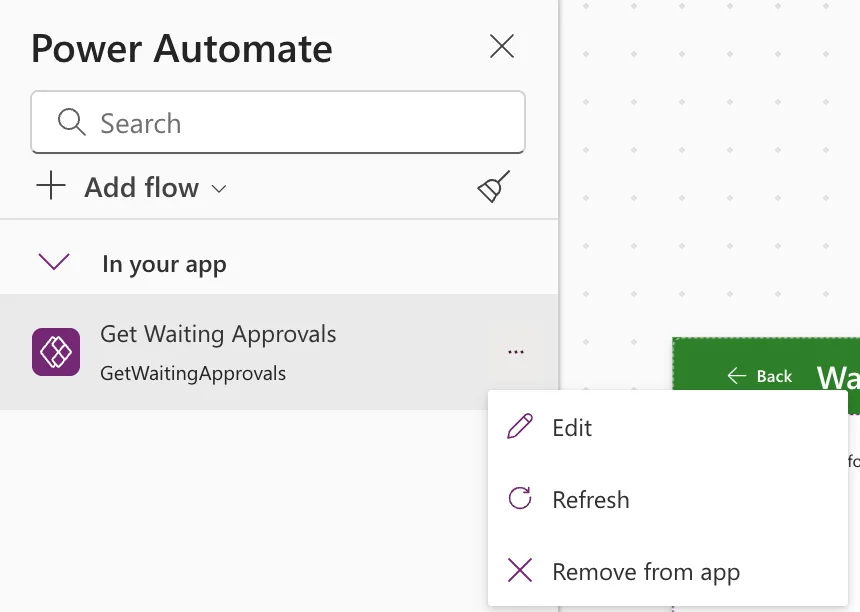
Open the Power Automate pane (More > Power Automate on the left bar). Under In your app, select More (…) next to the flow, then Refresh:
Step 2: Wait for Refreshing to Finish
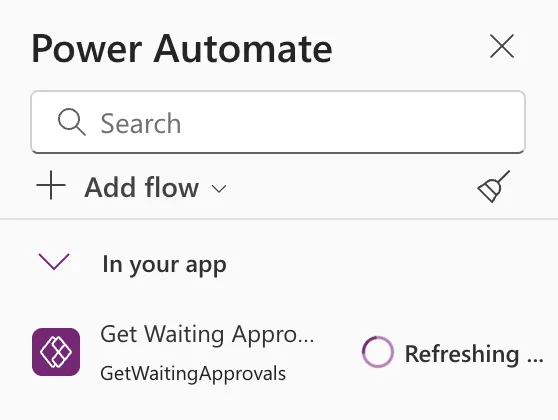
The flow shows a spinner and Refreshing …:
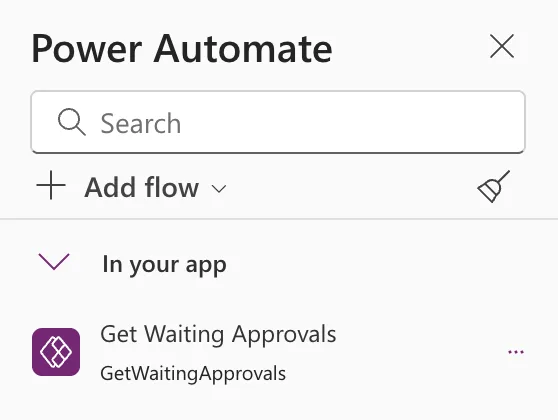
When it's done, the flow is listed as before, with its More button back:
Step 3: Save and Publish the App
Save the app and publish it, so people using it get the refreshed flow (How to Publish a Canvas App in Power Apps). In this case, the app also had formula changes to save.
Later, I refreshed the flow again after a change to one of its expressions. That time Save stayed unavailable, and I published the app again to be sure the live version was current.
When to Refresh
| Change in the flow | Refresh? |
|---|---|
| An input added, removed or renamed | Yes |
| An output added, removed or renamed | Yes |
| A connection added or changed, including to an invoker connection | Yes |
| A field removed from a JSON output, as in the example | Yes, the docs say any change made outside Studio |
Microsoft's known issues with the Power Apps V2 trigger adds that after switching a connection to an invoker connection, you must refresh or remove and readd the flow in the app and then save the app.
Common Mistakes
| Mistake | What happens | Do this instead |
|---|---|---|
| Changing the flow and not refreshing | The flow may fail to run, even in the published app | Refresh after every change made outside Studio |
| Refreshing without publishing the app | People keep the old version | Publish after refreshing |
| Changing a flow that a live app uses | People using the app can be affected | Microsoft suggests copying the flow, changing the copy, and moving the app to it |
Troubleshooting
| Symptom | Likely cause | Fix |
|---|---|---|
A new output isn't offered after Run(). | The app hasn't been refreshed | Refresh the flow |
| Refreshing doesn't help | The app's copy of the flow is still out of step | Remove from app, add the flow again, save |
| People still get the old behaviour | The app wasn't published, or they have the old version open | Publish; they open the app again |
FAQ
Is Refresh the same as removing and adding the flow?
Both update what the app knows about the flow. Microsoft's troubleshooting article uses remove and add again for several errors; Refresh is the quicker first step.
Do I need to refresh after editing the flow from Studio?
The article's requirement is for changes made outside of Power Apps Studio. I made my changes in Power Automate, so I refreshed each time.
Conclusion
After any change to a flow in Power Automate, select More > Refresh on it in Studio's Power Automate pane, wait for Refreshing to finish, and save and publish the app.
