How to Read Rows from an Excel Table in Power Automate

A cloud flow can read an Excel workbook without opening it: List rows present in a table, from the Excel Online (Business) connector, returns the rows of one table, each row as a set of column names and values that later actions can use.
The example is the old overtime workbook of the Overtime Timesheet app: Overtime Timesheet 2026.xlsx in the Overtime folder of OneDrive, with a table named OvertimeLog of 14 shifts. A flow reads its rows to import them into SharePoint.
Prerequisites
- The rows in an Excel table. The action reads tables, not plain ranges of cells.
- The workbook in the cloud, in OneDrive for Business or a SharePoint document library, under 25 MB, the connector's limit.
Step 1: Add the Action
In your flow, select + where the rows are needed, then Add an action, search for List rows present in a table, and select it under Excel Online (Business).
The first time, the designer asks for a connection. Select Sign in and sign in with your work account:
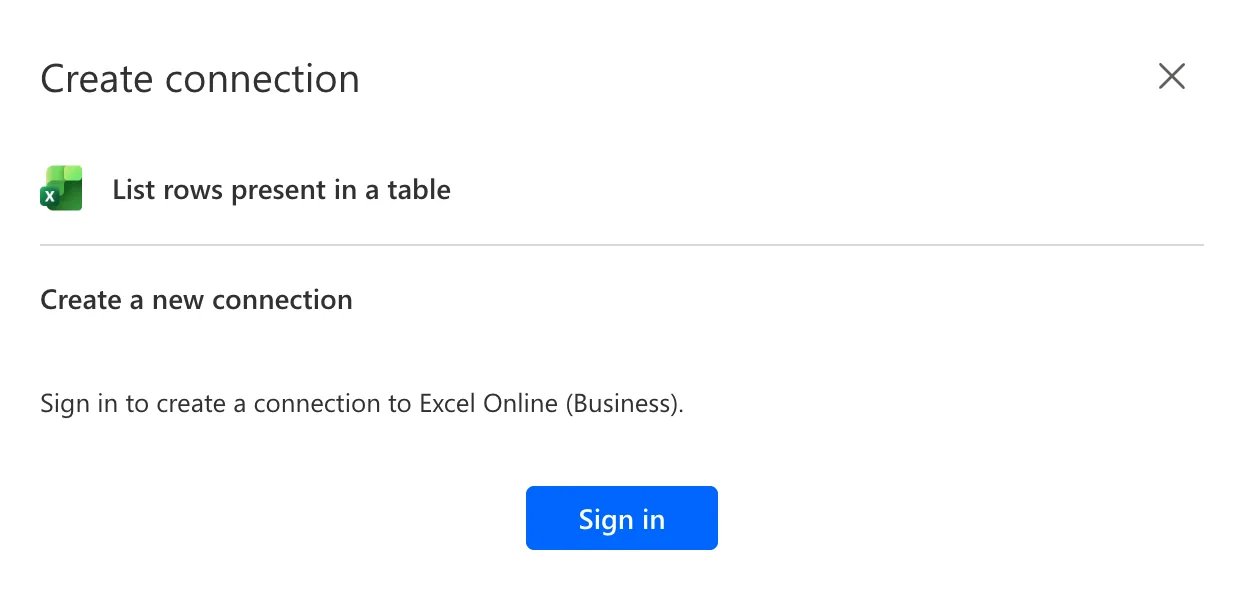
The sign-in window closed by itself, and the action's parameters appeared. I renamed the action List the old rows, so later expressions read body('List_the_old_rows').
Step 2: Choose the File and the Table
Fill in the four required parameters:
| Parameter | What to choose | In the example |
|---|---|---|
| Location | Where the workbook is: OneDrive for Business, or a SharePoint site or group | OneDrive for Business |
| Document Library | The library in that location | OneDrive |
| File | The workbook: select the folder icon and browse to it | /Overtime/Overtime Timesheet 2026.xlsx |
| Table | The table, by its name | OvertimeLog |
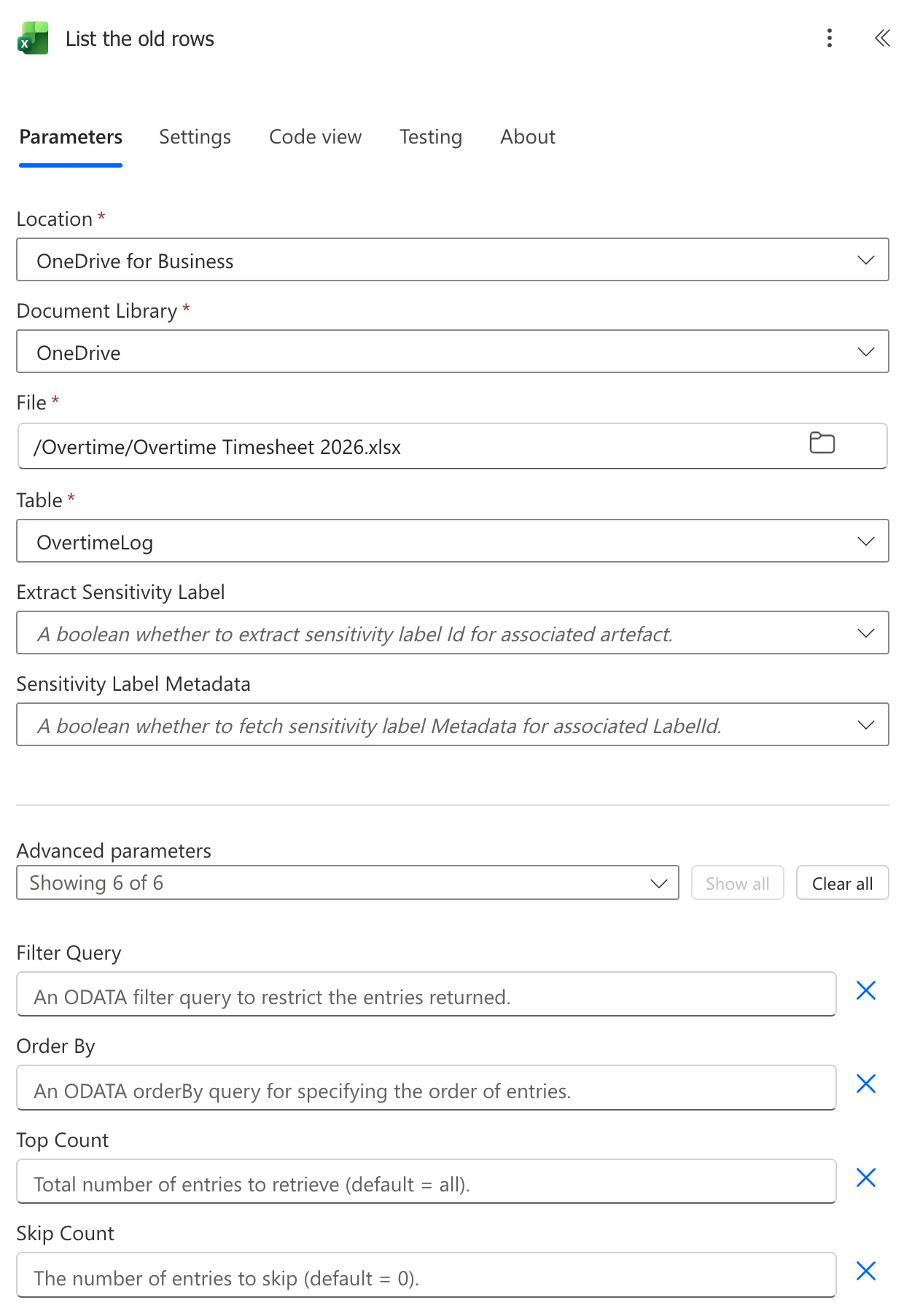
The Table list shows the workbook's tables by name, which is why a named table is easier to find (How to Rename a Table in Excel).
Step 3: Choose How Dates Come Back
Under Advanced parameters, set DateTime Format to ISO 8601. With the default, dates and times come back as Excel's serial numbers, such as 46297 for 2 October 2026. The difference has its own guide: How to Get Excel Dates as Dates, Not Numbers, in Power Automate.
Step 4: Turn On Pagination
Microsoft's connector reference says: The List rows present in a table action returns up to 256 rows by default. In order to get all rows, turn on pagination.
On the action, open the Settings tab and expand Networking. Turn Pagination on and enter a Threshold, the most rows the flow may read. Until Threshold has a number, the setting shows a validation error:
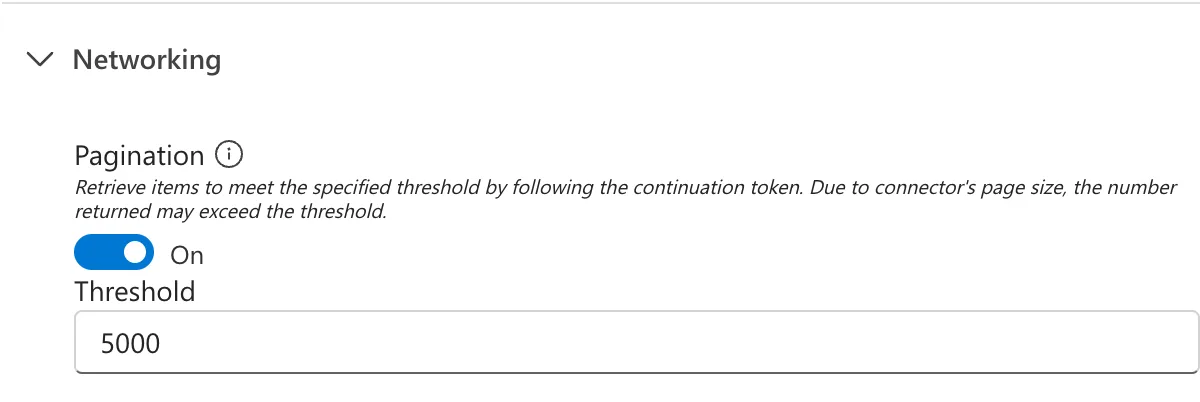
I entered 5000. Microsoft's limits page caps paginated items at 5,000 for flows on the Low performance profile and 100,000 for the others. The example table has 14 rows, so its runs return all 14 either way; pagination is there for the day the table grows past 256.
Step 5: Test and Read the Output
Save the flow and test it (How to Test a Cloud Flow Manually in Power Automate). In the run, select the action and look at its outputs. body holds value, a list with one entry per row, and each entry has the table's column names as its keys. The first row, value.0:
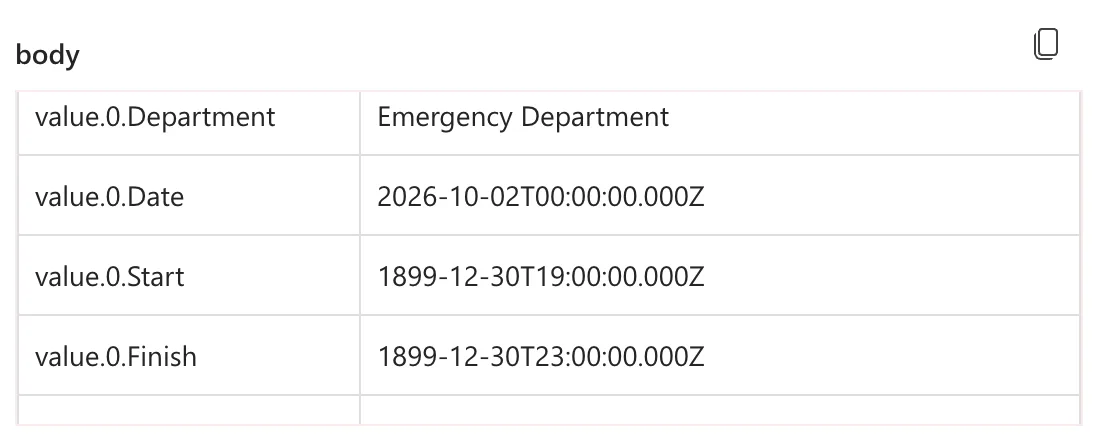
The connector reference adds that column names containing ., @, : or # are encoded in the response, so a column like Column [one]#1 comes back as Column [one]_x0023_1.
Step 6: Use the Rows
To act on each row, put the rows in an Apply to each loop (How to Loop Through an Array with Apply to Each in Power Automate). In the example, the loop is For each old row, over:
body('List_the_old_rows')?['value']
Inside it, each column is the current row's value by name (How to Use the items() Function in Power Automate):
items('For_each_old_row')?['Department']
A column name with spaces works the same way: items('For_each_old_row')?['Authorised by'].
Common Mistakes
| Mistake | What happens | Do this instead |
|---|---|---|
| Leaving pagination off | Microsoft documents up to 256 rows by default | Settings > Networking > Pagination |
| Leaving DateTime Format empty | Dates and times come back as numbers | ISO 8601 |
| Data in a plain range | The Table list doesn't offer it | Format it as a table |
| Renaming a column the flow reads | The flow reads an empty value | Keep column names, or update the expressions |
Troubleshooting
| Symptom | Likely cause | Fix |
|---|---|---|
| The workbook isn't in the file browser | Wrong Location or Document Library | Pick where the file really is |
| The table isn't in Table | The data isn't a table | Format it as a table in Excel |
| Paging count invalid in the settings | Pagination is on with no Threshold | Enter a number |
A column comes back with _x0023_ in its name | It contains # | Use the encoded name, or rename the column |
| The file can't be changed or deleted just after a run | The connector reference says a file may be locked for an update or delete up to 6 minutes since the last use of the connector | Try again a few minutes later |
FAQ
Doesn't Top Count already return all rows?
The pane's hint for Top Count says default = all, while the connector reference says the action returns up to 256 rows by default and to turn on pagination to get them all. My table was too small to see the difference; pagination covers both.
Can I read only some rows?
Filter Query takes an OData filter. The connector reference lists the functions it supports, eq, ne, contains, startswith and endswith, with one filter function per column. In the example, the flow reads every row and decides row by row.
Does the flow change the workbook?
No. List rows present in a table only reads.
Conclusion
List rows present in a table reads an Excel table in OneDrive or SharePoint: choose the location, the file and the table, set DateTime Format to ISO 8601, turn on pagination, and loop over body('<action>')?['value']. Each row's columns are then a name away.
Additional Resources
- Excel Online (Business) connector reference: the action's parameters, limits and known issues
- Known issues for connectors: pagination
- Limits of automated, scheduled, and instant flows
