How to Read One Setting of a Docker Image with docker image inspect --format

docker image inspect prints everything Docker knows about an image as a long block of JSON. When you need one value, such as which processor the image was built for or what it runs on start, --format picks it out. This guide reads two settings of nginx:alpine, with real output from Docker 29.9.3.
Syntax
docker image inspect --format '{{.FIELD}}' IMAGE
| Part | What it means |
|---|---|
'{{.FIELD}}' | A Go template naming the field, such as {{.Architecture}} or {{.Config.Cmd}}. Field names are case-sensitive |
IMAGE | The image's name and tag, or its ID |
The reference describes the command as "Display detailed information on one or more images", and Docker's formatting guide: "Docker supports Go templates which you can use to manipulate the output format of certain commands and log drivers." The single quotes work in PowerShell too.
Prerequisites
- Docker: Docker Desktop on Mac or Windows, running.
- An image, such as
nginx:alpine, downloaded withdocker pull nginx:alpine.
Step 1: Read the Architecture
docker image inspect --format '{{.Architecture}}' nginx:alpine
arm64
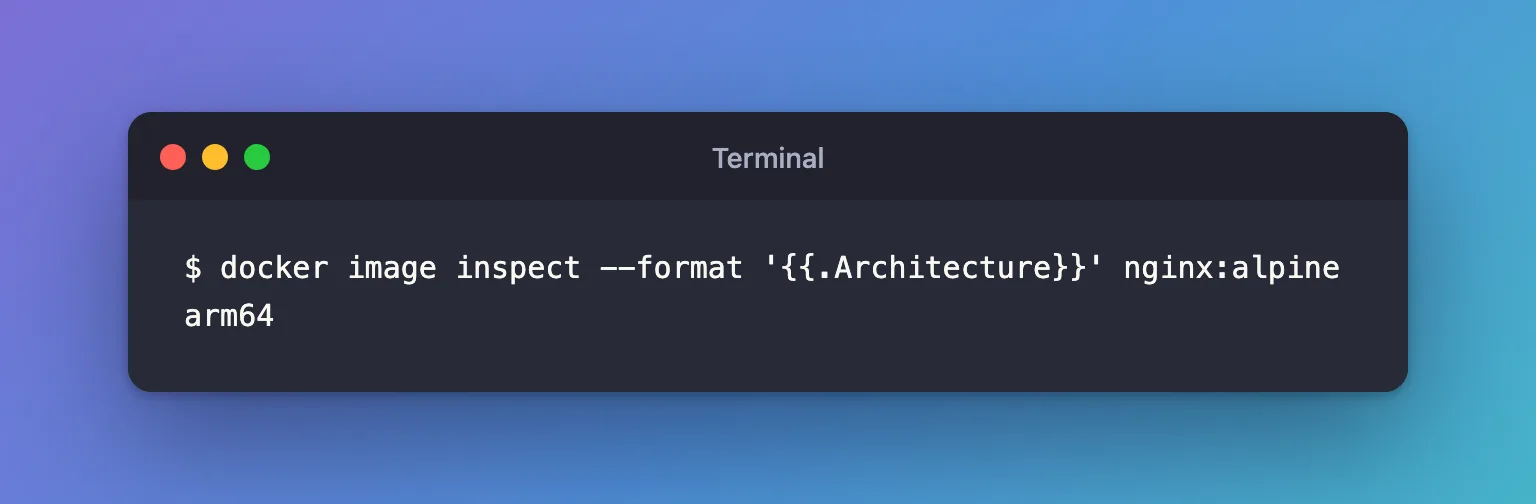
arm64: the copy Docker pulled was built for Apple silicon, the processor of the Mac this ran on. The same command printed arm64 in PowerShell 7.
Step 2: Read the Start Command
docker image inspect --format '{{.Config.Cmd}}' nginx:alpine
[nginx -g daemon off;]
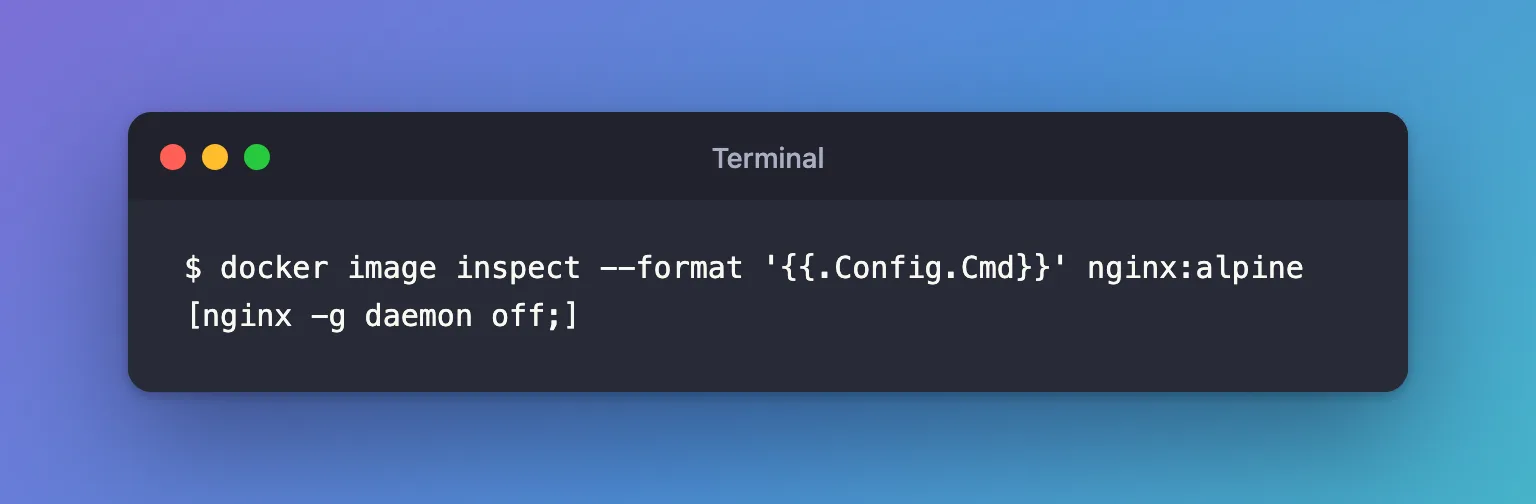
A dot reaches inside a section: .Config.Cmd is the Cmd field of the Config section, the command a container runs when it starts.
Common Mistakes
| Mistake | What happens | Do this instead |
|---|---|---|
| Writing the field in lowercase | template parsing error: template: :1:2: executing "" at <.architecture>: map has no entry for key "architecture" | Match the JSON's capital letters: {{.Architecture}} |
Expecting the full JSON with --format | Only the field you name is printed | Leave --format out to see every field, and their exact names |
Troubleshooting
| Symptom | Likely cause | Fix |
|---|---|---|
map has no entry for key | The field name is misspelled or in the wrong case | Run docker image inspect IMAGE without --format and copy the name from the JSON |
FAQ
How do I see which fields exist?
Run docker image inspect nginx:alpine without --format: the JSON it prints has every field, with the names to use.
Does this work for containers too?
Yes, docker container inspect --format takes the same kind of template for a container's settings: docker container inspect --format '{{.State.Status}}' web printed running.
Conclusion
docker image inspect --format '{{.Architecture}}' nginx:alpine printed arm64, and {{.Config.Cmd}} printed the start command. Copy field names from the full JSON, capital letters included.
Additional Resources
- docker image inspect — the command.
- Format command and log output — Go templates in Docker.
