How to Read from appsettings.json in ASP.NET Core (C#)

appsettings.json is where an ASP.NET Core app keeps its settings — connection strings, API base URLs, feature flags, timeouts. Reading those values comes down to one service, IConfiguration, which ASP.NET Core registers for you. In a console app you build the same thing yourself in a few lines.
This guide covers both, on .NET 10.
Prerequisites
Before you start, make sure that you have:
- The .NET 10 SDK installed.
- A project targeting
net10.0. - Basic familiarity with C# and the
dotnetCLI.
ASP.NET Core web projects need no extra packages. Console projects need one or two, covered in the console section below.
The Sample appsettings.json
Every example uses this file:
{
  "name": "JD Bots",
  "email": "info@jd-bots.com",
  "Api": {
    "BaseUrl": "https://api.example.com",
    "TimeoutSeconds": 30
  },
  "ConnectionStrings": {
    "Default": "Server=localhost;Database=AppDb;Trusted_Connection=True;TrustServerCertificate=True"
  }
}
Configuration is a flat set of key-value pairs. Nested JSON objects are flattened using a colon as the separator, so Api.BaseUrl above is addressed as Api:BaseUrl.
Read Configuration in ASP.NET Core
A web app created from the standard template already loads appsettings.json. WebApplication.CreateBuilder(args) wires up the default providers, and builder.Configuration exposes the merged result:
var builder = WebApplication.CreateBuilder(args);

var name = builder.Configuration["name"];
var baseUrl = builder.Configuration["Api:BaseUrl"];

var app = builder.Build();
app.Run();
The indexer always returns string?. When you need another type, use GetValue<T>():
var timeout = builder.Configuration.GetValue<int>("Api:TimeoutSeconds");
var timeoutOrDefault = builder.Configuration.GetValue("Api:TimeoutSeconds", 60);
Connection strings have a dedicated helper that reads from the ConnectionStrings section:
var connectionString = builder.Configuration.GetConnectionString("Default");
GetConnectionString("Default") is simply shorthand for builder.Configuration["ConnectionStrings:Default"].
Inject IConfiguration Where You Need It
Outside Program.cs, ask for IConfiguration through dependency injection. It is registered by default, so no extra setup is required:
public class ReportService(IConfiguration configuration)
{
    private readonly string _baseUrl = configuration["Api:BaseUrl"] ?? string.Empty;

    public string Describe() => $"Calling {_baseUrl}";
}
The same works in controllers, minimal API handlers, and Razor components.
Injecting IConfiguration everywhere gets hard to test and easy to typo. For anything beyond a single value, bind a section to a class instead — that is the next section.
Bind a Section to a Class (Options Pattern)
Create a class whose property names match the keys in the section:
public class ApiOptions
{
    public const string SectionName = "Api";

    public string BaseUrl { get; set; } = string.Empty;
    public int TimeoutSeconds { get; set; }
}
Register it in Program.cs:
builder.Services.Configure<ApiOptions>(
    builder.Configuration.GetSection(ApiOptions.SectionName));
Then inject IOptions<ApiOptions> and read .Value:
public class ApiClient(IOptions<ApiOptions> options)
{
    private readonly ApiOptions _options = options.Value;

    public string BuildUrl(string path) =>
        $"{_options.BaseUrl.TrimEnd('/')}/{path.TrimStart('/')}";
}
Three interfaces are available, and picking the right one matters:
| Interface | Behaviour | Use it for |
|---|---|---|
IOptions<T> | Read once, never updated. Singleton. | Values that do not change while the app runs. |
IOptionsSnapshot<T> | Recomputed per request. Scoped. | Settings you want to change without a restart. |
IOptionsMonitor<T> | Current value plus change notifications. Singleton. | Singletons and background services. |
If you only need the values at startup and not through DI, bind directly:
var apiOptions = builder.Configuration
    .GetSection(ApiOptions.SectionName)
    .Get<ApiOptions>();
Validate Settings at Startup
A missing or malformed setting is much cheaper to find at startup than on the first request:
builder.Services
    .AddOptions<ApiOptions>()
    .Bind(builder.Configuration.GetSection(ApiOptions.SectionName))
    .ValidateDataAnnotations()
    .ValidateOnStart();
Add [Required] or [Range] attributes to the options class, and the app fails fast with a clear message instead of starting in a broken state.
Read appsettings.json in a Console App
A console app has no host by default, so nothing loads the file for you. There are two ways to fix that.
Option 1: Use the Generic Host
This is the closest to how ASP.NET Core behaves, and it gives you dependency injection and logging as well. Add one package:
dotnet add package Microsoft.Extensions.Hosting
using Microsoft.Extensions.Configuration;
using Microsoft.Extensions.Hosting;

var builder = Host.CreateApplicationBuilder(args);

var name = builder.Configuration["name"];
var email = builder.Configuration["email"];

Console.WriteLine($"{name} --> {email}");
Host.CreateApplicationBuilder loads appsettings.json, appsettings.{Environment}.json, environment variables, and command-line arguments — the same defaults a web app gets.
Option 2: Build the Configuration Yourself
When you want nothing but configuration, build it directly. Add the JSON provider package:
dotnet add package Microsoft.Extensions.Configuration.Json
using Microsoft.Extensions.Configuration;

var configuration = new ConfigurationBuilder()
    .SetBasePath(Directory.GetCurrentDirectory())
    .AddJsonFile("appsettings.json", optional: false, reloadOnChange: true)
    .Build();

Console.WriteLine($"{configuration["name"]} --> {configuration["email"]}");
SetBasePath() tells the provider which folder to look in, and AddJsonFile() registers the file. optional: false means the app throws if the file is missing — useful, because a silent empty configuration is far harder to debug.
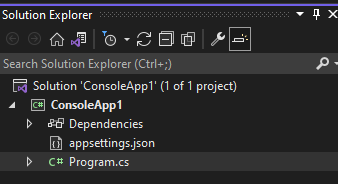
Your project should look like this, with appsettings.json sitting next to Program.cs:
Copy the File to the Output Folder
This is the step almost everyone misses. A console project does not copy appsettings.json to bin automatically, so the app looks in the output folder and finds nothing. Add this to your .csproj:
<ItemGroup>
  <None Update="appsettings.json">
    <CopyToOutputDirectory>PreserveNewest</CopyToOutputDirectory>
  </None>
</ItemGroup>
In Visual Studio you can do the same by selecting the file and setting Copy to Output Directory to Copy if newer.
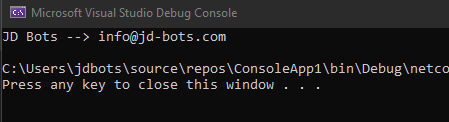
Run the app, and both values print:
Environment-Specific Settings
Alongside appsettings.json, you can add appsettings.Development.json, appsettings.Staging.json, and appsettings.Production.json. The environment file is loaded after the base file, so its values win:
{
  "Api": {
    "BaseUrl": "https://localhost:5001"
  }
}
The active environment comes from the ASPNETCORE_ENVIRONMENT (or DOTNET_ENVIRONMENT) variable, which launchSettings.json sets to Development on your machine.
Provider Precedence
Default app configuration is loaded in this order, from highest to lowest priority:
- Command-line arguments.
- Environment variables that are not prefixed with
ASPNETCORE_orDOTNET_. - User secrets, in the
Developmentenvironment only. appsettings.{Environment}.json.appsettings.json.- Host configuration.
So a value set in an environment variable overrides the same key in appsettings.json — which is exactly how you override settings in a container or on a deployment slot without rebuilding.
In environment variable names, use a double underscore instead of a colon, because colons are not valid everywhere:
export Api__BaseUrl="https://api.production.example.com"
Keep Secrets Out of appsettings.json
appsettings.json is committed to source control, so it must never hold passwords, API keys, or connection strings containing credentials.
During development, use user secrets, which are stored outside the project folder:
dotnet user-secrets init
dotnet user-secrets set "ConnectionStrings:Default" "Server=...;User Id=...;Password=..."
In production, use environment variables or a secret store such as Azure Key Vault. Your code does not change — the values arrive through the same IConfiguration. For a walkthrough, see Creating Key Vault in Microsoft Azure Portal for Secret Management.
Troubleshooting Common Errors
The configuration file 'appsettings.json' was not found and is not optional— The file is not in the output folder. Add theCopyToOutputDirectoryitem shown above, or setoptional: trueif the file really is optional.'ConfigurationBuilder' does not contain a definition for 'SetBasePath'—SetBasePath()is an extension method that ships with the file-based providers. InstallMicrosoft.Extensions.Configuration.Json(which brings it in) and addusing Microsoft.Extensions.Configuration;.'IConfigurationSection' does not contain a definition for 'Get'—Get<T>()andBind()come fromMicrosoft.Extensions.Configuration.Binder. TheMicrosoft.Extensions.Hostingpackage includes it.- The value is always
null— The key does not match. Keys are case-insensitive but the path must be exact, so useApi:BaseUrl, notAPI.BaseUrl. Printconfiguration.GetDebugView()to see every key and the provider it came from. - Bound properties are empty — The options class properties must be public with setters, and their names must match the JSON keys.
- A local change has no effect — Something with higher priority is overriding it, usually an environment variable or a command-line argument. Check the precedence list above.
- Changes to the file are ignored while running — Pass
reloadOnChange: true, and read throughIOptionsSnapshot<T>orIOptionsMonitor<T>rather thanIOptions<T>.
Frequently Asked Questions
How do I read a nested value from appsettings.json?
Join the levels with a colon, for example configuration["Api:BaseUrl"]. The same path works with GetValue<T>() and GetSection().
What is the difference between the indexer and GetValue<T>()?
The indexer returns a string?. GetValue<T>() converts the value to the type you ask for and lets you supply a fallback, for example GetValue("Api:TimeoutSeconds", 60).
Do I need to register IConfiguration in the DI container?
No. ASP.NET Core and the generic host register it for you. Just add it as a constructor parameter.
Which should I use: IOptions, IOptionsSnapshot, or IOptionsMonitor?
IOptions<T> for values fixed at startup, IOptionsSnapshot<T> when you want per-request refreshes, and IOptionsMonitor<T> inside singletons and background services.
Why does my console app throw a file-not-found error?
Because appsettings.json was not copied to the output folder. Add the CopyToOutputDirectory setting to the project file.
Can I use a file name other than appsettings.json?
Yes. Pass any name to AddJsonFile(), and call it more than once to layer several files. Later files override earlier ones.
How do I override a setting in production?
Set an environment variable using the key path with double underscores, such as Api__BaseUrl. Environment variables take priority over both appsettings.json files.
Is it safe to put a connection string in appsettings.json?
Only when it contains no credentials. Use user secrets during development and environment variables or Azure Key Vault in production.
Conclusion
Reading appsettings.json in ASP.NET Core is built in: WebApplication.CreateBuilder(args) loads the file, builder.Configuration exposes it, and IConfiguration is injectable anywhere. Use the indexer for one-off strings, GetValue<T>() for typed values, and the options pattern with Configure<T>() for anything structured.
In a console app you supply the piece the host normally provides — either Host.CreateApplicationBuilder(args) or a ConfigurationBuilder with SetBasePath() and AddJsonFile() — and remember to copy the file to the output folder.
Finally, keep environment differences in appsettings.{Environment}.json and secrets out of both, in user secrets or a managed secret store.
For the full reference, see the official documentation on configuration in ASP.NET Core, the options pattern, and configuration in .NET.
Video Tutorial
Coming soon!
