How to Read a Text File into a String with File.ReadAllTextAsync in C#

File.ReadAllTextAsync opens a text file, reads everything in it into one string, and closes the file again, in a single line of code. File.ReadAllText does the same for code that doesn't use await.
Microsoft's reference for the two methods: ReadAllTextAsync asynchronously opens a text file, reads all the text in the file, and then closes the file, and ReadAllText opens a text file, reads all the text in the file, and then closes the file.
Both give you the whole file as one string, line breaks included.
Syntax
string <text> = await File.ReadAllTextAsync(<path>);
string <text> = await File.ReadAllTextAsync(<path>, <cancellationToken>);
string <text> = File.ReadAllText(<path>);
| Part | What it is |
|---|---|
<text> | The variable that gets everything in the file as one string |
File.ReadAllTextAsync | Starts the read and returns a Task<string>: a read that may still be running |
await | Waits for that task without blocking, then gives you the string |
<path> | The file to read: a full path, or a relative one such as notes.txt |
<cancellationToken> | Optional. Lets other code cancel the read |
File.ReadAllText | The synchronous version: it returns the string itself, and the line waits until the whole file is read |
The reference for what the task holds: A task that represents the asynchronous read operation, which wraps the string containing all text in the file. And for await: When the asynchronous operation completes, the await operator returns the result of the operation, if any.
A relative path starts from the folder the app runs in. The Path reference: Relative paths specify a partial location: the current location is used as the starting point when locating a file specified with a relative path.
The Example
A console app called ReadTextFile writes a three-line shopping list to shopping.txt, then reads it back with File.ReadAllTextAsync and with File.ReadAllText.
Prerequisites
- The .NET 10 SDK.
dotnet --versionprints a version that starts with10.0.
Step 1: Create a Console App
dotnet new console -n ReadTextFile
cd ReadTextFile
The template "Console App" was created successfully.

Processing post-creation actions...
Restoring /Users/you/source/ReadTextFile/ReadTextFile.csproj:
  Determining projects to restore...
  Restored /Users/you/source/ReadTextFile/ReadTextFile.csproj (in 43 ms).
Restore succeeded.
dotnet new console -n ReadTextFile creates a folder named ReadTextFile with a project file and a Program.cs, and cd moves into it. Everything this example uses is part of .NET, so there's no package to add. Open the folder in VS Code, or ReadTextFile.csproj in Visual Studio.
Step 2: Write the Code
Replace everything in Program.cs. First, a file to read:
// Make a small text file, so the example has something to read.
File.WriteAllText("shopping.txt", "Apples\nBread\nMilk\n");
File.WriteAllText creates shopping.txt with three lines, and each \n is a line break. The path has no folder in it, so the file goes in the folder the app runs from. With dotnet run, that's the project folder.
Then read it asynchronously:
// Read the whole file into one string. await waits for the read to finish.
string list = await File.ReadAllTextAsync("shopping.txt");
Console.WriteLine($"ReadAllTextAsync read {list.Length} characters:");
Console.Write(list);
ReadAllTextAsync starts the read, and await waits for it and puts the text in list. list.Length is the number of characters, and Console.Write prints the text as it is.
Then the synchronous way:
// The synchronous version reads the same text and blocks until it's done.
string sameList = File.ReadAllText("shopping.txt");
Console.WriteLine($"ReadAllText gave the same text: {sameList == list}");
ReadAllText returns the string directly, and sameList == list compares the two strings.
Step 3: Run It
Run it in VS Code's terminal, or press Ctrl+F5 in Visual Studio:
dotnet run
ReadAllTextAsync read 18 characters:
Apples
Bread
Milk
ReadAllText gave the same text: True
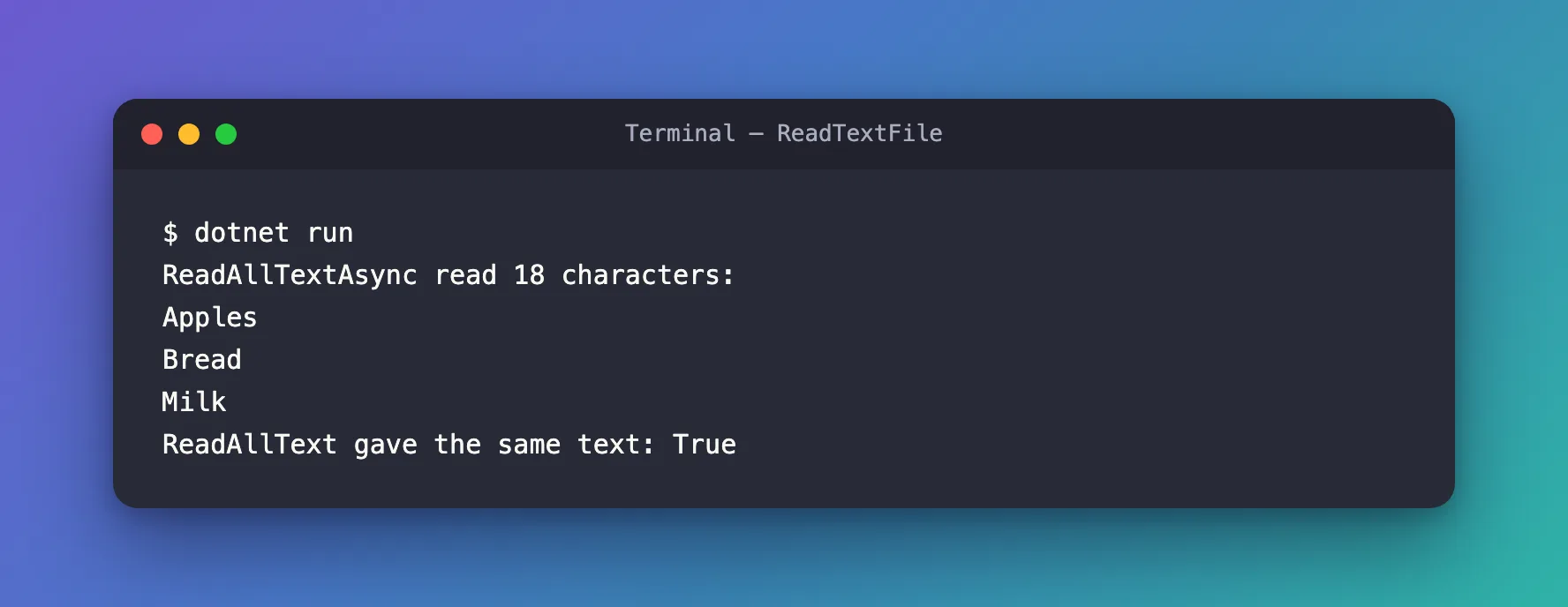
ReadAllTextAsync returned all 18 characters in one string: 15 letters and 3 line breaks, which is why Console.Write printed three lines. ReadAllText read the same 18 characters, so the comparison printed True. shopping.txt is now in the project folder, next to Program.cs.
The Complete File
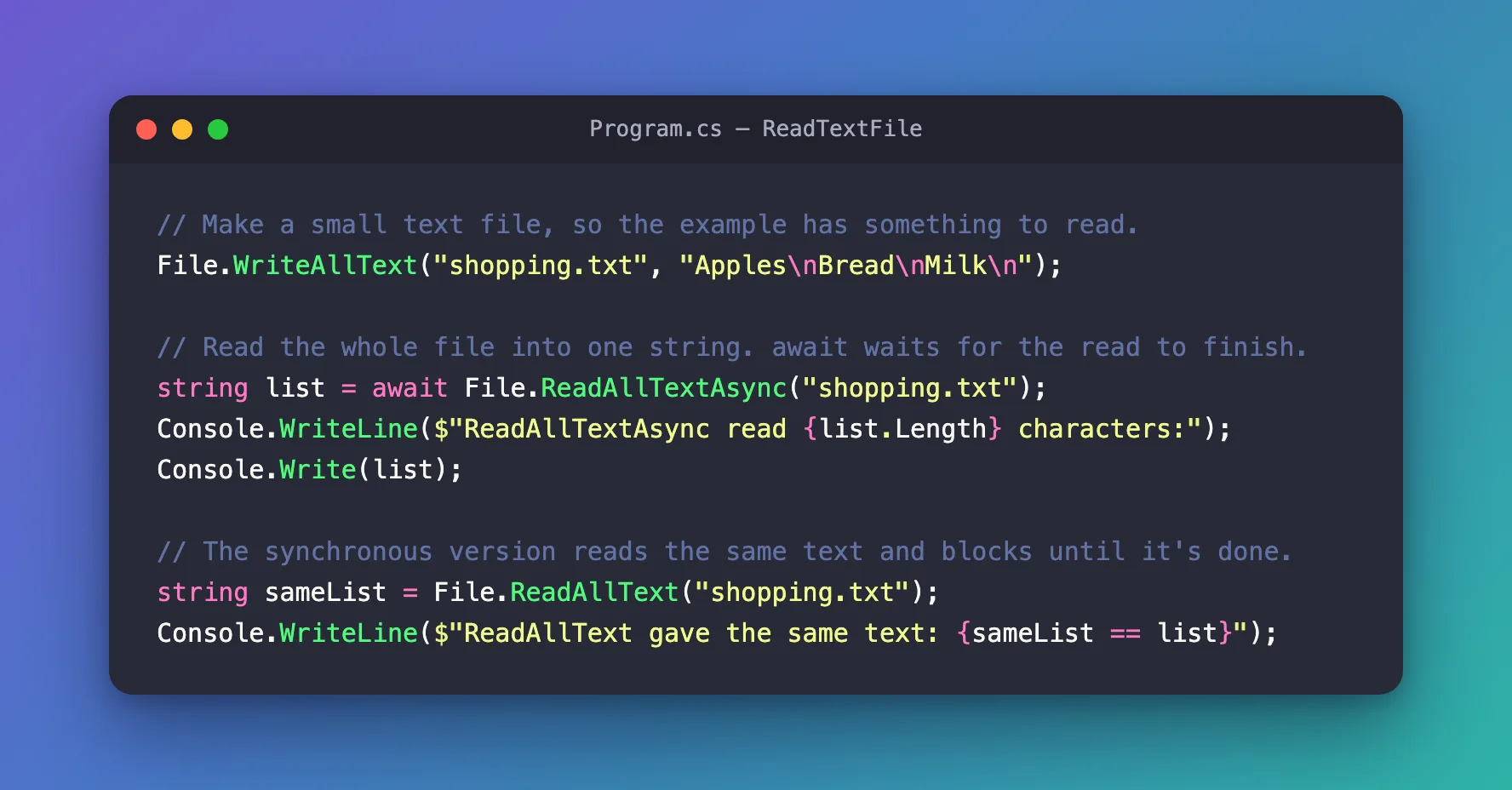
// Make a small text file, so the example has something to read.
File.WriteAllText("shopping.txt", "Apples\nBread\nMilk\n");

// Read the whole file into one string. await waits for the read to finish.
string list = await File.ReadAllTextAsync("shopping.txt");
Console.WriteLine($"ReadAllTextAsync read {list.Length} characters:");
Console.Write(list);

// The synchronous version reads the same text and blocks until it's done.
string sameList = File.ReadAllText("shopping.txt");
Console.WriteLine($"ReadAllText gave the same text: {sameList == list}");
Common Mistakes
| Mistake | What happens | Do this instead |
|---|---|---|
| Reading a file that isn't there | File.ReadAllTextAsync("missing.txt") stopped the app with Unhandled exception. System.IO.FileNotFoundException: Could not find file '/Users/you/source/ReadTextFile/missing.txt'. The message shows the full path it looked in | Check the file name and the folder the app runs from. If the file may be missing, check with File.Exists before reading |
Leaving out await | string list = File.ReadAllTextAsync("shopping.txt"); didn't build: error CS0029: Cannot implicitly convert type 'System.Threading.Tasks.Task<string>' to 'string' | Put await before the call. The task holds the string, it isn't one |
Leaving out await with var | var list = File.ReadAllTextAsync("shopping.txt"); built, but Console.WriteLine(list) printed a type name that starts with System.Runtime.CompilerServices.AsyncTaskMethodBuilder instead of the list | var made list the task. Add await and the variable gets the text |
FAQ
Should I use ReadAllTextAsync or ReadAllText?
They return the same string, as the example shows. The difference is what your app does while the disk works. Microsoft's guide on file access: Asynchrony makes UI applications more responsive because the UI thread that launches the operation can perform other work. And: Asynchrony improves the scalability of ASP.NET and other server-based applications by reducing the need for threads. In code that already uses await, such as a web app, use ReadAllTextAsync.
What does the cancellation token do?
It lets other code stop the read. With a token that was already canceled, the await threw TaskCanceledException: A task was canceled. The reference: The cancellation token was canceled. This exception is stored into the returned task. It names OperationCanceledException, the class TaskCanceledException derives from, so catch (OperationCanceledException) catches it: that catch printed Caught TaskCanceledException: A task was canceled.
Which text encoding does it use?
The reference: This method attempts to automatically detect the encoding of a file based on the presence of byte order marks. A file with café saved in Latin-1, with no byte order mark, came back as caf�. Passing the encoding read it correctly, as café:
using System.Text;

string latin1 = await File.ReadAllTextAsync("menu.txt", Encoding.Latin1);
The reference: Use the ReadAllText(String, Encoding) method overload when reading files that might contain imported text, because unrecognized characters may not be read correctly.
Conclusion
await File.ReadAllTextAsync(path) gives you a whole text file as one string, and File.ReadAllText(path) does the same without await. A relative path starts in the folder the app runs from, and a file that isn't there throws FileNotFoundException, with the full path it looked in.
Additional Resources
- File.ReadAllTextAsync — both overloads, with and without an encoding.
- File.ReadAllText — the synchronous version and the exceptions it throws.
- Asynchronous file access (C#) — why to read and write files asynchronously.
