How to Read a File from SharePoint in Power Automate

Get file content using path reads a file in a SharePoint library and hands its content to the next steps. For a text file, that's the text itself; for a workbook or a PDF, it's the file, ready to be saved somewhere else or sent on.
The example reads hello.txt, a text file with Hello from SharePoint! in it, from the Documents library of a site called Communication site (How to Create a File in SharePoint in Power Automate), and shows its text in a Compose.
Step 1: Add Get file content using path
In a flow with the trigger Manually trigger a flow, select +, Add an action, search for Get file content using path and select it under SharePoint. OneDrive for Business has an action with the same name.
Step 2: Choose the File
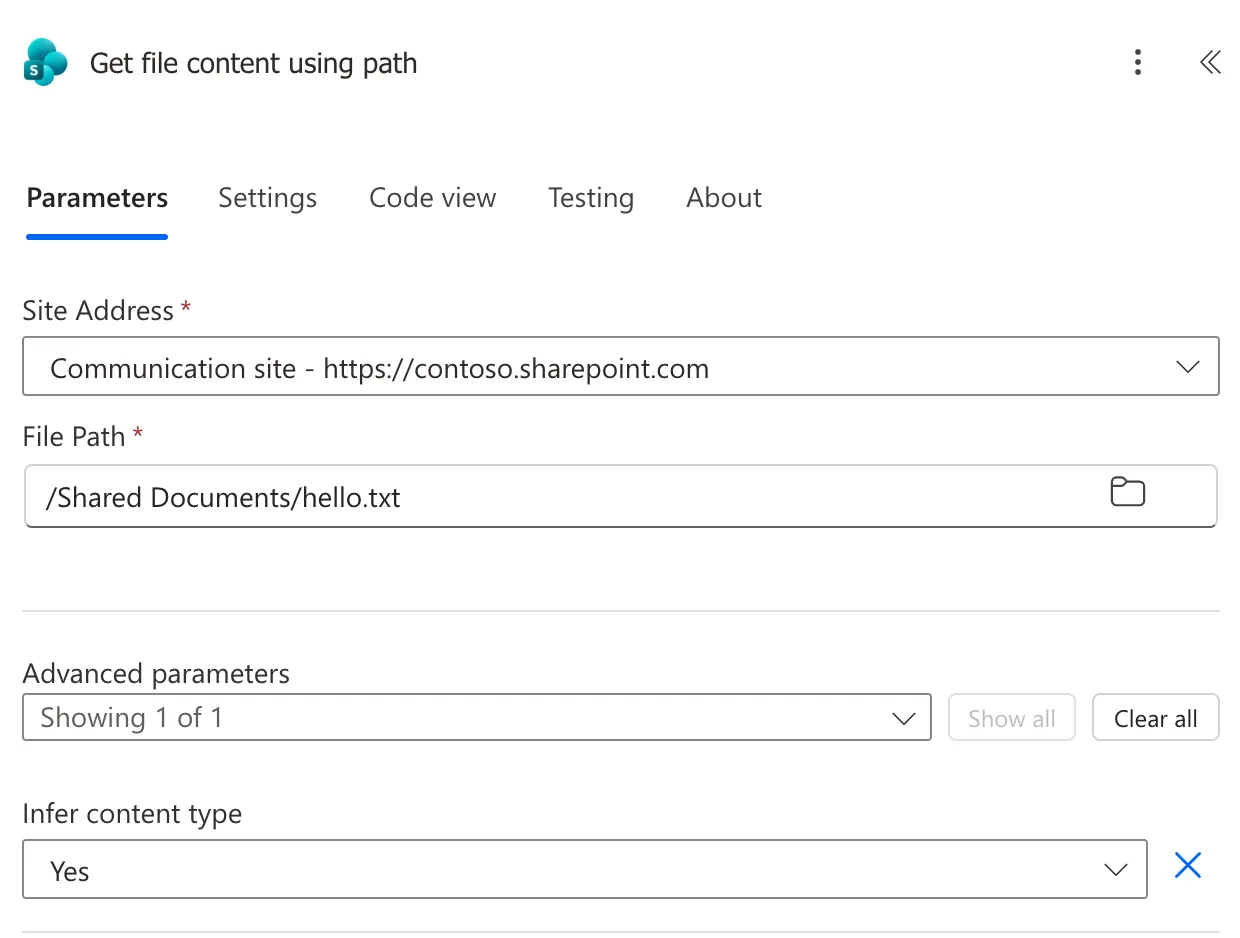
- Site Address: the site, here Communication site.
- File Path: select the folder icon and pick the file, here /Shared Documents/hello.txt. Shared Documents is the address of the library called Documents.
Under Advanced parameters, Infer content type was Yes. Microsoft's SharePoint connector reference describes it as Infer content-type based on extension:
Step 3: Use the File Content
The action's output is File Content. Add a Compose called File text and pick File Content for its Inputs (How to Use the Compose Action in Power Automate):
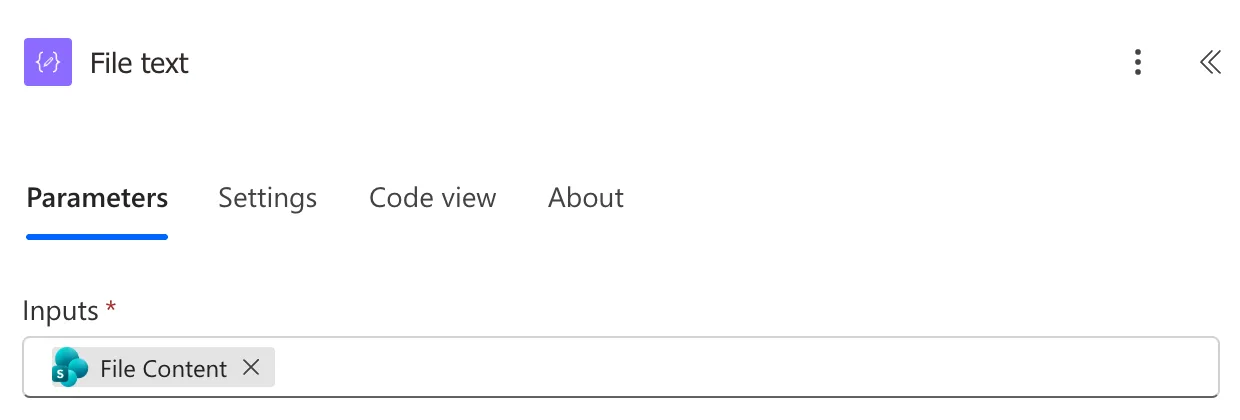
In an expression, the same value is body('Get_file_content_using_path').
The Result
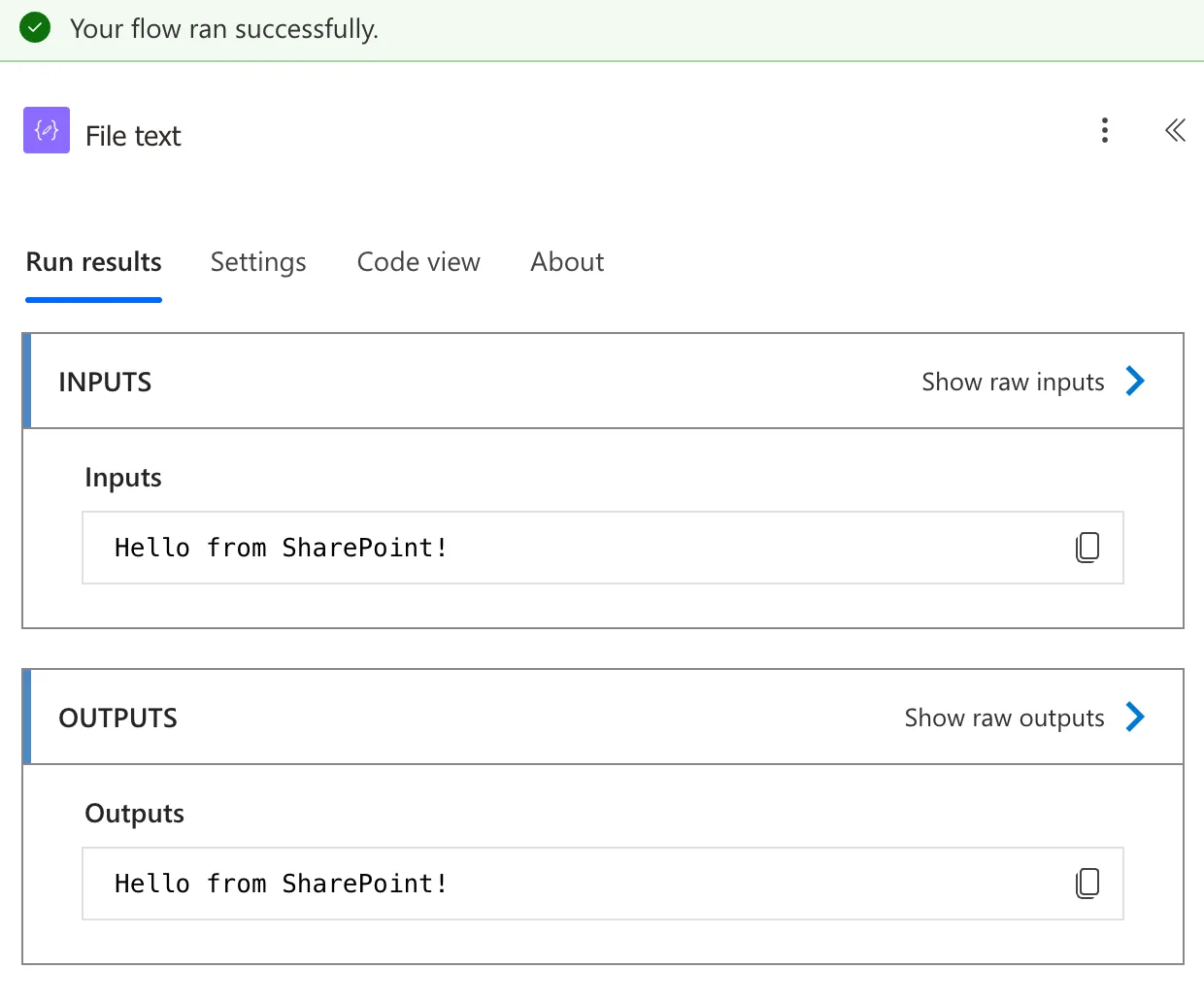
Save the flow and test it (How to Test a Cloud Flow Manually in Power Automate). File text shows the file's text, Hello from SharePoint!:
Common Mistakes
| Mistake | What happens | Do this instead |
|---|---|---|
| Picking OneDrive's action with the same name | It reads from a OneDrive, not the site | Pick it under SharePoint |
Typing the path from the library's name, /Documents/hello.txt | The path is the library's address, /Shared Documents, not its name | Pick the file with the folder icon |
| Expecting the columns of the file, such as Modified By | This action returns only the content | Get file properties for the library's columns |
Troubleshooting
| Symptom | Likely cause | Fix |
|---|---|---|
| The run fails: the file isn't found | The file was moved or renamed after the path was picked | Pick the file again |
| The action asks you to sign in to OneDrive | It's OneDrive's action | Delete it and add the SharePoint one |
| A workbook's content isn't text you can read | A workbook is a binary file, not text | Pass it to an action that takes file content, such as Create file |
FAQ
How do I copy a file?
Give this action's File Content to Create file with the new name and folder (How to Create a File in SharePoint in Power Automate). The copy has the same content as the original.
Is there a version that uses an ID instead of a path?
Yes: Get file content gets file contents using the file identifier, in the reference's words. The path version is easier when you know where the file is; the identifier version suits files that a trigger or an earlier action found.
How do I get the file's link or its columns?
With Get file properties: How to Get a Link to a SharePoint File in Power Automate.
Conclusion
Get file content using path reads a file by its place in a library, and its File Content goes wherever the flow needs it: a Compose for a text file, Create file for a copy.
