How to Read a CSV File from a Zip File with pandas

Datasets often come as a zip file with one CSV file inside. You don't need to unzip it first, or open it with Python's zipfile module: pandas.read_csv("archive.zip") reads the CSV straight out of the zip. This guide shows it, and what happens when the zip holds more than one file, with real output from pandas 3.1.1.
Syntax
frame = pd.read_csv(path)
frame = pd.read_csv(path, compression="zip")
| Part | What it means |
|---|---|
path | The zip file. It must hold exactly one file, the CSV |
compression | How the file is compressed. The default, "infer", reads it from the name: a path ending in .zip is unzipped. Pass "zip" when the name doesn't end in .zip |
The pandas reference says it in one sentence: "If using 'zip' or 'tar', the ZIP file must contain only one data file to be read in."
Step 1: Make a Zip with One CSV File
The example is a zip of three orders. If you have no zip at hand, this script makes one, orders.zip, holding orders.csv:
import zipfile

with zipfile.ZipFile("orders.zip", "w", zipfile.ZIP_DEFLATED) as archive:
    archive.writestr("orders.csv", "order,amount,paid\n1001,25.50,True\n1002,12.00,False\n1003,40.25,True\n")
uv run python make_zip.py
It prints nothing; orders.zip is now in the folder.
Step 2: Read the CSV Straight from the Zip
Pass the zip's path to read_csv as if it were the CSV:
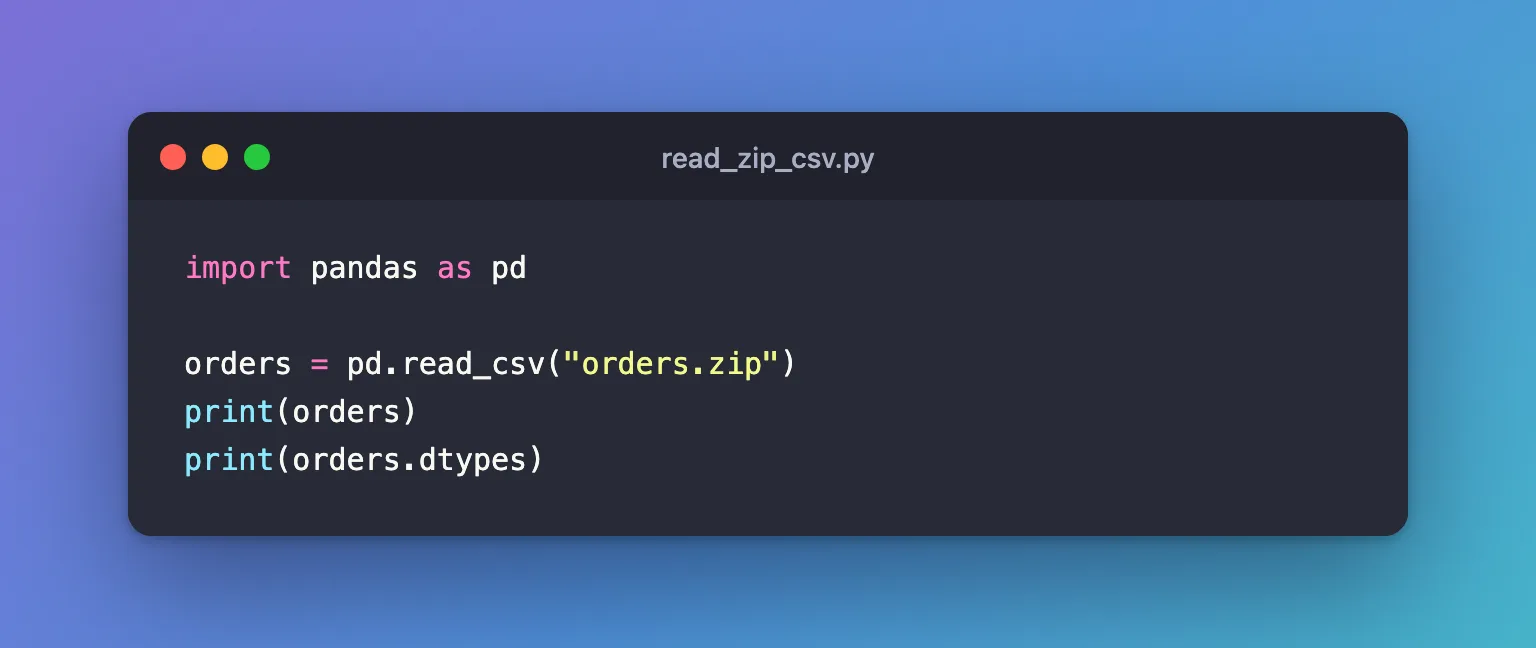
import pandas as pd

orders = pd.read_csv("orders.zip")
print(orders)
print(orders.dtypes)
uv run python read_zip_csv.py
   order  amount   paid
0   1001   25.50   True
1   1002   12.00  False
2   1003   40.25   True
order       int64
amount    float64
paid         bool
dtype: object
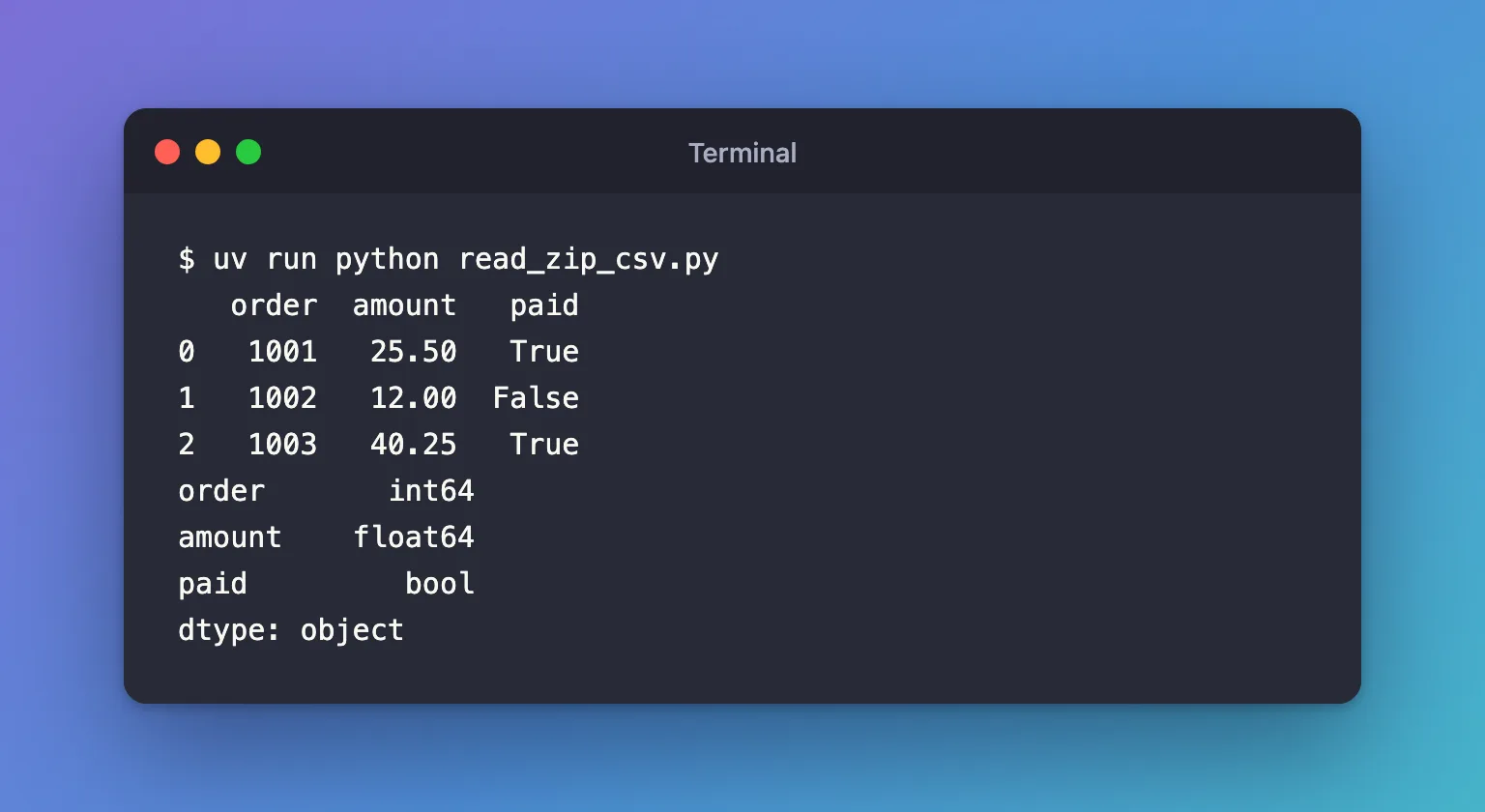
pandas saw the .zip ending, unzipped the one file inside and read it like any CSV, column types included: True and False became a bool column.
Step 3: See What Happens with Two Files
A zip with a second CSV inside, two-files.zip, can't be read this way:
import pandas as pd

pd.read_csv("two-files.zip")
uv run python read_two_file_zip.py
ValueError: Multiple files found in ZIP file. Only one file per ZIP: ['orders.csv', 'refunds.csv']
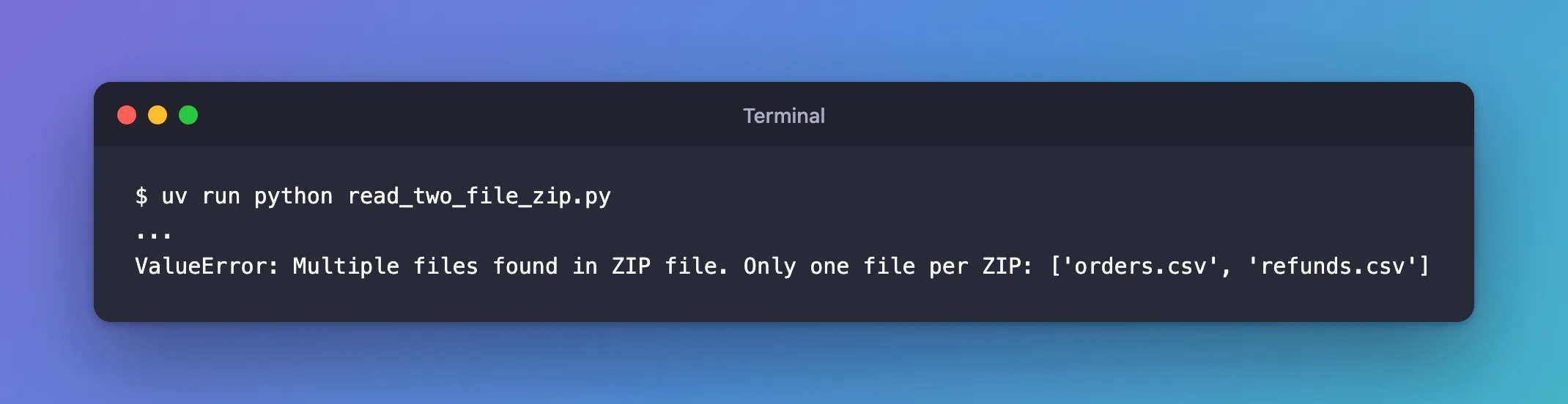
The message lists the files, so you know what's inside. For a zip like that, open the zip with Python's zipfile module and hand pandas the one file you want, as How to Read a File Inside a Zip Archive in Python shows.
Common Mistakes
| Mistake | What happens | Do this instead |
|---|---|---|
| Extracting the zip to disk first | An extra file to keep and clean up | Pass the zip to read_csv |
| Reading a zip with several files | ValueError: Multiple files found in ZIP file | Open it with zipfile and pick the file |
A zip whose name doesn't end in .zip | pandas reads the compressed bytes as text and fails: UnicodeDecodeError: 'utf-8' codec can't decode byte 0xb0 in position 14: invalid start byte | compression="zip" |
Troubleshooting
| Symptom | Likely cause | Fix |
|---|---|---|
ValueError: Multiple files found in ZIP file. Only one file per ZIP: [...] | More than one file inside | Read one file with zipfile |
UnicodeDecodeError: 'utf-8' codec can't decode byte ... | The zip's name doesn't end in .zip, so pandas didn't unzip it | pd.read_csv(path, compression="zip") |
FAQ
Do the other read_csv options still work?
Yes. The zip only changes how pandas gets the bytes; sep, dtype, usecols and the rest apply to the CSV inside.
Does it work for other compressed formats?
The reference lists .gz, .bz2, .zip, .xz, .zst and the .tar variants for compression="infer".
Conclusion
pd.read_csv("orders.zip") read the three orders straight out of the zip, with the right column types, because the zip held one file. With two files inside, pandas stopped and listed them; for those, pick the file with zipfile.
Additional Resources
- pandas.read_csv — the
compressionoption.
