How to Put a New Line in a String with \n in C#

A message with two lines, a blank line between paragraphs, a label and a value lined up: all of these need characters you can't type straight into a string. In C#, you write them as escape sequences, a backslash and a letter, and \n is the one that starts a new line.
Syntax
string <text> = "<first line>\n<second line>";
| Escape sequence | What it puts in the string |
|---|---|
\n | A new line |
\t | A tab |
\\ | One backslash |
\" | A double quote |
Microsoft's strings guide lists the escape sequences in a table, where the row for \n reads: \n | New line | 0x000A. That last value is the character's number.
The Example
The program prints two lines from one string, two paragraphs with an empty line between them, a label and a value separated by a tab, and an interpolated string with a new line in it.
Prerequisites
- The .NET 10 SDK or newer, which runs a single
.csfile withdotnet run. This guide uses .NET SDK 10.0.404.
Step 1: Write the Code
Create a file named main.cs in an empty folder:
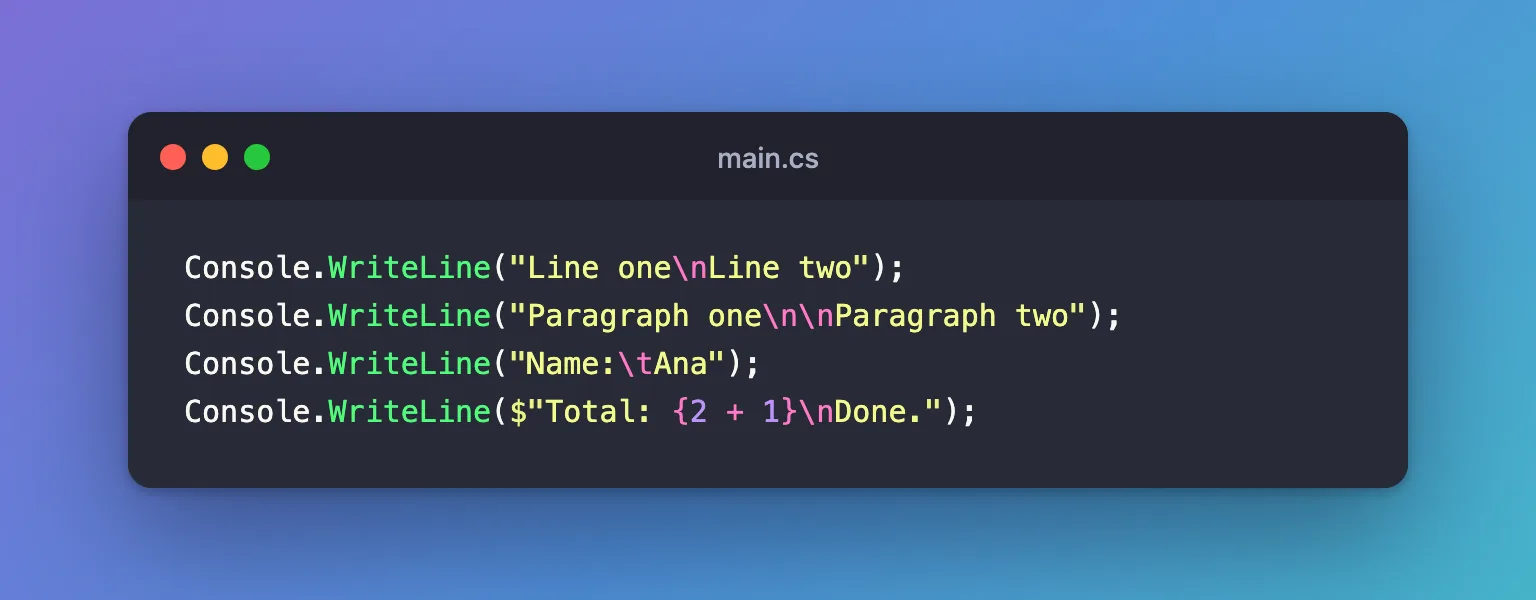
Console.WriteLine("Line one\nLine two");
Console.WriteLine("Paragraph one\n\nParagraph two");
Console.WriteLine("Name:\tAna");
Console.WriteLine($"Total: {2 + 1}\nDone.");
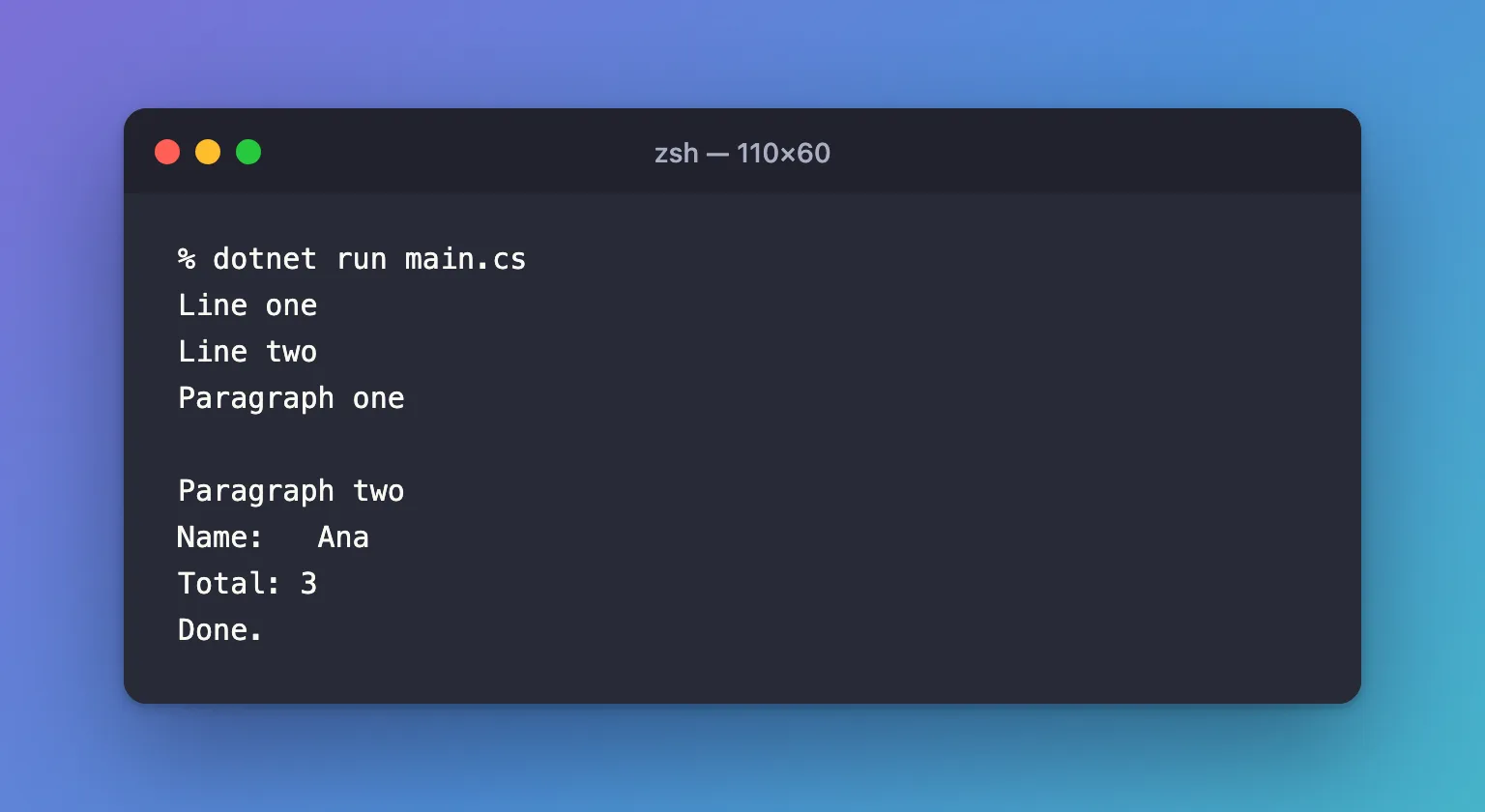
Step 2: Run It
dotnet run main.cs
Line one
Line two
Paragraph one

Paragraph two
Name:   Ana
Total: 3
Done.
- Each
\nstarted a new line, so one string printed as two lines. \n\nis two new lines in a row, which leaves an empty line.\tis a tab: the terminal movedAnato the next tab stop.- In the interpolated string,
{2 + 1}became 3, and\nstill worked.
The command is the same in zsh, bash and PowerShell.
A Backslash That Wasn't Meant as One
Every backslash in a normal string starts an escape sequence. That breaks Windows-style paths:
Console.WriteLine("C:\new\notes");
Console.WriteLine(@"C:\new\notes");
Console.WriteLine("C:\\new\\notes");
C:
ew
otes
C:\new\notes
C:\new\notes
The first line read \n twice, as two new lines, and the n of new and of notes were gone. Two ways keep the backslashes:
@"..."is a verbatim string: a backslash is just a backslash.\\writes one backslash in a normal string.
Common Mistakes
| Mistake | What happens | Do this instead |
|---|---|---|
A path like "C:\new\notes" in a normal string | Each \n becomes a new line | @"C:\new\notes" or "C:\\new\\notes" |
Writing /n instead of \n | It's printed as the two characters /n | Use a backslash |
Expecting \n to work in a verbatim string, @"a\nb" | Verbatim strings don't read escape sequences | Use a normal string, or a real line break inside the verbatim one |
Troubleshooting
| Symptom | Likely cause | Fix |
|---|---|---|
| Letters missing after backslashes in a path | \n, \t and others were read as escape sequences | Use @"..." or double the backslashes |
| Text runs on one line where you wanted two | No \n between them | Add \n |
FAQ
What about Environment.NewLine?
Environment.NewLine is the new-line text of the system the program runs on. Its reference gives its value as \r\n for non-Unix platforms, or \n for Unix platforms. On this Mac, Environment.NewLine == "\n" printed True. Use it when the text must match the system's own line endings, such as a file Windows tools will open.
Does Console.WriteLine add a new line by itself?
Yes, one at the end of each call, which is why each Console.WriteLine above started on its own line. \n adds new lines inside the text.
Conclusion
Write \n inside a string to start a new line, \n\n for an empty line between two, and \t for a tab, in normal and interpolated strings alike. For backslashes that should stay backslashes, such as in paths, use a verbatim string, @"...", or \\.
Additional Resources
- Strings: string escape sequences, on Microsoft Learn.
- Environment.NewLine property, on Microsoft Learn.
