How to Publish a Docker Container's Port Only on Your Computer

A program in a Docker container listens on a port inside the container, which your computer can't reach until you publish it with -p. Written as -p 8081:80, Docker publishes it on every network interface, so other computers on your network can reach it too. Written as -p 127.0.0.1:8081:80, only your own computer can. This guide publishes nginx both ways and checks each with docker port, with real output from Docker Desktop 4.100.1.
Syntax
docker run -d --name NAME -p 127.0.0.1:HOST_PORT:CONTAINER_PORT IMAGE
| Part | What it means |
|---|---|
127.0.0.1 | Publish on your computer's own address only |
HOST_PORT | The port on your computer, such as 8081 |
CONTAINER_PORT | The port the program listens on inside the container, such as nginx's 80 |
The docker run reference: "If you don't specify an IP address (i.e., -p 80:80 instead of -p 127.0.0.1:80:80) when publishing a container's ports, Docker publishes the port on all interfaces (address 0.0.0.0) by default. These ports are externally accessible." The same commands work in PowerShell.
Prerequisites
- Docker: Docker Desktop on Mac or Windows, running.
Step 1: Publish on Your Computer Only
nginx listens on port 80 inside its container. Publish it on port 8081 of 127.0.0.1:
docker run -d --name web -p 127.0.0.1:8081:80 nginx:alpine
Ask it for its home page, and show only the page's title, with grep, or Select-String in PowerShell:
- macOS / Linux
- Windows (PowerShell)
curl -s http://127.0.0.1:8081 | grep '<title>'
<title>Welcome to nginx!</title>
curl -s http://127.0.0.1:8081 | Select-String '<title>'
<title>Welcome to nginx!</title>
nginx answered from inside the container. docker port shows where the port is published:
docker port web
80/tcp -> 127.0.0.1:8081
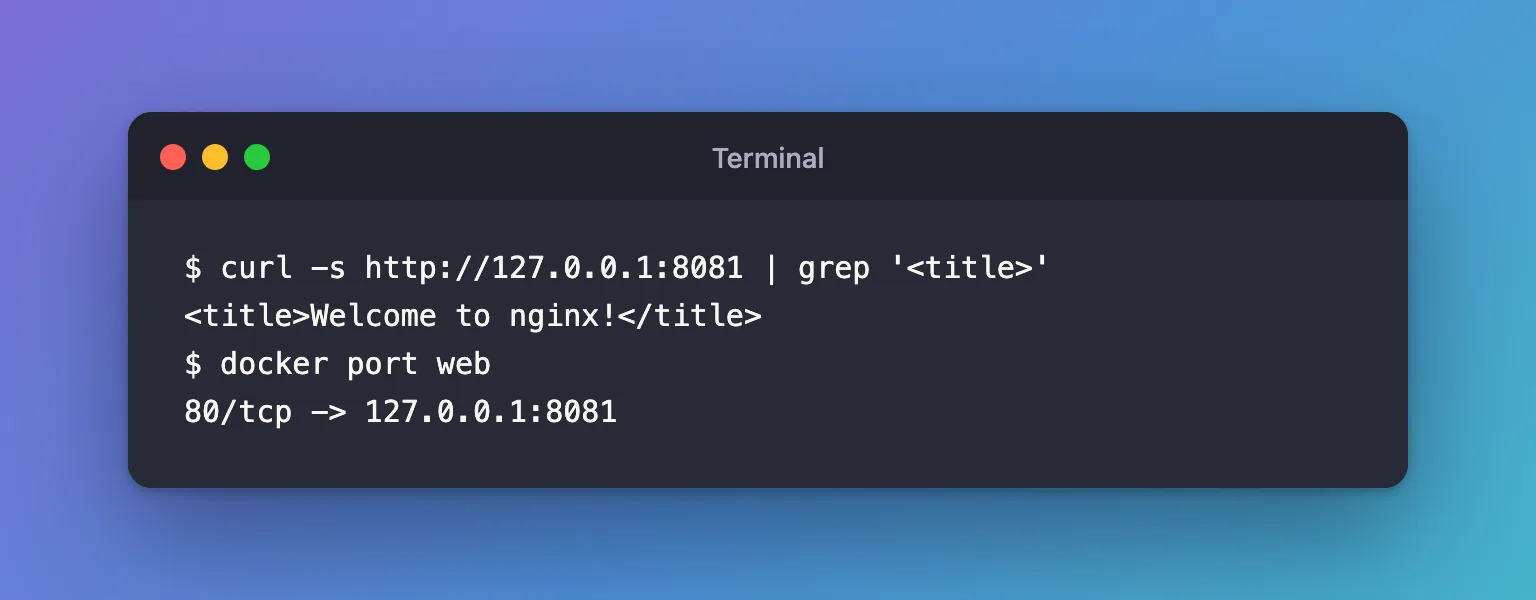
The container's port 80 is published on 127.0.0.1:8081: your own computer, and nothing else.
Step 2: Compare Without the Address
Stop and remove that container (docker stop web, then docker rm web), and start one without an address:
docker run -d --name web-open -p 8082:80 nginx:alpine
docker port web-open
80/tcp -> 0.0.0.0:8082
80/tcp -> [::]:8082
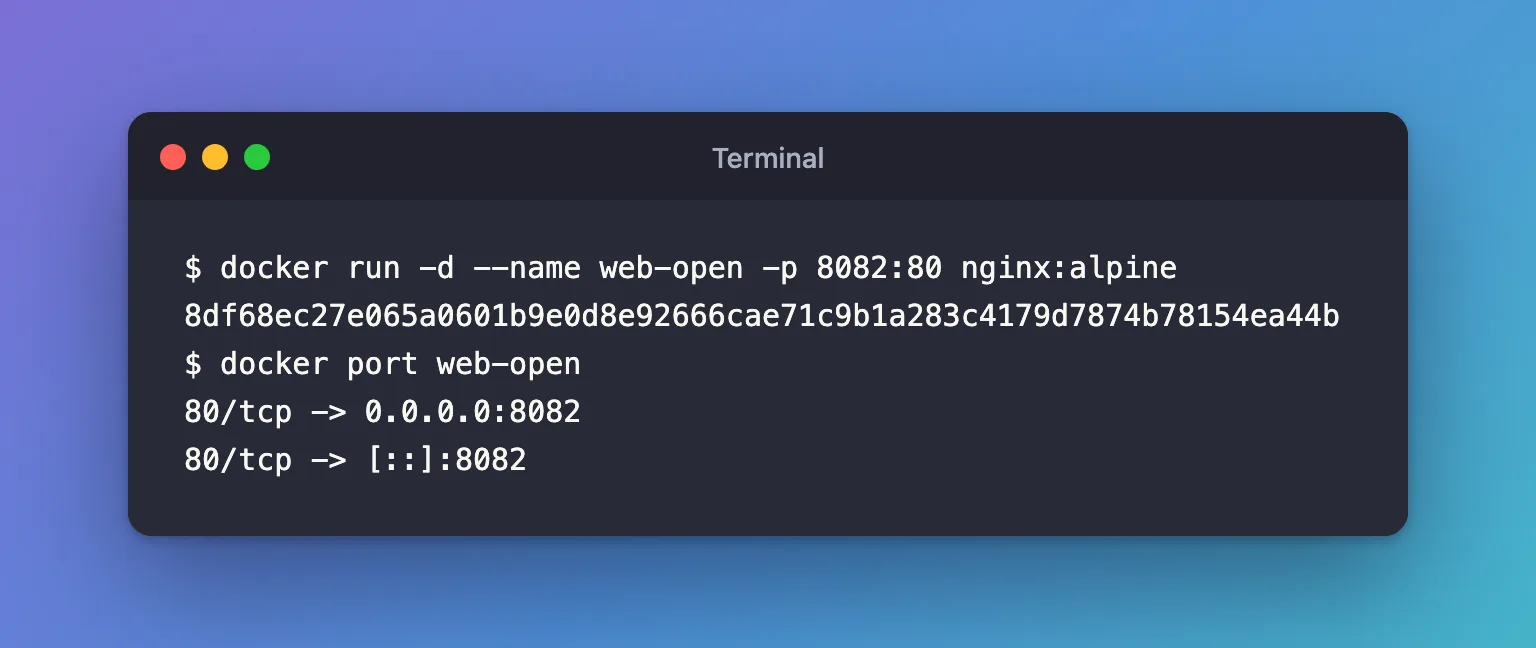
0.0.0.0 and [::] mean every network interface, for IPv4 and IPv6: anyone who can reach your computer on the network can reach this nginx. For a server you're only trying out, or one without its own security, keep 127.0.0.1. Stop and remove web-open too.
Common Mistakes
| Mistake | What happens | Do this instead |
|---|---|---|
-p 8082:80 for something only you should reach | It's published on every interface, 0.0.0.0 and [::] | -p 127.0.0.1:8082:80 |
A program in the container that listens on the container's own 127.0.0.1 | The published port reaches the container, but nothing answers there: curl: (52) Empty reply from server | The program must listen on every address inside the container, 0.0.0.0 |
Troubleshooting
| Symptom | Likely cause | Fix |
|---|---|---|
curl: (7) Failed to connect | The container isn't running, or the port isn't published | docker ps and docker port NAME |
docker port prints nothing | The container was started without -p | Start it again with -p |
FAQ
How do I see the ports of a running container?
docker port NAME, as above. For a container started without -p, it prints nothing.
What's the difference between the two addresses in Step 2?
0.0.0.0 is every IPv4 interface and [::] every IPv6 one. With 127.0.0.1, Docker publishes on one address, your computer's own.
Conclusion
-p 127.0.0.1:8081:80 published nginx's port 80 on 127.0.0.1:8081 only, as docker port showed, while -p 8082:80 published it on 0.0.0.0:8082 and [::]:8082, every interface.
Additional Resources
- docker container run: publish ports —
-pand its forms. - docker container port — listing a container's published ports.
