How to Publish a Canvas App in Power Apps

Saving a canvas app keeps your changes; publishing gives them to the people you've shared the app with. Until you publish, they keep using the previous version, or can't open the app at all if it was never published.
Save vs Publish
Microsoft's save and publish article puts the difference simply:
| Action | What it does |
|---|---|
| Save | Stores your changes as a new version. Users don't see them. |
| Publish | Makes your latest saved version the one users run. |
Microsoft also says to publish before you share an app, and after every change you want people to see.
Prerequisites
- A saved canvas app, open in Power Apps Studio. The example is the Career Development Plan app (How to Create a Canvas App Inside a Solution).
Step 1: Select Publish
Save first, then select Publish on the right of Studio's command bar. Its tooltip reads Publish (Ctrl+Shift+P):

If there are unsaved changes, Studio asks you to save first.
Step 2: Publish This Version
The Publish dialog says which environment the version goes to, shows the app's name and icon, and lets you edit the description people see:
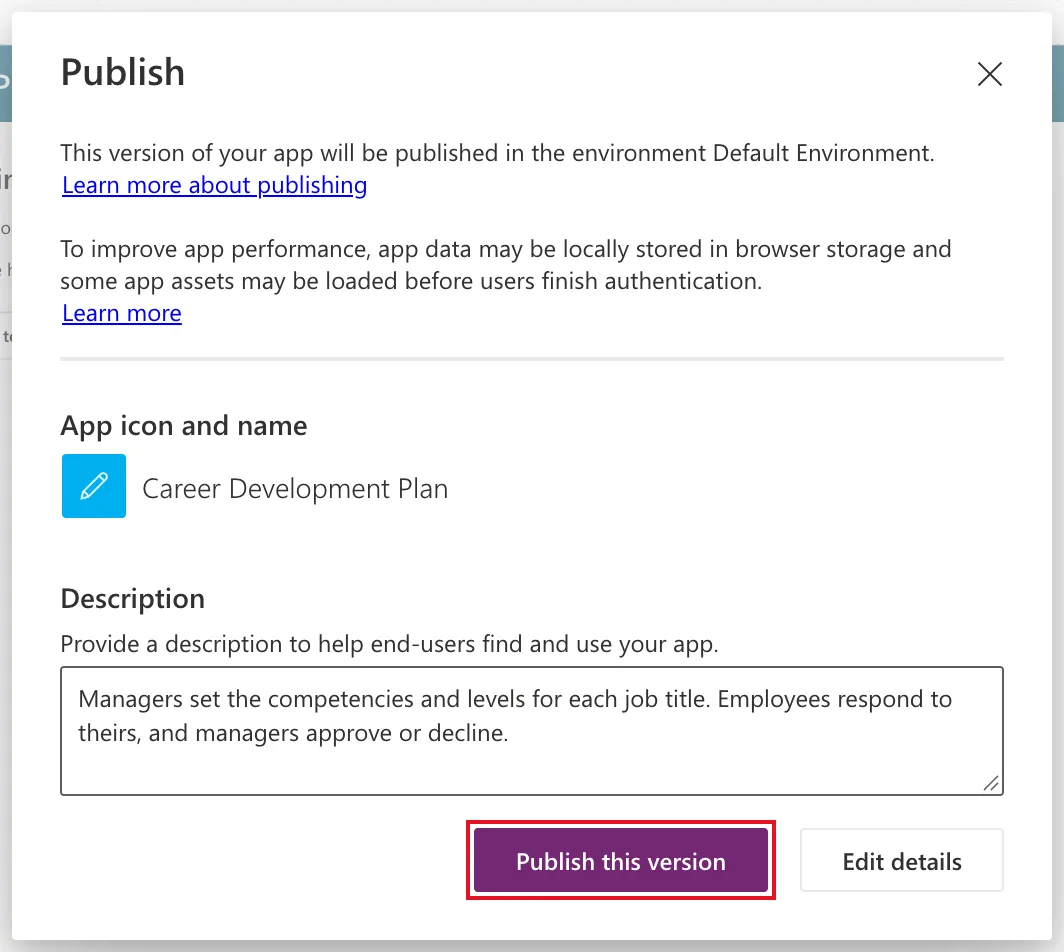
Select Publish this version. A notification confirms it:
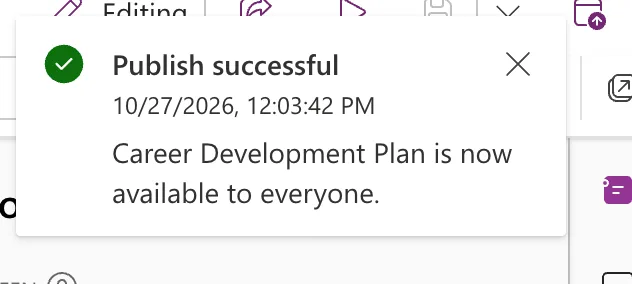
Available to everyone means everyone the app is shared with, not your whole organization.
Step 3: Check Which Version Is Live
In Power Apps, open Apps, select the app, choose Details, and then the Versions tab. Every save is a version; the published one is marked Live:
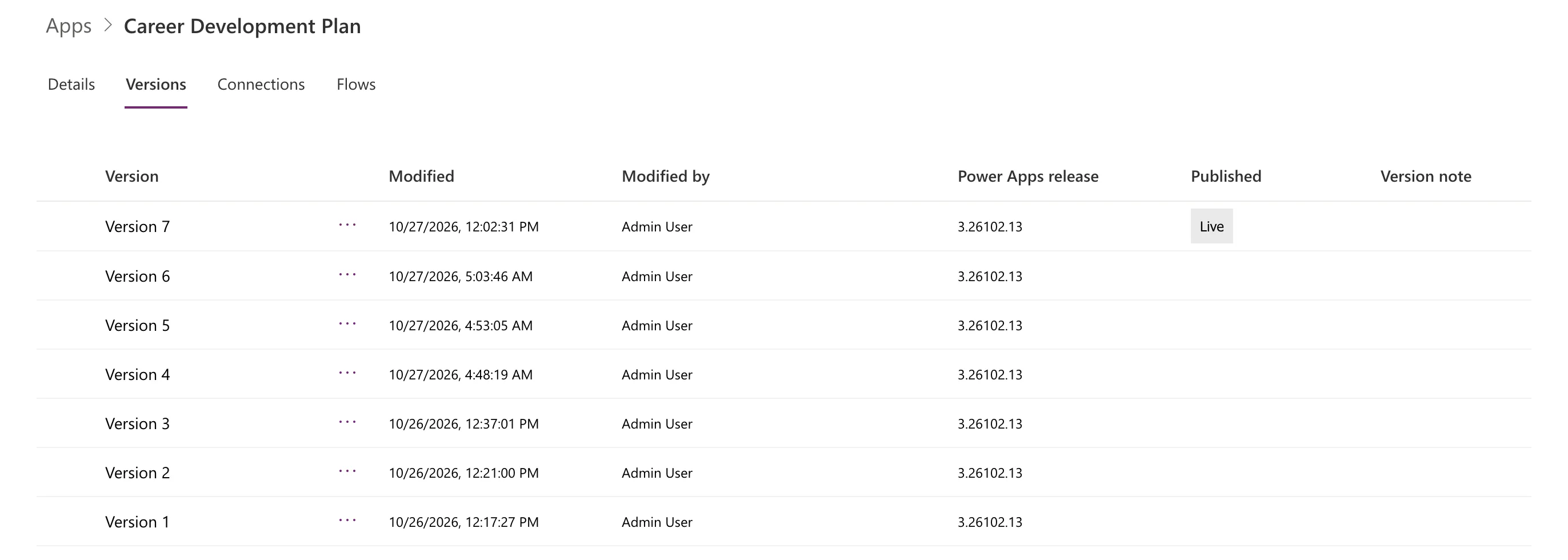
From the same tab you can publish an older version to roll back.
What Users See
Users get the new version the next time they open or reload the app. Microsoft notes that it can take a little while to arrive. In my test, a user who had the app open saw no notice, and the first reload a few minutes later still showed the old version (Fixed: Users Still See the Old Version After You Publish a Canvas App).
Common Mistakes
| Mistake | What happens | Do this instead |
|---|---|---|
| Saving and expecting users to see it | They keep the old version | Publish after Save |
| Sharing an app that was never published | People can't run it | Publish first |
| Testing as a user straight after publishing | The old version may still load | Wait a few minutes and reload |
Troubleshooting
| Symptom | Likely cause | Fix |
|---|---|---|
| Users still see the old version | Their app hasn't reloaded, or the new version hasn't reached them yet | Wait a few minutes and reload |
| The Live version is older than your last save | You saved but didn't publish | Publish again |
FAQ
Does publishing create a new version?
Saving does. Publishing marks a saved version as Live.
Do I need to publish for my own preview?
No. Preview in Studio runs your current changes; publishing is only for other people.
Conclusion
Save keeps your work; Publish → Publish this version gives it to the people you've shared the app with. Check Details → Versions to see which version is Live.
