How to Print a pandas DataFrame Without the Index

print() on a pandas DataFrame adds a column of row numbers on the left, the index, which is noise when you only want to show the data, for example in a command-line tool's output. to_string(index=False) turns the table into text without it, and float_format rounds its numbers while you're at it. This guide prints a small price list three ways, with real output from pandas 3.1.1.
Syntax
print(frame.to_string(index=False))
print(frame.to_string(index=False, float_format="{:.2f}".format))
| Part | What it means |
|---|---|
frame.to_string() | Returns the table as one string; "render a DataFrame to a console-friendly tabular output". You print it yourself |
index=False | Leave out the index (row) labels |
float_format=... | A function applied to every decimal number, such as "{:.2f}".format for two decimal places |
Step 1: Print a Table Three Ways
The example is a price list of two drinks. Create print_table.py:
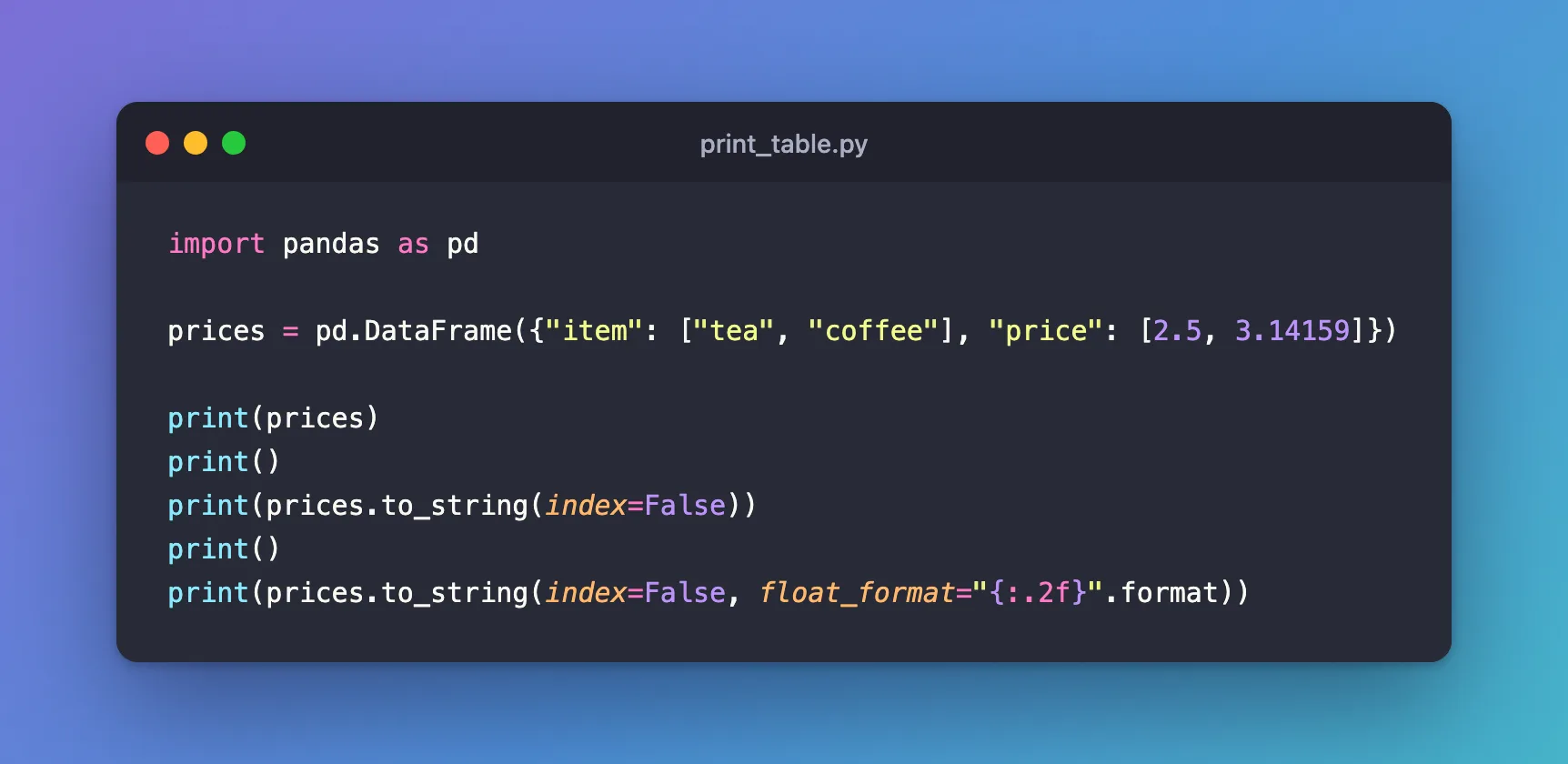
import pandas as pd

prices = pd.DataFrame({"item": ["tea", "coffee"], "price": [2.5, 3.14159]})

print(prices)
print()
print(prices.to_string(index=False))
print()
print(prices.to_string(index=False, float_format="{:.2f}".format))
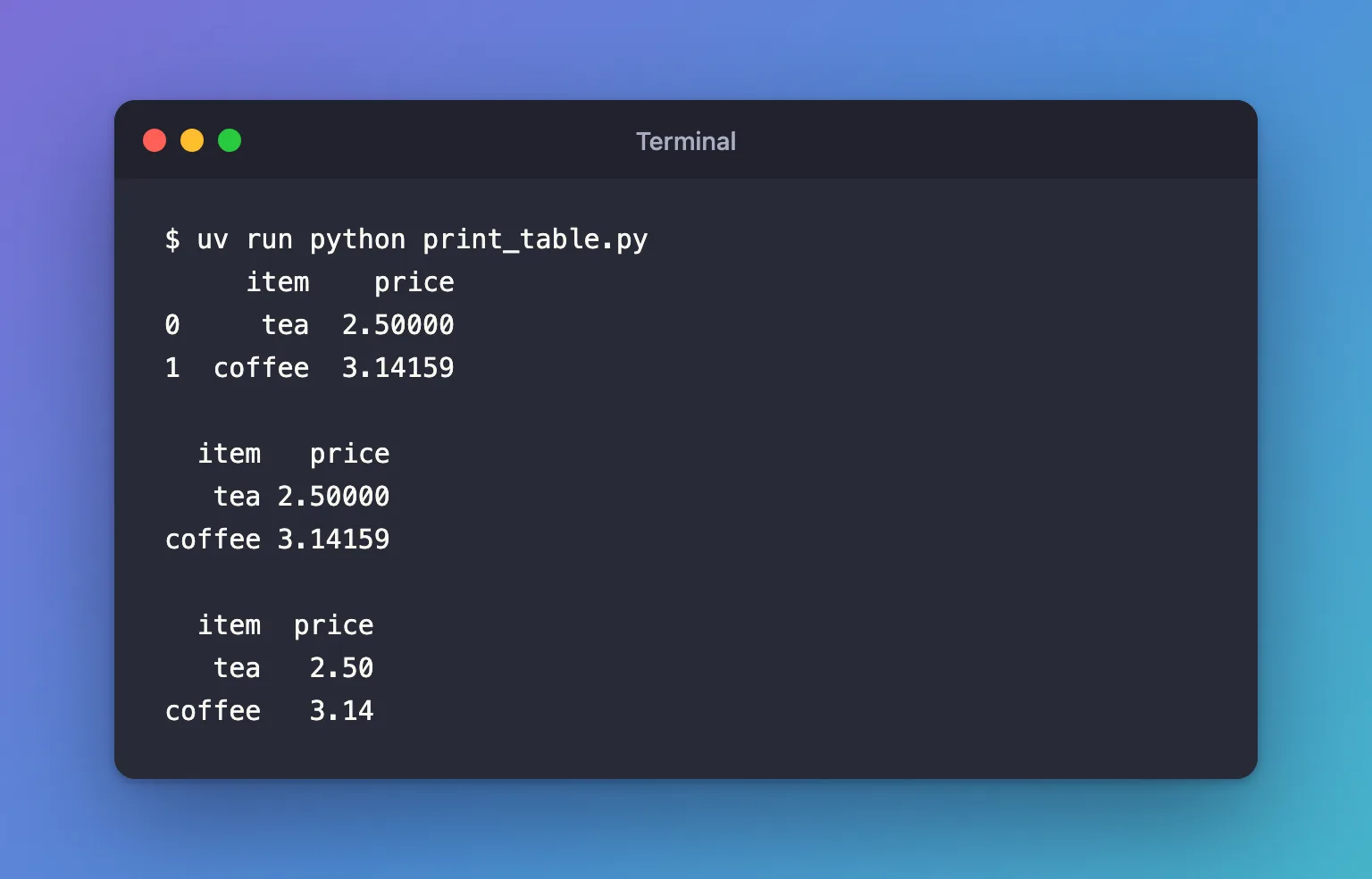
uv run python print_table.py
     item    price
0     tea  2.50000
1  coffee  3.14159

  item   price
   tea 2.50000
coffee 3.14159

  item  price
   tea   2.50
coffee   3.14
Step 2: Read the Three Versions
print(prices)shows the index,0and1, and gives every price the same number of decimals, five here, because of3.14159.to_string(index=False)drops the index. The columns are still lined up.float_format="{:.2f}".formatrounds every decimal number to two places."{:.2f}".formatis a function that turns a number into text with two decimals, which is whatfloat_formatexpects.
to_string() doesn't change prices: the table keeps its index and its full numbers.
Step 3: Print Every Row of a Long Table
print() shortens long tables: by default pandas shows at most 60 rows, then only the first and last few with ... between them. to_string() has no such limit unless you pass max_rows. Create long_table.py, which counts the lines each one prints for a table of 100 numbers:
import pandas as pd

numbers = pd.DataFrame({"n": range(100)})

print(len(str(numbers).splitlines()), "lines from print()")
print(len(numbers.to_string().splitlines()), "lines from to_string()")
uv run python long_table.py
14 lines from print()
101 lines from to_string()
print() showed 14 lines, ending with [100 rows x 1 columns]; to_string() showed the header and all 100 rows.
Common Mistakes
| Mistake | What happens | Do this instead |
|---|---|---|
Calling prices.to_string(index=False) without print in a script | Nothing appears: it only returns the text | print(prices.to_string(index=False)) |
| Rounding the data to make it print nicely | The values themselves lose precision | Format only the printed text with float_format |
Troubleshooting
| Symptom | Likely cause | Fix |
|---|---|---|
... in the middle of a printed table | print() shortens tables longer than 60 rows | Print frame.to_string() |
Whole numbers print with .00 | float_format applies to float columns, and the column holds floats | Store whole numbers as integers |
| The table wraps across lines | It's wider than the terminal | Pass line_width, or print fewer columns |
FAQ
Can I hide the column names too?
Yes: to_string(index=False, header=False) prints only the values.
Does this work for one column?
A single column is a Series; series.to_string(index=False) works the same way.
How do I write the table to a file without the index?
For a CSV file, frame.to_csv("table.csv", index=False): How to Save a pandas DataFrame to a CSV File.
Conclusion
print(frame.to_string(index=False)) printed the price list without row numbers, and float_format="{:.2f}".format rounded its prices to two places in the output only. Use to_string() whenever a table must print in full and look tidy, such as in a command-line tool.
Additional Resources
- pandas.DataFrame.to_string — the method's reference.
- Options and settings — pandas display options such as
display.max_rows.
