How to Preview a Canvas App in Power Apps Studio

While you build, you'll want to use the app the way its users will: select buttons, read the screens, and watch formulas work. Preview runs the app right inside Power Apps Studio, with your real data, without publishing or saving anything. Here's how to open it, close it, and test single controls without it.
Prerequisites
- A canvas app open in Power Apps Studio. The example is the Career Development Plan app's Home screen, from Part 4 of the series.
Step 1: Open Preview
Select Preview the app (the play button) near the right end of the command bar, or press F5:

The app fills the window and runs. Formulas calculate and connectors fetch data as the signed-in person, so what you see is what you'd see as a user:
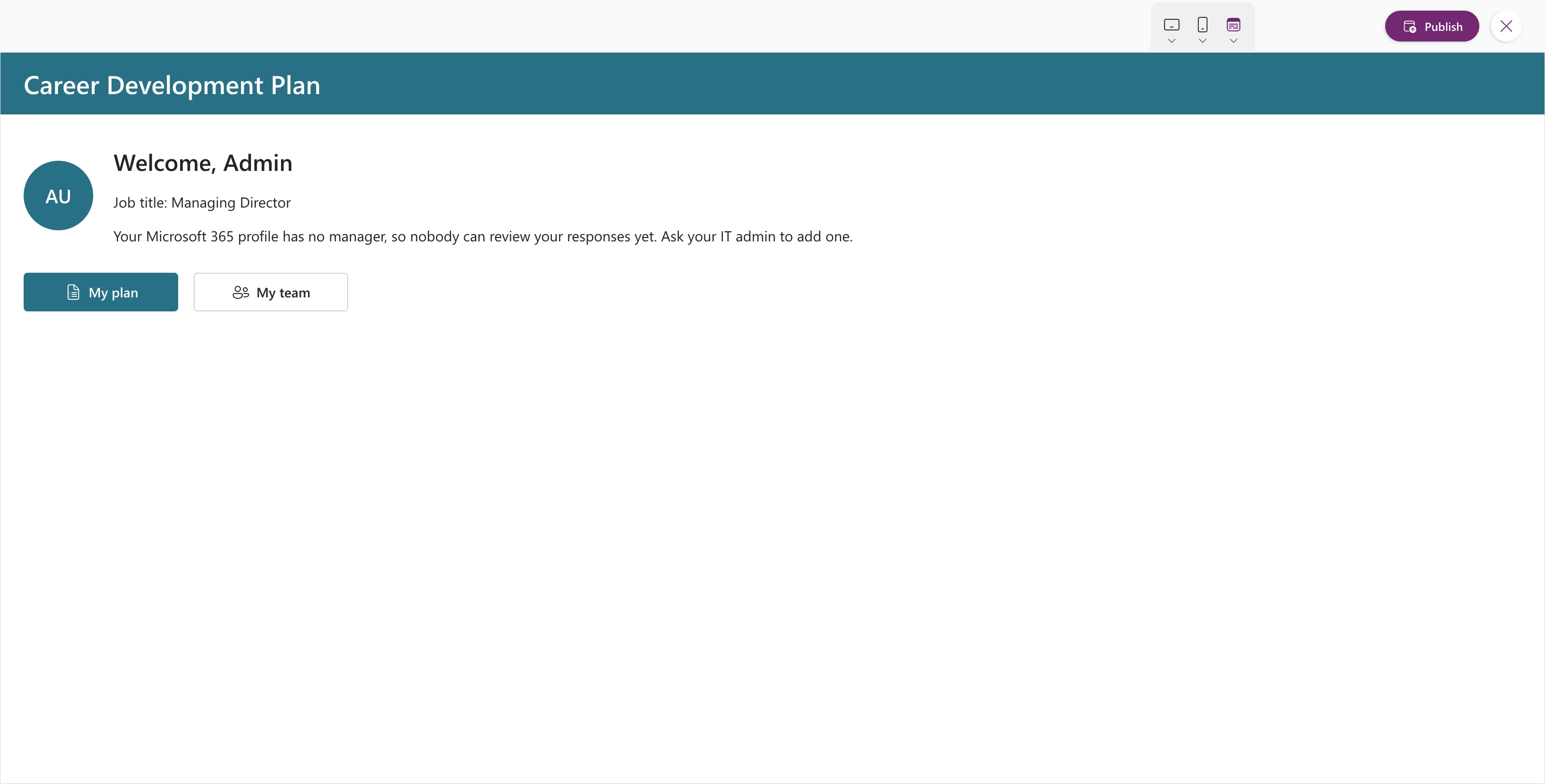
The small toolbar at the top has device buttons (Tablets, Phones, and browser options), Publish, and Close preview mode.
Step 2: Close Preview
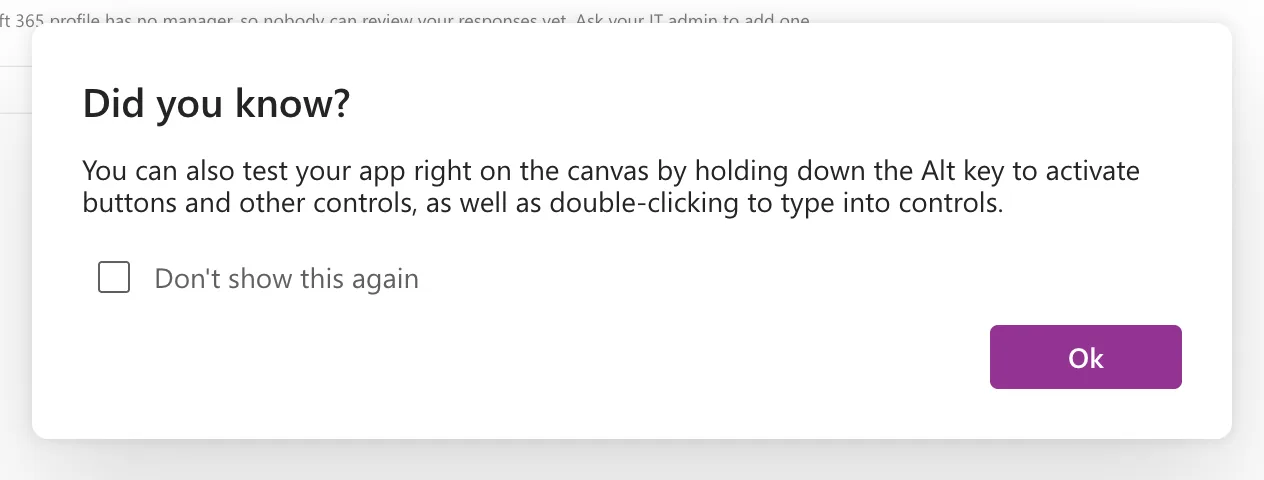
Press Esc, or select the X (Close preview mode). After closing, Studio showed this tip in the example:
Step 3: Test a Single Control with Alt
Without opening preview, hold Alt and select a button on the canvas: Studio runs its OnSelect as a user would, instead of selecting it for editing. Microsoft's keyboard shortcuts also allow Ctrl+Shift for the same thing.
Canvas apps are live even while you edit them, so for a quick check, Alt + click is often faster than a full preview.
Preview, Save and Publish
| Action | What it does | Who sees it |
|---|---|---|
| Preview (F5) | Runs the current version inside Studio | Only you |
| Save | Stores the current version | Only makers who open it in Studio |
| Publish | Makes the saved version the one users run | Everyone the app is shared with |
Preview doesn't save or publish, so it's safe to try anything.
Common Mistakes
| Mistake | What happens | Do this instead |
|---|---|---|
| Clicking a button on the canvas to test it | It's selected for editing instead | Hold Alt, or preview |
| Assuming preview shows what other users see | Formulas run as you | Test as another user after sharing |
| Expecting preview to publish | Users still get the last published version | Publish when ready |
Troubleshooting
| Symptom | Likely cause | Fix |
|---|---|---|
| Preview shows an error banner | A formula fails at run time | Close preview and check the App checker |
| Data looks empty | A connection or permission is missing | Check Data in Studio |
FAQ
Can I see how the app looks on a phone?
Yes. Use Phones or Tablets in the preview toolbar; see How to Test a Power Apps Canvas App on Phone and Tablet Sizes.
Does preview use my real data?
Yes. It runs with your account and your connections.
Do I need to save first?
No. Preview runs whatever is in Studio right now.
Conclusion
F5 to preview, Esc to close, Alt + click for a quick test on the canvas. Preview runs with your data and your account, and never publishes anything.
Additional Resources
- Preview an app: the preview and its device picker.
- Keyboard shortcuts for canvas apps: F5, Esc and the Alt behavior.
- Save and publish canvas apps: when changes reach users.
