How to Prevent Duplicate Items in a SharePoint List from Power Apps

To stop people from adding the same item twice, look for it before you save. If a matching item exists, show a message and don't save. On SharePoint, the lookup can run in the list itself, as long as it compares columns with =.
Prerequisites
- A SharePoint list and a screen that creates items with Patch (How to Create or Update a SharePoint List Item with Patch).
- The example is the Competency screen of the Career Development Plan app (Part 9), which adds competencies to the RoleCompetencies list.
Step 1: Decide What Counts as the Same
In the example, a competency belongs to a job title, and the same name may appear under different job titles. So a duplicate is an item with the same JobTitle and the same Competency name. The name is trimmed first, so extra spaces don't make a different name (How to Remove Extra Spaces with Trim).
Step 2: Look for It Before Saving
Find the matching item with LookUp (How to Find a Record with LookUp), and keep it in a name with With (How to Use the With Function):
With(
    {
        existing: LookUp(
            RoleCompetencies,
            JobTitle = locJobTitle && Competency = Trim(txtNameCS.Text)
        )
    },
    ...
)
Both conditions use = on text columns joined with &&, which SharePoint can run itself, so the check works at any list size (What Is Delegation in Power Apps?). JobTitle is indexed, as Microsoft recommends for columns you filter large lists by (How to Index a Column in a SharePoint List).
Step 3: Stop with a Message
If existing is an active item, show an error and don't save:
If(
    existing.IsActive,
    Notify(existing.Competency & " is already in the plan for " & locJobTitle & ".", NotificationType.Error),
    Patch(...)
)
The message uses existing.Competency, the name as it's stored, rather than what was typed. In the test below, I typed leadership in lowercase while the list had Leadership. The lookup still found it, and the message showed the stored spelling:
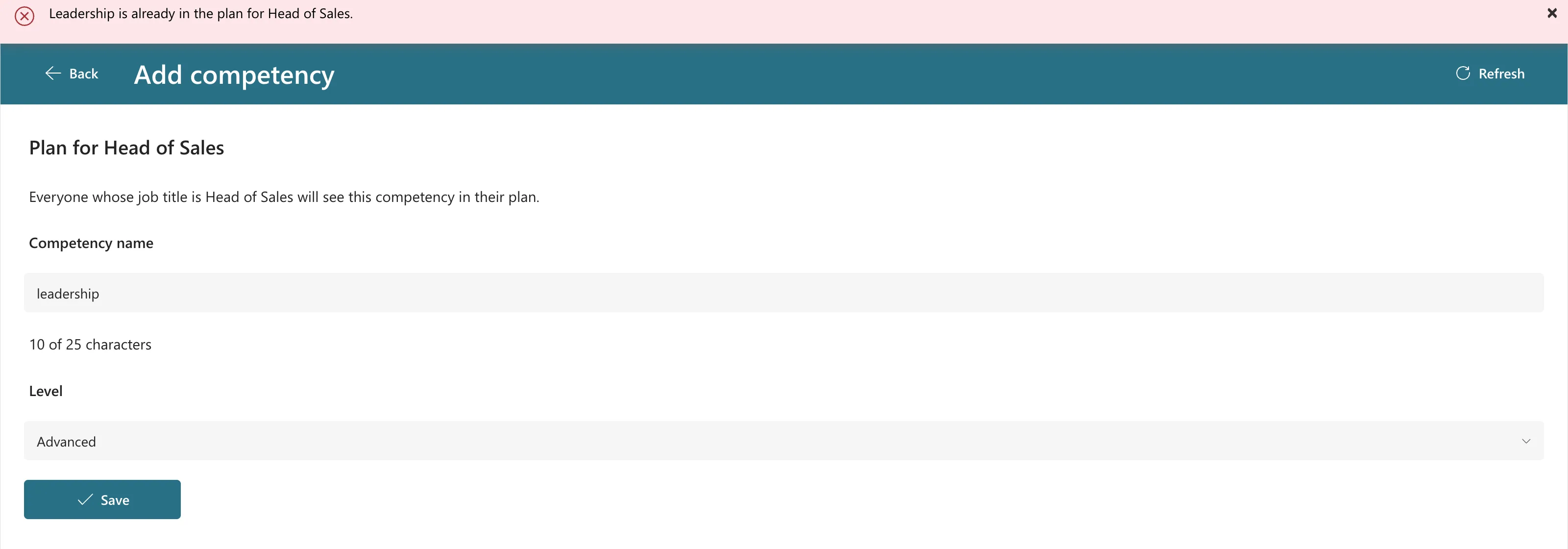
Nothing was created. The list still had one Leadership for the job title.
Step 4: Decide What to Do with Removed Items
The example never deletes competencies. Removing one sets IsActive to No (How to Remove an Item Without Deleting It). The same lookup finds removed items too, so adding a removed name again updates that item and turns it back on instead of creating a second one. That's why the check is existing.IsActive and not just !IsBlank(existing).
Common Mistakes
| Mistake | What happens | Do this instead |
|---|---|---|
| Checking only the name | The same name can't be used for another job title | Compare every column that makes an item unique |
| Not trimming the name | Leadership with a space looks new | Compare Trim(...) |
A range or in in the lookup | Not delegated, so only part of the list is checked | Use = with && |
Troubleshooting
| Symptom | Likely cause | Fix |
|---|---|---|
| The duplicate is saved anyway | The lookup's conditions don't match how the item is stored | Compare the same columns that Patch writes |
| Delegation warning on the lookup | A function or operator SharePoint can't run | Fixed: Delegation Warning |
FAQ
Is the check case-sensitive?
In my test on SharePoint, no: leadership found Leadership.
Can two people still create the same item at the same moment?
The check and the save are two steps, so two people who both check before either saves could both save. For a plan that a few managers edit, that's unlikely. Check the list if it matters for your data.
Conclusion
Look for the item with a delegable LookUp before Patch, and stop with a message that names the item that's already there. Decide up front what counts as the same, and whether a removed item should come back instead of a new one.
