How to Pin the .NET SDK Version with global.json in a .NET C# Project

By default, every dotnet command uses the newest .NET SDK on the computer. That's fine until a teammate or a build server has a different one, and the same project starts behaving differently. A global.json file at the root of your repository settles which SDK the project uses. This guide creates one with .NET 10, then tries every rollForward value against the real SDK installed on this computer, so you can see which ones pass and which fail before you choose.
What global.json Controls
Microsoft's global.json overview starts with the purpose: "The global.json file allows you to define which .NET SDK version is used when you run .NET CLI commands." It also says when you need one: "If you always want to use the latest SDK version that is installed on your machine, no global.json file is needed. In CI (continuous integration) scenarios, however, you typically want to specify an acceptable range for the SDK version that is used."
Two things it does not control:
- The runtime your app runs on. That's the target framework in the project file, such as
<TargetFramework>net10.0</TargetFramework>. The overview: "Selecting the .NET SDK version is independent from specifying the runtime version a project targets." - Which SDKs are installed. It only chooses among the installed ones, or fails if none fits.
Prerequisites
- The .NET SDK. This guide uses 10.0.403, the only SDK on this computer. How to Check Which .NET SDKs and Runtimes Are Installed for C# Development shows how to list yours.
- Your project's folder, ideally the root of its Git repository. The examples use a solution called
dewiride-inventory-api.
Step 1: Create global.json
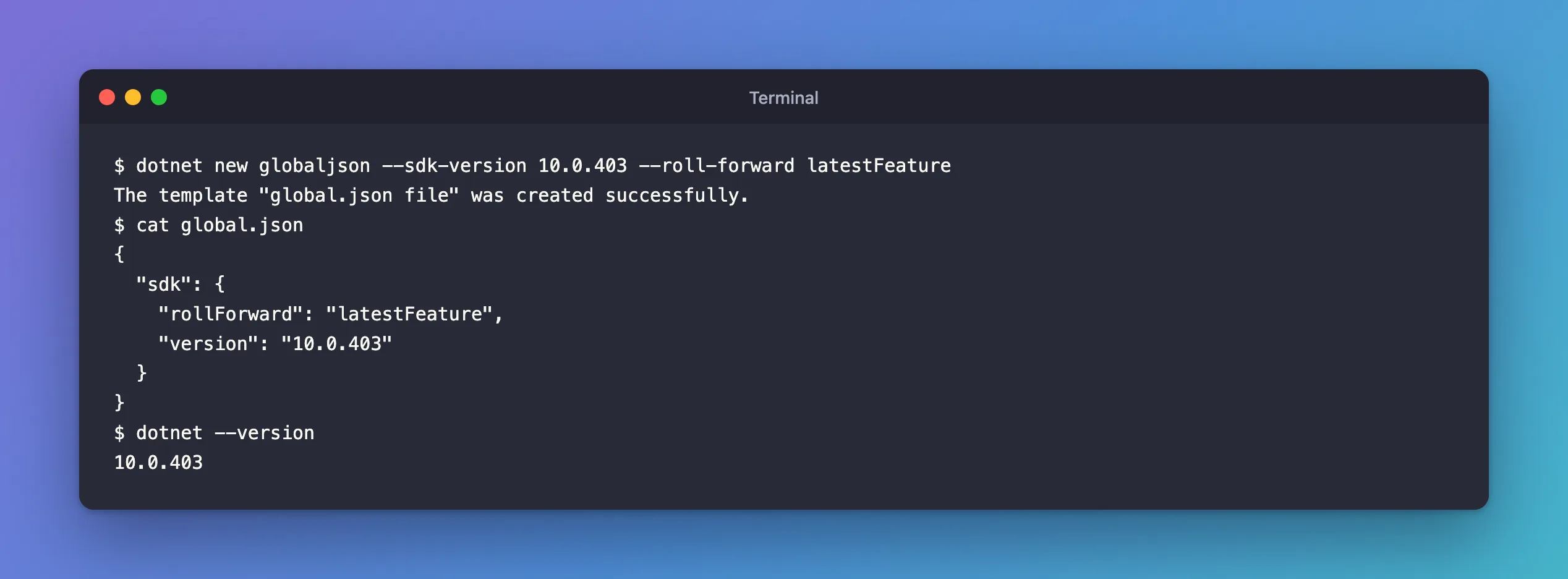
dotnet new globaljson --sdk-version 10.0.403 --roll-forward latestFeature
| Part | What it does |
|---|---|
dotnet new globaljson | Creates a global.json file in the current folder |
--sdk-version 10.0.403 | The SDK version to ask for. Use one from dotnet --list-sdks |
--roll-forward latestFeature | What to do when that exact version isn't installed: Step 3 explains every choice |
The template "global.json file" was created successfully.
The new file:
{
  "sdk": {
    "rollForward": "latestFeature",
    "version": "10.0.403"
  }
}
Commit it with your code, so everyone who clones the repository gets the same rule.
Step 2: Check Which SDK the Folder Uses
dotnet --version
10.0.403
dotnet --info now names the file it found:
global.json file:
  /Users/you/projects/dewiride-inventory-api/global.json
The SDK looks for the file in the current folder, then in each parent folder, and uses the first one it finds. The overview names the two parts of .NET that search: the command-line host, which "starts from the current working directory", and the MSBuild resolver used during builds, which "starts from the directory that contains a solution file, if one exists." That's why the file belongs at the root of the repository, next to the solution file: both searches find it from anywhere inside.
Step 3: See What Each rollForward Value Allows
The version is where the search starts, and rollForward says how far it may go from there. The overview defines an SDK version as x.y.znn: "x is the major version", "y is the minor version", "z is the feature band" and "nn is the patch version". So 10.0.403 is major 10, minor 0, feature band 4, patch 03.
To see the rules in action, I changed global.json six times and ran dotnet --version after each change. The only SDK on this computer is 10.0.403:
version | rollForward | Result | Why |
|---|---|---|---|
10.0.100 | latestPatch | ❌ fails | Only patches of the 10.0.1xx band are allowed, and none is installed |
10.0.100 | latestFeature | ✅ 10.0.403 | Any later feature band of 10.0 is allowed |
10.0.500 | latestFeature | ❌ fails | Nothing installed is 10.0.500 or later |
10.0.402 | disable | ❌ fails | Only exactly 10.0.402 is allowed |
9.0.100 | latestMajor | ✅ 10.0.403 | Any later version at all is allowed |
9.0.100 | latestFeature | ❌ fails | Only 9.0.x is allowed, and no .NET 9 SDK is installed |
The overview's own definitions match the results:
latestPatch: "Uses the latest installed patch level that matches the requested major, minor, and feature band with a patch level that's greater than or equal to the specified value. If not found, fails."latestFeature: "Uses the highest installed feature band and patch level that matches the requested major and minor with a feature band and patch level that's greater than or equal to the specified value. If not found, fails."latestMajor: "Uses the highest installed .NET SDK with a version that's greater than or equal to the specified value. If not found, fail."disable: "Doesn't roll forward; an exact match is required."
There are also patch, feature, minor, major and latestMinor. The latest… values pick the highest installed version that fits. The others prefer the closest one. And when version is set without any rollForward, the rule is patch: the overview says "If no rollForward value is set, it uses patch as the default rollForward policy."
This is what a failure looks like, from the first row:
The command could not be loaded, possibly because:
  * You intended to execute a .NET application:
      The application '--version' does not exist or is not a managed .dll or .exe.
  * You intended to execute a .NET SDK command:
      A compatible .NET SDK was not found.

Requested SDK version: 10.0.100
global.json file: /Users/you/projects/dewiride-inventory-api/global.json

Installed SDKs:
10.0.403 [/usr/local/share/dotnet/sdk]

Install the [10.0.100] .NET SDK or update [/Users/you/projects/dewiride-inventory-api/global.json] to match an installed SDK.

Learn about SDK resolution:
https://aka.ms/dotnet/sdk-not-found
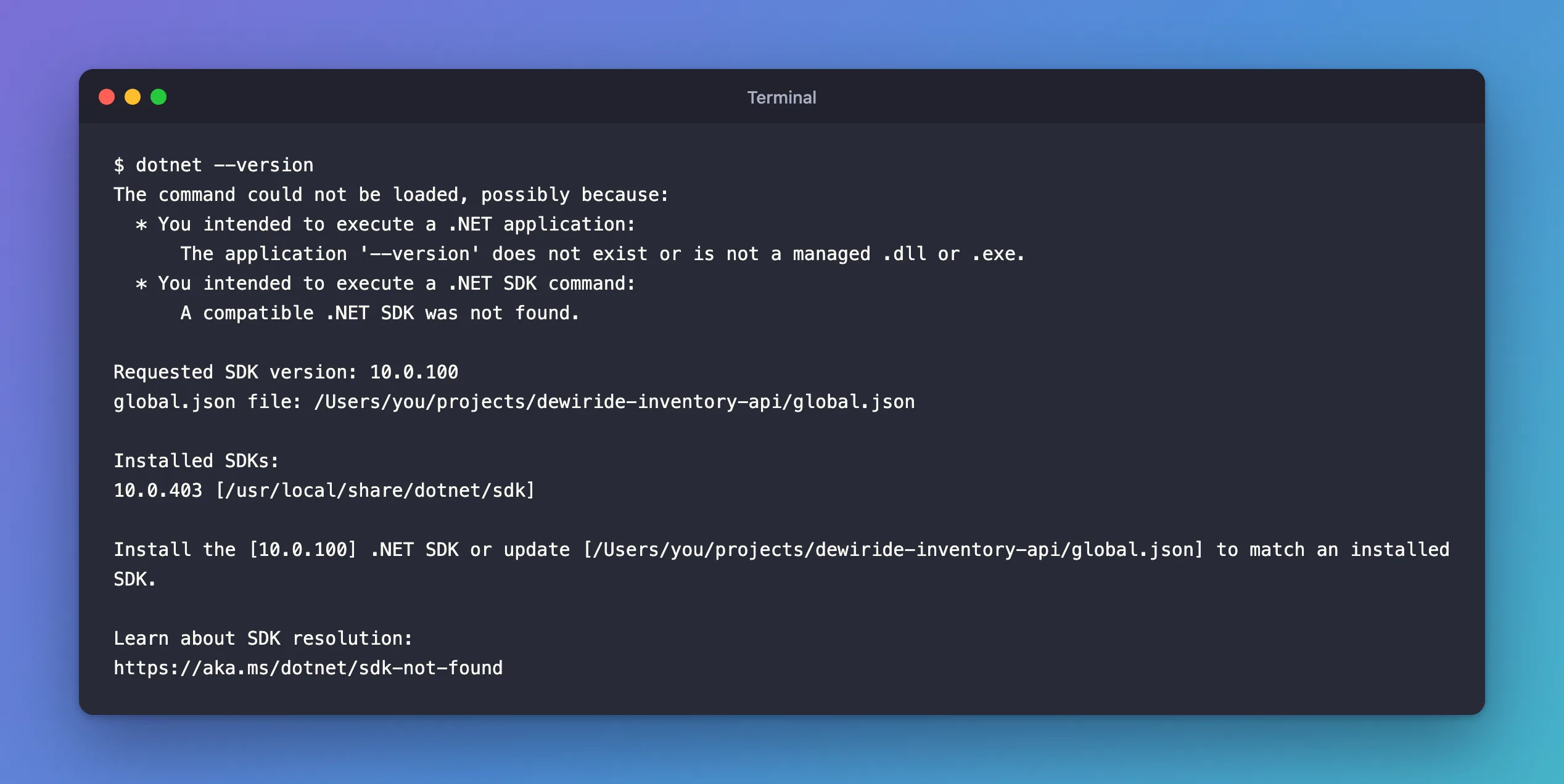
Every dotnet command in that folder fails the same way, including dotnet build. Fixed: "A compatible .NET SDK was not found" walks through the fix.
Step 4: Choose a Value
| Choose | When | What it means in practice |
|---|---|---|
latestFeature | Most projects | Any 10.0 SDK at least as new as yours. Patches and new feature bands are picked up automatically |
latestPatch | You want the feature band to stay fixed | Only security and bug-fix patches of 10.0.4xx |
disable | Builds must be byte-for-byte repeatable | Exactly one SDK version; everyone must install it |
No global.json | Small personal projects | Always the newest SDK installed |
latestFeature with the newest SDK you've tested is a good default: the project can't silently move to .NET 11, and nobody has to install an exact patch to build it. For disable, the overview has one case where it's the right call: "When you use package lock files, set rollForward to disable so the SDK version and dependency graph stay in lockstep."
Step 5: Give a Helpful Error Message (.NET 10)
Since the .NET 10 SDK, global.json can carry its own error message, shown when no installed SDK fits. The overview describes errorMessage as one that "Specifies a custom error message displayed when the SDK resolver can't find a compatible .NET SDK." Tell people what to install:
{
  "sdk": {
    "version": "10.0.500",
    "rollForward": "latestFeature",
    "errorMessage": "This repository needs the .NET 10.0.5xx SDK or later. Download it from https://dotnet.microsoft.com/download/dotnet/10.0"
  }
}
The command could not be loaded, possibly because:
  * You intended to execute a .NET application:
      The application '--version' does not exist or is not a managed .dll or .exe.
  * You intended to execute a .NET SDK command:
      This repository needs the .NET 10.0.5xx SDK or later. Download it from https://dotnet.microsoft.com/download/dotnet/10.0
Here the file asks for 10.0.500, a version this computer doesn't have, so the message appears. In your project, use your real version and your team's real install instructions.
About Preview SDKs
allowPrerelease decides whether preview SDKs count. Its default surprises people: outside Visual Studio, the overview says "the default value is true". With latestFeature on 10.0, a .NET 11 preview can't be picked, because only 10.0 SDKs fit. With latestMajor, it can. If you use latestMajor and want only released SDKs, add "allowPrerelease": false to the sdk section.
Common Mistakes
| Mistake | What happens | Do this instead |
|---|---|---|
A version that isn't installed, with disable or latestPatch | Every dotnet command fails in that folder | Use a version from dotnet --list-sdks and latestFeature |
"version": "10.0" or "10.0.x" | Not accepted: the overview says the field "Requires the full version number" | Write the full version, such as 10.0.403 |
global.json in a project subfolder | Commands run from the repository root don't see it | Put it at the root, next to the solution file |
| Expecting it to change the runtime | Nothing changes at run time | Change <TargetFramework> in the project file |
Troubleshooting
| Symptom | Likely cause | Fix |
|---|---|---|
A compatible .NET SDK was not found. | No installed SDK fits version and rollForward | Install a fitting SDK, or relax rollForward (see the fixes post) |
dotnet --version shows an unexpected SDK | Another global.json in a parent folder wins | Check the path under global.json file: in dotnet --info |
| A preview SDK is used | allowPrerelease defaults to true outside Visual Studio | Add "allowPrerelease": false |
FAQ
Do I need global.json at all?
Not for a personal project you always build with the newest SDK. Add one as soon as a second person or a build server builds the code.
Does global.json pick the SDK in Visual Studio too?
Yes. Visual Studio builds through the same SDK resolver. One difference is the preview default described above.
Can I put comments in global.json?
Keep it plain JSON. The tools that read it differ in what they accept, and a file that fails to parse is worse than one without comments.
Conclusion
dotnet new globaljson --sdk-version <version> --roll-forward latestFeature creates a global.json that every dotnet command in the repository obeys. dotnet --version shows which SDK a folder uses, and dotnet --info shows which file decided it. Pick rollForward by how strict you need to be, as the six real runs in Step 3 show, and since .NET 10, add an errorMessage that tells people exactly what to install.
Additional Resources
- global.json overview — every setting, the matching rules and examples.
- .NET releases and support — how feature bands and patches are released.
