How to Pin Exact npm Package Versions

When npm installs a package, it writes a version range into package.json: ^4.6.7 means "4.6.7 or any newer 4.x". If you want package.json to say exactly which version your project uses, one setting in a project's .npmrc makes every install save an exact version. This guide shows the default, the setting, how to pin a package that is already there, and the one-off flag.
What a Version Range Is
npm package versions have three numbers: major, minor and patch, as in 4.6.7. By default, npm install saves the version it installed with a caret in front: "zod": "^4.6.7". The caret is a range: it allows any version from 4.6.7 up to, but not including, 5.0.0. npm's lock file, package-lock.json, records the exact version that was installed, but the range in package.json still decides what npm may pick the next time it resolves the dependency — for example when the lock file is recreated, or when you run npm update.
An exact version, "zod": "4.6.7", allows only that version. Changing it becomes a deliberate step: you install a new version yourself and see it in the diff.
Prerequisites
- Node.js and npm. The examples use npm 12.2.2 (How to Update npm to the Newest Version).
- A project folder with a
package.json, or an empty folder to try it in.
Step 1: See What npm Saves by Default
In an empty folder, create a package.json and install a package:
npm init -y
npm install zod
npm init -y creates a package.json with default values, without asking questions. The install ends with:
added 1 package, and audited 2 packages in 890ms

1 package is looking for funding
  run `npm fund` for details

found 0 vulnerabilities
package.json now has a dependency with a caret:
"dependencies": {
  "zod": "^4.6.7"
}
Step 2: Turn On Exact Versions for the Project
npm config set save-exact=true --location=project
The command prints nothing. It created a file named .npmrc in the project folder:
save-exact=true
| Part | What it means |
|---|---|
npm config set | Changes an npm setting |
save-exact=true | npm's own description: Dependencies saved to package.json will be configured with an exact version rather than using npm's default semver range operator. |
--location=project | Writes the setting into the project's .npmrc, not into your personal one in your home folder |
Because the setting lives in the project, commit .npmrc with your code: everyone who works on the project then saves exact versions too, without setting anything on their own machine.
Step 3: Install a Package
npm install nanoid
added 1 package, and audited 3 packages in 876ms

2 packages are looking for funding
  run `npm fund` for details

found 0 vulnerabilities
This time there's no caret: "nanoid": "6.0.2".
Step 4: Pin a Package That Is Already There
zod still has its caret from Step 1. Install it again, and npm saves it again — exactly, this time:
npm install zod
up to date, audited 3 packages in 782ms

2 packages are looking for funding
  run `npm fund` for details

found 0 vulnerabilities
Up to date means nothing new was downloaded. Only the entry in package.json changed.
Step 5: Check package.json
npm pkg get reads a field of package.json without opening the file:
npm pkg get dependencies
{ nanoid: '6.0.2', zod: '4.6.7' }
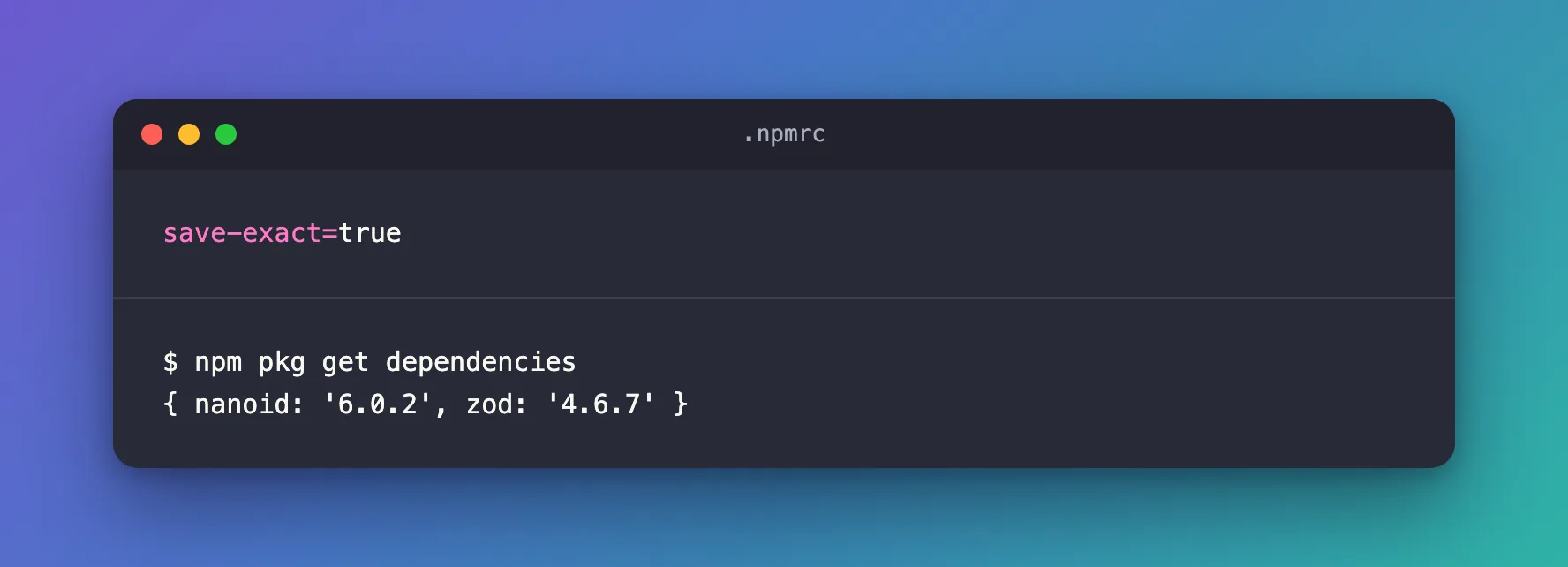
Both versions are exact.
For a Single Install: --save-exact
Without the .npmrc setting, add --save-exact to one npm install:
npm install --save-exact zod
added 1 package, and audited 2 packages in 854ms

1 package is looking for funding
  run `npm fund` for details

found 0 vulnerabilities
In a fresh project without .npmrc, this saved { zod: '4.6.7' }. It works with --save-dev too, for development tools. The project setting is easier to keep: nobody has to remember the flag.
Common Mistakes
| Mistake | What happens | Do this instead |
|---|---|---|
npm config set save-exact=true without --location=project | The setting goes into your personal .npmrc; your teammates still get carets | Add --location=project and commit .npmrc |
| Expecting existing entries to change by themselves | Packages installed before the setting keep their carets | Install them again, as in Step 4 |
Deleting package-lock.json to "clean up" | npm resolves everything again and may pick other versions of nested packages | Keep the lock file and commit it |
Troubleshooting
| Symptom | Likely cause | Fix |
|---|---|---|
| New installs still get a caret | .npmrc isn't in the folder you run npm from | Run npm in the project folder, next to .npmrc |
.npmrc doesn't appear | The command ran in another folder | Run it again in the project folder |
| A teammate's installs get carets | .npmrc isn't committed | Commit .npmrc |
FAQ
Do I still need package-lock.json?
Yes. Exact versions in package.json pin your direct dependencies; the lock file pins every package underneath them too.
How do I update a pinned package?
Install the version you want, such as npm install zod@latest. With save-exact, npm saves the new exact version.
Does save-exact work with other package managers?
The .npmrc setting is npm's. Other package managers have their own settings.
Conclusion
npm saves ranges such as ^4.6.7 unless you tell it not to. npm config set save-exact=true --location=project writes save-exact=true into the project's .npmrc; from then on every install saves an exact version, and installing an existing package again pins it too.
Additional Resources
- npm: config — save-exact — the setting and its short flag
-E. - npm: npm install — how npm saves dependencies.
- npm: About semantic versioning — what ranges such as
^allow.
