How to Pick One Field from Each Item with Select in Power Automate

Select builds a new array from an existing one, one item for each. To keep just one field of each object, such as each person's email, switch Map to text mode and enter item()?['Email']. The result is a plain list of emails, with no loop.
Microsoft's data operations article describes it: Use the Data Operation – Select action to change the shape of objects in an array. For example, you can add, remove, or rename elements in each object in an array.
The example is the approval flow of the Overtime Timesheet app. A department's Approvers is a SharePoint Person column that allows several people; the flow needs their email addresses.
Prerequisites
- An array of objects in your flow. Here, Approvers from Get the department (How to Get a SharePoint List Item by ID in Power Automate).
Step 1: Add Select
Add an action, search for Select, and choose Select under Data Operation. I named it Approver emails.
Step 2: Choose the Array
In From, pick the array from dynamic content: Approvers from Get the department.
Step 3: Map the Field in Text Mode
Map starts as key and value pairs, which build objects. To get plain values, select the button to the right of Map to switch it to text mode. Then insert this expression (How to Add an Expression in Power Automate):
item()?['Email']
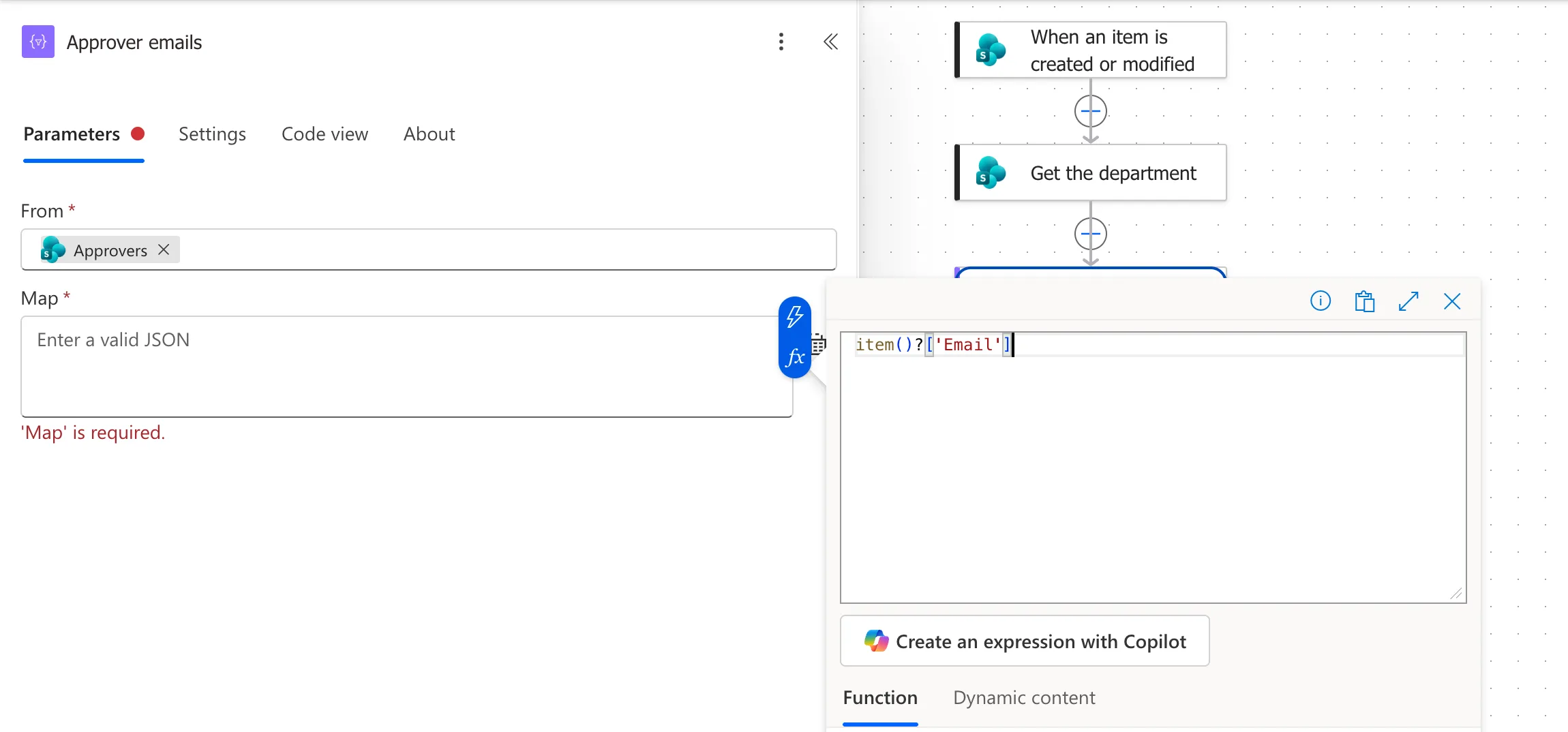
item() is the current item as Select goes through the array; Microsoft's functions reference says that when used inside a repeating action over an array, it will return the current item in the array during the action's current iteration. ?['Email'] reads its Email field.
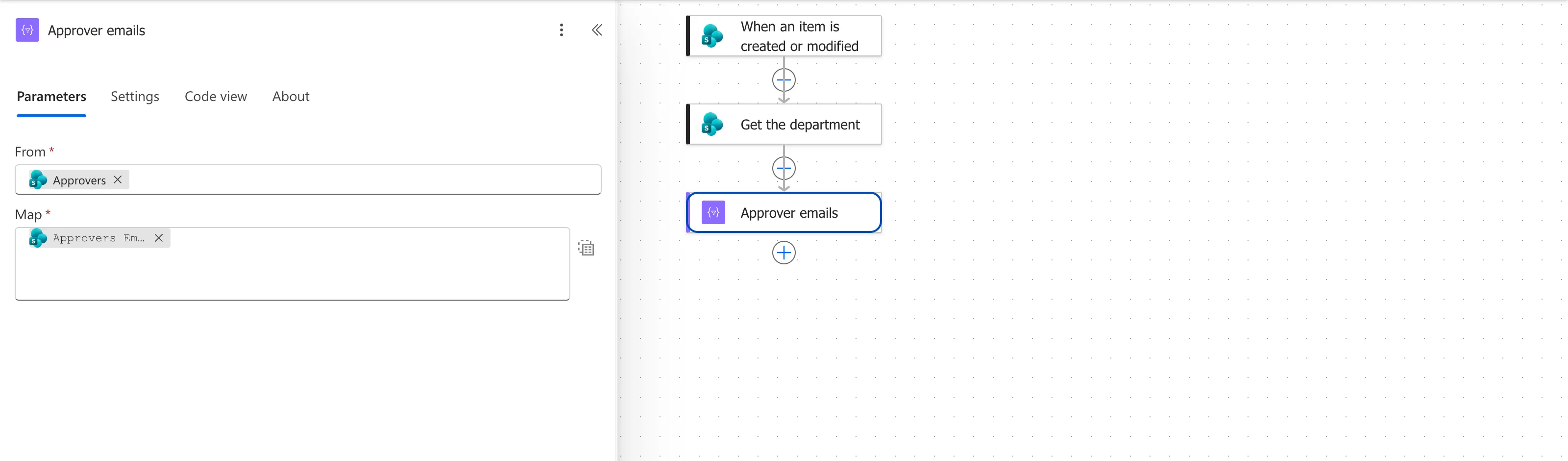
The designer shows the expression as a token named Approvers Email:
The Result
For the Radiology department, whose only approver is Daniel Brooks, the run's output was an array with one email:
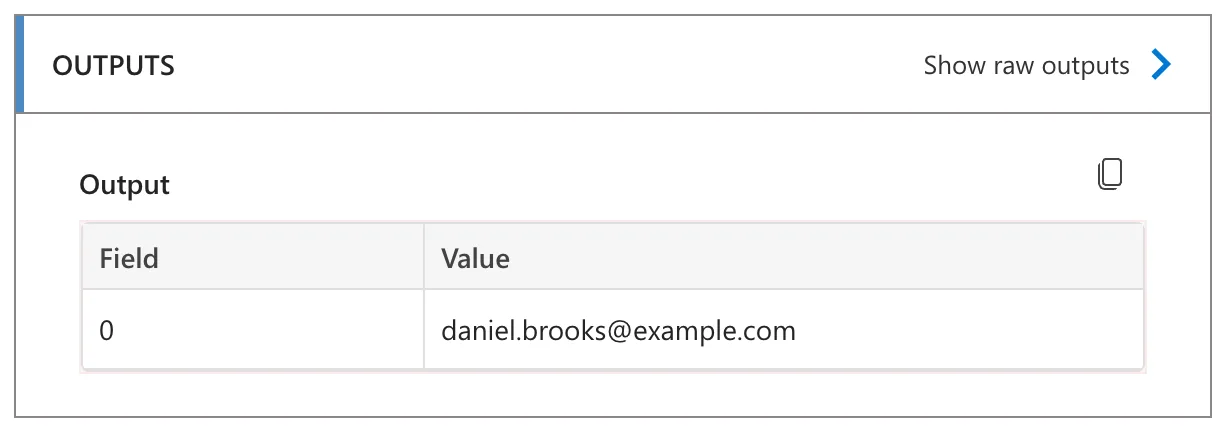
A department with two approvers gives two emails. The next actions remove the person who logged the overtime and join the rest into one line (How to Filter an Array in Power Automate and How to Join an Array into Text in Power Automate).
Common Mistakes
| Mistake | What happens | Do this instead |
|---|---|---|
| Leaving Map in key and value mode with one row | Each item is an object, not an email | Switch to text mode |
| An Apply to each with an append in it | Many actions to do one transformation | One Select |
Troubleshooting
| Symptom | Likely cause | Fix |
|---|---|---|
The output is objects like {"Email": ...} | Map is in key and value mode | Switch to text mode |
| Empty values in the output | The field name doesn't match | Check the field's name in the input |
| From won't take the token | It isn't an array | Use a column that holds several values |
FAQ
Why not Apply to each?
Apply to each runs actions once per item, and building a list needs a variable and an append on every pass. Select builds the whole list in one action.
Can Select keep two fields?
Yes. In key and value mode, each row is a field of the new objects, such as email and name.
Conclusion
Select with From set to an array and Map in text mode turns a list of objects into a list of one field. item()?['Email'] gave a department's approvers as a list of emails, in one action.
Additional Resources
- Use data operations: Select: Select and its modes.
- Reference guide to functions in expressions: item: the current item.
