How to Paste Tab-Separated Data into Excel

Text where values are separated by tabs, one row per line, pastes into Excel as a table: each tab moves to the next column and each line to the next row. Copy it, select the cell where the first value should go, and press Ctrl+V (Cmd+V on a Mac).
This is how the fourteen rows of overtime got into the old overtime timesheet in Part 1 of the Overtime Timesheet series. You can paste the same rows to follow along.
Prerequisites
- A workbook open in Excel, here Excel for the web.
- The regional format set the way your dates are written, before you paste. These dates are day first, so I set English (United Kingdom) in How to Change the Regional Format in Excel for the Web.
Step 1: Type the Headings
In row 1, type one heading per column, pressing Tab between them: Employee, Department, Date, Start, Finish, Break (mins), Reason and Authorised by. How to Enter Data with Tab and Enter in Excel for the Web explains the keys.
Step 2: Copy the Rows
Copy the rows below with the copy button at the top right of the block. Between the values are tab characters, not spaces:
Aisha Khan	Emergency Department	02/10/2026	19:00	23:00	30	Covered staff sickness	Olivia Bennett
Ben Harris	Emergency Department	04/10/2026	07:00	11:30	30	Extra cover for morning handover	Olivia Bennett
Maya Patel	Radiology	06/10/2026	17:00	21:15	15	Evening CT list	Daniel Brooks
Aisha Khan	Emergency Department	10/10/2026	20:00	01:30	30	Night cover, major incident	Olivia Bennett
Aisha Khan	Radiology	13/10/2026	13:00	17:30	30	Covered Radiology reception	Daniel Brooks
Ben Harris	Emergency Department	17/10/2026	15:00	19:00	0	Extra cover for winter pressures	Olivia Bennett
Maya Patel	Radiology	20/10/2026	08:00	12:00	0	MRI backlog list	Daniel Brooks
Ben Harris	Emergency Department	24/10/2026	22:00	06:00	60	Night shift cover	Olivia Bennett
Maya Patel	Radiology	27/10/2026	18:00	22:00	15	Evening CT list	Daniel Brooks
Aisha Khan	Emergency Department	30/10/2026	19:00	23:00	0	Covered staff sickness	Olivia Bennett
Aisha Khan	Emergency Department	02/11/2026	16:00	20:30	30	Extra cover for winter pressures	Olivia Bennett
Maya Patel	Radiology	03/11/2026	17:30	21:00	0	Evening CT list	Daniel Brooks
Aisha Khan	Emergency Department	04/11/2026	21:00	03:00	30	Night cover
Maya Patel	Radiology	06/11/2026	08:00	12:30	30	MRI backlog list
Step 3: Select the First Cell and Paste
Select A2, the cell under the first heading, and press Ctrl+V (Cmd+V on a Mac). Excel spreads the text over the columns: names in A, departments in B, dates in C and so on, fourteen rows in all.
Copy and paste in Office for the web says Excel for the web supports pasting with the keyboard and with the ribbon commands, and that you need to be in Editing mode to paste. If you see a No clipboard access message, your browser is blocking the site from the clipboard; Troubleshoot copy and paste errors in Office for the web explains what to change.
Step 4: Widen the Columns
Pasting doesn't change column widths, so dates show as ######## and long text is cut off:
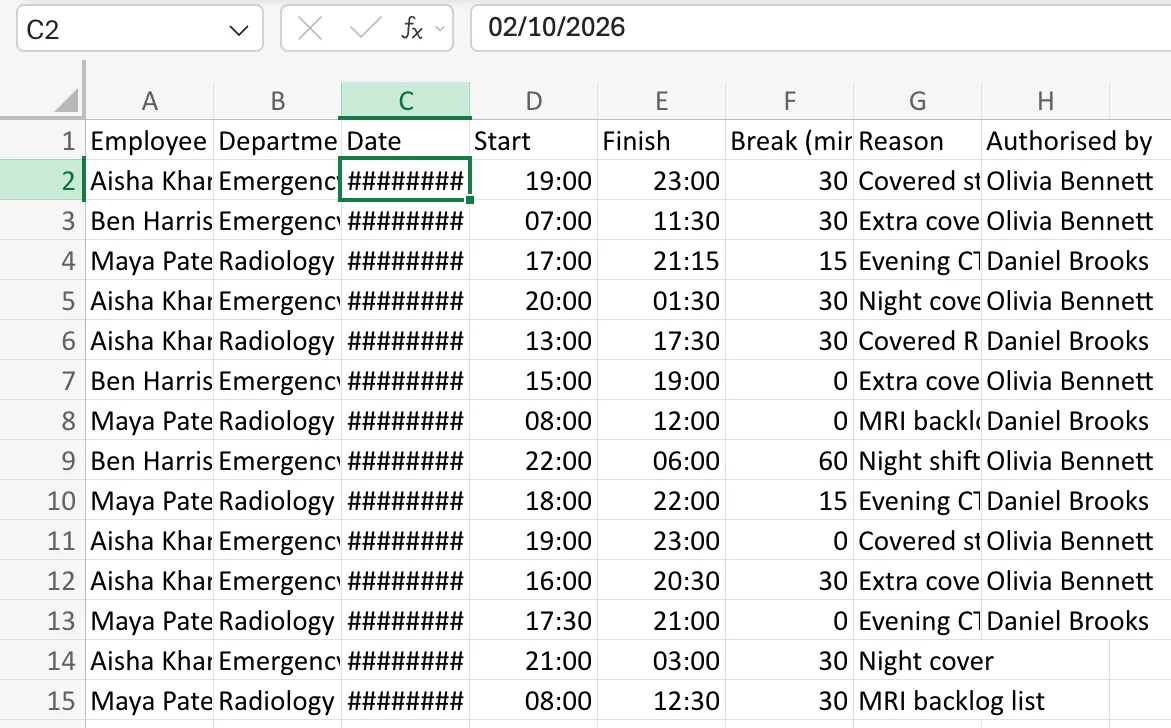
The data is fine: the formula bar shows 02/10/2026 for C2. Select columns A to H and use Home → Format → Auto Fit Column Width, as How to AutoFit Column Width in Excel for the Web shows. Every value is now readable:
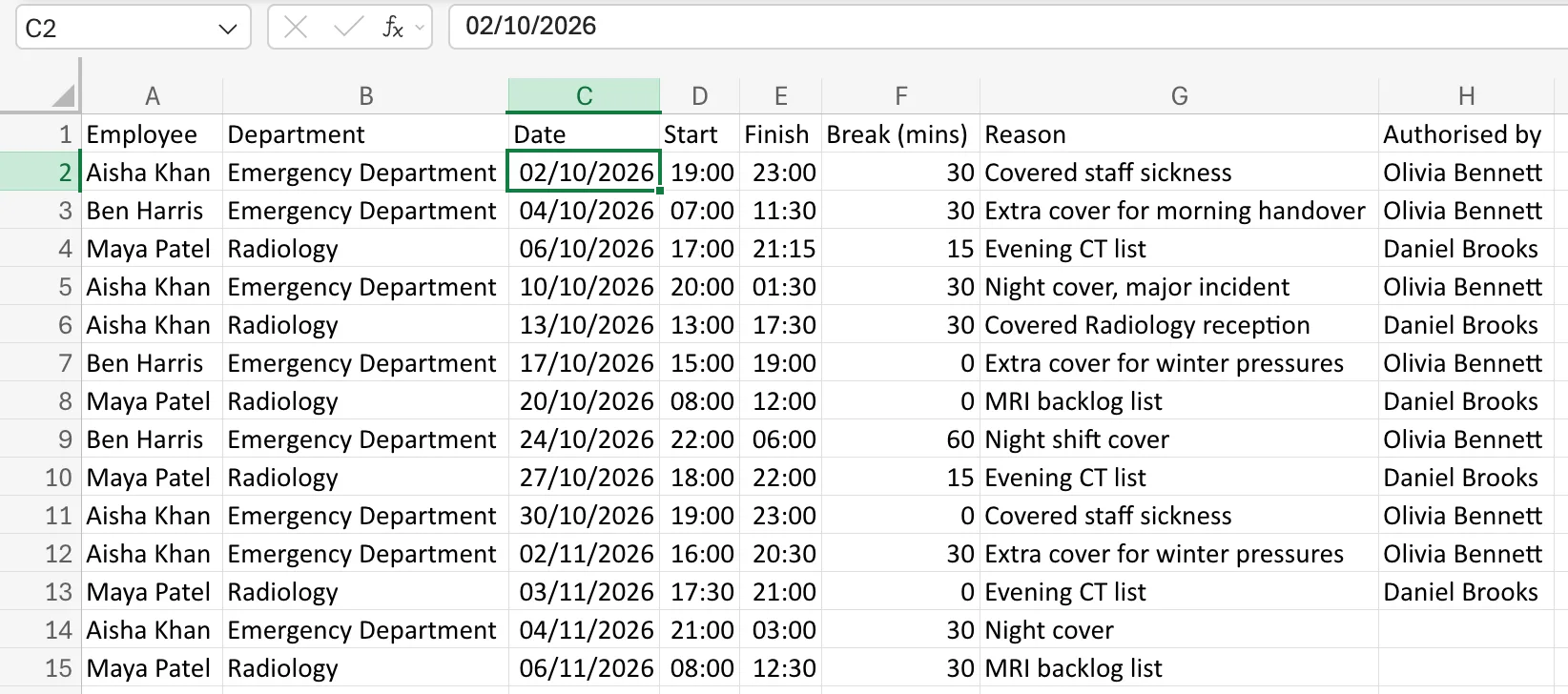
Fixed: Excel Shows ######## (Hash Signs) Instead of Dates After Pasting explains the hashes.
Common Mistakes
| Mistake | What happens | Do this instead |
|---|---|---|
| Pasting into A1 when the headings are already there | Row 1 is overwritten by the first data row | Select A2 |
| Changing the regional format after pasting | Dates were already read with the old order | Set it first, then paste |
| Pasting text with spaces instead of tabs | Every row lands in column A | Copy from a source that separates values with tabs |
Troubleshooting
| Symptom | Likely cause | Fix |
|---|---|---|
######## in the date column | The column is too narrow | Format → Auto Fit Column Width |
| Dates are left-aligned and some read the wrong way round | They were pasted with a month-first regional format | Change the regional format and paste again |
| Everything is in column A | The text had no tabs | Copy the block again with its copy button |
FAQ
Do the last two rows look incomplete?
Their Authorised by is empty: in the old timesheet, those two November shifts hadn't been authorised yet.
Should I paste into a table?
Here the rows were pasted into plain cells first, and the range was turned into a table afterwards, in How to Format Data as a Table in Excel. That's the simplest order.
Conclusion
Copy tab-separated text, select the first empty cell, press Ctrl+V, and AutoFit the columns. Excel puts every value in its own column.
