How to Pass a List of Records to an Office Script from Power Automate

To put many rows into a workbook from a flow, don't run a script once per row: pass the whole list to one script call. The script declares what a record looks like and takes an array of them, and the Run script action takes the flow's array in one piece once you select Switch to input entire array.
Syntax
interface <Record> {
    <field>: <type>;
    <field>: <type>;
}

function main(workbook: ExcelScript.Workbook, <parameter>: <Record>[]) {
    // Use <parameter> here: a list of <Record>s.
}
From Microsoft's Get user input for scripts:
interface <Record>: the shape of one record, a name for each field and its type. Objects must have their interface or class definition defined in the script.<field>: <type>: each field is astring,numberorboolean, an array, or another object made of those.<Record>[]: an array of records. Arrays (both[]andArray<T>styles) of the previously listed types are supported.
The flow's records must use the same field names, because the script reads each value by its name.
Prerequisites
- A business Microsoft 365 licence. Microsoft's Run Office Scripts with Power Automate says you need one to use Office Scripts in Power Automate.
The Example
Office Scripts Example.xlsx, a workbook in my OneDrive, has a table called Fruits with the columns Fruit and Price, and three rows: Apple 1.2, Banana 0.5 and Cherry 3.5. The flow sends two more fruits, Kiwi at 0.8 and Mango at 1.5, and a script called Add Fruits adds them to the table.
Step 1: Write the Script
Create Add Fruits in the workbook (How to Create and Run an Office Script in Excel):
interface Fruit {
    name: string;
    price: number;
}

/**
 * Adds one row per fruit to the end of the Fruits table.
 * @param fruits The fruits to add, each with a name and a price.
 */
function main(workbook: ExcelScript.Workbook, fruits: Fruit[]) {
    const rows = fruits.map((fruit) => [fruit.name, fruit.price]);
    workbook.getTable("Fruits").addRows(-1, rows);
}
interface Fruitsays a fruit has aname, text, and aprice, a number.fruits: Fruit[]is the input: a list of fruits.fruits.map(...)turns each fruit into a row,[name, price], in the table's column order.addRows(-1, rows)adds all the rows to the end of the table in one go (How to Add Rows to an Excel Table with an Office Script).
Step 2: Make the List in the Flow
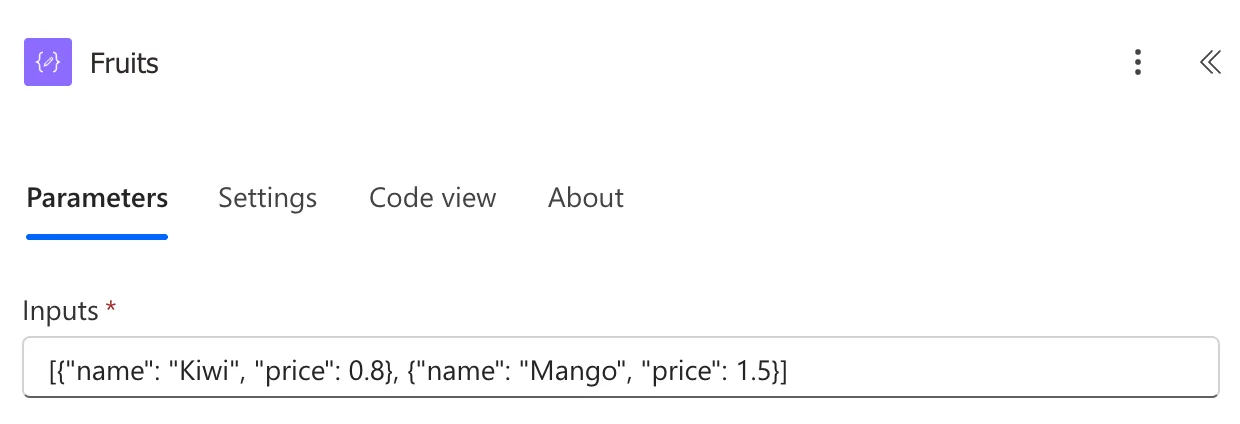
In a flow with the trigger Manually trigger a flow, add a Compose action called Fruits (How to Use the Compose Action in Power Automate), with this in Inputs:
[{"name": "Kiwi", "price": 0.8}, {"name": "Mango", "price": 1.5}]
In a real flow, the list usually comes from earlier steps, for example a Select that keeps the fields the script needs from each item (How to Keep Several Fields from Each Item with Select in Power Automate).
Step 3: Add Run script and Switch to the Entire Array
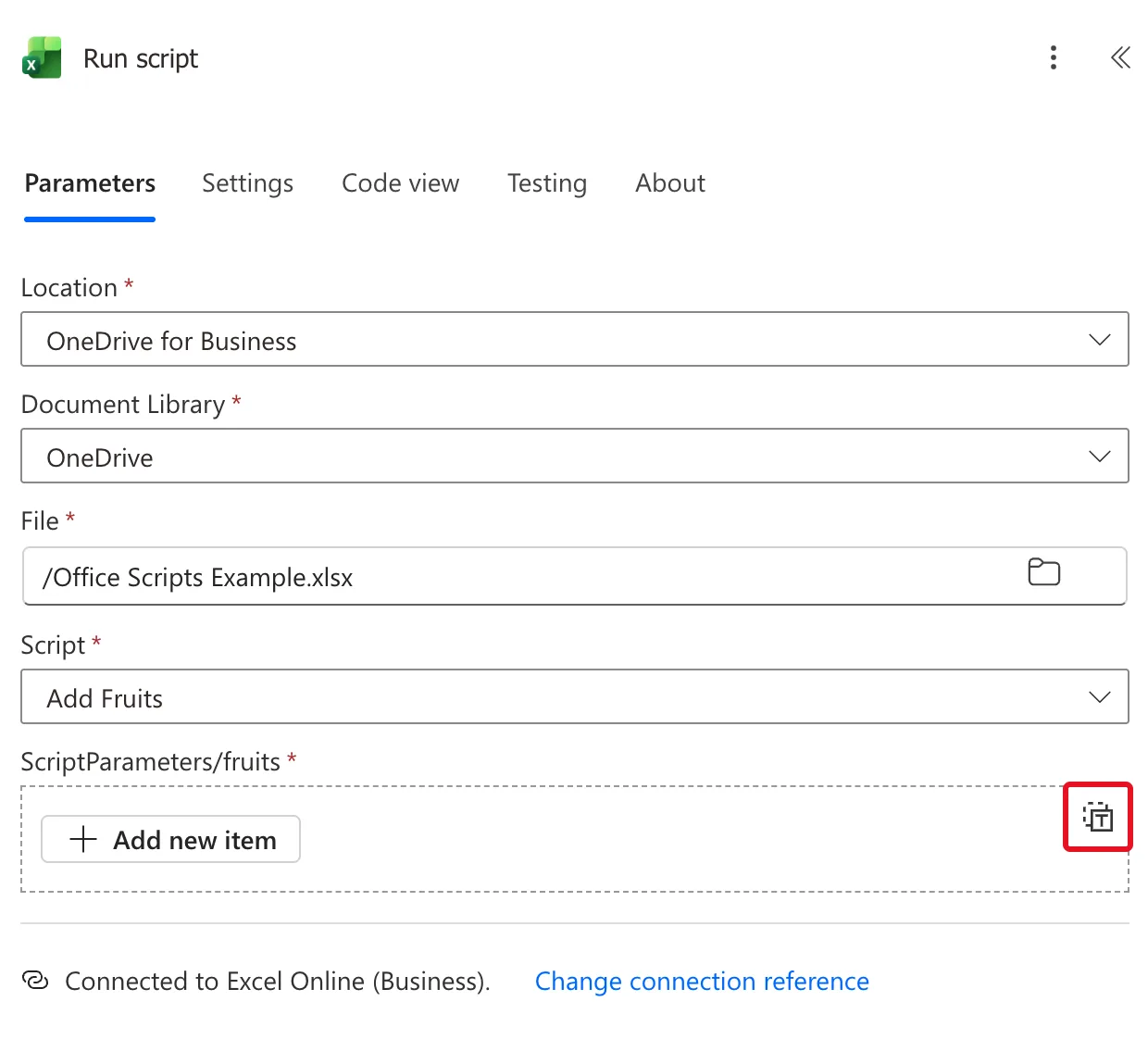
Add Run script from Excel Online (Business) after Fruits and choose the workbook and Add Fruits (How to Run an Office Script from Power Automate). The field for the parameter, ScriptParameters/fruits, offers Add new item, which builds the list one fruit at a time. Select the button at its top right, Switch to input entire array:
The field becomes one box. Put the cursor in it and pick Outputs of Fruits from dynamic content:
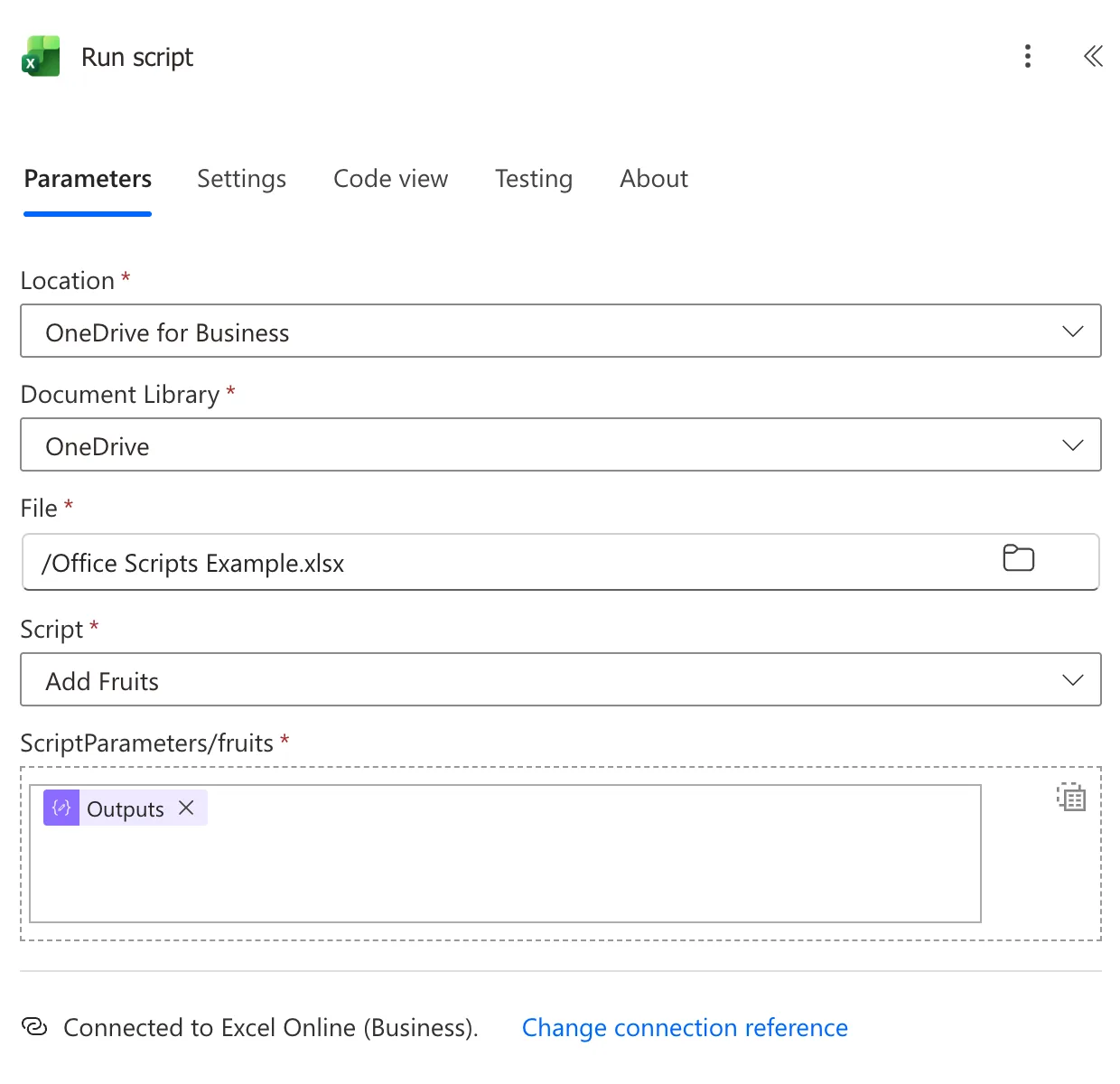
Microsoft's Troubleshoot Office Scripts running in Power Automate explains why: The default is to pass single elements, which builds the array in the flow. For scripts or other connectors that take entire arrays as arguments, you need to select the Switch to input entire array button.
Step 4: Run the Flow
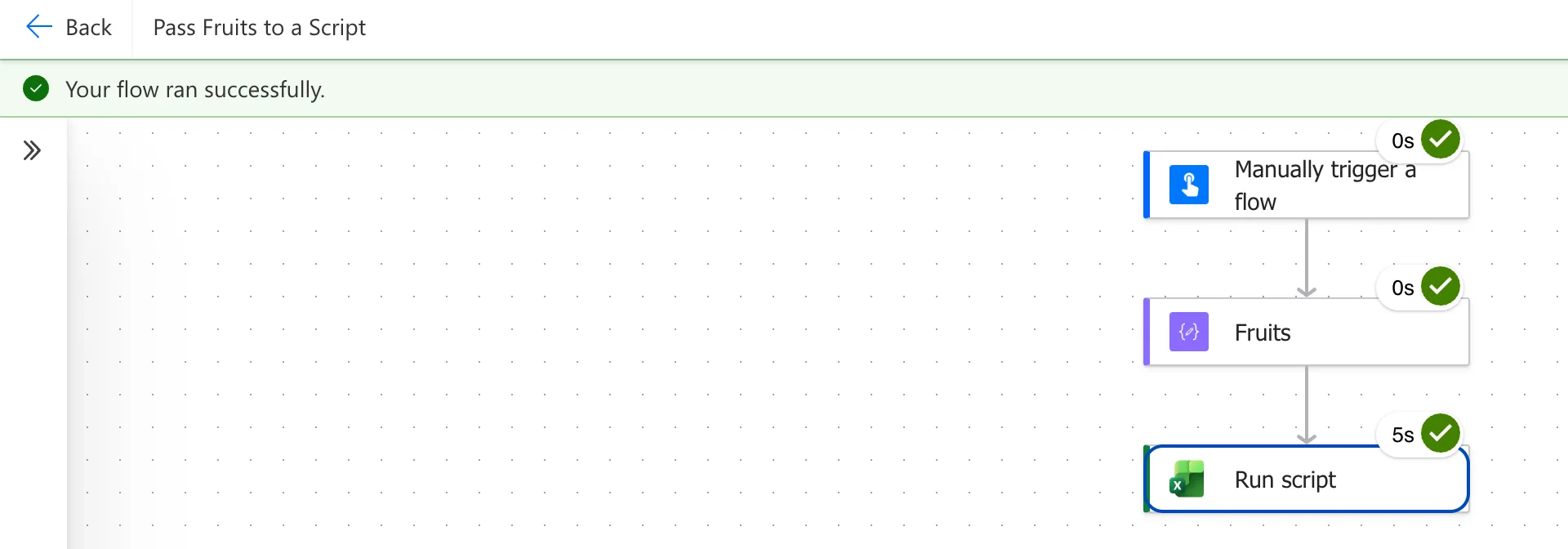
Save the flow and test it (How to Test a Cloud Flow Manually in Power Automate). Run script took 5 seconds for both fruits:
The Result
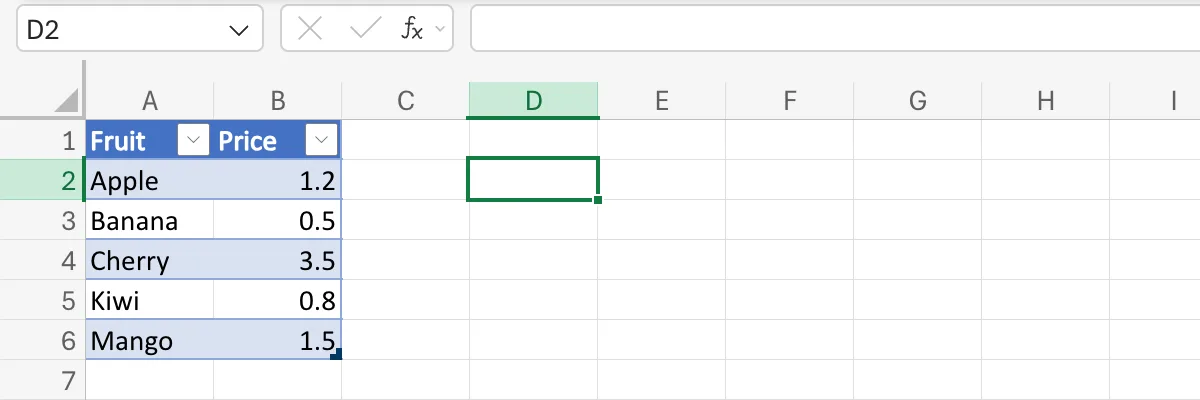
The Fruits table now ends with Kiwi 0.8 and Mango 1.5:
Common Mistakes
| Mistake | What happens | Do this instead |
|---|---|---|
| Leaving the field on Add new item | The flow builds the list item by item instead of taking yours | Switch to input entire array |
Field names in the flow that differ from the interface, such as Name for name | The script finds no value under the names it reads | Use the interface's names exactly |
| Running the script once per record in a loop | Many script calls, each counted against the daily limit | One call with the whole list |
Troubleshooting
| Symptom | Likely cause | Fix |
|---|---|---|
| The parameter field doesn't appear | The interface isn't in the script, or a field has a type scripts can't take | Define the interface in the script with supported types |
| Prices arrive as text | The flow's values are strings, such as "0.8" | Send numbers without quotes, or convert them in the script |
| The field still shows the old parameter | The action was added before the parameter changed | Delete the Run script action and add it again |
FAQ
How many records can I pass?
Microsoft's Platform limits puts the maximum size of parameters passed to the Run script action at 30,000,000 bytes (28.6MB), and a script call times out after 120 seconds.
Can a record contain another object?
Yes. Microsoft's article shows an Employee with a job field that is itself a Position object, as long as every type in it is supported.
Can I define the record type inline instead of with an interface?
Yes: contact: {name: string, email: string} is allowed, as in Microsoft's article. An interface is easier to read once the record has several fields.
Conclusion
Declare the record with an interface, take an array of it in main, and in Run script select Switch to input entire array and pass the flow's list. One script call adds every record.
Additional Resources
- Get user input for scripts
- Troubleshoot Office Scripts running in Power Automate
- Platform limits and requirements with Office Scripts
