How to Open the Selection Pane in Power BI

When visuals overlap, or a click on a table sorts it instead of selecting it, the Selection pane helps: it lists every visual on the page, and selecting a name selects that visual. Here's how to open it.
Microsoft's mobile layout article on layering describes the pane: The Selection pane lists all the visuals that are on the canvas. The order of the list reflects the layer ordering on the canvas—the first listed visual is on the top-most layer. The example is a report of expense claims with six visuals: two cards, a slicer, a chart, a table and a text box.
Step 1: Open the View Menu
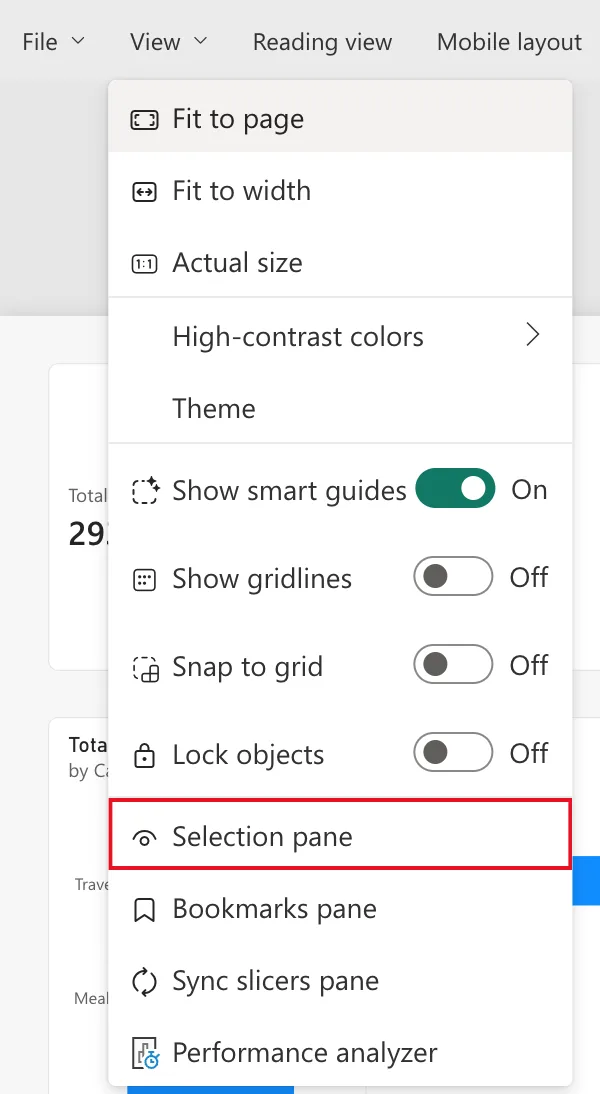
In Editing mode, select View at the top of the report, then Selection pane:
Step 2: Use the Pane
The Selection pane opens on its Layer order tab, listing the page's visuals, the top-most first:
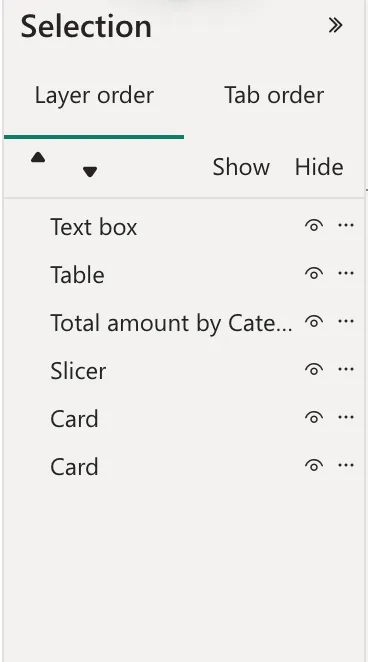
- Select a name to select that visual, ready to format, move or delete.
- The eye icon hides or shows a visual.
- The arrows move the selected visual up or down the layers.
- Tab order sets the order keyboard users move through the visuals.
A visual's name is its title, such as Total amount by Category, or its type, such as Card, when it has no title.
Common Mistakes
| Mistake | What happens | Do this instead |
|---|---|---|
| Clicking a table's header to select the table | The table sorts by that column | Select the table in the pane |
| Hiding a visual and forgetting it | It's gone for readers too | Check the eye icons before saving |
| Several visuals named Card | Hard to tell apart | Give them titles |
Troubleshooting
| Symptom | Likely cause | Fix |
|---|---|---|
| No Selection pane in View | The report is in Viewing mode | Switch to Editing |
| A visual can't be clicked on the page | Another visual is on top of it | Select it in the pane, or move it up the layers |
FAQ
Can I group visuals?
Yes; Microsoft's Group visuals article explains grouping and how the Selection pane shows groups.
When does layer order matter?
When visuals overlap: the visual higher in the list is drawn on top. Tab order matters either way, for keyboard users.
Conclusion
View > Selection pane lists every visual on the page, top layer first. Select a name to select the visual; the eye hides it, the arrows change its layer.
