How to Open Another Screen When a Gallery Row Is Selected in Power Apps

A list is more useful when each row opens its details. In Power Apps, that takes three settings: make the gallery Selectable, navigate from its OnSelect with the selected row, and give each row a button so keyboard users can open it too.
Prerequisites
- A vertical gallery (How to Add a Vertical Gallery in Power Apps).
- The screen to open (How to Add a New Screen in Power Apps).
The example is the Career Development Plan app: galMyPlanMPS on the My Plan screen lists competencies, and each should open the Response screen.
Step 1: Make the Gallery Selectable
Set the gallery's Selectable to true. Microsoft's reference explains the difference: when it's true, "screen readers identify the gallery as a selectable list", and when it's false, selecting an item doesn't select it (Gallery control).
true
Step 2: Navigate from the Gallery's OnSelect
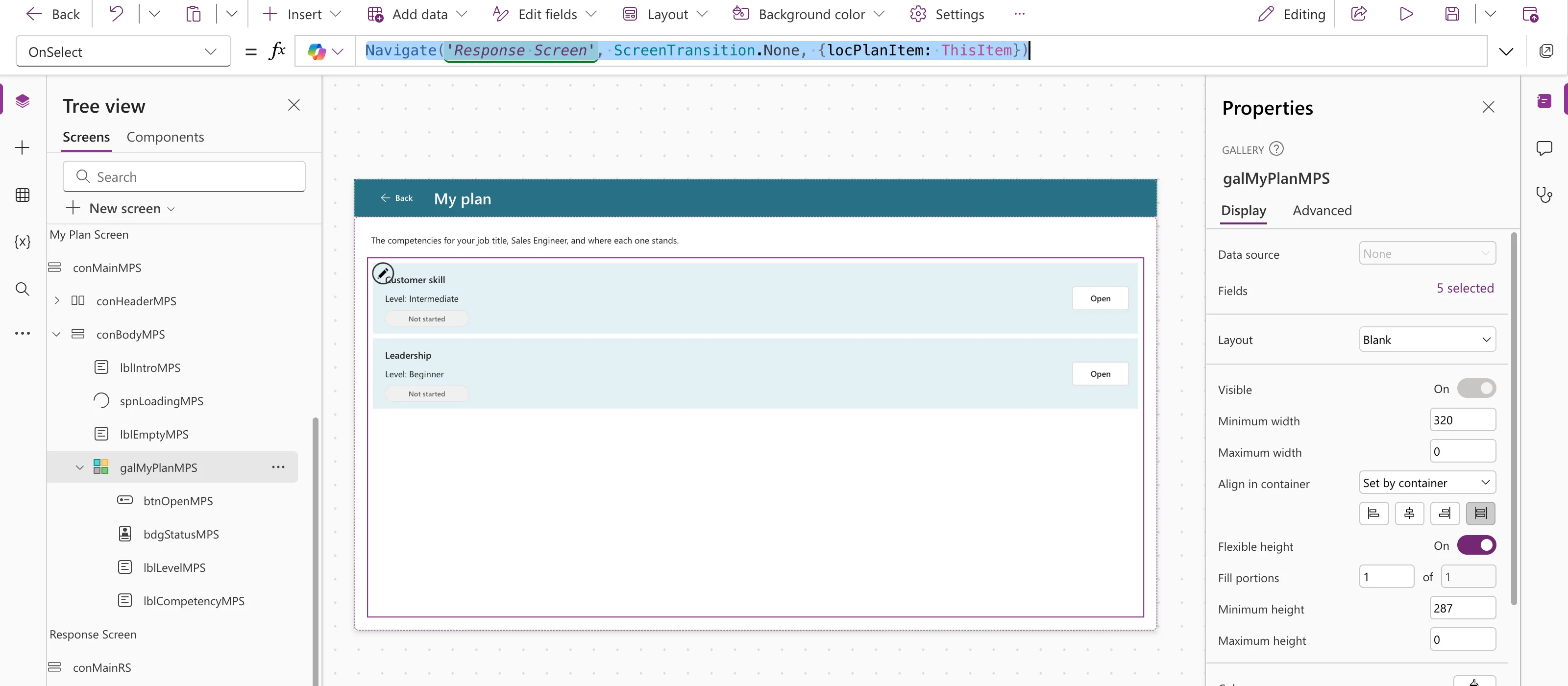
The gallery's OnSelect runs when someone selects a row. Open the details screen there, and pass the row with Navigate's third argument:
Navigate('Response Screen', ScreenTransition.None, {locPlanItem: ThisItem})
ThisItem is the row that was selected (How to Use ThisItem in a Power Apps Gallery). The record arrives on the other screen as the context variable locPlanItem, so that screen can show locPlanItem.Competency and the rest:
Passing Self.Selected instead gave the error Incompatible type in this gallery. See Fixed: "Incompatible Type… Context Variable Types Are Incompatible".
Step 3: Add a Button for Keyboard Users
A mouse or a finger can select anywhere in a row. Microsoft's keyboard guidance for galleries asks for a way to do the same with a keyboard, "for example, adding a Button that has its OnSelect property set to Select(Parent)".
Select a control inside the row first, so the new button goes into the row's template, then Insert → Input → Button (How to Add a Button in Power Apps). In the example, the new button's OnSelect was already Select(Parent):
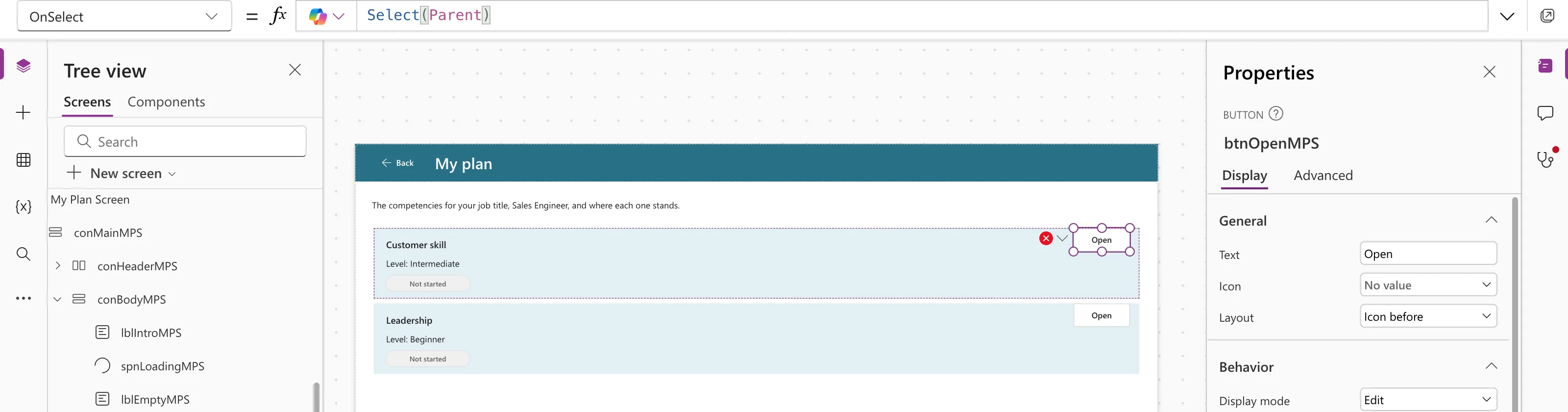
Select(Parent) passes the press to the gallery, so the button and the row run the same OnSelect (How to Use the Select Function in Power Apps). The example's button settings:
| Property | Value |
|---|---|
| Name | btnOpenMPS |
| Text | "Open" |
| AccessibleLabel | "Open " & ThisItem.Competency |
| Appearance | ButtonAppearance.Secondary |
| Width, Height | 96, 40 |
| X | Parent.TemplateWidth - Self.Width - 16 |
| Y | (Parent.TemplateHeight - Self.Height) / 2 |
The accessible label names the row, so a screen reader says Open Customer skill, not just Open. Leave room for the button: the example's text controls became Parent.TemplateWidth - 144 wide.
On phones, a 96-pixel button can leave the text too little room. How to Show Only the Icon on a Button on Phones shows it as a chevron there and lets the text's width follow the button.
Step 4: Test It
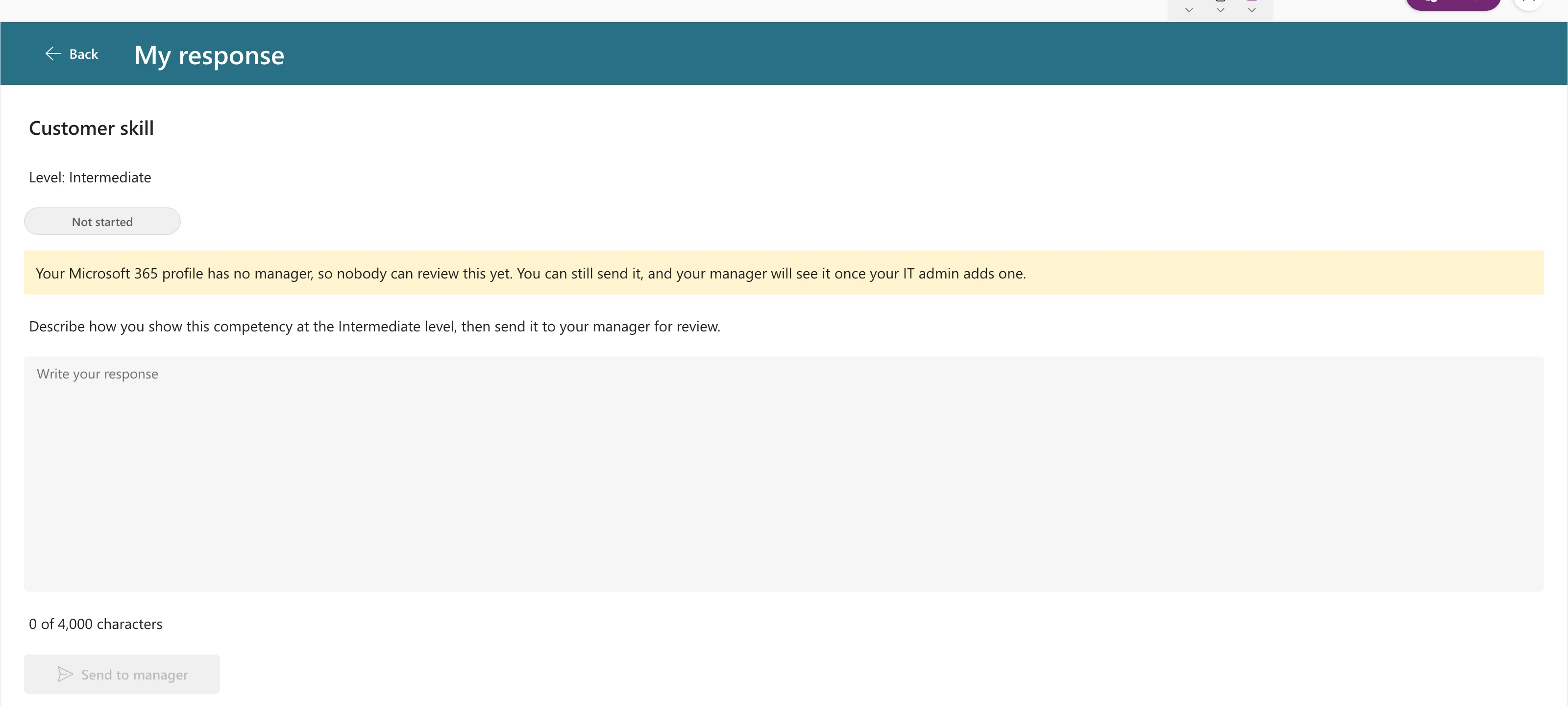
Preview the app and select a row's Open button. In the example, Open on Customer skill opened the Response screen with that competency:
Common Mistakes
| Mistake | What happens | Do this instead |
|---|---|---|
Leaving Selectable false | Selecting a row doesn't select it | Set it to true |
| Inserting the button with the gallery selected | It lands next to the gallery, not in each row | Select a control inside the row first |
| Navigating from the button with its own formula | Two places to keep in step | Keep Select(Parent) on the button |
| A button labeled only "Open" | Screen readers can't tell rows apart | Add the row's name to AccessibleLabel |
Troubleshooting
| Symptom | Likely cause | Fix |
|---|---|---|
| Names are cut off on phones | The button takes most of the row | Show only its icon on phones (Fixed: Text and Buttons Cut Off on Narrow Phones) |
| The new screen shows nothing | It was opened from the tree, not from a row | Test in preview, starting on the gallery's screen |
| The button does nothing | Its OnSelect was changed | Set it back to Select(Parent) |
| Incompatible type on OnSelect | Self.Selected stored in a variable | Pass ThisItem |
FAQ
Why not use Gallery.Selected on the next screen?
Selected can change when the gallery's data changes, which Microsoft's gallery best practices warn about. Passing the row once, when it's selected, gives the next screen a stable copy.
Do I need the button if people use a mouse?
The button is for everyone who uses a keyboard or a screen reader, and it also makes the action visible.
Conclusion
Set Selectable to true, navigate from the gallery's OnSelect with ThisItem, and add a button with Select(Parent) in each row, with an accessible label that names the row.
