How to Open a Web Page from Power Apps with Launch

Launch opens a web page from a canvas app, in a new browser tab by default. Put it in a button's OnSelect, give it the page's address, and the page opens when someone selects the button. It can also add values to the address, such as a search term.
Syntax
Launch(Address)
Launch(Address, { ParameterName: ParameterValue }, LaunchTarget)
| Part | What it is |
|---|---|
| Address | The web page's address, as text. |
| ParameterName: ParameterValue | Optional. Values to add to the address, as a record, one field per value. |
| LaunchTarget | Optional. LaunchTarget.New, a new tab, or LaunchTarget.Replace, the app's own tab. |
From Microsoft's Launch and Param reference:
- Launch can only be used in behavior formulas, such as a button's OnSelect.
- The parameters are URL encoded before being passed, and for a web page they're added to the end of its address as a query string.
- New is the default in a web browser. Only the record form of the parameters takes a LaunchTarget.
The Example
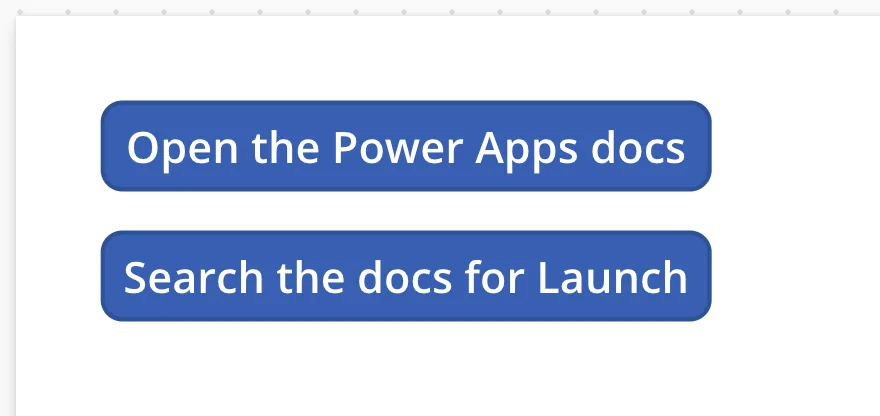
A test app with two buttons: Open the Power Apps docs opens Microsoft's Power Apps documentation, and Search the docs for Launch opens Microsoft Learn's search with Launch function already searched for. To add a button, see How to Add a Button in Power Apps.
Step 1: Open a Page
Select the first button and set its OnSelect:
Launch("https://learn.microsoft.com/power-apps/")

The formula bar underlines the address because it recognizes it as a link. It isn't an error.
Step 2: Open a Page with a Parameter
Microsoft Learn's search page reads the search from a terms value in its address. Set the second button's OnSelect to pass it as a parameter:
Launch("https://learn.microsoft.com/search/", { terms: "Launch function" })
"https://learn.microsoft.com/search/"is the page.{ terms: "Launch function" }is a record with one field. Launch adds it to the address as?terms=Launch%20function, with the space encoded as%20.

The Result
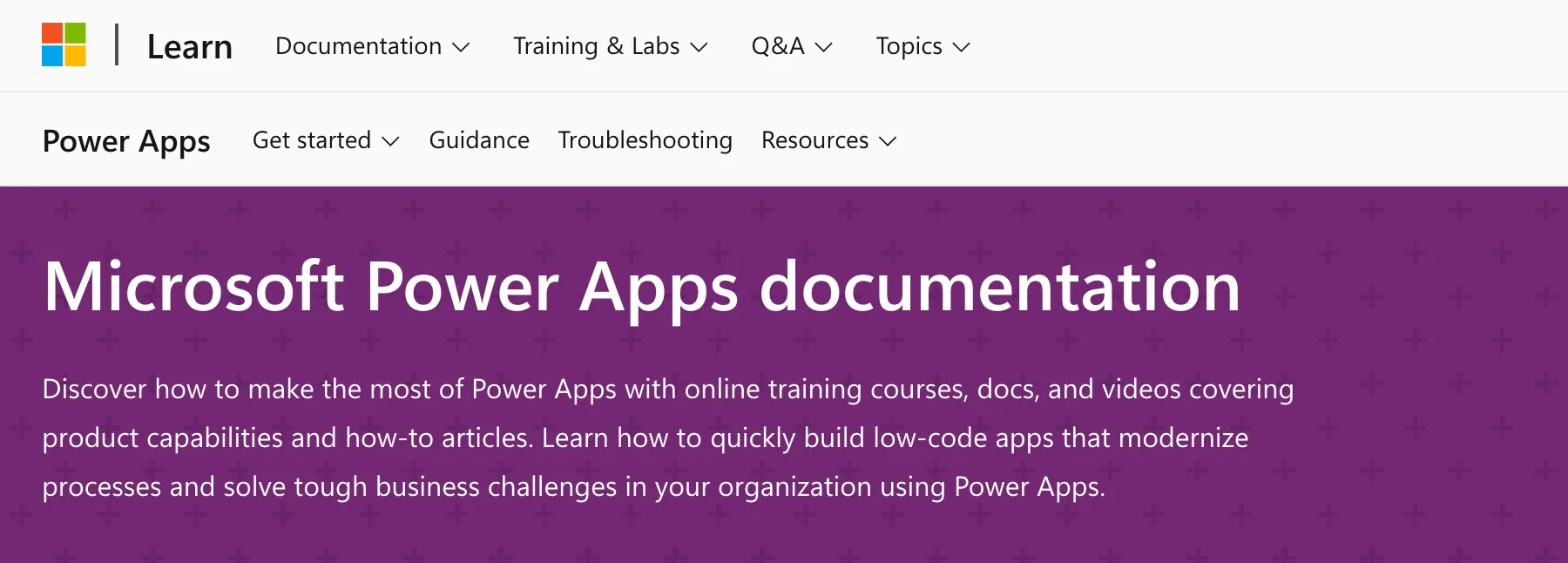
Preview the app (How to Preview a Canvas App in Power Apps Studio) and select Open the Power Apps docs. The documentation opens in a new tab, and the app stays open in its own:
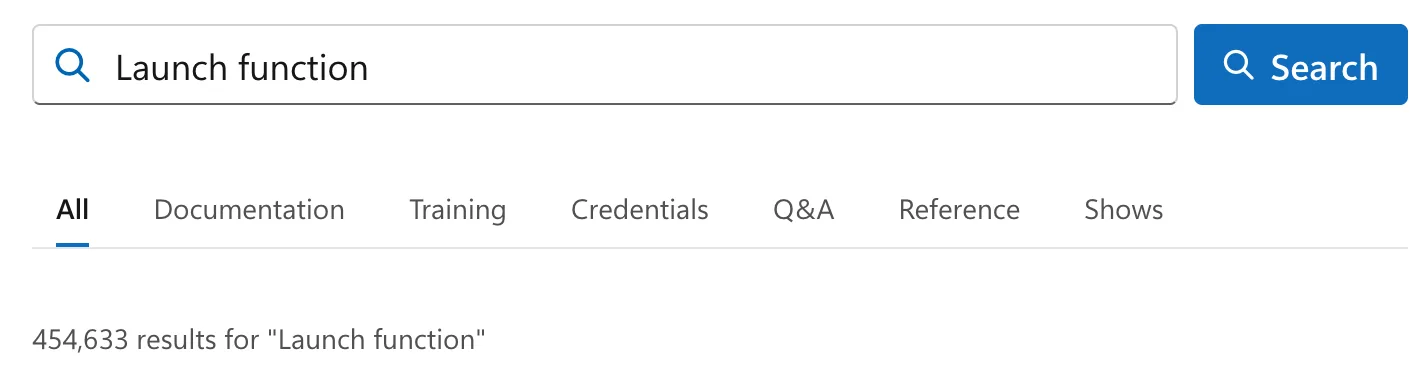
Search the docs for Launch opens Microsoft Learn's search with Launch function in the search box and its results below. In my browser, both addresses came back with the English (UK) part, /en-gb/, which Microsoft Learn added for my language:
Common Mistakes
| Mistake | What happens | Do this instead |
|---|---|---|
| Launch in a property that shows something, such as a label's Text | The reference says it works only in behavior formulas | Put it in OnSelect |
| Building the query string by hand, with spaces in it | The spaces aren't encoded | Pass a record and let Launch encode it |
| LaunchTarget.Replace when the app should stay open | The page replaces the app in its tab | Leave it out: New is the default |
Troubleshooting
| Symptom | Likely cause | Fix |
|---|---|---|
| Nothing happens when the button is selected | A pop-up blocker stopped the new tab | Allow pop-ups for the app's address |
| Selecting the button in Power Apps Studio doesn't open anything | Studio is in editing mode | Preview the app, or hold Alt while selecting it |
| The page opens without your values | The parameters were left out, or are in the wrong place | Check the record is the second argument |
FAQ
Can I open the page in the same tab?
Yes: Launch("<address>", {}, LaunchTarget.Replace). The page then replaces the app in its tab.
Can Launch open another canvas app?
Yes. The reference says it launches canvas apps by their Web link or App URI too, and the opened app reads the parameters with Param.
Can the address come from data?
Yes. Any text works as the address, such as a link a flow returned to the app.
Conclusion
Launch(address) in a button's OnSelect opens a web page in a new tab, and Launch(address, { name: value }) adds encoded values to its address.
