How to Open a Shared Canvas App for the First Time in Power Apps

The first time someone opens a canvas app shared with them, Power Apps asks: Allow [the app] to access your data? The app uses their own SharePoint and Microsoft 365 connections, so each person agrees once. This guide shows the dialog and what it means.
Prerequisites
- An app shared with the person, or with a group they're in (How to Share a Canvas App with a Security Group in Power Apps).
- The app's link (How to Find the Web Link of a Canvas App in Power Apps).
The example is the Career Development Plan app, opened by Olivia Bennett, a demo user who had never used it.
Step 1: Open the Link and Sign In
Open the link in a browser and sign in with the person's work account. To test as someone else, use a separate browser profile or a private window, so you aren't signed in as yourself.
Step 2: Read the Permissions Dialog
After Starting your app, Power Apps shows the dialog over the app:
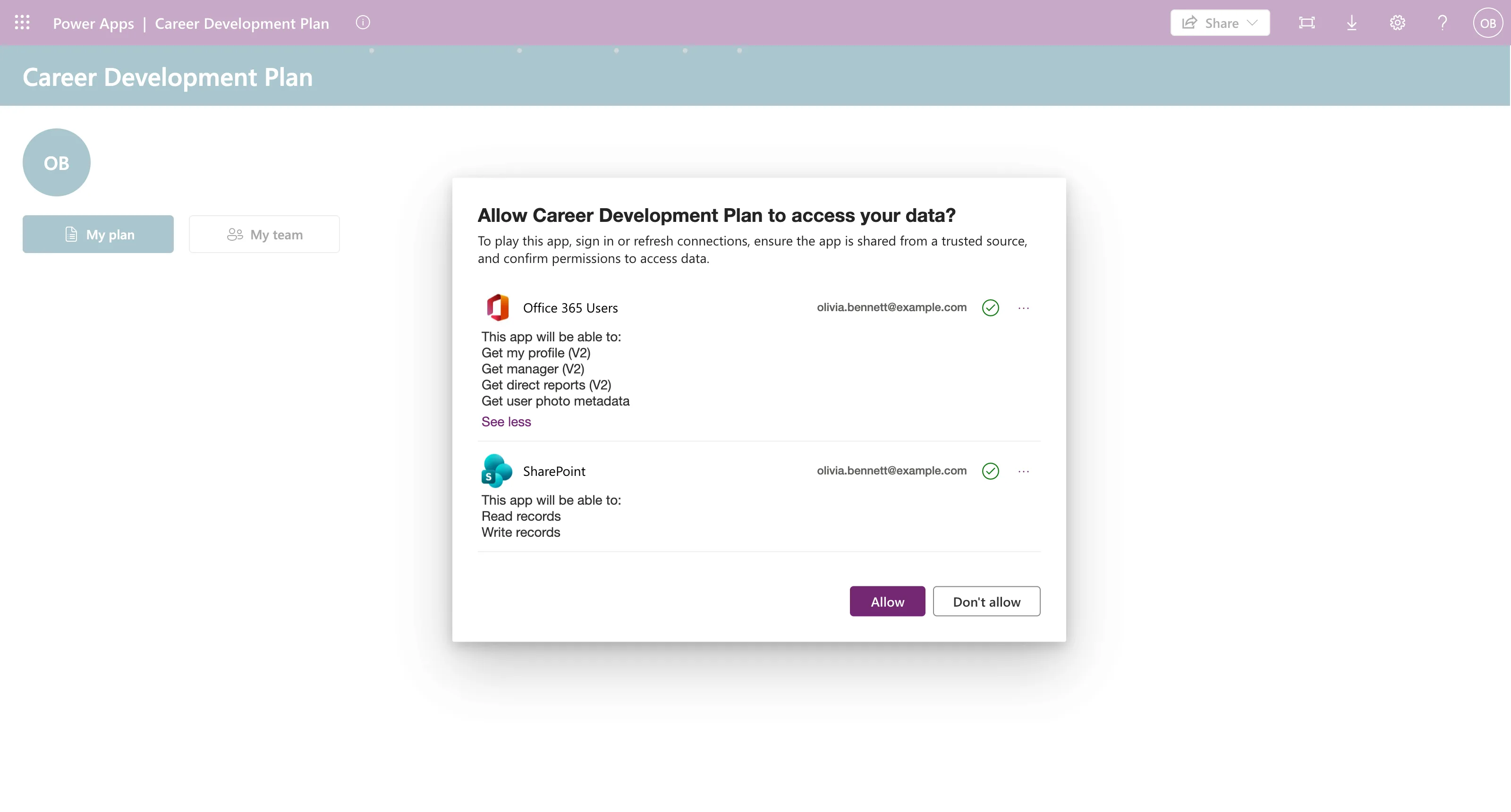
It lists each connection the app uses, the account it will use, and what the app will be able to do. See all shows the full list:
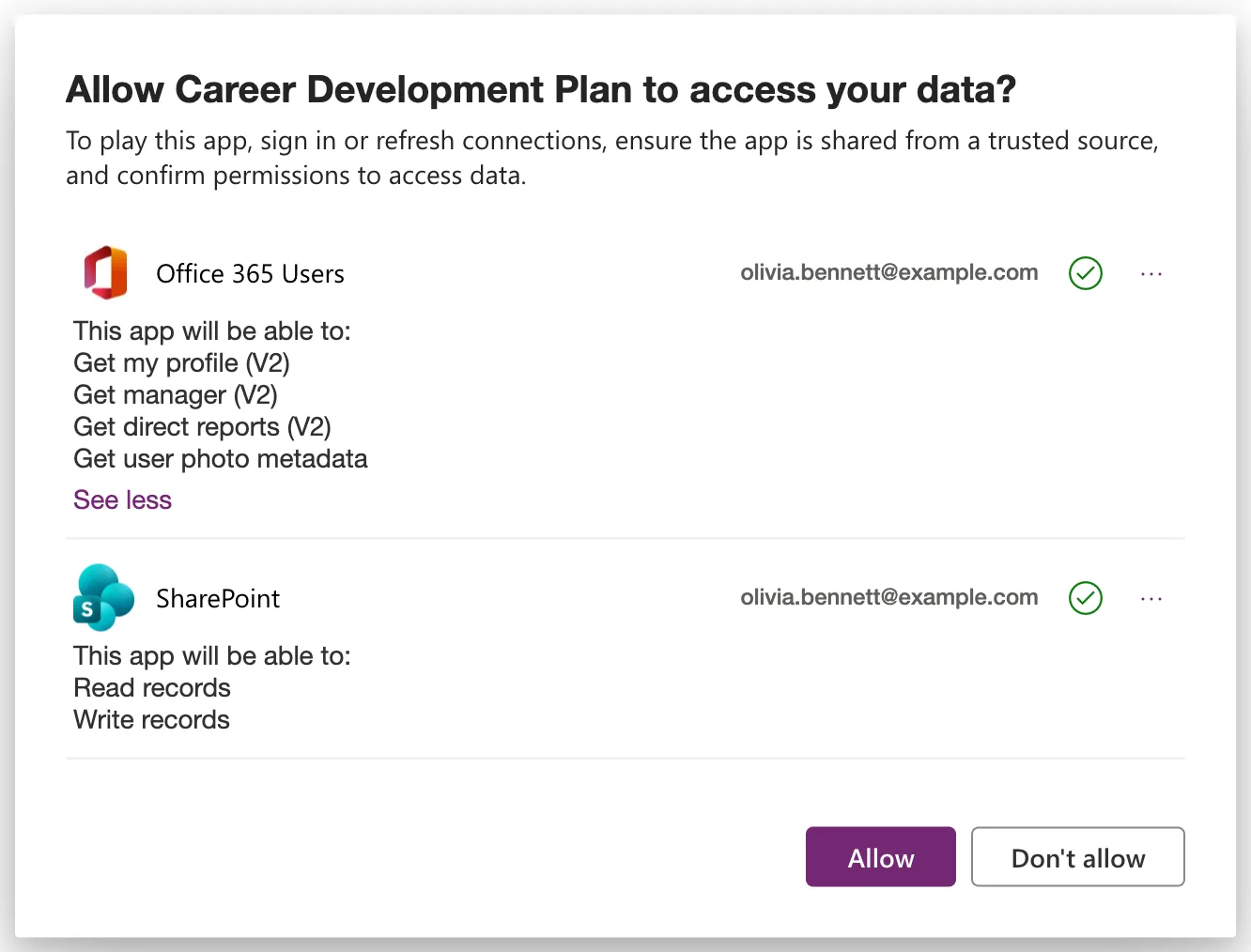
| Connection | What the app will be able to do |
|---|---|
| Office 365 Users | Get my profile (V2), Get manager (V2), Get direct reports (V2), Get user photo metadata |
| SharePoint | Read records, Write records |
Microsoft's connectors overview explains the dialog's purpose: it tells people which data sources the app uses and what it can do with them, and records their consent. The list is specific: Microsoft says it shows the actions the app actually uses, not everything the connector can do.
Step 3: Allow
Select Allow. The app opens with the person's own data, here Olivia's name, job title and manager:
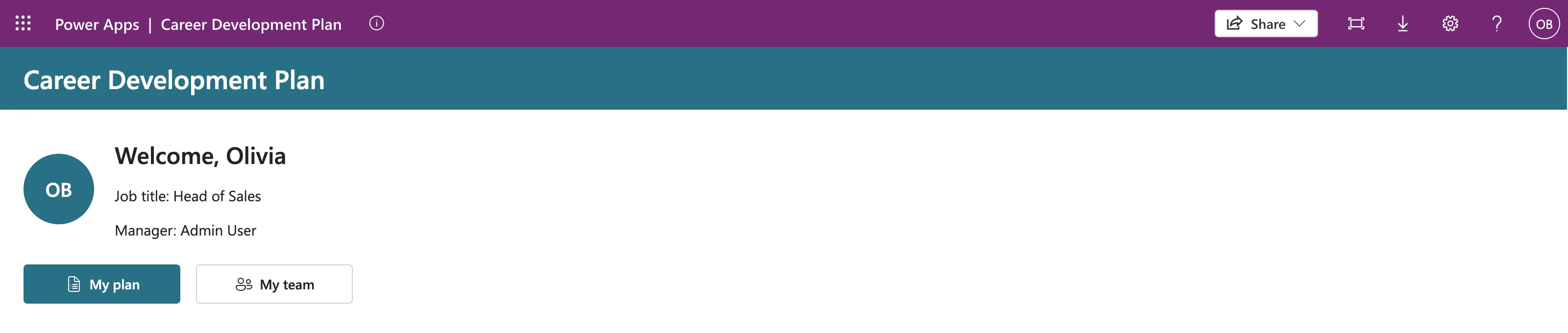
The connections are the person's own. Each person sees and changes only what their own account can reach, so the SharePoint permissions still apply.
When the Dialog Comes Back
Microsoft's article on managing connections says the dialog appears again if the app later starts using more actions, for example writing to a data source it only read before. Removing actions doesn't bring it back.
For Admins: Skipping the Dialog
For Microsoft connectors that support single sign-on, such as SharePoint and Office 365 Users, a Power Platform admin can turn the dialog off for a specific app with the Set-AdminPowerAppApisToBypassConsent PowerShell cmdlet. The connectors overview lists which connectors allow it.
Common Mistakes
| Mistake | What happens | Do this instead |
|---|---|---|
| Testing the share in your own signed-in browser | You open the app as yourself, the owner | Use a separate profile or private window |
| Selecting Don't allow | The app can't use those connections | Open the app again and allow |
| Expecting the app to see data the person can't | Their own permissions still apply | Give access where the data lives |
Troubleshooting
| Symptom | Likely cause | Fix |
|---|---|---|
| The app can't be found or opened | It isn't shared with them, or isn't published | Check Share and publish |
| The dialog shows a connection with an error | The person's account can't sign in to that service | Fix the account's access to the service |
FAQ
Do people need to allow it every time?
No, once per app, unless the app starts using more actions later.
Does Allow give the app the maker's access?
No. SharePoint and Office 365 Users connect as the person using the app.
Conclusion
The first run asks each person to allow the app to use their own connections, and lists exactly what it will do. Select Allow, and the app opens with that person's data. Test it in a separate browser profile, as the person, not as yourself.
