How to Measure Elapsed Time with Stopwatch in C#

To find out how long a piece of C# code takes, start a Stopwatch before it, stop it after, and read Elapsed. It's the simplest accurate way to time code in .NET, and two habits keep its numbers honest: Restart between measurements, and a Release build for anything you compare.
Microsoft's reference describes the class as a set of methods and properties that you can use to accurately measure elapsed time. It counts the ticks of the computer's most precise timer: If the installed hardware and operating system support a high-resolution performance counter, then the Stopwatch class uses that counter to measure elapsed time. On the Mac this example ran on, Stopwatch.IsHighResolution was True.
Syntax
using System.Diagnostics;

Stopwatch <watch> = Stopwatch.StartNew();
// The code to time.
<watch>.Stop();

TimeSpan <elapsed> = <watch>.Elapsed;
| Part | What it is |
|---|---|
Stopwatch.StartNew() | Initializes a new Stopwatch instance, sets the elapsed time property to zero, and starts measuring elapsed time |
<watch>.Stop() | Stops measuring. Elapsed keeps its value |
<watch>.Elapsed | The total elapsed time measured by the current instance, as a TimeSpan with TotalMilliseconds, TotalSeconds and so on |
<watch>.Restart() | Stops time interval measurement, resets the elapsed time to zero, and starts measuring elapsed time: the start of the next measurement |
The Example
A console app called StopwatchTiming times two things: a wait of 250 milliseconds, and a loop that adds up the numbers from 0 to 9,999,999.
Prerequisites
- The .NET 10 SDK.
dotnet --versionprints a version that starts with10.0.
Step 1: Create a Console App
dotnet new console -n StopwatchTiming
cd StopwatchTiming
The template "Console App" was created successfully.

Processing post-creation actions...
Restoring /Users/you/source/StopwatchTiming/StopwatchTiming.csproj:
  Determining projects to restore...
  Restored /Users/you/source/StopwatchTiming/StopwatchTiming.csproj (in 54 ms).
Restore succeeded.
dotnet new console -n StopwatchTiming creates a folder named StopwatchTiming with a project file and a Program.cs, and cd moves into it. Stopwatch is part of .NET, so there's no package to add.
Step 2: Write the Code
Replace everything in Program.cs. First, time the wait:
using System.Diagnostics;

Stopwatch watch = Stopwatch.StartNew();
await Task.Delay(TimeSpan.FromMilliseconds(250));
Console.WriteLine($"Waited {watch.Elapsed.TotalMilliseconds:F0} ms");
using System.Diagnostics;brings inStopwatch.Stopwatch.StartNew()creates a stopwatch that's already running.await Task.Delay(...)waits 250 milliseconds without blocking the thread.watch.Elapsed.TotalMillisecondsis the time so far in milliseconds.:F0in the braces prints it with no decimal places.
Then time the loop with the same stopwatch:
watch.Restart();
long sum = 0;
for (int number = 0; number < 10_000_000; number++)
{
    sum += number;
}
watch.Stop();

Console.WriteLine($"Added 10 million numbers in {watch.Elapsed.TotalMilliseconds:F1} ms (the sum is {sum})");
watch.Restart()sets the stopwatch back to zero and starts it again, so the loop's time doesn't include the wait.10_000_000is ten million. The underscores only make the number easier to read.long sumholds the total, 49,999,995,000,000, which is too big for anint.watch.Stop()stops it right after the loop.:F1prints the time with one decimal place.
Step 3: Run It
Run it in VS Code's terminal, or press Ctrl+F5 in Visual Studio:
dotnet run
Waited 255 ms
Added 10 million numbers in 46.8 ms (the sum is 49999995000000)
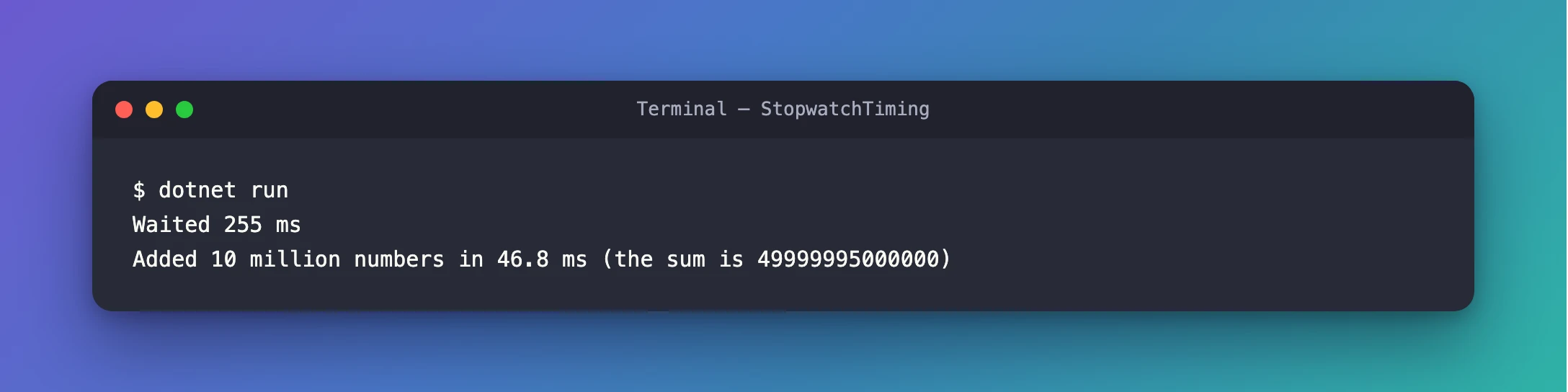
The wait took 255 ms, five more than the 250 asked for, and it came out a few milliseconds over in every run. The loop took 46.8 ms. Your numbers will be different, and they change from run to run, as the next section shows.
The Complete File
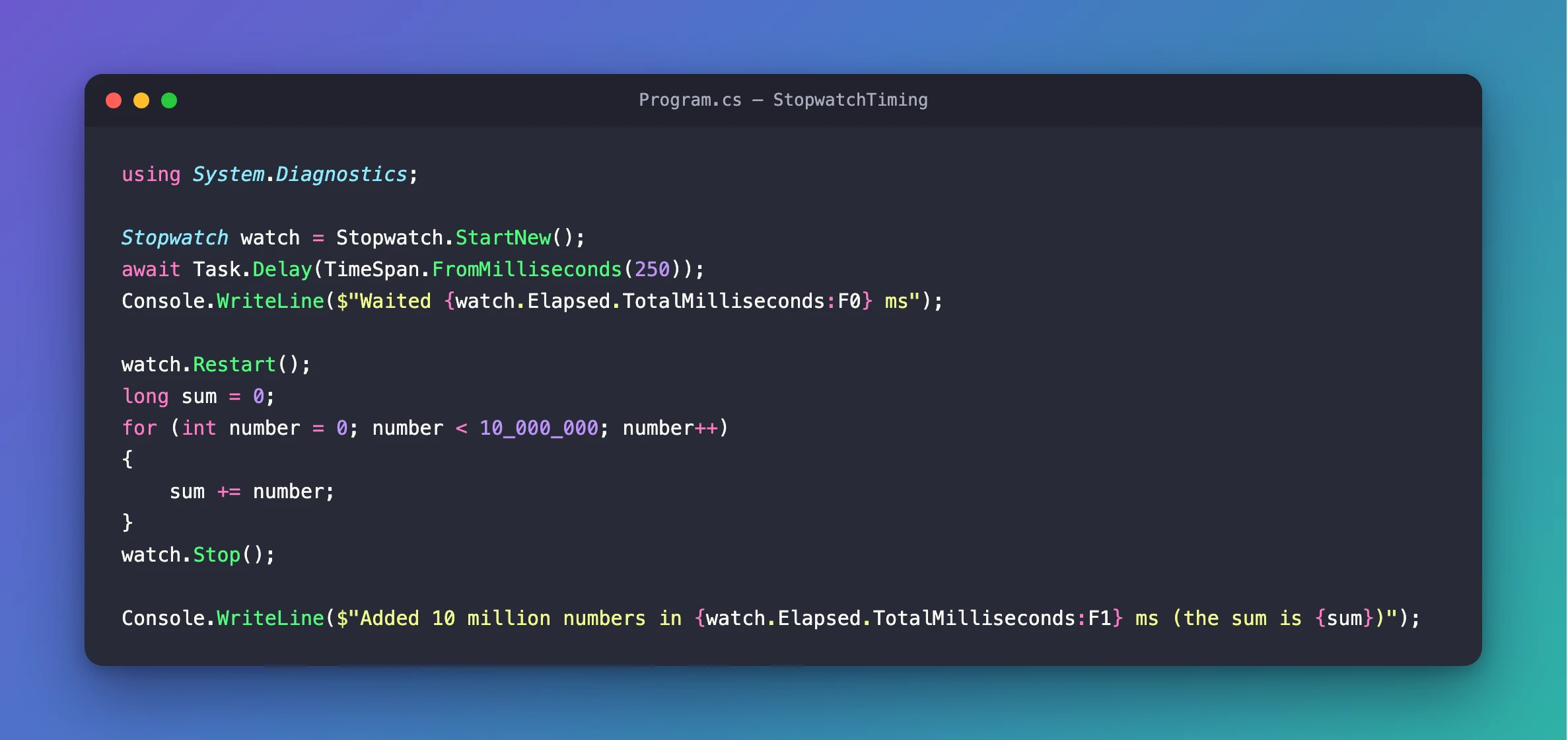
using System.Diagnostics;

Stopwatch watch = Stopwatch.StartNew();
await Task.Delay(TimeSpan.FromMilliseconds(250));
Console.WriteLine($"Waited {watch.Elapsed.TotalMilliseconds:F0} ms");

watch.Restart();
long sum = 0;
for (int number = 0; number < 10_000_000; number++)
{
    sum += number;
}
watch.Stop();

Console.WriteLine($"Added 10 million numbers in {watch.Elapsed.TotalMilliseconds:F1} ms (the sum is {sum})");
Debug, Release and Run-to-Run Changes
dotnet run builds in Debug unless you say otherwise. Microsoft's dotnet run reference: The default for most projects is Debug. A Debug build is made for stepping through code, and Microsoft's debugging tutorial notes that the Release version incorporates compiler optimizations. That's the version your users run. Two more Debug runs of the same app:
Waited 256 ms
Added 10 million numbers in 49.5 ms (the sum is 49999995000000)
Waited 261 ms
Added 10 million numbers in 110.5 ms (the sum is 49999995000000)
The loop took 49.5 ms once and 110.5 ms the next time, so one measurement on its own can be far off. And in Release:
dotnet run -c Release
Waited 255 ms
Added 10 million numbers in 13.6 ms (the sum is 49999995000000)
The same loop took 13.6 ms, more than three times faster than the 46.8 ms in Debug. The wait didn't change, because waiting doesn't get faster with optimizations.
Common Mistakes
| Mistake | What happens | Do this instead |
|---|---|---|
Calling Start after Stop to time something new | The new time is added to the old one: two waits of 200 ms with a 300 ms pause between them measured 404 ms in total | Call Restart for a new measurement, or create a new stopwatch |
| Comparing timings from a Debug build | The numbers don't show how fast the code runs for users: 46.8 ms in Debug against 13.6 ms in Release | Time with dotnet run -c Release |
| Trusting one run | The same Debug loop took 46.8, 49.5 and 110.5 ms in three runs | Run it several times and compare |
The first mistake comes straight from how Stop works. Microsoft's reference: A subsequent call to Start resumes measuring time from the current elapsed time value. This is the code that measured 404 ms:
Stopwatch watch = Stopwatch.StartNew();
await Task.Delay(200);
watch.Stop();
await Task.Delay(300);
watch.Start();
await Task.Delay(200);
watch.Stop();
Console.WriteLine($"Two 200 ms intervals with a 300 ms pause between: {watch.ElapsedMilliseconds} ms");
Two 200 ms intervals with a 300 ms pause between: 404 ms
FAQ
Can I time something without creating a Stopwatch?
Yes. Stopwatch.GetTimestamp() reads the timer, and Stopwatch.GetElapsedTime gives the time since then. Microsoft's reference: it gets the elapsed time since the startingTimestamp value retrieved using GetTimestamp(). This measured a 200 ms wait as 201 ms:
long start = Stopwatch.GetTimestamp();
await Task.Delay(200);
Console.WriteLine($"GetElapsedTime: {Stopwatch.GetElapsedTime(start).TotalMilliseconds:F0} ms");
GetElapsedTime: 201 ms
Can I read Elapsed while the stopwatch is running?
Yes. Microsoft's reference: You can query the elapsed time properties while the instance is running or stopped. The example does it after the wait, without stopping first.
What's the difference between Restart and Reset?
Reset stops the stopwatch and sets it to zero. Restart does the same and starts it again. Microsoft's reference: Use Reset to stop any interval measurement in progress and clear the elapsed time value. Use Restart to stop current interval measurement and start a new interval measurement.
Conclusion
Stopwatch.StartNew(), the code, Stop(), then Elapsed: that's how long the code took. Here it measured a 250 ms wait as 255 ms and a ten-million-number loop as 46.8 ms in Debug and 13.6 ms in Release, so use Restart between measurements and a Release build for any timing you compare.
Additional Resources
- Stopwatch class — every member, and how the timer works.
- Stopwatch.GetElapsedTime — timing without a
Stopwatchobject. - dotnet run —
-cand the other options.
