How to Match Many Files with a Wildcard in the Terminal

Typing every file's name gets old fast. The * wildcard stands for any part of a name, so one short pattern such as reports/*/summary.txt names every matching file for you. zsh, bash and PowerShell all understand it, with one difference that matters: what happens when nothing matches.
Syntax
A wildcard goes where a file or folder name would go, in any command that takes paths:
<folder>/*<rest of name>
<folder>/*/<name>
| Part | What it does |
|---|---|
* | Stands for any characters, including none, within one name. *.txt is every name that ends in .txt. |
<folder>/*/<name> | * between two slashes stands for any one folder, so reports/*/summary.txt is the summary.txt in each folder inside reports. |
/ | Never matched by *. A pattern reaches exactly as many folders deep as it has slashes. |
Who reads the pattern differs:
- zsh and bash replace the pattern with the matching names, sorted, before the command starts. The command never sees the
*. The zsh manual puts it this way: "The word is replaced with a list of sorted filenames that match the pattern." - PowerShell passes the pattern to the command, and a parameter that accepts wildcards does the matching. Microsoft's reference says which parameters do:
Remove-Item's Path, for example, says "Wildcard characters are permitted."
The Example
The example has a reports folder with one folder per month, two summary.txt files and a notes.md:
reports/2026-10/summary.txt
reports/2026-11/notes.md
reports/2026-11/summary.txt
It shows what three patterns match, what happens when a pattern matches nothing, and then deletes both summaries with one command.
Step 1: Create the Example Files
- macOS / Linux
- Windows (PowerShell)
mkdir -p reports/2026-10 reports/2026-11
touch reports/2026-10/summary.txt reports/2026-11/summary.txt reports/2026-11/notes.md
New-Item -ItemType Directory -Path reports/2026-10, reports/2026-11
New-Item -ItemType File -Path reports/2026-10/summary.txt, reports/2026-11/summary.txt, reports/2026-11/notes.md
Step 2: See What a Pattern Matches
Before a pattern goes into a command that changes files, look at what it names:
- macOS / Linux
- Windows (PowerShell)
echo reports/*/summary.txt
reports/2026-10/summary.txt reports/2026-11/summary.txt
echo prints its arguments, so it shows exactly what the shell put in place of the pattern: both summaries, and not notes.md.
Resolve-Path reports/*/summary.txt -Relative
./reports/2026-10/summary.txt
./reports/2026-11/summary.txt
Resolve-Path "displays the items and containers that match the wildcard pattern", in Microsoft's words, and -Relative prints each one relative to the folder you're in.
Step 3: Match Everything in One Folder
- macOS / Linux
- Windows (PowerShell)
echo reports/2026-11/*
echo reports/*
reports/2026-11/notes.md reports/2026-11/summary.txt
reports/2026-10 reports/2026-11
Resolve-Path reports/2026-11/* -Relative
./reports/2026-11/notes.md
./reports/2026-11/summary.txt
reports/2026-11/* is everything in that one folder. reports/* is only the two month folders, not the files inside them, because * doesn't match /.
Step 4: See What Happens When Nothing Matches
The folder has no CSV files:
- macOS / Linux
- Windows (PowerShell)
In zsh, the default shell on macOS:
echo reports/*.csv
zsh: no matches found: reports/*.csv
zsh stops the whole command and runs nothing. bash leaves the pattern as it is instead and runs the command with it, so the command gets the name reports/*.csv. Here is bash 3.2 on the same Mac:
$ echo reports/*.csv
reports/*.csv
$ rm reports/*.csv
rm: reports/*.csv: No such file or directory
Resolve-Path reports/*.csv -Relative
Get-ChildItem reports/*.csv
Both print nothing at all: no list, and no error. A wildcard that matches nothing is simply an empty result.
Both shells' manuals describe this. zsh: "If no matching pattern is found, the shell gives an error message". bash: "If no matching file names are found, and the shell option nullglob is disabled, the word is left unchanged."
Step 5: Use the Pattern in a Command
Delete both summaries in one command, then look at what's left:
- macOS / Linux
- Windows (PowerShell)
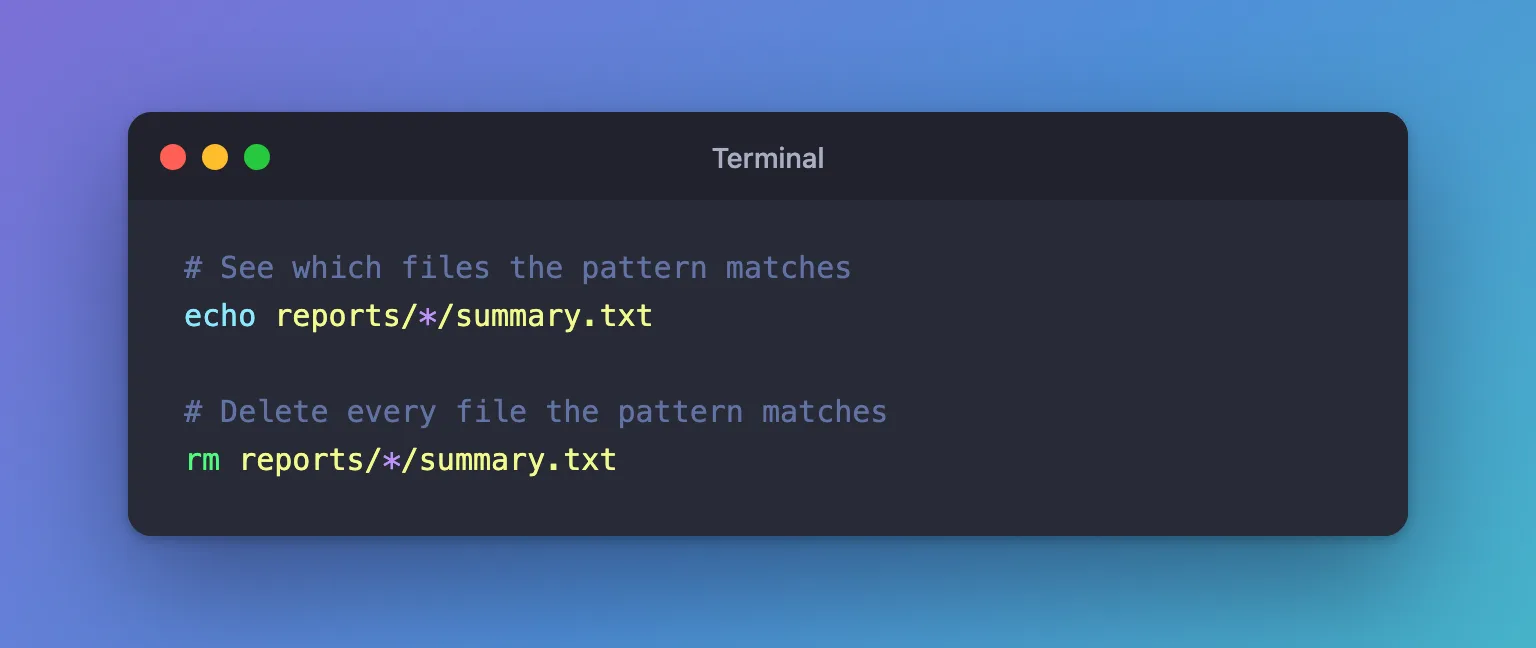
rm reports/*/summary.txt
echo reports/*/*
reports/2026-11/notes.md
rm received the two paths that Step 2 showed and deleted both. reports/*/*, every file one folder down, now finds only notes.md.
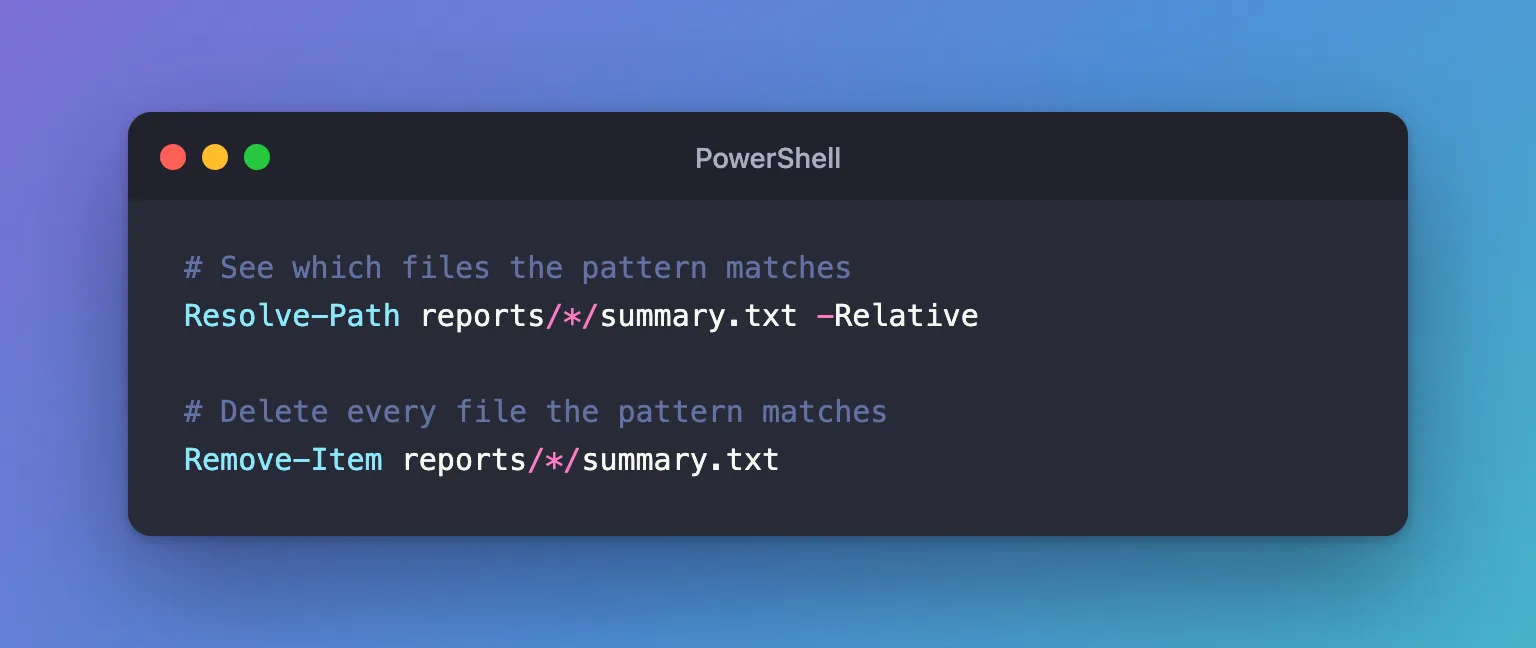
Remove-Item reports/*/summary.txt
Resolve-Path reports/*/* -Relative
./reports/2026-11/notes.md
Remove-Item deleted every file the pattern matched, the same two that Step 2 listed.
Common Mistakes
| Mistake | What happens | Do this instead |
|---|---|---|
| Deleting with a pattern you haven't looked at | Every file it matches goes, including ones you didn't think of | Run it with echo or Resolve-Path first, as in Step 2 |
Expecting reports/* to reach files in subfolders | It matches only the names directly inside reports | Add one */ for each folder level |
Quoting the pattern: echo 'reports/*/summary.txt' | Prints reports/*/summary.txt as typed: quotes stop the shell from matching | Leave a pattern you want matched unquoted |
Troubleshooting
| Symptom | Likely cause | Fix |
|---|---|---|
zsh: no matches found: … | Nothing matches the pattern | Check the folder names and the pattern with echo |
rm: reports/*.csv: No such file or directory in bash | Nothing matched, so bash passed the pattern itself to rm | Same as above |
| A PowerShell command does nothing | The pattern matched nothing, which PowerShell treats as an empty result | Run Resolve-Path <pattern> -Relative to see what it matches |
FAQ
Does * match hidden files?
Not in zsh and bash. Both manuals say a . at the start of a name must be matched explicitly, so * skips names such as .env.
Is the match case-sensitive?
In PowerShell, no: Microsoft's wildcard article says that for parameters that accept wildcards, "their use is case-insensitive."
Are there other wildcards?
Yes. ? stands for exactly one character in zsh and bash, and [...] for one of the characters in the brackets. This post covers *, the one you'll use most.
Conclusion
* stands for any characters within one name, so reports/*/summary.txt names every summary.txt one folder down. zsh and bash replace the pattern with the matching names before the command runs, and PowerShell's commands do the matching themselves. Look at what a pattern matches before you delete with it, and remember that zsh refuses a pattern that matches nothing, bash passes it on unchanged, and PowerShell returns nothing.
Additional Resources
- Pattern Matching Notation, in the POSIX standard:
*,?and[...]. - Filename Generation, in the zsh manual: how zsh matches patterns, and the
NOMATCHoption behind its error. - about_Wildcards: the wildcards PowerShell understands.
