How to Make Yourself System Administrator of a Power Platform Environment

Being a Global or Power Platform admin doesn't make you System Administrator of an environment's Dataverse. Microsoft stopped assigning that role to admins automatically. When you need it, you give it to yourself in the Power Platform admin center, in four clicks.
Why Admins Don't Have It
In an environment with Dataverse, what you can do is decided by Dataverse security roles, such as Basic User, Environment Maker, System Customizer and System Administrator. Your Microsoft 365 admin role is a different thing.
Microsoft used to make Global, Power Platform and Dynamics 365 admins System Administrator of every environment automatically. It no longer does. Admins can still manage tenant settings and view analytics and capacity, but anything that needs Dataverse itself, such as assigning security roles, needs the System Administrator role in that environment first. Microsoft calls giving it to yourself self-elevation, and logs every self-elevation in Microsoft Purview.
You'll typically need it when:
- Power Apps says one or more commands are unavailable due to your current privileges, for example creating tables;
- you assign security roles to other people;
- you're the admin who builds, exports and installs solutions, as in the Career Development Plan series, which this guide uses as its example.
Prerequisites
- The Global Administrator, Power Platform Administrator or Dynamics 365 Administrator role, assigned to your account directly. Microsoft notes that roles assigned through a group aren't supported for self-elevation.
- An environment with Dataverse. See How to Add a Dataverse Database to the Default Power Platform Environment.
Step 1: Open the Environment
Sign in to the Power Platform admin center and select Manage → Environments. Check that the environment's Dataverse column says Yes, then select its name.

Step 2: Select Membership
At the top of the environment's page, select Membership in the command bar.

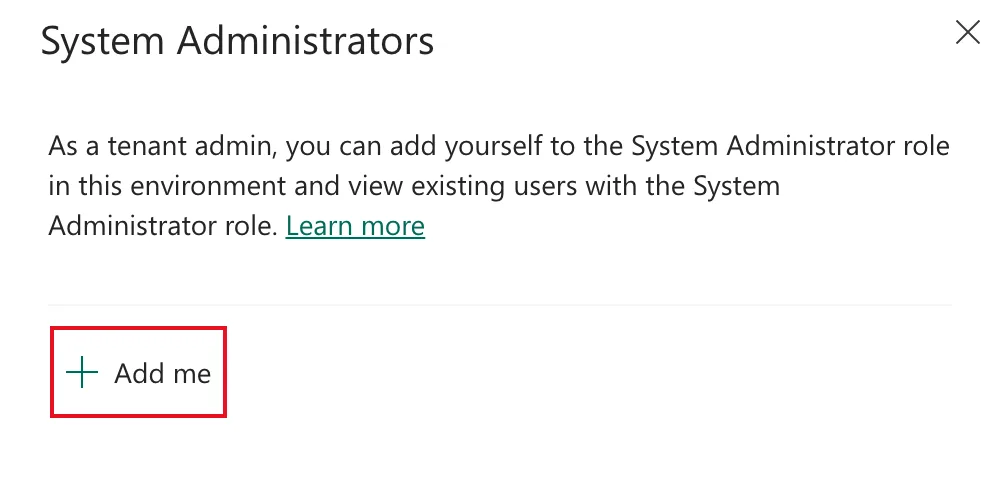
Step 3: Select Add Me
The System Administrators pane opens. It explains that as a tenant admin you can add yourself to the role, and lists anyone who already has it. Select Add me.
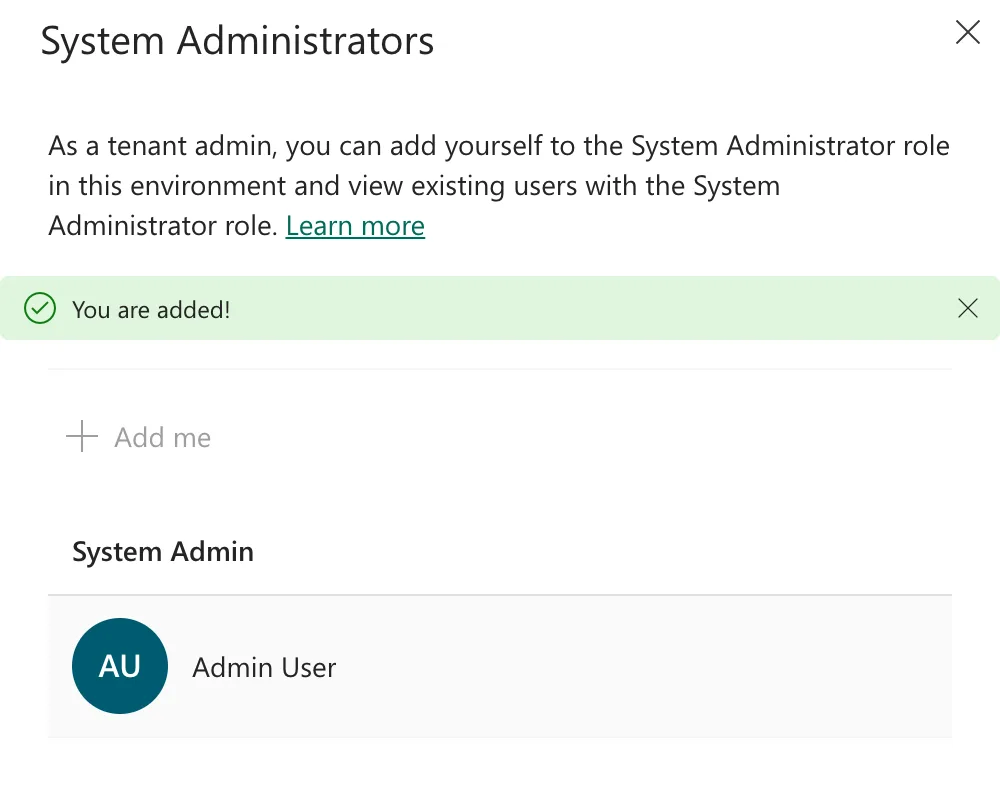
Step 4: Check You're Listed
The pane says You are added!, Add me is greyed out, and your name appears under System Admin:
The role works straight away. If a Power Apps page was already open, reload it.
What the Role Allows
System Administrator is full control of the environment's Dataverse:
| You can | Example |
|---|---|
| Customize everything | Create tables and columns in a solution |
| Manage security | Assign security roles to other people |
| See all data | Read every record in the environment's tables |
That's more than most people need. For makers who build apps and flows, Environment Maker is the usual role, and for people who also create tables, System Customizer. Keep System Administrator for the admins who look after the environment.
If you use Microsoft Entra Privileged Identity Management to activate your admin role only when you need it, Microsoft removes the System Administrator role again when that activation ends.
Common Mistakes
| Mistake | What happens | Do this instead |
|---|---|---|
| Getting your admin role through a group | Self-elevation isn't supported | Have the admin role assigned to you directly |
| Looking for Membership on an environment without Dataverse | There's no Dataverse role to add | Add Dataverse first |
| Self-elevating in every environment "just in case" | Full data access you don't need | Elevate only where you work |
| Giving every maker System Administrator | Everyone can read all data and change security | Use Environment Maker or System Customizer for makers |
Troubleshooting
| Symptom | Likely cause | Fix |
|---|---|---|
| No Membership command | Your account isn't a Global, Power Platform or Dynamics 365 admin | Ask an admin to self-elevate and assign you a role |
| A Power Apps page still shows the old commands | It loaded before you had the role | Reload the page |
| The role disappeared later | Your Privileged Identity Management activation ended | Activate your admin role and self-elevate again |
FAQ
Is self-elevation audited?
Yes. Microsoft logs every self-elevation in Microsoft Purview.
Can I do this without the admin center?
Yes. Microsoft also documents a PowerShell script and the Power Platform CLI command pac admin self-elevate. This guide uses the admin center.
Can I add someone else to System Administrator this way?
No. Add me only adds you. To give someone else a role, assign it to them under Settings → Users + permissions → Users once you're System Administrator.
Do I need this in every environment?
Only in the environments where you need Dataverse access. The role is per environment.
Conclusion
You're now System Administrator of the environment's Dataverse: Manage → Environments → the environment → Membership → Add me. It needs a direct Global, Power Platform or Dynamics 365 admin role, Microsoft logs it, and it gives full control of that one environment. Use it for administration, and give makers the narrower roles.
Additional Resources
- Self-elevate to the System Administrator role: Microsoft's steps, requirements and known limitations.
- Role-based security roles for Dataverse: what System Administrator, System Customizer and Environment Maker can do.
- Assign a security role to a user: giving roles to other people.
- pac admin self-elevate: the command-line way.
