How to Make Screen Readers Announce a Message in Power Apps

A screen reader reads where the user is. When an action makes a message appear somewhere else, its users don't hear about it. A live region fixes that: screen readers announce whenever its text changes. In Power Apps, a classic Label becomes a live region with its Live property.
The Rules
Microsoft's article Announce dynamic changes with live regions sets them out:
- Only a Label control can be a live region. That's the classic Label; the modern Text control has no Live property.
- Live is Off, Polite or Assertive. Polite waits until the screen reader finishes speaking; Assertive interrupts.
- When the text changes, the whole text is announced. An empty text,
"", announces nothing. - Keep the label's Visible set to true, and don't change Live, because some screen readers miss live regions that appear, disappear or switch on later.
Prerequisites
- A message that appears after an action. The example is the question the Career Development Plan app asks before removing a competency (Part 9).
Step 1: Insert a Classic Label
In the Insert pane, search for Text label and choose it under Classic. In the example, it went into the screen's body container, after the Save and Remove buttons, where the question belongs. Its defaults were Text "Text", Live Live.Off, AutoHeight false, Font Font.'Open Sans', Size 13 and PaddingLeft 5.
Step 2: Make It a Live Region
| Property | Value |
|---|---|
| Live | Live.Polite |
| Visible | true (leave it) |
The question isn't urgent, so Polite lets the screen reader finish what it's saying first.
Step 3: Change the Text, Not the Visibility
The label shows the question when it's needed and nothing otherwise:
If(
    locConfirmRemove,
    "Remove " & locCompetency.Competency & " from the plan for " & locJobTitle & "? People with this job title won't see it in their plan anymore. Their responses are kept.",
    ""
)
The Remove button sets locConfirmRemove to true, so the text changes, and the change is announced. With AutoHeight on, the empty label takes almost no room (How to Ask for Confirmation Before an Action).
To match the screen's modern controls, I also set:
| Property | Value |
|---|---|
| AutoHeight | true |
| Font | App.Theme.Font |
| Size | 12 |
| FontWeight | FontWeight.Semibold |
| PaddingLeft | 0 |
At Size 15, the question looked bigger than the modern text around it, which is also set to 15, so I lowered it to 12.
The Result
After selecting Remove:
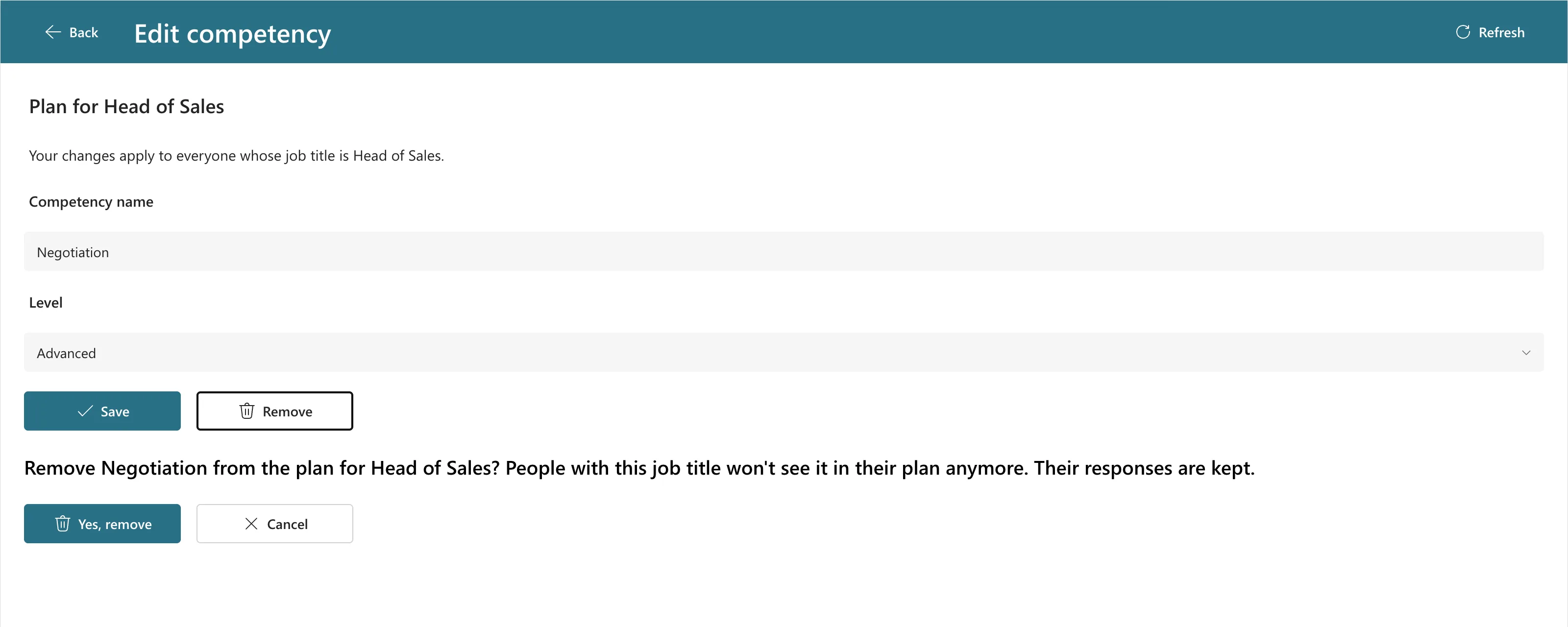
In the running app's page, the label carried aria-live="polite", the web's live region attribute that screen readers watch.
Why Not Move the Focus Instead?
Moving keyboard focus to the question would also make a screen reader read it. But Microsoft's SetFocus function reference says it can't set the focus to controls inside a Container control, and every control in the example's screens sits in a container. A live region works there.
Common Mistakes
| Mistake | What happens | Do this instead |
|---|---|---|
| Using the modern Text control | There's no Live property | Use the classic Label |
| Showing and hiding the label | Some screen readers miss the change | Keep it visible and change its Text |
| Assertive for routine messages | Screen readers are interrupted | Use Polite unless it's urgent |
Troubleshooting
| Symptom | Likely cause | Fix |
|---|---|---|
| The same message isn't announced twice | The text didn't change | Set it to "", then to the message again |
| Nothing is announced | Live is Off | Set Live |
| The empty label leaves a gap | AutoHeight is off | Turn AutoHeight on |
FAQ
Can a modern Text control be a live region?
No. Microsoft's accessibility properties reference lists Live as available only in the Label control, so use the classic Label for messages that must be announced.
Where should the live region go?
Where its message makes sense when read in order. Microsoft's article says users can reach a live region with normal navigation too, not only when it changes.
Conclusion
Use a classic Label with Live set to Polite, keep it visible, and change its Text when there's something to say. Screen readers announce it, wherever the user is.
