How to Make Adaptive Card Inputs Required

A form that lets people send it half filled in sends you half the answers. Adaptive Cards can stop that themselves: mark an input as required, give it an error message, and the chat app won't send the card until it's filled in, or until text matches a pattern you choose.
The Properties
Since version 1.3 of the card format, every input has these properties for checking what people enter:
| Property | On | What it does |
|---|---|---|
isRequired | Every input | The card isn't sent until the input has a value |
errorMessage | Every input | The text shown under the input when its check fails |
label | Every input | The input's label; a required input's label gets a mark, by default an asterisk |
regex | Input.Text | A regular expression the text has to match |
maxLength | Input.Text | The longest text allowed |
min, max | Input.Number, Input.Date, Input.Time | The lowest and highest value allowed |
Microsoft's documentation on input validation recommends label over placeholder for naming an input, because a label stays visible and screen readers connect it to its input. The checks run in the chat app when someone selects an Action.Submit button: if an input fails, its error message appears and nothing is sent.
The Example
The card for this post signs people up for a team newsletter. It asks for a work email, which must look like an email address, and how often to send the newsletter, which must be chosen:
{
  "type": "AdaptiveCard",
  "$schema": "https://adaptivecards.io/schemas/adaptive-card.json",
  "version": "1.5",
  "body": [
    {
      "type": "TextBlock",
      "text": "Sign up for the team newsletter",
      "size": "Medium",
      "weight": "Bolder"
    },
    {
      "type": "Input.Text",
      "id": "email",
      "label": "Work email",
      "style": "Email",
      "isRequired": true,
      "regex": "^[^@\\s]+@[^@\\s]+\\.[^@\\s]+$",
      "errorMessage": "Enter an email address, such as sam@example.com."
    },
    {
      "type": "Input.ChoiceSet",
      "id": "frequency",
      "label": "How often?",
      "isRequired": true,
      "errorMessage": "Pick how often you'd like it.",
      "choices": [
        { "title": "Every week", "value": "weekly" },
        { "title": "Every month", "value": "monthly" }
      ]
    }
  ],
  "actions": [
    {
      "type": "Action.Submit",
      "title": "Sign up",
      "data": { "verb": "signUp" }
    }
  ]
}
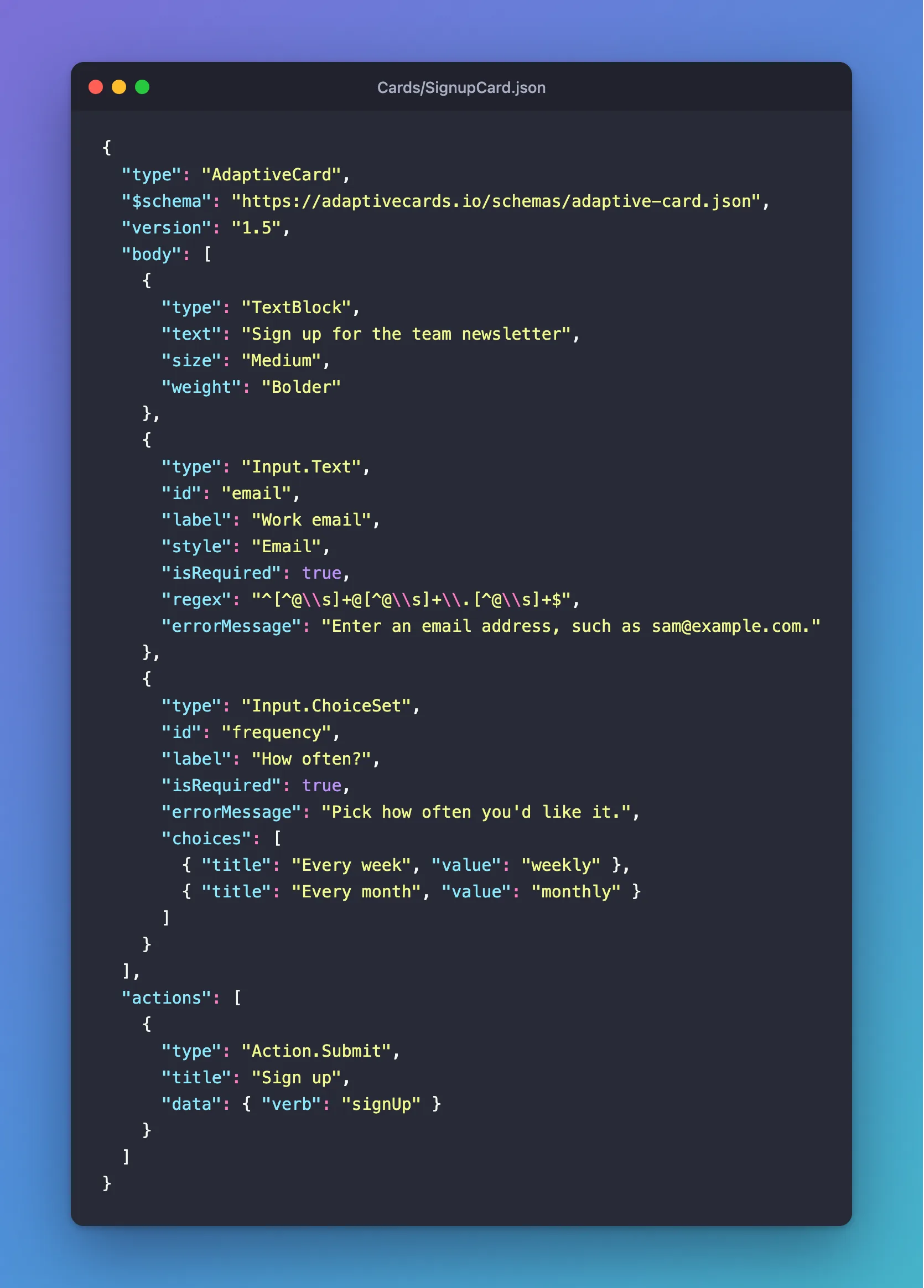
"style": "Email"is a hint to the chat app that the input holds an email address. Theregexis what checks it.regexdoes the checking: one or more characters that aren't@or a space, an@, more of the same, a dot, and more again. In JSON, each backslash is written twice, so\s(any space) appears as\\s.- One
errorMessagecovers both checks on the email: it's shown whether the input is empty or doesn't match the pattern.
A small agent sends the card when someone types newsletter and answers its Sign up button with AdaptiveCards.OnActionSubmit("signUp", ...), as in How to Handle Adaptive Card Submit Actions in the Microsoft 365 Agents SDK in C#.
Prerequisites
- The Microsoft 365 Agents Playground, to try the card.
agentsplayground --versionshould print0.2.30; if the command isn't found, install it withnpm install -g @microsoft/m365agentsplayground.
Step 1: Send the Card Empty
With the agent running on port 3978, start the Agents Playground:
agentsplayground -e http://localhost:3978/api/messages -c emulator
Send newsletter, and select Sign up without filling anything in:
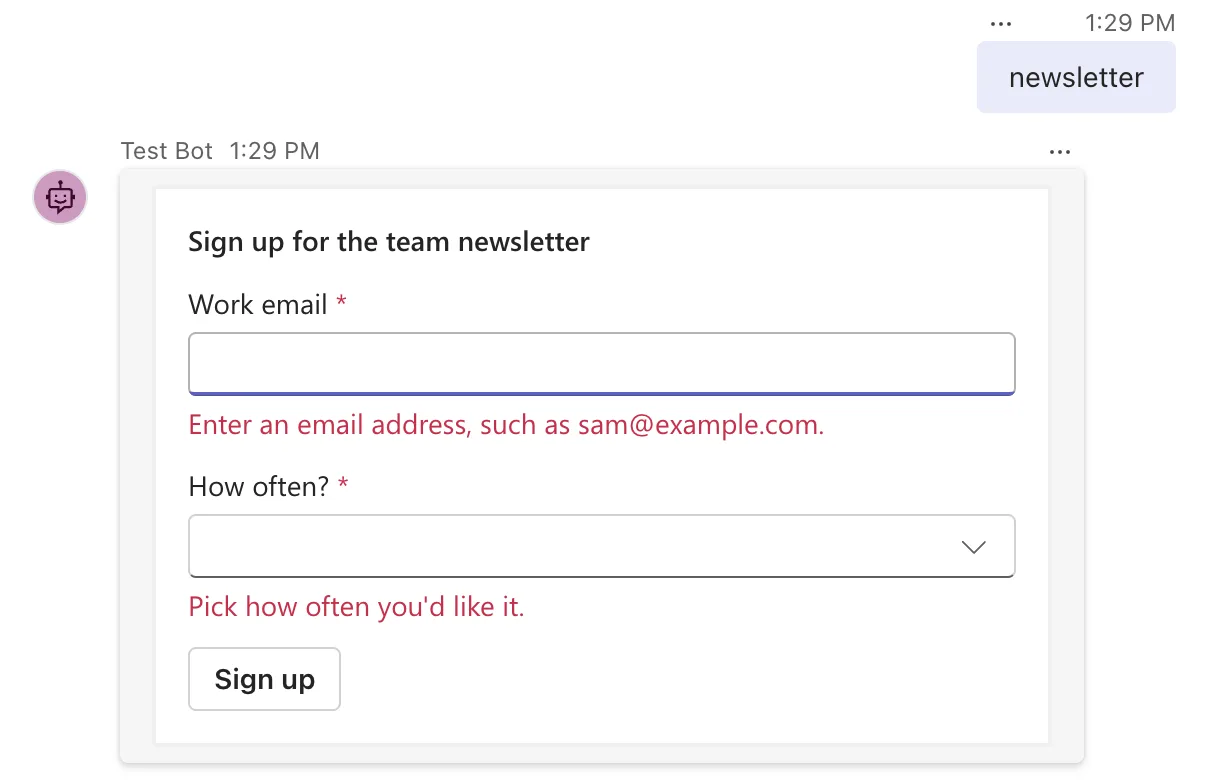
Both labels carry a red asterisk, both error messages appeared, and the Playground's Log Panel shows that nothing was sent.
Step 2: Enter an Address That Doesn't Match
Type sam@example in Work email, pick Every week, and select Sign up again:
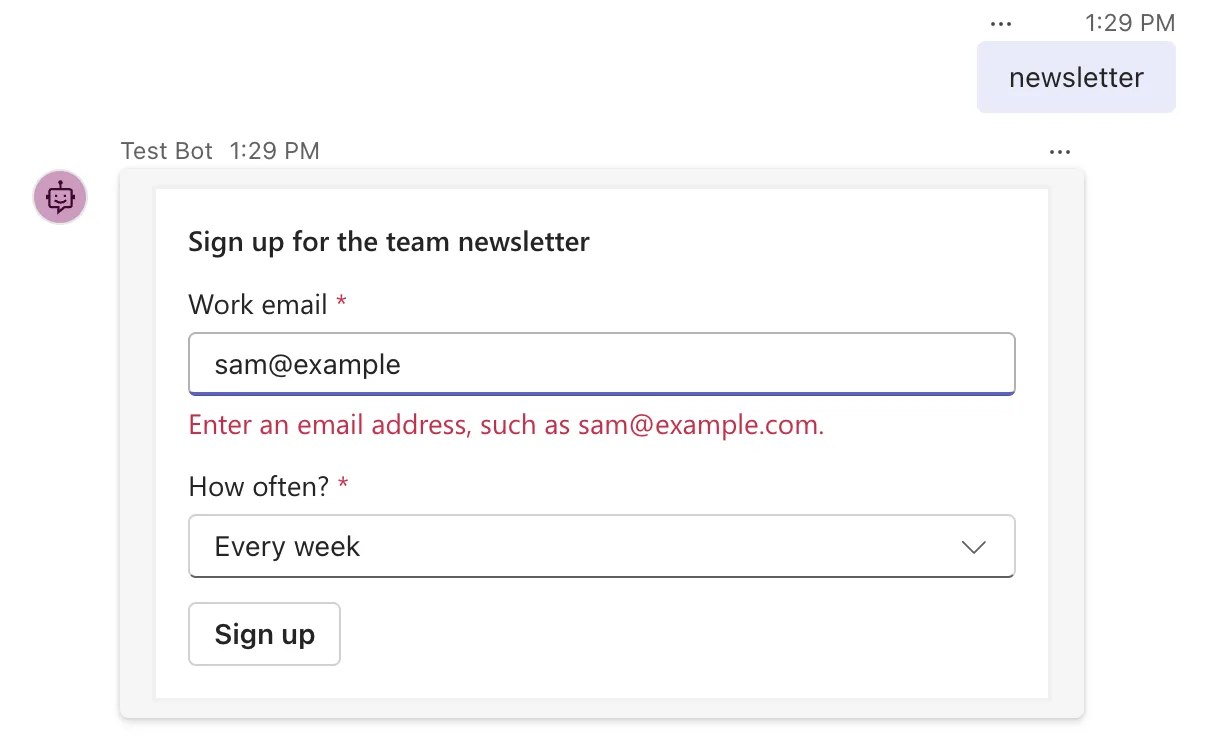
The frequency now passes, but sam@example has no dot after the @, so the pattern doesn't match and the card still won't send.
Step 3: Send a Valid Card
Change the email to sam@example.com and select Sign up:
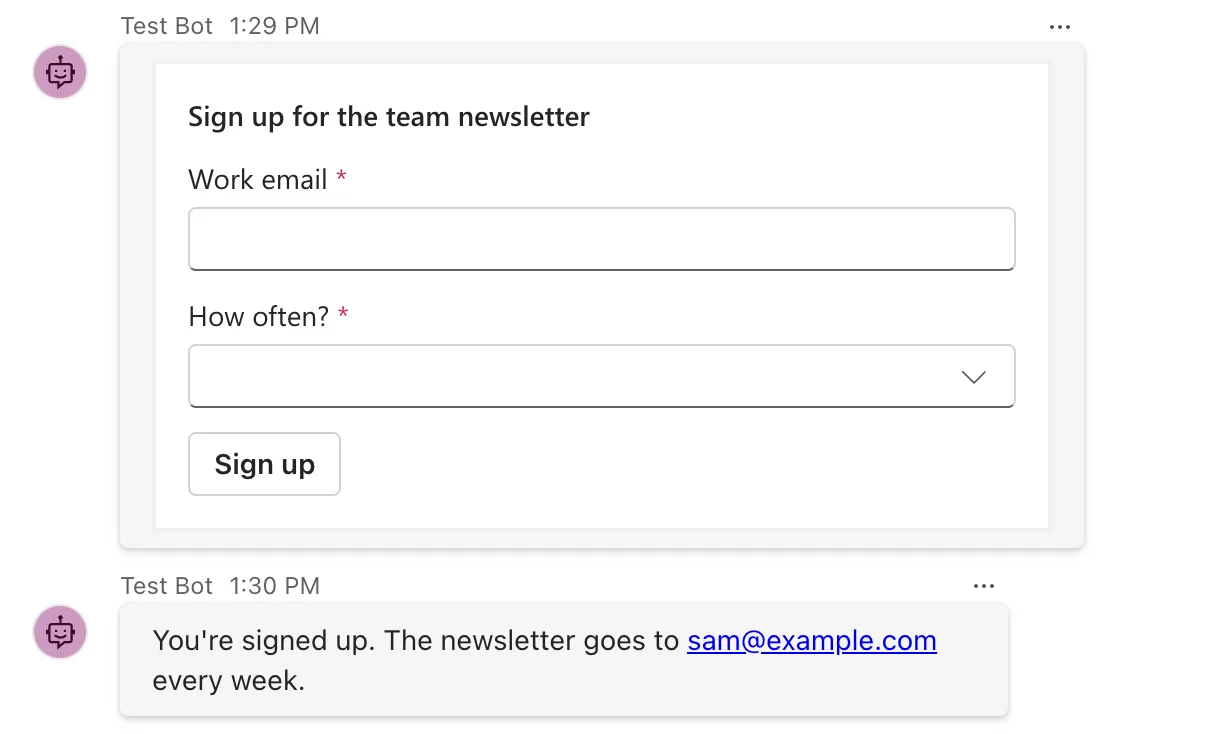
Both checks passed, the card was sent, and the agent answered. Its handler checks the values again before acting on them, because these checks run in the chat app, which your agent doesn't control: another app may skip them, and an old copy of a card may not have them.
Common Mistakes
| Mistake | What happens | Do this instead |
|---|---|---|
Single backslashes in regex, such as \s | The card's JSON is invalid | Write each backslash twice in JSON |
Using placeholder as the only name for an input | The name disappears once people type, and screen readers may not read it | Give every input a label |
| A required input on a card with a Cancel button | The Cancel button is blocked until the input is filled | How to Add a Cancel Button That Skips Validation to an Adaptive Card |
| Trusting the card's checks in the agent | Values that skipped them reach your code | Check again in the handler |
Troubleshooting
| Symptom | Likely cause | Fix |
|---|---|---|
| No asterisk on a required input | The input has no label | Add one |
| A valid address is rejected | The pattern is stricter than you meant | Test the pattern on real examples |
FAQ
Does the chat app check the values, or my agent?
The chat app, before it sends anything. Your agent only ever sees cards that passed, from apps that run the checks, which is why the agent should still check what it receives.
Can a check box be required?
Yes, isRequired works on Input.Toggle too. A required check box has to be ticked before the card is sent, which suits I accept the terms.
Can a date be limited to the future?
Input.Date has min and max. Microsoft's documentation notes that some apps enforce them in the date picker itself, by not letting people pick a day outside the range, and then the error message may not appear.
Conclusion
Give every input a label, mark the ones that must be filled in with isRequired, add an errorMessage, and use regex, maxLength, min or max for values that have to follow a rule. The chat app then keeps the card from being sent until it passes, and people see exactly what to fix, next to the input that needs it.
Additional Resources
- Input validation — the validation properties, labels, and which inputs are checked.
- Input.Text — every property of the text input, including
regexandstyle. - Adaptive Cards for agent design — the versions each host supports.
