How to Make a Teams App Available to Specific Users in the Teams Admin Center

Who can add and use an app in Teams is the app's availability. To limit it, open the app's page in the Teams admin center, select Users and groups > Availability > Edit availability, choose Specific users or groups, pick them and select Apply.
The example is Hello App, a custom app uploaded to the organization's catalog. It started out available to everyone; this post limits it to one person, Maya Patel. For a team, pick a security group.
Prerequisites
- The Teams Administrator or Global Administrator role.
Step 1: Open Availability
At admin.teams.microsoft.com, go to Teams apps > Manage apps, search for the app and select its name. Select Users and groups, and in the box at the top choose Availability.
The app was Available to everyone: Everyone can install this app, including people in my organization, guests, and external users. Select Edit availability:
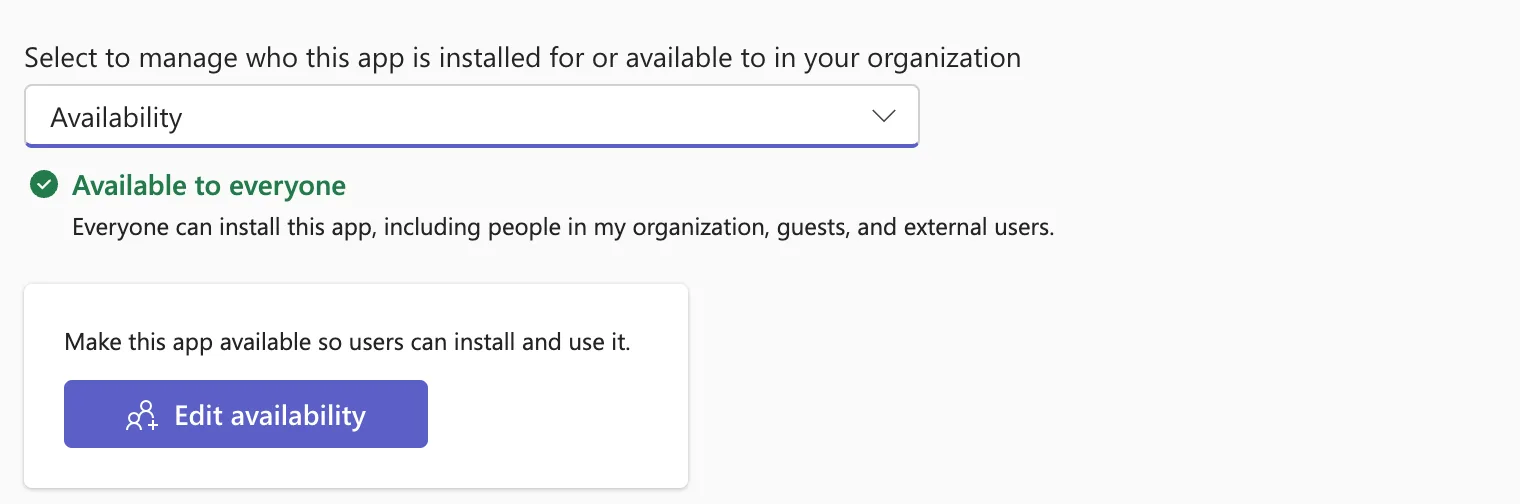
Everyone is where my custom apps started, because of the org-wide setting Let users install and use available apps by default (How to Check If Custom Apps Are Allowed in Microsoft Teams).
Step 2: Choose Specific Users or Groups
The Edit availability panel says Changes to app availability will be applied everywhere the app is supported. Open Available to:
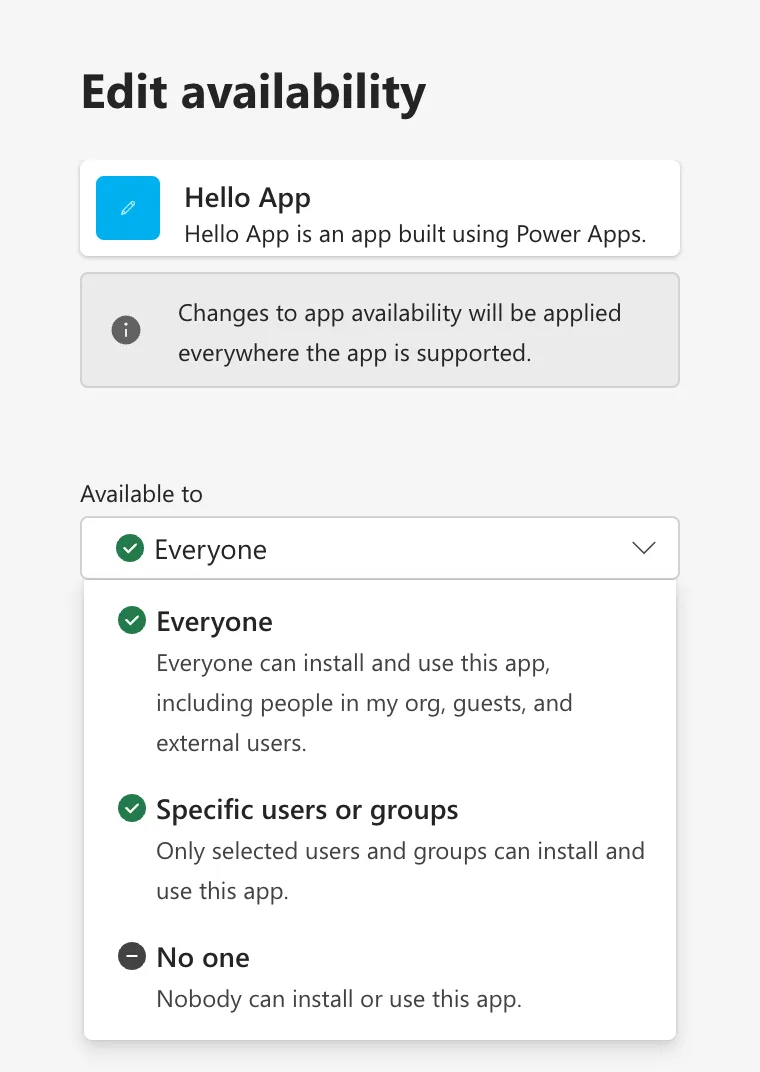
| Option | Who can install and use the app |
|---|---|
| Everyone | Everyone, including guests and external users |
| Specific users or groups | Only the people and groups you pick |
| No one | Nobody |
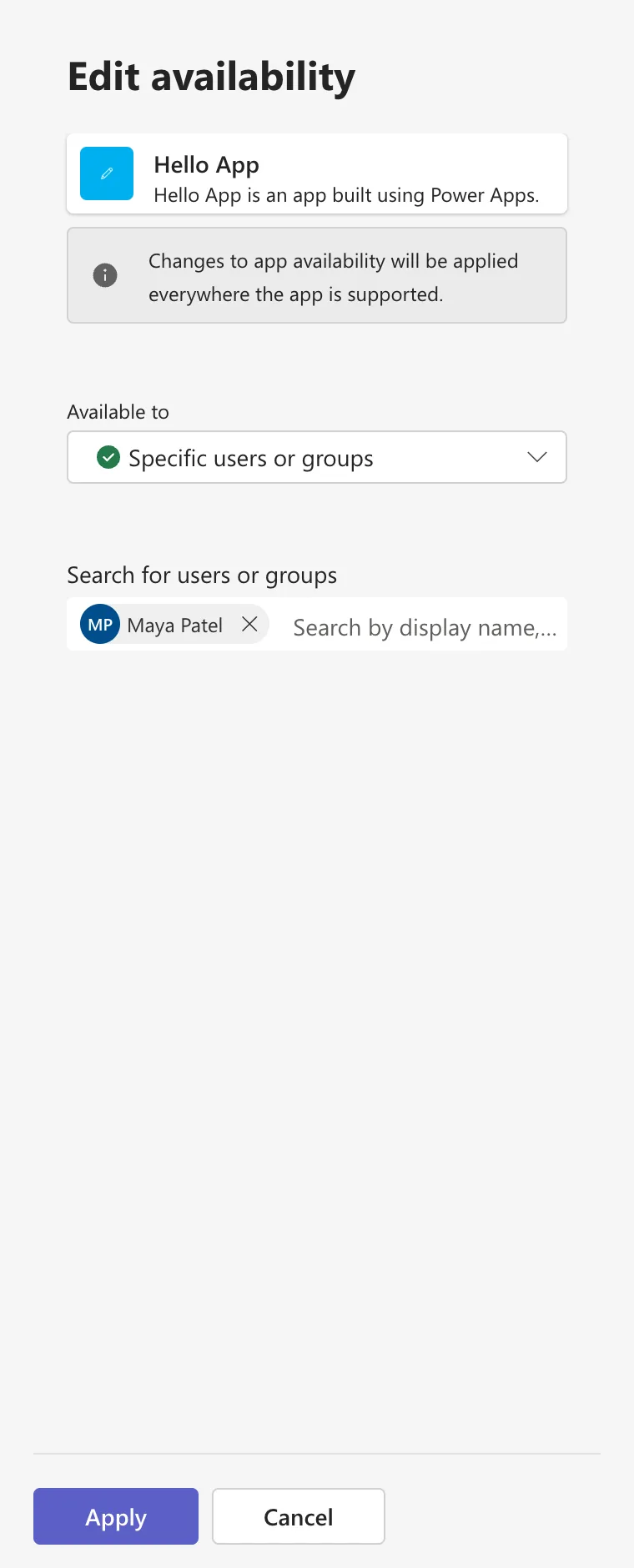
Choose Specific users or groups. In Search for users or groups, type a name and select the person or group, then select Apply:
The Result
Availability now says Specific users or groups can install, and lists them:
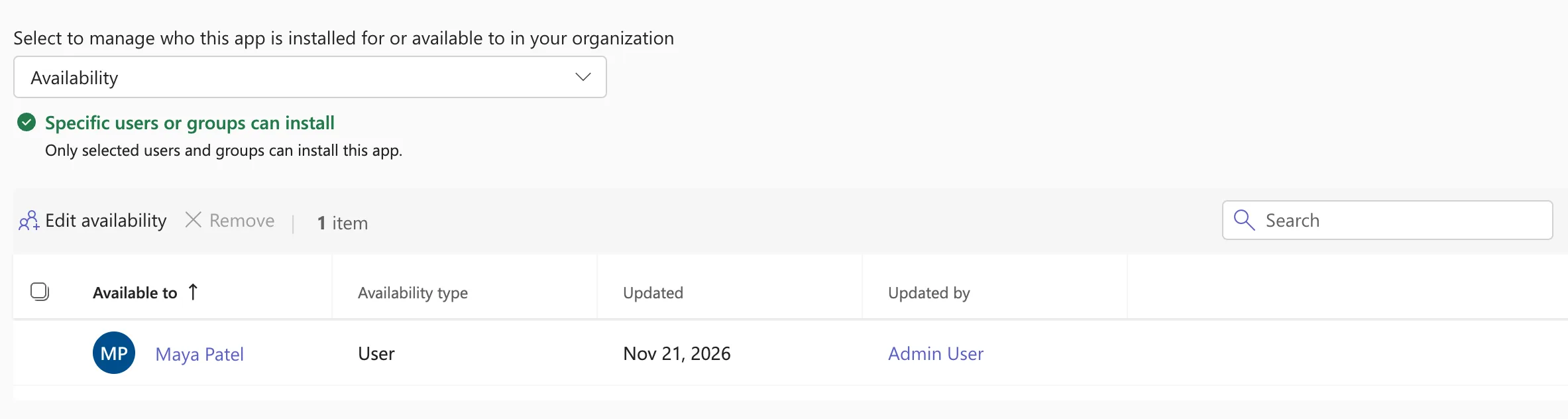
Hello App was also installed for Maya, so the app's header read Installed for: 1 user and Available to: 1 user.
Microsoft's app centric management article says it takes up to 24 hours for the availability changes to take effect, and in rare cases up to six days.
Common Mistakes
| Mistake | What happens | Do this instead |
|---|---|---|
| Leaving a custom app on Everyone | Anyone, guests included, can add it | Specific users or groups |
| Making it available but not sharing it in its own service | People add it but can't open it | For a Power Apps app, share the app too |
| Choosing No one to hide it for a while | Nobody can install or use it, not even those who have it | Use it only to stop the app |
Troubleshooting
| Symptom | Likely cause | Fix |
|---|---|---|
| Someone outside the list still has the app | The change hasn't reached them | Wait up to 24 hours |
| A person can't be found in the search | The name is spelled differently | Search by email |
FAQ
How do I take someone off the list?
Select their row and Remove, as Microsoft's article describes.
What's the difference from installing?
Availability says who can add the app; installing adds it for them (How to Install a Teams App for Specific Users in the Teams Admin Center). Installing for people also makes it available to them.
Conclusion
On the app's page, Users and groups > Availability > Edit availability, choose Specific users or groups, pick them and select Apply. Only they can then add and use the app, once the change reaches Teams.
