How to Make a Relationship Filter in Both Directions in Power BI

Filters in Power BI normally flow one way along a relationship: from the table with one row per value to the table with many. Sometimes they need to flow back, most often for row-level security, when the rule sits on the "many" table. Here's how to make a relationship filter in both directions, security filters included.
The example model, Expenses, has three tables (How to Create a Relationship Between Two Tables in Power BI):
- Expense Categories: one row per category, in Title.
- Expenses: the claims, related to Expense Categories by Category.
- Category managers: one row per category and manager, with ManagerEmail, related to Expense Categories by Title.
A row-level security role keeps only the rows of Category managers whose ManagerEmail is the signed-in user (How to Add Row-Level Security Roles in Power BI in the Browser). For that to reach the expenses, the filter has to go from Category managers up to Expense Categories, against the relationship's direction, then down to Expenses.
Microsoft's row-level security article explains why a second setting is needed: By default, row-level security filtering uses single-directional filters, whether the relationships are set to single direction or bi-directional. Security filters cross a relationship backwards only when Apply security filter in both directions is ticked.
Step 1: Edit the Relationship
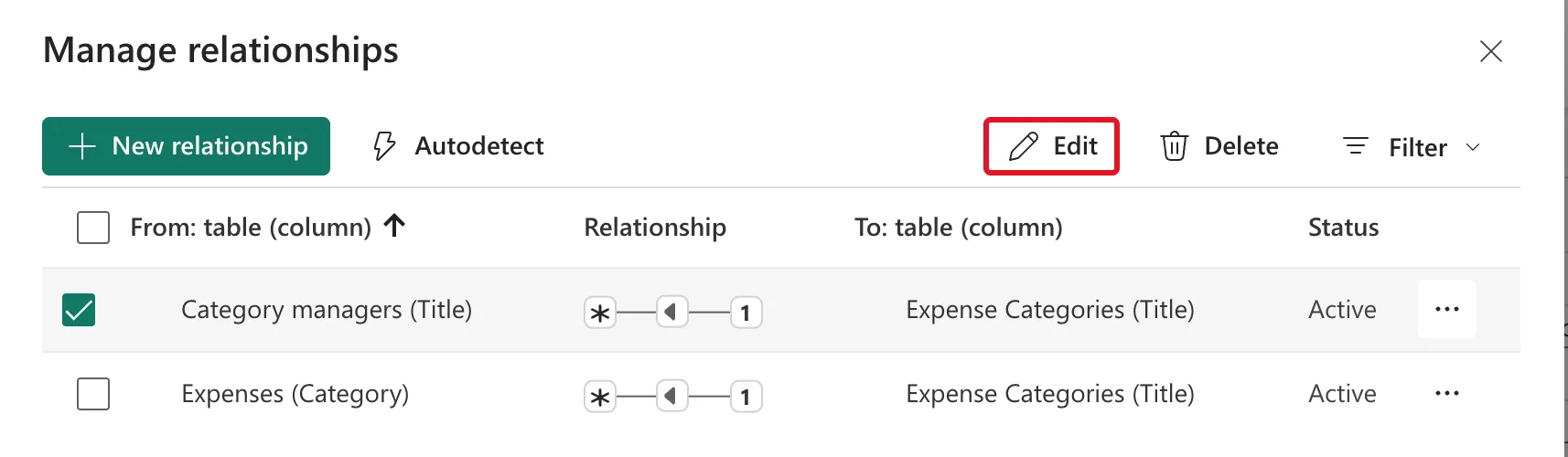
Open the model, select Manage relationships on the Home tab, tick the relationship, here Category managers (Title) to Expense Categories (Title), and select Edit:
Step 2: Set Both and the Security Filter
In Edit relationship:
- Cross-filter direction: change Single to Both.
- Tick Apply security filter in both directions, which becomes available once Both is chosen.
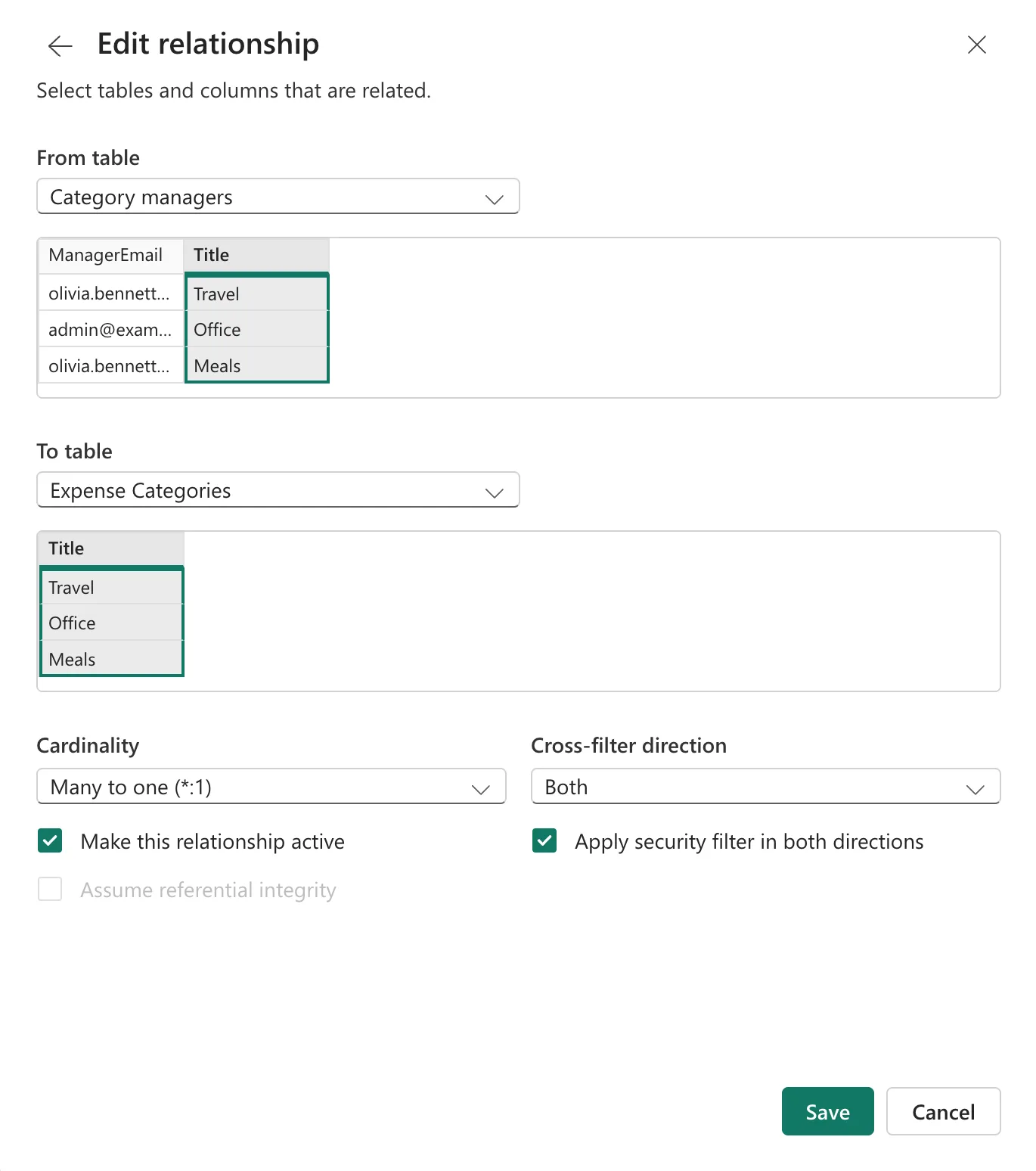
Select Save.
Step 3: Check the Arrows
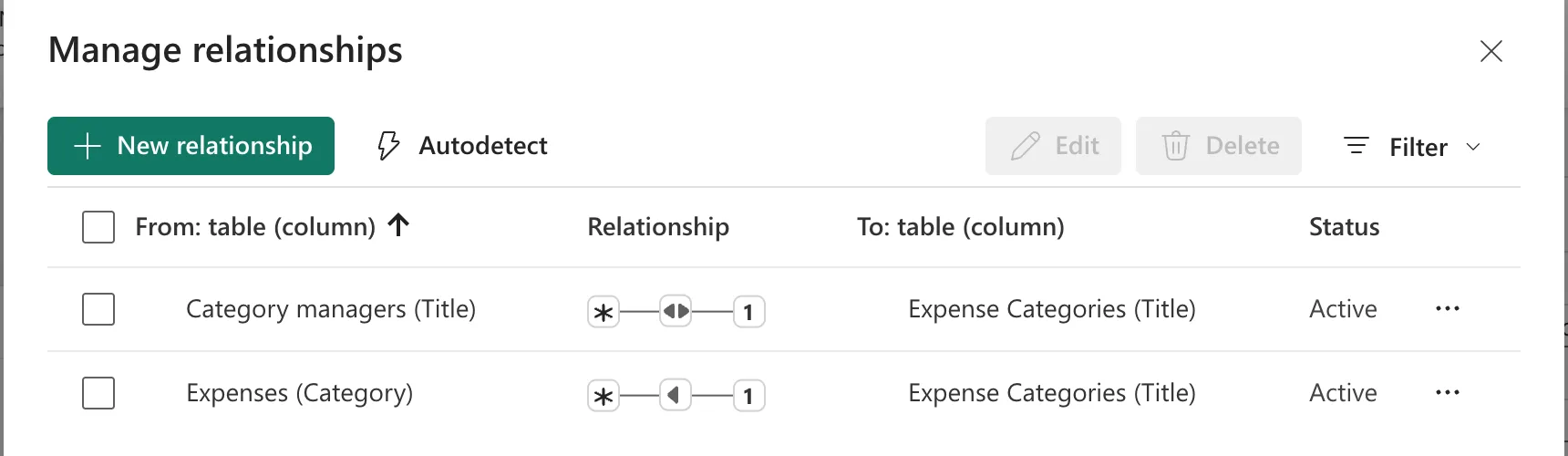
In Manage relationships, the edited relationship's symbol now has arrows both ways, while Expenses (Category) keeps its single arrow:
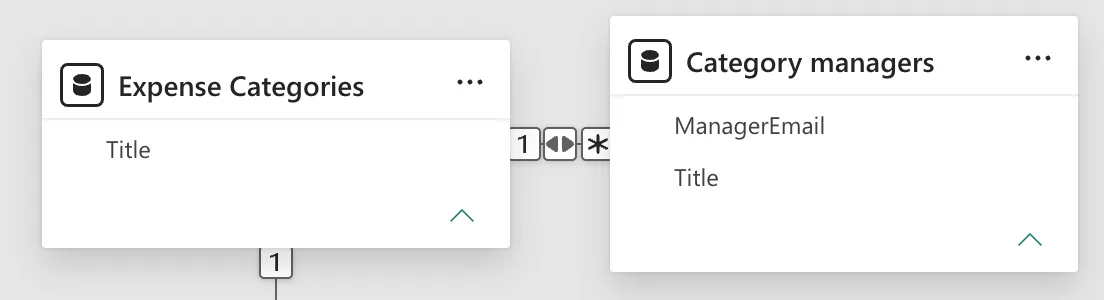
The model view shows the same double arrow on the line:
Step 4: Test It
Test the role as yourself (How to Test Row-Level Security in Power BI). In the example I manage only the Office category, and the report showed one expense, 35.00, with only Office in the category slicer:
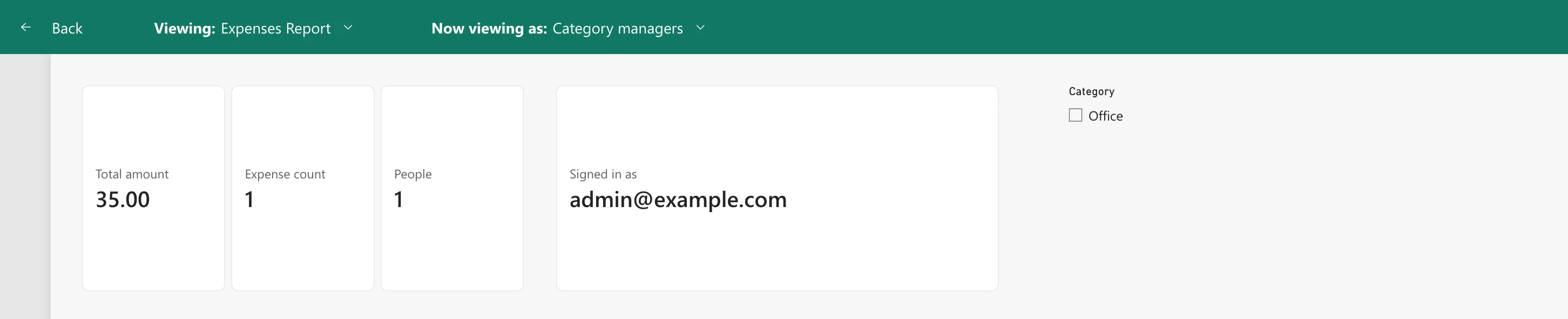
The filter went from Category managers to Expense Categories, across the edited relationship, and on to Expenses.
Common Mistakes
| Mistake | What happens | Do this instead |
|---|---|---|
| Both without the security checkbox | Report filters cross, but the security rule doesn't | Tick Apply security filter in both directions |
| Both on every relationship | Filters can take unexpected paths | Only where a filter must flow back |
| Expecting the checkbox on a one-to-one relationship | It isn't offered | Make the relationship many to one (Fixed: Apply Security Filter in Both Directions Is Missing in Power BI) |
Troubleshooting
| Symptom | Likely cause | Fix |
|---|---|---|
| The role still shows every expense | The security filter doesn't cross the relationship | Tick the security checkbox |
| The checkbox is grey | Cross-filter direction is Single | Choose Both |
| The checkbox isn't there at all | The relationship is one to one | Set Many to one |
FAQ
Isn't Both enough on its own?
Not for security. The article quoted above says security filters are single-directional by default, even on a bi-directional relationship.
Are there limits?
The same article says that if a table takes part in several bi-directional relationships, you can select the option for only one of them.
Should I use Both for ordinary report filtering?
Microsoft's bi-directional relationship guidance recommends using it only where it's needed.
Conclusion
Edit the relationship, set Cross-filter direction to Both, and tick Apply security filter in both directions. The example's Category managers rule then reached Expenses: a manager of Office saw only Office's expense.
Additional Resources
- Row-level security with Power BI: bi-directional cross-filtering
- Bi-directional relationship guidance
- Create and manage relationships in Power BI Desktop
