How to Make a Control Read-Only in Power Apps with DisplayMode

Every input control has a DisplayMode: Edit to change it, View to only show it, or Disabled. Set it with a formula and the same box can be editable for a draft and read-only once it's approved.
The Three Modes
| Mode | Meaning |
|---|---|
DisplayMode.Edit | The control accepts input |
DisplayMode.View | It only displays data |
DisplayMode.Disabled | It's disabled, greyed out |
(Core properties). For the modern Text input, Microsoft notes that View is "truly read-only" (Text Input modern control).
Prerequisites
- An input control, such as a text box (How to Add a Multi-Line Text Input in Power Apps).
Example: Read-Only Once Approved
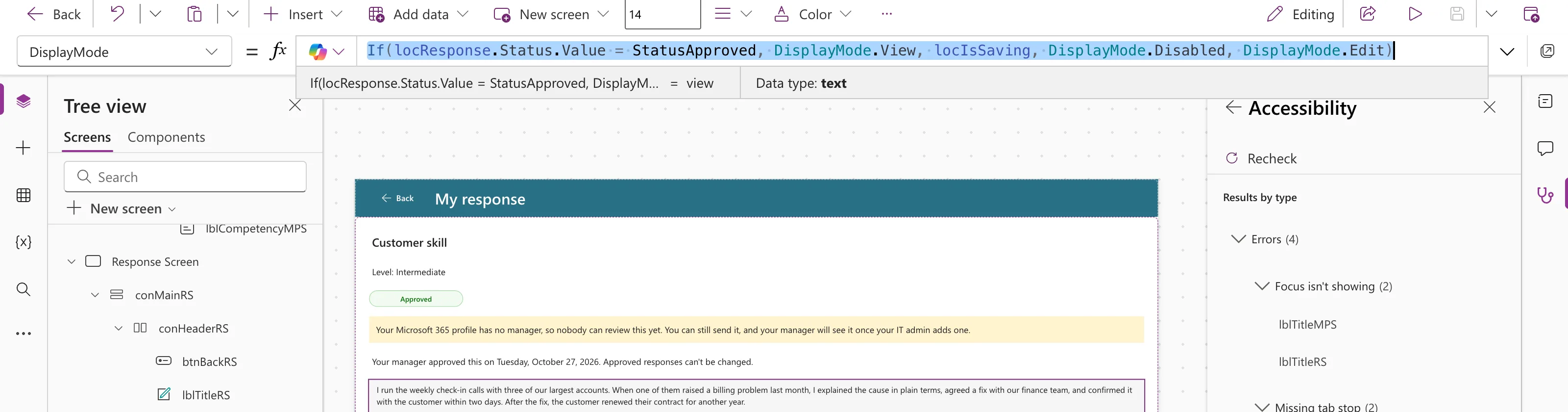
In the Career Development Plan app, a response can be changed until the manager approves it. The text box's DisplayMode:
If(
    locResponse.Status.Value = StatusApproved, DisplayMode.View,
    locIsSaving, DisplayMode.Disabled,
    DisplayMode.Edit
)
If checks the conditions in order (How to Use the If Function in Power Apps): approved means view only, saving means disabled, anything else is editable. For an approved response, the preview strip showed view:
The Result
An approved response shows its text, but the box can't be changed:
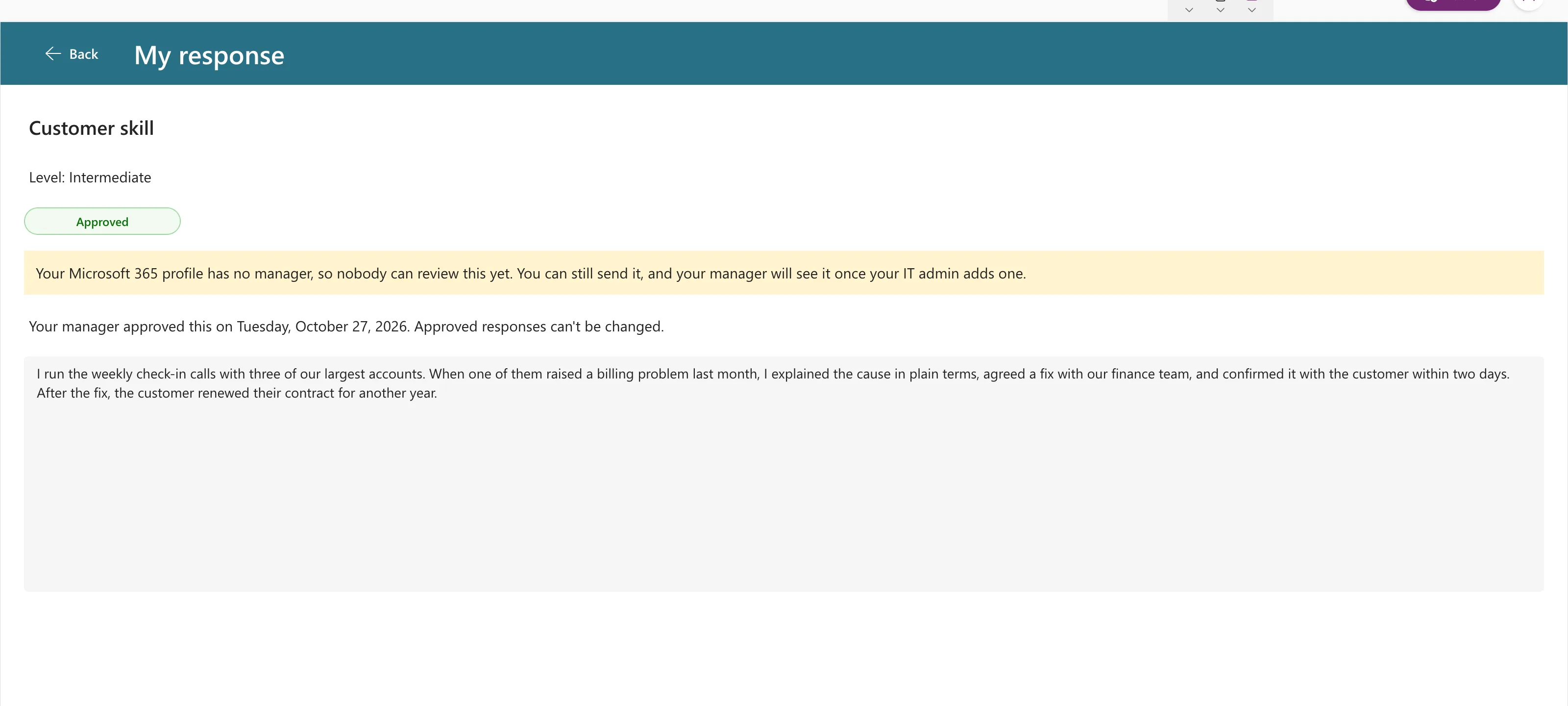
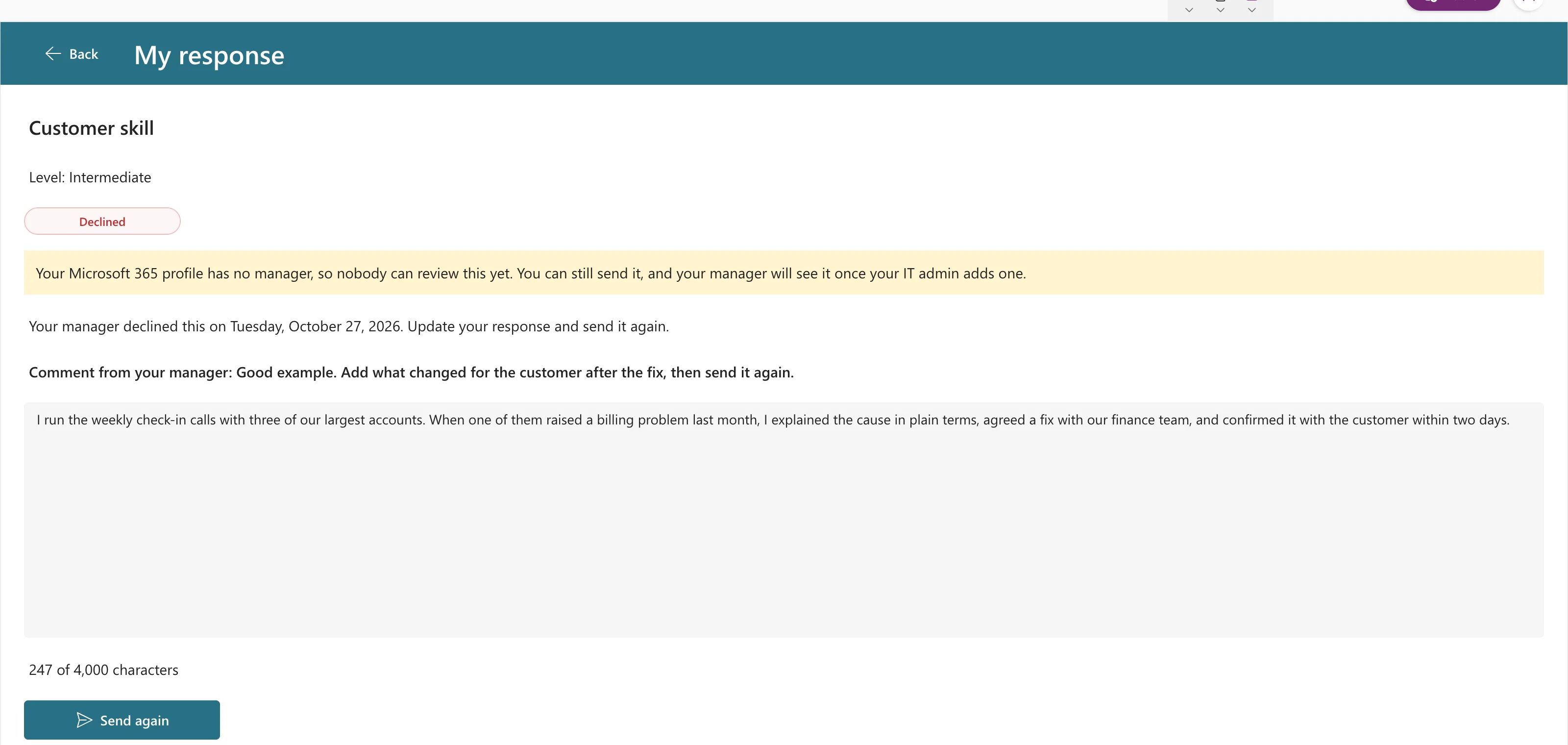
In the example, the box was read-only in the browser, and the character count and Send button were hidden with their own Visible formulas. A declined response, by contrast, stays editable:
Tell People Why
A read-only box can look broken. Say why next to it, as the example does: Approved responses can't be changed.
Common Mistakes
| Mistake | What happens | Do this instead |
|---|---|---|
| Disabled for approved text | It looks unavailable, not finished | View for read-only content |
| Only hiding the Save button | The box still looks editable | Set the box to View too |
| Relying on DisplayMode for security | It only controls the app's screen | Protect the data with permissions |
Troubleshooting
| Symptom | Likely cause | Fix |
|---|---|---|
| The box stays editable | The condition never matches | Check it in the preview strip |
| Old text shows in the read-only box | The box kept earlier typing | Reset it when the screen opens |
FAQ
Does DisplayMode work on buttons?
Yes: Disabled stops a button from being selected (How to Disable a Button Until a Text Box Has Text).
Is read-only in the app enough to protect a record?
No. People can reach the list directly. The app's rules are for a clear experience; permissions protect the data.
Conclusion
Set DisplayMode with If: View when a record can't change any more, Disabled while something runs, Edit otherwise, and say why on the screen.
Additional Resources
- Core properties: DisplayMode.
