How to Make a Column Required in a SharePoint List

A required column can't be left empty when someone saves an item in the form. One switch, Require that this column contains information, turns it on, and the form takes care of the rest: an asterisk on the field, and a message if it's blank.
The examples come from the Departments list of the Overtime Timesheet series, where every department needs a name, at least one approver and a yes or no for whether it's in use.
Prerequisites
- A SharePoint list, and permission to change it. How to Create a List and Add Columns in SharePoint Online creates one.
Step 1: Switch On Require
In the Create a column panel, select More options and switch Require that this column contains information to Yes:
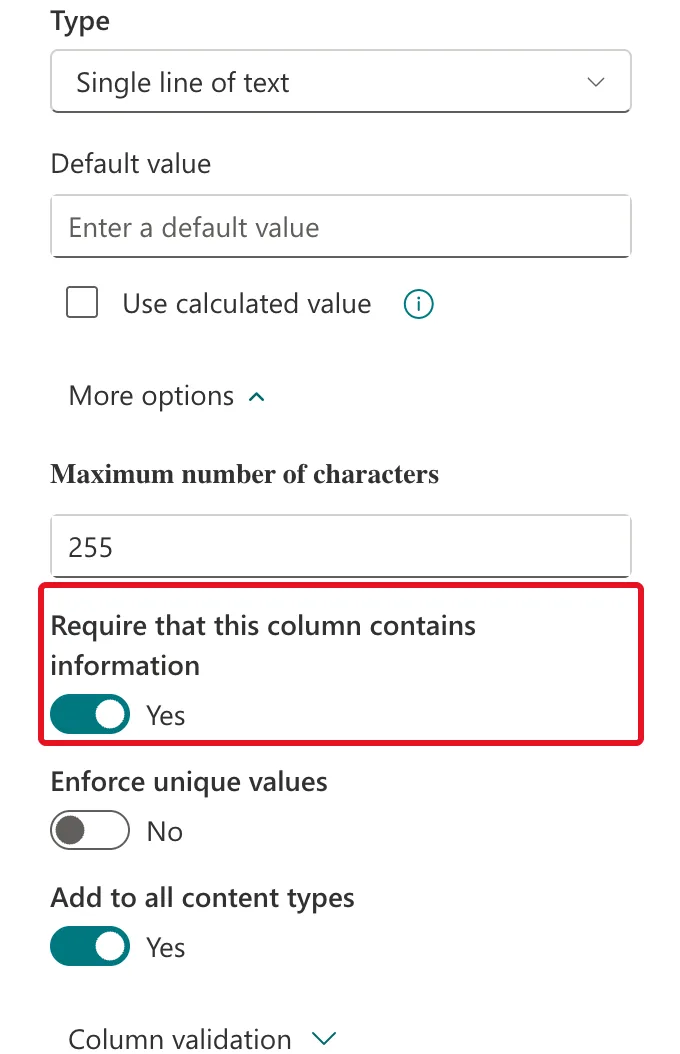
The switch is under More options for every column type the Overtime Timesheet lists use: text, choice, number, date and time, person, yes/no and multiple lines of text. For a column that already exists, open Settings (the gear) → List settings, select the column under Columns, and choose Yes under Require that this column contains information.
Select Save.
Step 2: See It in the Form
In the item form, each required field has a red asterisk after its name:
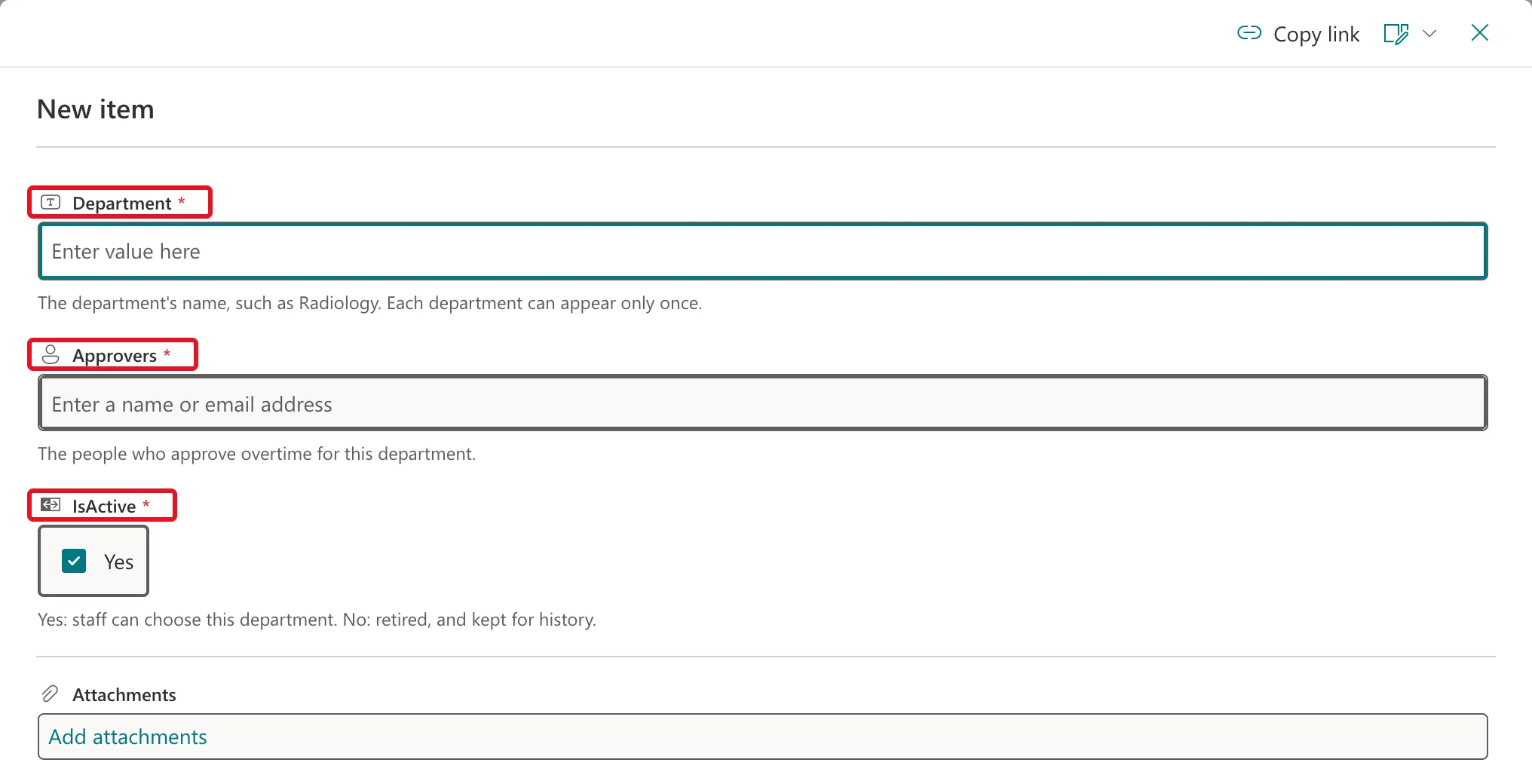
Microsoft's Add, edit, or delete list items puts it simply: "You must enter data into a column (field) that has an asterisk * next to it."
Step 3: What Happens If It's Blank
Leave a required field empty and move on, and the form says so straight away, before you even select Save:
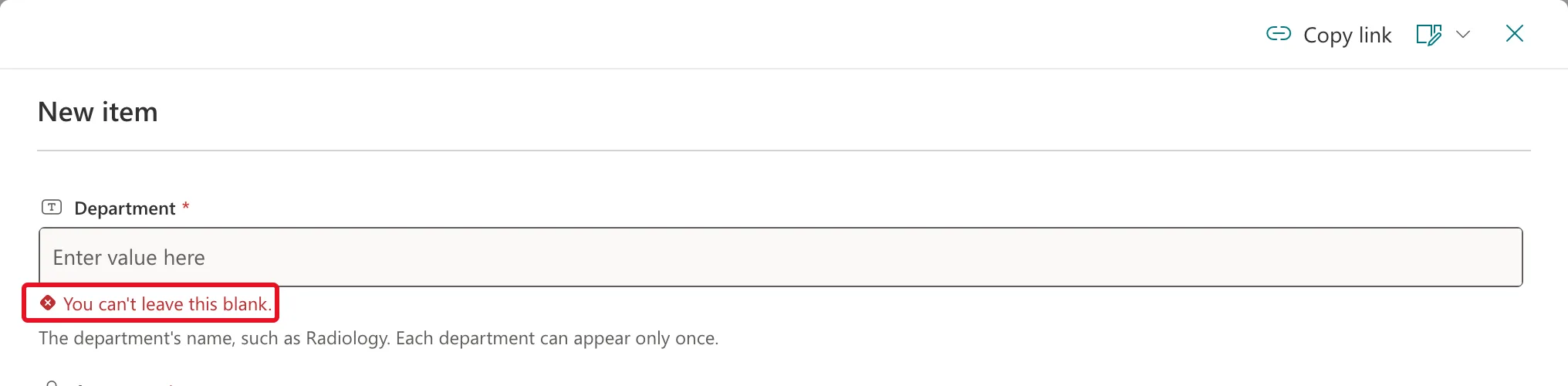
Selecting Save with required fields empty shows You can't leave this blank. under every one of them, and nothing is saved.
What Required Doesn't Cover
- It's a check in the form. Microsoft's Field element reference says this validation "is handled only by the client (the database always allows NULL for all user-defined fields)". An app or flow that writes to the list should check its own values too. The Overtime Timesheet app does.
- Required columns stay in the form. The form's Edit columns pane says "Required columns and columns with conditional formulas can't be hidden": How to Hide the Title Column in a SharePoint List.
- A default can fill it. A required column with a default value, such as a Yes/No column defaulting to Yes, is never blank in a new item: How to Set a Default Value for a SharePoint List Column.
Common Mistakes
| Mistake | What happens | Do this instead |
|---|---|---|
| Making optional details required | People type anything to get past the form | Require only what every item truly needs |
| Relying on required for an app's data | The form checks it, but code may not | Check values in the app or flow as well |
| Expecting to hide a required column from the form | Its box in Edit columns is greyed out | Make it optional first, or keep it in the form |
Troubleshooting
| Symptom | Likely cause | Fix |
|---|---|---|
| You can't leave this blank. | A required field is empty | Fill in every field with an asterisk |
| Can't clear a column in Edit columns | It's required | Change Require to No in its settings |
FAQ
Is the Title column required?
Not in a list created with + New → List on a modern site. In both lists of the Overtime Timesheet series, List settings showed Title with no tick in the Required column.
Can a Yes/No column be required?
Yes. IsActive in the Departments list is a required Yes/No column with a default of Yes, so its box is already ticked in every new item.
Conclusion
More options → Require that this column contains information → Yes → Save. The form adds an asterisk and refuses blanks; apps and flows should still check their own values.
