How to Loop Through an Array with Apply to Each in Power Automate

Apply to each runs the steps inside it once for every item in an array: every list to create, every column to add, every row a search returned. This guide loops over a JSON array, reads the current item inside the loop, and nests a second loop over each item's own array.
Prerequisites
- An array from an earlier step. The example loops over List definitions, a Compose action that holds two list definitions (How to Use the Compose Action). It's from the setup flow in Part 11 of the Career Development Plan series.
Step 1: Add Apply to Each
Select the + where the loop should go, then Add an action. Search for Apply to each and select it under Control:
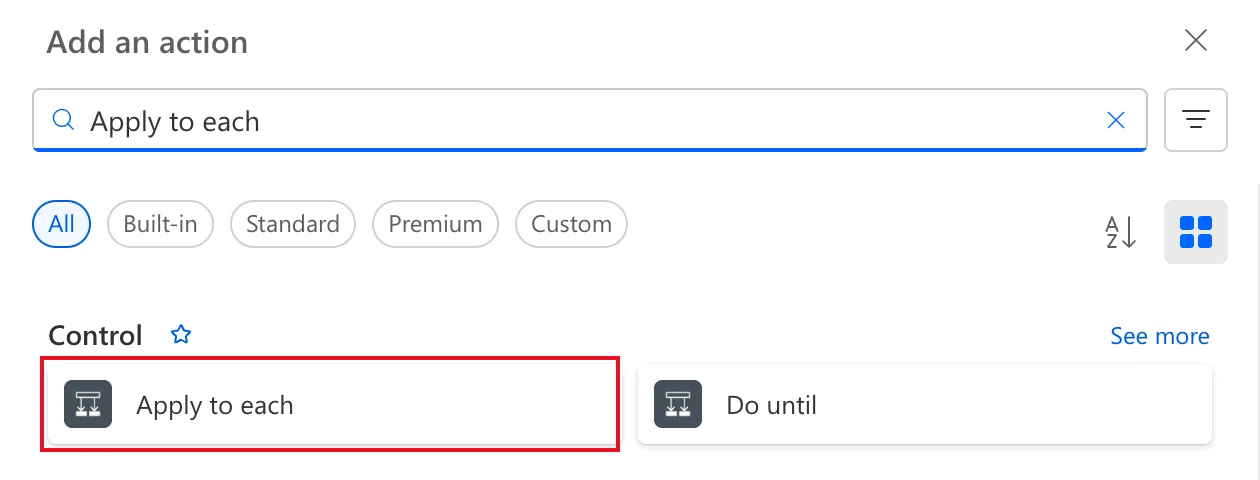
Rename it after what it loops over, here For each list: select the name at the top of its pane and type. Expressions inside the loop use this name, so rename it before you add steps to it.
Step 2: Choose the Array
The loop's one field is Select an output from previous steps. Select it, then the lightning button (or type / and choose Insert dynamic content), and pick Outputs under List definitions:
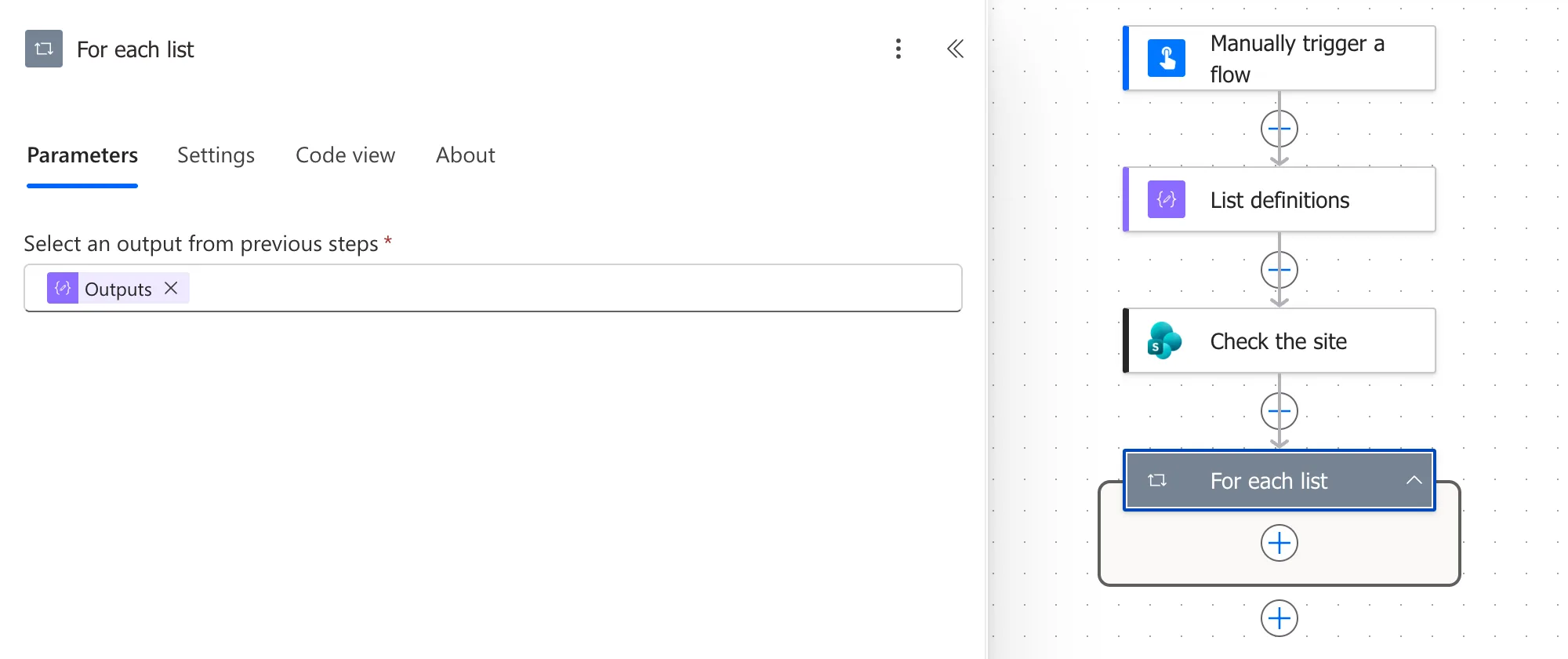
The field stays red until you select somewhere else in the pane.
Step 3: Add Steps Inside
Select the + inside the loop's box to add the steps to repeat. In each pass, items() returns the current item (How to Use the items() Function):
items('For_each_list')?['title']
Step 4: Nest a Loop
An item can hold an array of its own. Each list definition has a columns array, so a second loop inside the first goes through them. Its field takes an expression instead of dynamic content:
items('For_each_list')?['columns']
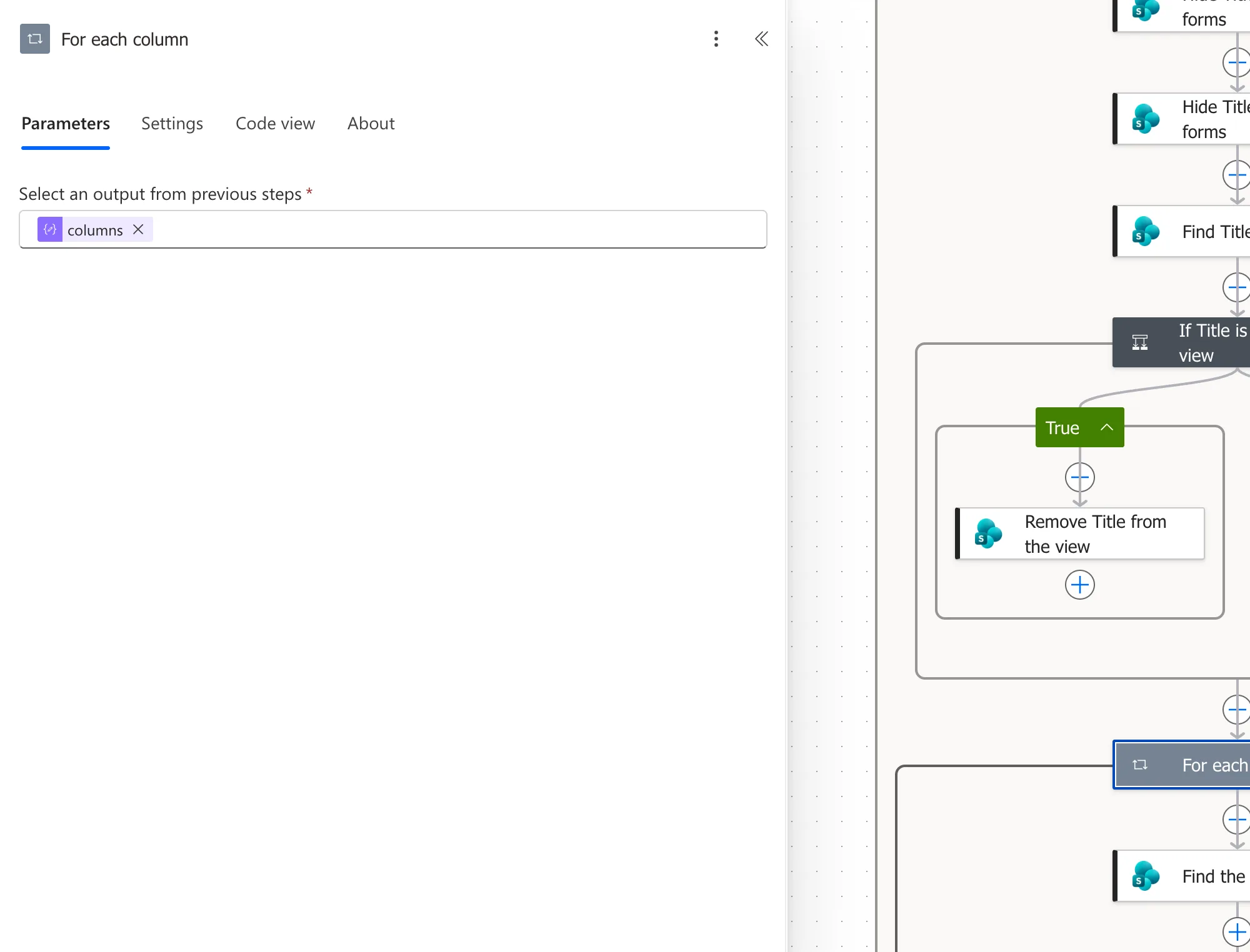
Inside For each column, items('For_each_column') is the current column, and items('For_each_list') is still the current list.
Step 5: Check Each Pass in the Run
In a run, the loop shows a pager, here 1 of 2. Each page shows what the steps did for one item:
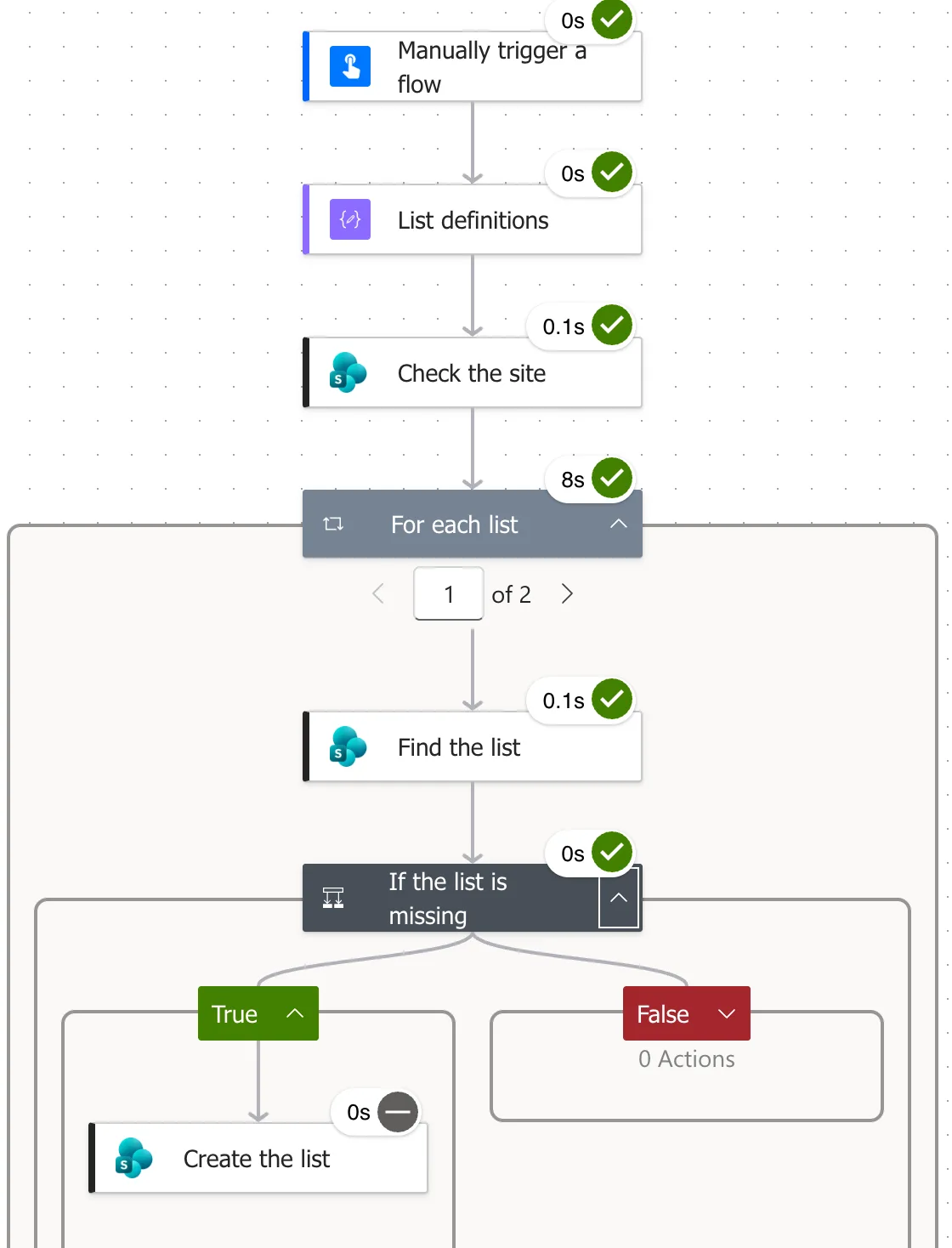
While a loop is still running, its steps can show Waiting even after they've run. Read them once the run has ended.
Settings Worth Knowing
The loop's Settings tab has Concurrency control, off by default: the designer says For each loops execute sequentially by default. One item finishes before the next starts. Turning it on runs items in parallel, which is faster but harder to follow, and wrong when one item depends on another.
Microsoft's limits article caps a loop at 5,000 items on the Low performance profile, which covers Microsoft 365 licenses, and at 100,000 on the others.
Common Mistakes
| Mistake | What happens | Do this instead |
|---|---|---|
| Renaming the loop after adding steps | Expressions point to the old name | Rename it first |
| Looping over text instead of an array | The loop fails | Make sure the output is a JSON array |
Using items() with the wrong loop's name | You get the outer item, or an error | Use the name of the loop you mean |
Troubleshooting
| Symptom | Likely cause | Fix |
|---|---|---|
| A loop runs only once | The array holds one item | Check the earlier step's output in the run |
| Steps inside show Waiting for long | A step is being retried | Wait for the run to end, then read the step's retry history |
| Can't find the array in dynamic content | It's an expression, such as an item's property | Type / and choose Insert expression |
FAQ
Is Apply to each the same as For each?
Yes. Apply to each is the action's name in the picker, and Microsoft's documentation and the designer's settings also call it a For each loop.
What if I need to repeat until something becomes true?
That's Do until, next to Apply to each in the picker. Apply to each goes through the items of an array.
Conclusion
Add Apply to each, rename it, choose the array, and put the steps to repeat inside. Read the current item with items('Loop_name'), nest a loop for an item's own array, and use the run's pager to check each pass.
Additional Resources
- Limits of automated, scheduled, and instant flows: loop limits.
- Reference guide to functions in expressions: the
items()function.
