How to Log the Order of Your Routes in the Microsoft 365 Agents SDK in C#

When the wrong handler answers a message, or none does, the question is always the same: in what order did the SDK try my routes? The Microsoft 365 Agents SDK writes that order to its log on every turn. It's hidden at the Debug level, and one line of configuration shows it.
The Example
The agent for this post has three routes: ping, help, and a catch-all for every other message. The catch-all is registered first, but with the last rank:
using Microsoft.Agents.Builder;
using Microsoft.Agents.Builder.App;
using Microsoft.Agents.Builder.State;
using Microsoft.Agents.Core.Models;

namespace RouteOrderDemo;

public class PingAgent : AgentApplication
{
    public PingAgent(AgentApplicationOptions options) : base(options)
    {
        OnActivity(ActivityTypes.Message, UnknownAsync, rank: RouteRank.Last);
        OnMessage("ping", PingAsync);
        OnMessage("help", HelpAsync);
    }

    private async Task PingAsync(ITurnContext turnContext, ITurnState turnState, CancellationToken cancellationToken)
    {
        await turnContext.SendActivityAsync("pong", cancellationToken: cancellationToken);
    }

    private async Task HelpAsync(ITurnContext turnContext, ITurnState turnState, CancellationToken cancellationToken)
    {
        await turnContext.SendActivityAsync("Send **ping**, and I'll answer **pong**.", cancellationToken: cancellationToken);
    }

    private async Task UnknownAsync(ITurnContext turnContext, ITurnState turnState, CancellationToken cancellationToken)
    {
        await turnContext.SendActivityAsync("I only know **ping** and **help**.", cancellationToken: cancellationToken);
    }
}
The log will show the order the SDK actually uses, which isn't the order of these lines. It's one class in an ASP.NET Core project with the Agents SDK, hosted with AddAgent<PingAgent>() and listening on port 3978.
Prerequisites
- The Microsoft 365 Agents Playground, to send the agent messages on your own machine.
agentsplayground --versionshould print0.2.30; if the command isn't found, install it withnpm install -g @microsoft/m365agentsplayground.
Step 1: Turn On Debug Logging for the SDK's Routing
ASP.NET Core writes log messages at the Information level and above by default, and the route list is a Debug message. Open appsettings.Development.json in your project and add one line to LogLevel:
{
  "Logging": {
    "LogLevel": {
      "Default": "Information",
      "Microsoft.AspNetCore": "Warning",
      "Microsoft.Agents.Builder.App": "Debug"
    }
  }
}
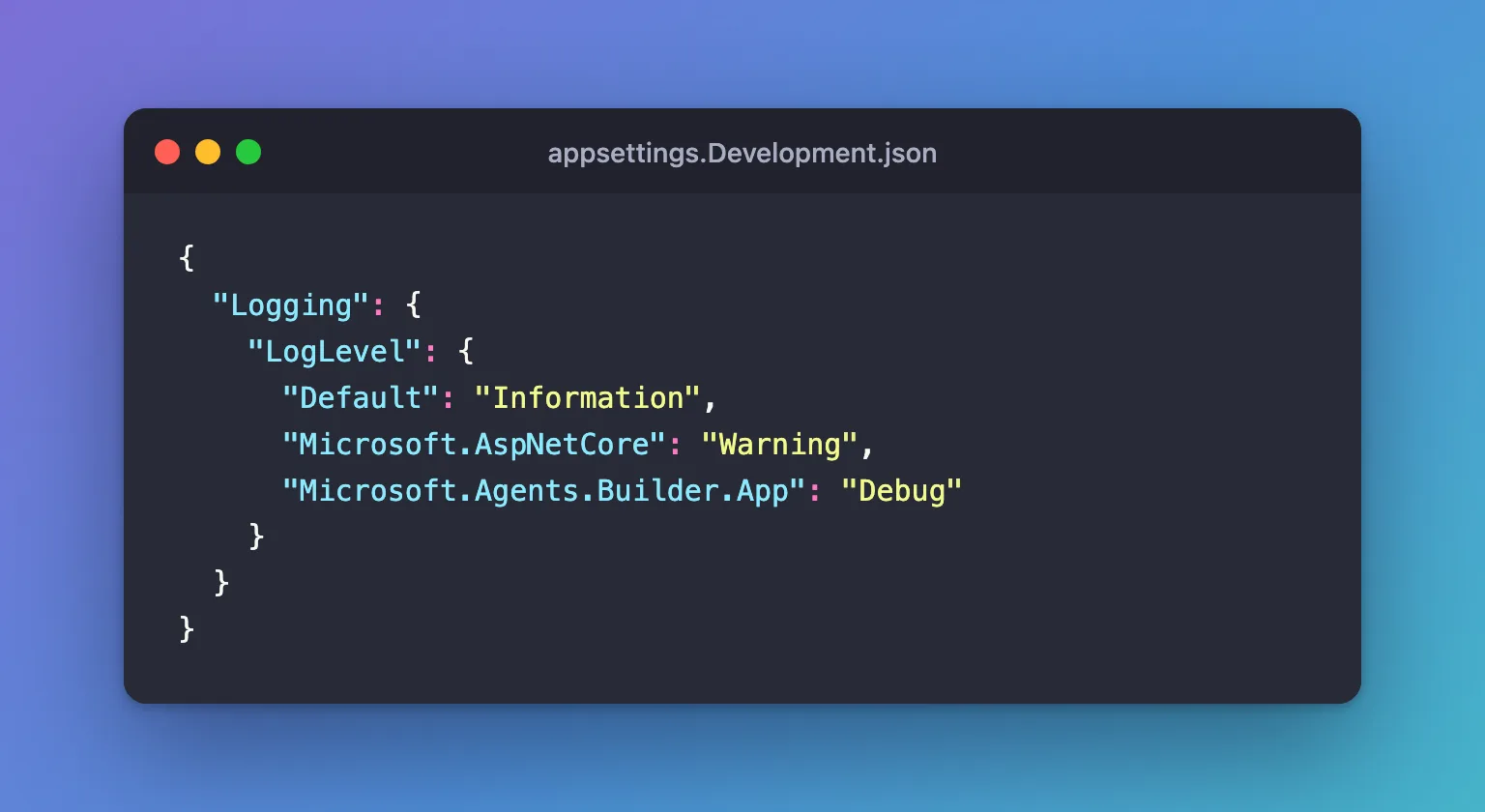
"Microsoft.Agents.Builder.App": "Debug"turns on Debug messages for the log categoryMicrosoft.Agents.Builder.Appand everything under it. That's the namespace ofAgentApplicationand its routes, so you get their Debug messages and nothing else's.appsettings.Development.jsononly applies when the app runs in theDevelopmentenvironment, which is whatdotnet runuses for a project created from the ASP.NET Core templates. An app with no environment set runs asProduction, where this file isn't read.
Step 2: Run the Agent and Send a Message
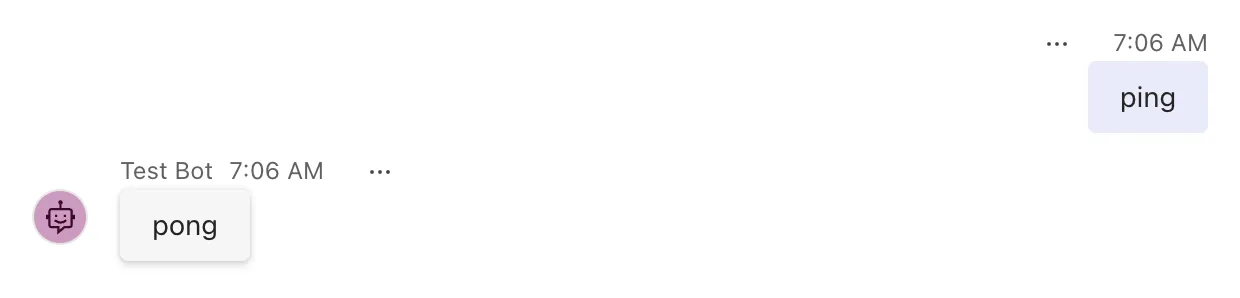
Start the agent with dotnet run, start the Agents Playground in a second terminal, and send ping:
agentsplayground -e http://localhost:3978/api/messages -c emulator
Step 3: Read the Route List
The agent's terminal now has dbug lines. These are the first ones, from the activity the Playground sent when it connected:
warn: Microsoft.Agents.Hosting.AspNetCore.CloudAdapter[4]
      Anonymous access is enabled for channel: emulator.
dbug: Microsoft.Agents.Builder.App.AgentApplication[1]
      AgentApplication route evaluation order (3 routes): [{"Index":0,"Handler":"PingAgent.PingAsync","Flags":"None","Rank":32767,"Channel":"*"},{"Index":1,"Handler":"PingAgent.HelpAsync","Flags":"None","Rank":32767,"Channel":"*"},{"Index":2,"Handler":"PingAgent.UnknownAsync","Flags":"None","Rank":65535,"Channel":"*"}]
dbug: Microsoft.Agents.Builder.App.AgentApplication[2]
      No route matched for ActivityType=conversationUpdate
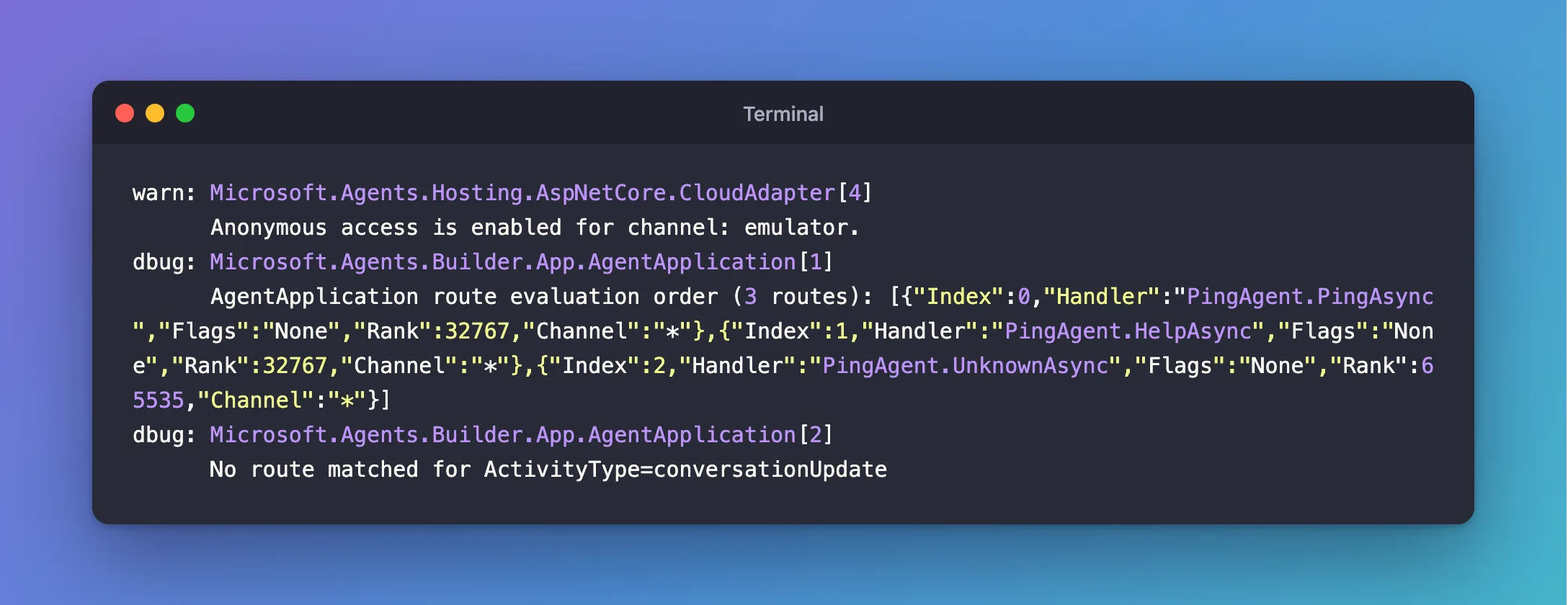
The route list is one line of JSON, with one object per route, in the order the SDK tries them. Laid out as a table:
| Index | Handler | Flags | Rank | Channel |
|---|---|---|---|---|
| 0 | PingAgent.PingAsync | None | 32767 | * |
| 1 | PingAgent.HelpAsync | None | 32767 | * |
| 2 | PingAgent.UnknownAsync | None | 65535 | * |
Indexis the position in the order:0is tried first.Handleris the class and method the route runs.Flagsmarks special routes:NonTerminalfor a route that lets the routes after it run too,Invokefor routes that answer invoke activities, which always come first, andAgenticfor agentic requests.Rankis the route's rank.32767is the default;65535isRouteRank.Last.Channelis the channel a route is limited to;*means every channel.
The catch-all, registered first in the constructor, is tried last, because routes are sorted by rank, and its rank is the highest. The two routes with the default rank keep the order they were registered in. When you send ping, the same list appears again, and the lines that follow it are the agent sending pong.
The warning above the list is logged for every activity that arrives without authentication, which is how an agent with no identity of its own runs on your machine.
Step 4: Recognize "No Route Matched"
The last line of that first turn says what happened to the activity:
dbug: Microsoft.Agents.Builder.App.AgentApplication[2]
      No route matched for ActivityType=conversationUpdate
The Playground opens every conversation with a conversationUpdate activity, and this agent has no route for that type: its three routes only take messages. The SDK accepted the activity, found no route that wanted it, and logged this line. That's the first thing to look for when your agent stays silent: it tells you the activity arrived, and which type no route handled.
Common Mistakes
| Mistake | What happens | Do this instead |
|---|---|---|
Setting "Default": "Debug" | Every library's Debug messages flood the terminal | Turn on Debug for Microsoft.Agents.Builder.App only |
| Reading the constructor to work out the order | Ranks and route kinds change the order | Read the order from the log |
| Leaving the setting in a file that production uses | The route list is written for every activity in production | Keep it in appsettings.Development.json |
Troubleshooting
| Symptom | Likely cause | Fix |
|---|---|---|
No dbug lines at all | The app isn't running in the Development environment | Check that startup shows Hosting environment: Development |
Still no dbug lines | The category name is misspelled | Use exactly Microsoft.Agents.Builder.App |
| A message gets the wrong answer | Another route that matches it comes earlier in the list | Change that route's rank, or narrow what it matches |
No route matched for messages | No route takes those messages | Add a route, or a catch-all with RouteRank.Last |
FAQ
Does the Debug log slow the agent down?
Only when it's on. The SDK checks whether Debug is enabled for its category before it builds the route list, so with the default settings the list is never even put together.
Can I see which route handled a message?
Not in this list: it shows the order, not the result. Read the order, then find the first route whose rule fits the message; that's the one that ran, unless an earlier route is marked NonTerminal.
Does this work in Teams too?
Yes. The log is written by your agent, so it shows the same lines whichever channel the activity came from.
Conclusion
Add "Microsoft.Agents.Builder.App": "Debug" to LogLevel in appsettings.Development.json, and on every turn the Microsoft 365 Agents SDK logs its route list, in the order it tries the routes, and No route matched when nothing took the activity. It's the quickest way to find out why a handler did or didn't run.
Additional Resources
- Logging in .NET and ASP.NET Core — log levels, categories and how
appsettings.jsonconfigures them. - AgentApplication in Microsoft 365 Agents SDK — how routes are ordered.
