How to Log the JSON of an Incoming Activity in the Microsoft 365 Agents SDK in C#

When an agent misbehaves, the first question is what actually arrived. In the Microsoft 365 Agents SDK, one call answers it: ToJson() turns the incoming activity into JSON, and your logger writes it out. That's the only way to see the raw activity once your agent runs in Teams or Microsoft 365 Copilot, where no test tool shows it to you.
Syntax
string json = activity.ToJson();
activityis anyIActivity. In a handler, the incoming one isturnContext.Activity.ToJson()is an extension method in theMicrosoft.Agents.Core.Modelsnamespace, from theMicrosoft.Agents.Corepackage, which every Agents SDK project already has.jsonis the activity as a JSON string, on one line, ready to log.
The Example
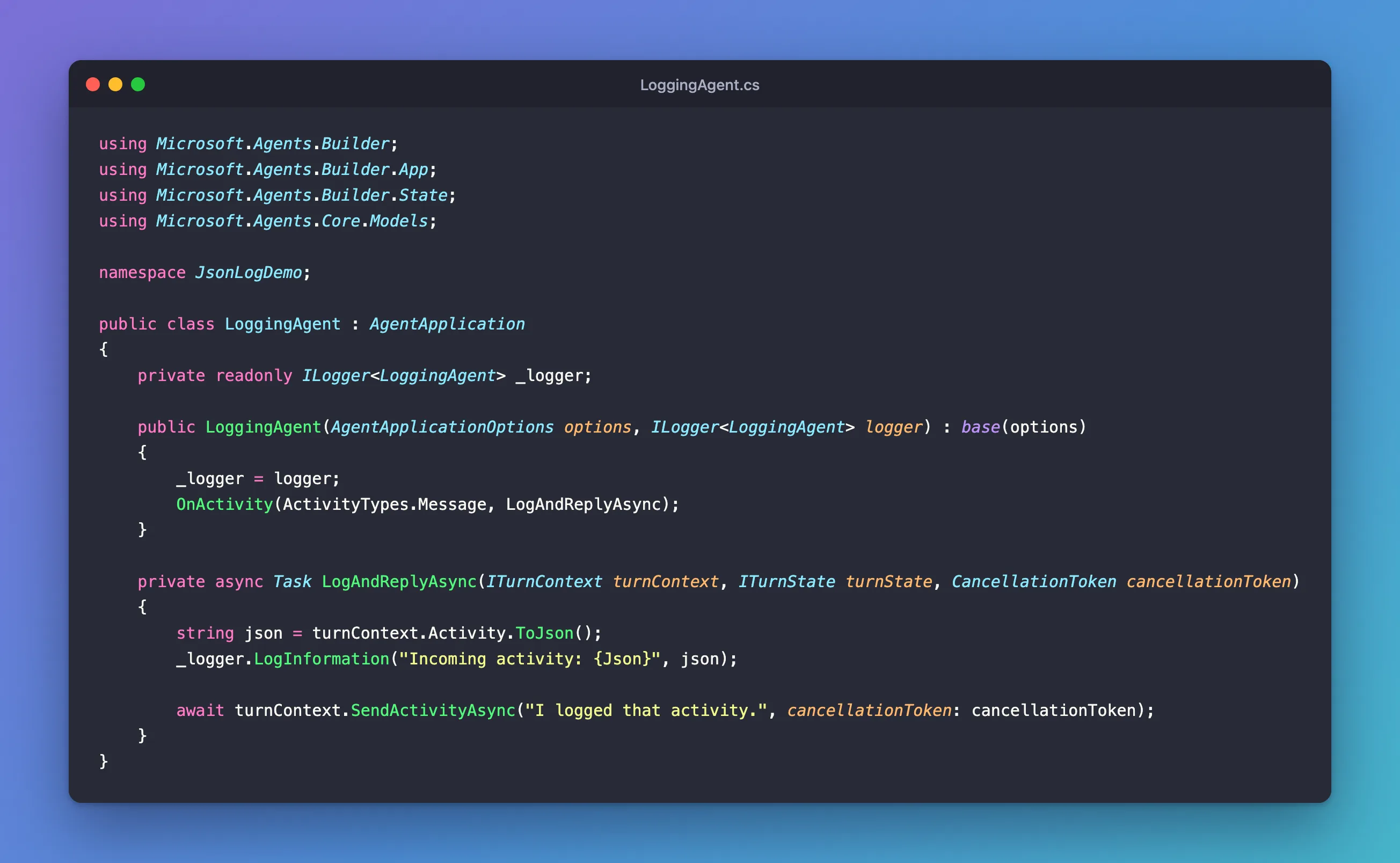
The agent for this post answers every message with I logged that activity. and, before it does, writes the message's whole activity to the log. It's one class in an ASP.NET Core project with the Agents SDK, listening on port 3978:
using Microsoft.Agents.Builder;
using Microsoft.Agents.Builder.App;
using Microsoft.Agents.Builder.State;
using Microsoft.Agents.Core.Models;

namespace JsonLogDemo;

public class LoggingAgent : AgentApplication
{
    private readonly ILogger<LoggingAgent> _logger;

    public LoggingAgent(AgentApplicationOptions options, ILogger<LoggingAgent> logger) : base(options)
    {
        _logger = logger;
        OnActivity(ActivityTypes.Message, LogAndReplyAsync);
    }

    private async Task LogAndReplyAsync(ITurnContext turnContext, ITurnState turnState, CancellationToken cancellationToken)
    {
        string json = turnContext.Activity.ToJson();
        _logger.LogInformation("Incoming activity: {Json}", json);

        await turnContext.SendActivityAsync("I logged that activity.", cancellationToken: cancellationToken);
    }
}
Prerequisites
- An Agents SDK agent you can run locally, and a way to send it a message. This post uses the Microsoft 365 Agents Playground.
Step 1: Get a Logger
ASP.NET Core gives any class it creates a logger: ask for ILogger<T> in the constructor, with your class as T, and keep it in a field. The SDK creates your agent through ASP.NET Core, so the constructor can ask for one next to AgentApplicationOptions:
public LoggingAgent(AgentApplicationOptions options, ILogger<LoggingAgent> logger) : base(options)
{
    _logger = logger;
    OnActivity(ActivityTypes.Message, LogAndReplyAsync);
}
T becomes the log's category, the name each log line starts with, so you can tell your agent's lines from the SDK's.
Step 2: Log the Activity
In the handler, turn the activity into JSON and log it:
string json = turnContext.Activity.ToJson();
_logger.LogInformation("Incoming activity: {Json}", json);
{Json} is a placeholder in the log's message template, filled by the argument after it. Loggers that store structured data keep it as a separate field called Json as well, which makes logs easier to search.
Step 3: Send a Message and Read the Log
Run the agent, start the Agents Playground with agentsplayground -e http://localhost:3978/api/messages -c emulator, and send it a message:
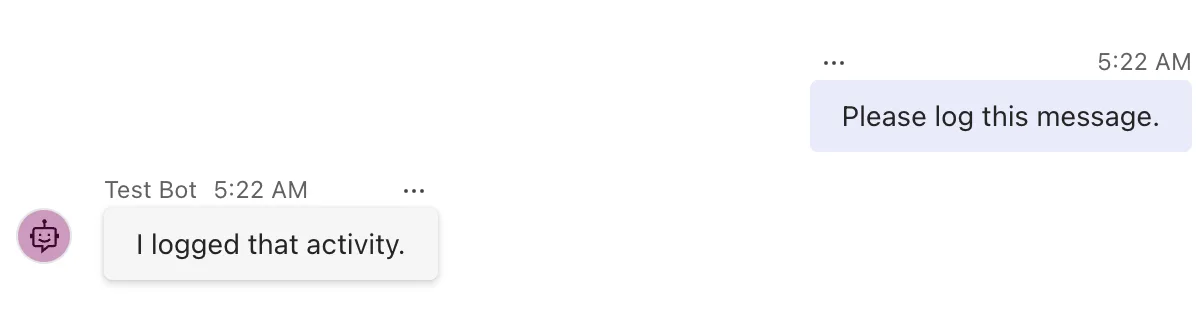
The agent's terminal shows the whole activity, under your agent's category:
info: JsonLogDemo.LoggingAgent[0]
      Incoming activity: {"type":"message","id":"806e56d0-ad78-41f4-9685-43a48b5afdee","timestamp":"2026-11-21T05:22:03.024+00:00","localTimestamp":"2026-11-21T05:22:03.024+00:00","localTimezone":"UTC","serviceUrl":"http://localhost:56150/_connector","channelId":"emulator","from":{"id":"user-id-0","name":"Alex Wilber","aadObjectId":"00000000-0000-0000-0000-0000000000020"},"conversation":{"conversationType":"personal","tenantId":"00000000-0000-0000-0000-0000000000001","id":"ea6628f0-e6b9-4997-bd06-d490e0ab2e9d"},"recipient":{"id":"00000000-0000-0000-0000-00000000000011","name":"Test Bot"},"textFormat":"plain","membersAdded":[],"membersRemoved":[],"reactionsAdded":[],"reactionsRemoved":[],"locale":"en-US","text":"Please log this message.","attachments":[],"entities":[{"type":"clientInfo","locale":"en-US","country":"US","platform":"Web","timezone":"UTC"}],"channelData":{"tenant":{"id":"00000000-0000-0000-0000-0000000000001"}},"listenFor":[],"textHighlights":[]}
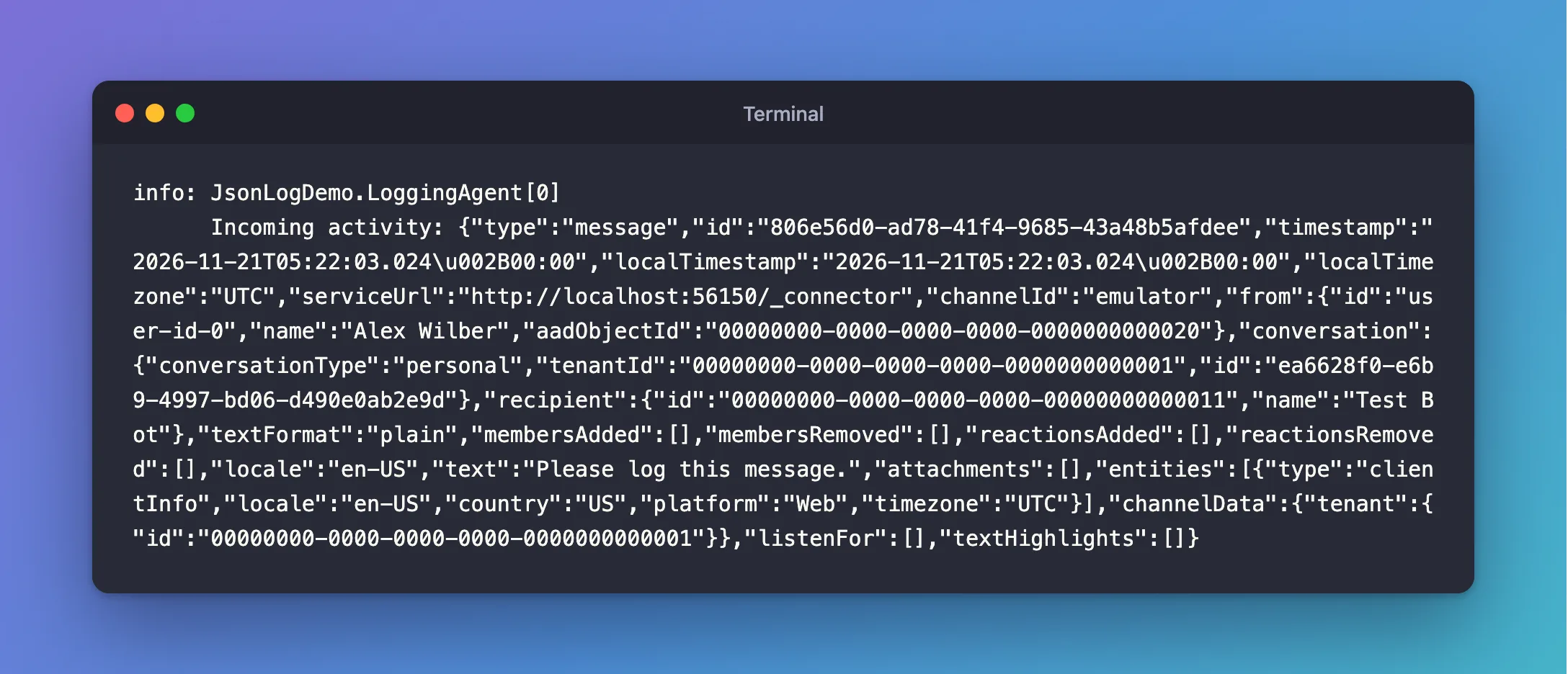
Everything the channel sent is there: who sent it (from), to whom (recipient), in which conversation and channel, the text, the entities and the channel's own channelData.
What ToJson Writes
ToJson() serializes the SDK's Activity object, which is not quite the same as the request the channel sent:
- One line. Easy to keep in logs, one activity per line; paste it into any JSON formatter to read it.
- Empty lists the channel didn't send, such as
membersAddedandattachments. The SDK's object always has them, empty or not. +written as+, the JSON escape for the same character, as in the timestamps'+00:00.
If you need the exact request, a test tool such as the Agents Playground shows it in its Log Panel; in production, the logged JSON is what you have.
Keep People's Data Out of Production Logs
An activity carries people's names, ids and every word they type. Logging all of it is right while you debug, and risky in production, where logs are kept, copied and read by others. Two ways to stay on the right side:
- Log it at
Debugwith_logger.LogDebug(...). ASP.NET Core's templates set the default log level toInformation, soDebuglines don't appear unless you turn them on. - Log only the fields you need, such as
turnContext.Activity.Type,ChannelIdandId, when you only want to know that something arrived.
Common Mistakes
| Mistake | What happens | Do this instead |
|---|---|---|
Building the log text with string interpolation, $"... {json}" | The JSON is baked into the message, so structured loggers can't store it as its own field | Use a placeholder: LogInformation("Incoming activity: {Json}", json) |
Logging every activity at Information in production | People's names and messages end up in your logs | Log at Debug, or log only the fields you need |
| Reading the logged JSON as the exact request | Fields the channel never sent look as if it did | Use the Playground's Log Panel for the exact request |
Troubleshooting
| Symptom | Likely cause | Fix |
|---|---|---|
error CS1061: 'IActivity' does not contain a definition for 'ToJson' | The Microsoft.Agents.Core.Models namespace isn't imported | Add using Microsoft.Agents.Core.Models; |
| No log line appears | The log level is above the one you logged at | Lower the level in appsettings.json, or log at Information while debugging |
| The handler runs but nothing is logged for some activities | The route only matches messages | Log in a route that matches the activity types you want to see |
FAQ
Can I log the activities my agent sends, too?
Yes. ToJson() works on any activity, including one you've built and are about to send with SendActivityAsync.
Why log JSON instead of individual properties?
Because you don't know in advance which field matters. The JSON has all of them, including entities and channelData, which differ from channel to channel.
Is the timestamp really +00:00?
It's +00:00. JSON allows any character as a \u escape, and the SDK's serializer escapes + this way.
Conclusion
To see what reached your agent, call turnContext.Activity.ToJson() and log the result with a message-template placeholder. You get every field of the activity on one line, for any channel, which makes it the first thing to add when an agent behaves unexpectedly. Keep it at Debug once the agent handles real people's conversations.
Additional Resources
- Understanding Activity Protocol — the activity's fields and types.
- Logging in .NET and ASP.NET Core — log levels, categories and message templates.
