How to Log Text to a File in MLflow with log_text

Notes about a run, a text report, a summary someone else will read: when the content is already a string, mlflow.log_text() saves it with the run as a file in one call, without creating anything on your disk. This guide logs a Markdown note and a plain text file and looks at both in the MLflow UI, with real output from MLflow 3.18.0.
Syntax
mlflow.log_text("<text>", "<file name>")
mlflow.log_text("<text>", "<folder>/<file name>")
| Part | What it means |
|---|---|
"<text>" | The string to save. It must be text: convert anything else with str() first |
"<file name>" | The file's path in the run, including its extension, such as notes.md or reports/summary.txt. The extension decides how the MLflow UI previews it |
| The current run | The file goes to the active run; run_id= sends it to another one |
MLflow writes the text as UTF-8 into a temporary file, uploads it, and deletes the temporary copy.
Prerequisites
- An MLflow tracking server at
http://127.0.0.1:8080. MLflow's tracking server guide shows how to start one.
Step 1: Log a Note and a Summary
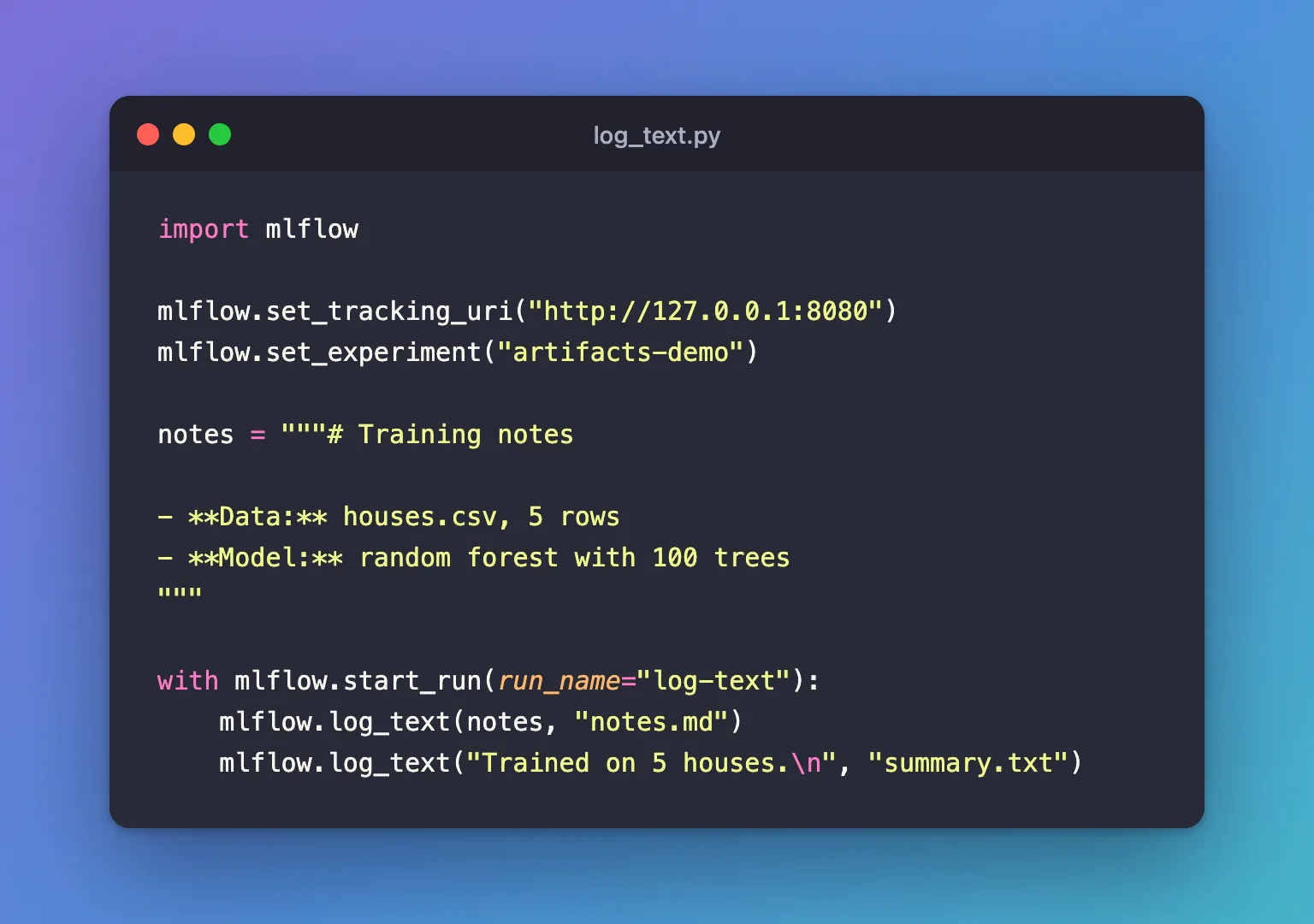
The example logs two files: training notes in Markdown, with a heading, bold labels and a list, and a one-line plain text summary. Create log_text.py:
import mlflow

mlflow.set_tracking_uri("http://127.0.0.1:8080")
mlflow.set_experiment("artifacts-demo")

notes = """# Training notes

- **Data:** houses.csv, 5 rows
- **Model:** random forest with 100 trees
"""

with mlflow.start_run(run_name="log-text"):
    mlflow.log_text(notes, "notes.md")
    mlflow.log_text("Trained on 5 houses.\n", "summary.txt")
notes is a multi-line string, written between three double quotes. The .md extension marks it as Markdown.
uv run python log_text.py
🏃 View run log-text at: http://127.0.0.1:8080/#/experiments/9/runs/09d7b3bc4bed43269897c08e300da569
🧪 View experiment at: http://127.0.0.1:8080/#/experiments/9
Step 2: See the Files in the UI
Open the run, click Artifacts, then notes.md:
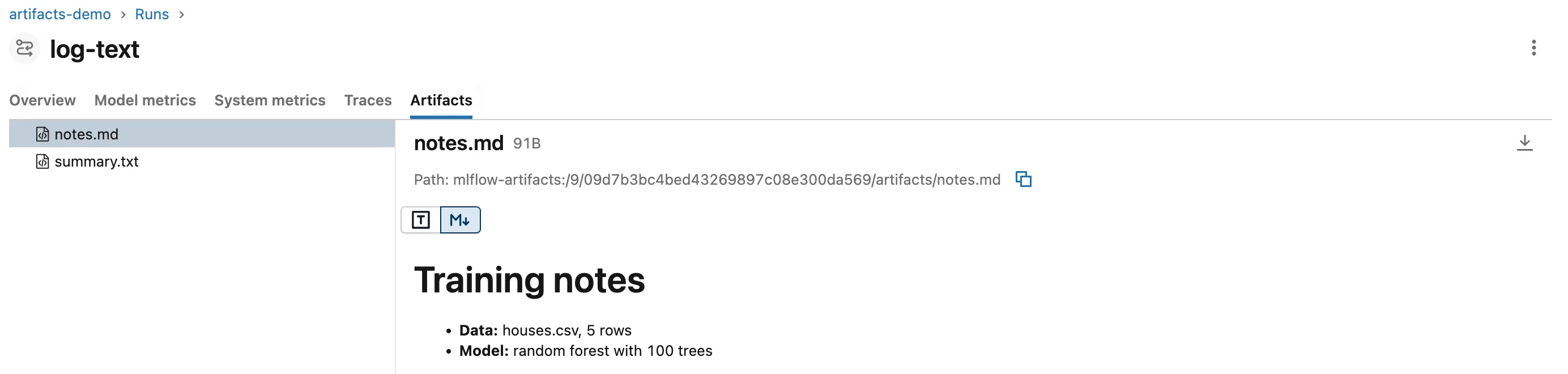
The UI renders Markdown files: a heading, bold labels and a bulleted list. The two buttons above it switch between the plain text (T) and the rendered view (M↓). summary.txt shows as plain text. Each file has a download button at the top right.
Common Mistakes
| Mistake | What happens | Do this instead |
|---|---|---|
| Passing a list or a number | TypeError: write() argument must be str, not list | Join or convert it to a string first, such as "\n".join(lines) |
Calling log_text twice with the same name in one run | The second text replaces the first | Build the whole text first, then log it once |
| Writing a file to disk only to log it | Extra code and a leftover file | Log the string directly with log_text |
Troubleshooting
| Symptom | Likely cause | Fix |
|---|---|---|
| Markdown shows as plain text | The file doesn't end in .md, or T is selected | Name it .md and click M↓ |
| Accented or non-Latin characters look wrong in another program | That program isn't reading the file as UTF-8 | Open it as UTF-8, the encoding MLflow writes |
FAQ
Can I log HTML?
Yes: MLflow's reference shows mlflow.log_text("<h1>header</h1>", "index.html"), and the UI lists HTML among the formats it can preview.
What's the difference from log_artifact?
log_text takes a string in memory; log_artifact takes a file that already exists on disk. Use log_artifact for files another program produced: How to Log a File to MLflow with log_artifact.
How do I read the text back?
mlflow.artifacts.load_text("runs:/<run ID>/notes.md") returns it as a string: How to Read a JSON or Text Artifact from MLflow in Python.
Conclusion
mlflow.log_text(notes, "notes.md") saved a Markdown string with the run, and the MLflow UI rendered it with a switch to plain text; summary.txt stayed plain. Pass a string, name the file with its extension, and log each file once.
Additional Resources
- mlflow.log_text — the function's reference, with examples.
- mlflow.artifacts.load_text — reading it back.
