How to List the Members of a Group in Power Automate

List group members, from the Office 365 Groups connector, returns the people in a group: their names, email addresses and more. A flow can then count them, email them, or check whether someone is among them.
The example lists Overtime Timesheet Users, a security group with six members, counts them, and keeps each person's name and email address.
Step 1: Add List group members
In a flow with the trigger Manually trigger a flow, select + and Add an action. Searching for the action's name didn't list it for me, so I searched for Office 365 Groups, selected See more under the connector, and picked List group members.
Step 2: Choose the Group
In Group Id, pick the group from the drop-down, here Overtime Timesheet Users. Microsoft's Office 365 Groups connector reference says you can also enter group id, the group's Object ID from Microsoft Entra:
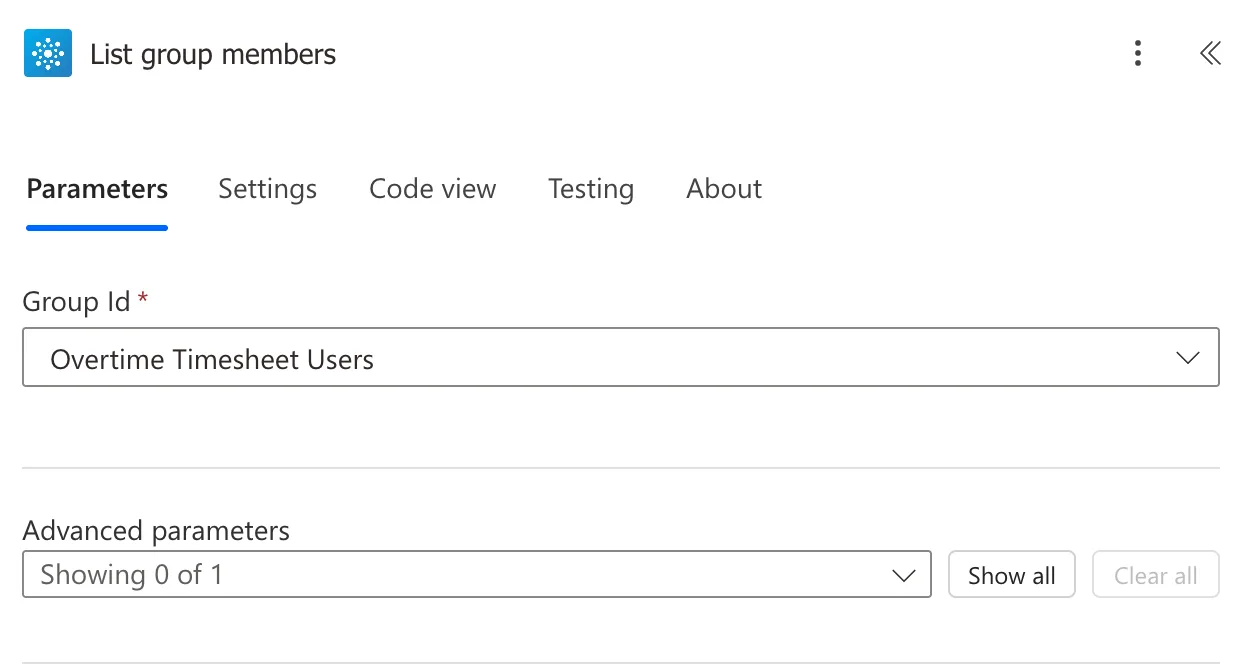
The one advanced parameter is Top: Number of group members to retrieve (from 1 to 999, default is 100).
Step 3: Count the Members
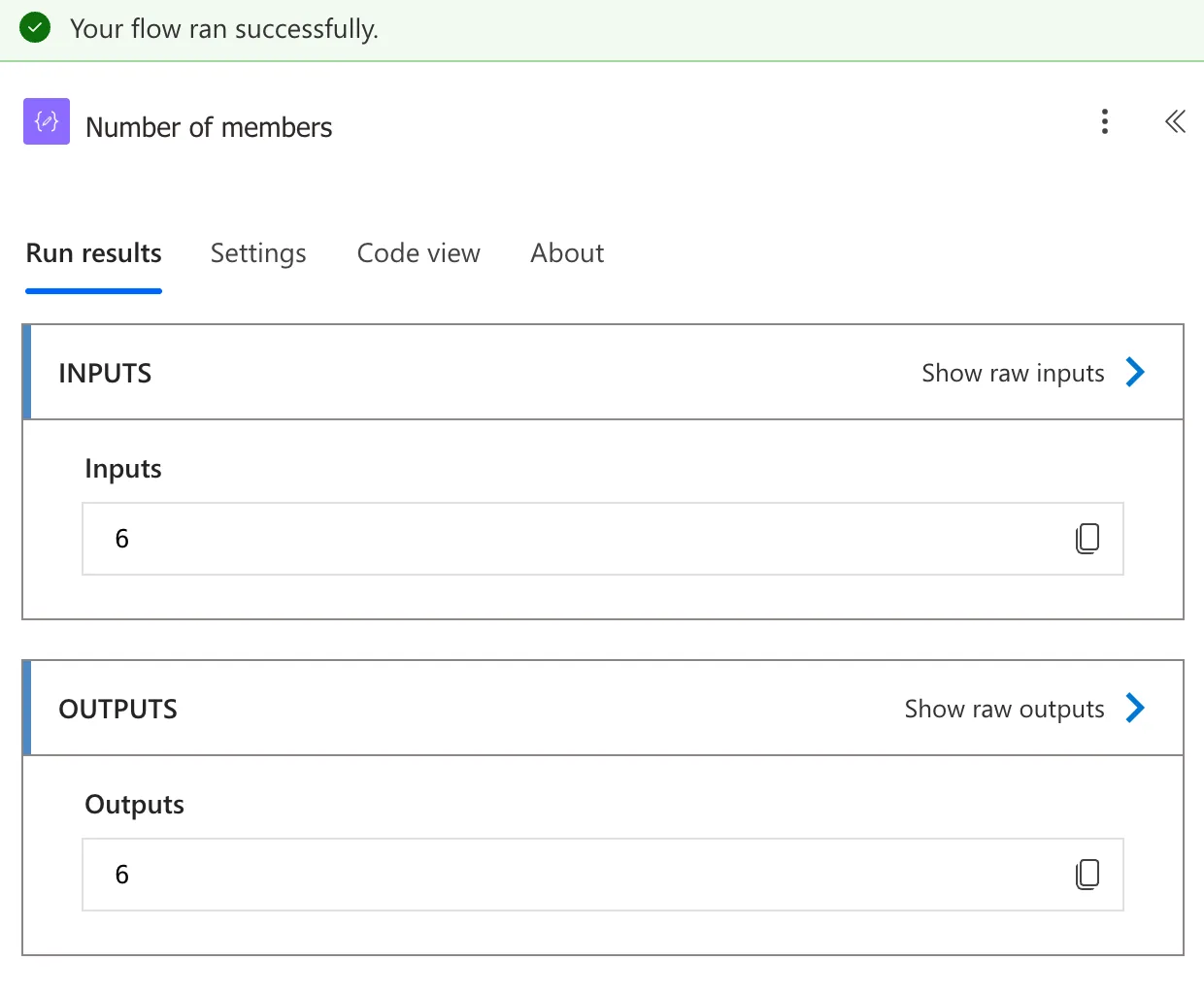
The members are in the action's value, a list with one record per person. Add a Compose called Number of members with this expression (How to Count the Items in an Array in Power Automate with length()):
length(body('List_group_members')?['value'])
In a run, it shows 6:
Step 4: Keep the Name and Email
Each record has many fields. A Select keeps just the ones you need (How to Keep Several Fields from Each Item with Select in Power Automate). Add a Select called Members:
- From:
body('List_group_members')?['value'] - Map: a key Name with
item()?['displayName'], and a key Email withitem()?['mail'].
The Result
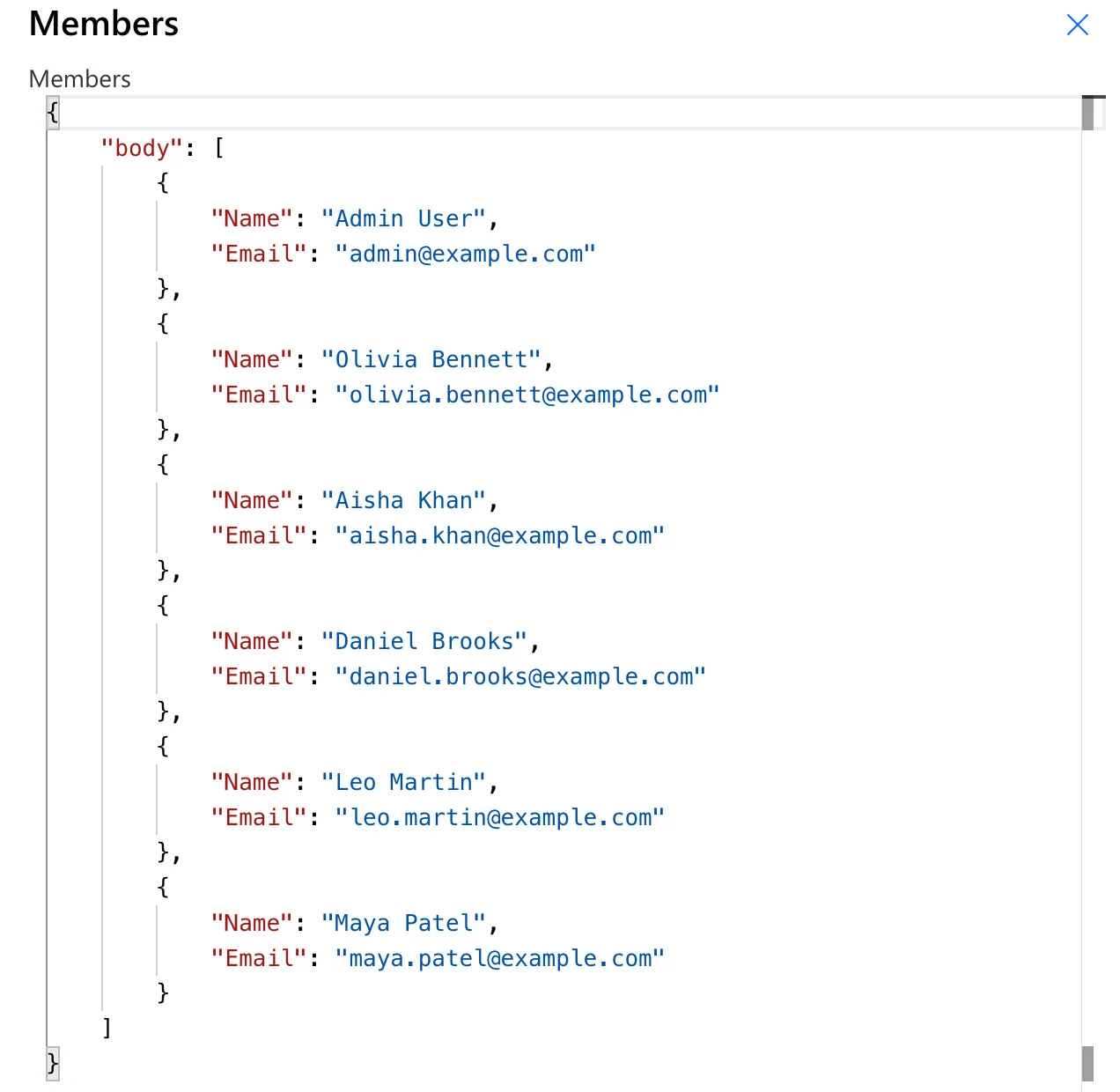
Save the flow and test it (How to Test a Cloud Flow Manually in Power Automate). The raw outputs of Members list the six people, each with a name and an email address:
To email all of them, make a list of just the addresses and join it: How to Send an Email to Several People in Power Automate.
Common Mistakes
| Mistake | What happens | Do this instead |
|---|---|---|
| Using the action's body as the list | The list is inside it, under value | body('List_group_members')?['value'] |
| Leaving Top at its default for a big group | The action returns 100 members | Set Top up to 999, or turn on pagination |
item()?['email'] for the address | The field is called mail | item()?['mail'] |
Troubleshooting
| Symptom | Likely cause | Fix |
|---|---|---|
| The action doesn't appear when you search its name | The search lists other connectors first | Search for Office 365 Groups and select See more |
| Fewer members than the group has | Top defaults to 100 | Raise Top, or turn on pagination for more than 1000 |
FAQ
Does it work with security groups, or only Microsoft 365 groups?
The example's group is a security group, and the action listed its members. It's the same action as in How to Check If a User Is in a Security Group in Power Automate.
How do I get more than 1000 members?
The reference: In case you need to retrieve more than 1000 values please turn on Settings->Pagination feature and provide Threshold limit.
Does it list members of groups inside the group?
The reference describes it as returning all members in the given group; it doesn't say it includes the members of nested groups, so test with your own groups before relying on it.
Conclusion
List group members returns a group's people under value. length() counts them, and a Select with displayName and mail turns them into a list of names and email addresses.
