How to List the Files in a Folder with Directory.GetFiles in C#

Directory.GetFiles gives you every file in a folder as an array of paths, ready for a foreach loop. A search pattern such as *.jpg keeps only the files you want.
Microsoft's reference: Directory.GetFiles returns the names of files (including their paths) in the specified directory. It returns an array of the full names (including paths) for the files in the specified directory, or an empty array if no files are found.
Syntax
string[] <files> = Directory.GetFiles(<folder>);
string[] <files> = Directory.GetFiles(<folder>, <pattern>);
string[] <files> = Directory.GetFiles(<folder>, <pattern>, SearchOption.AllDirectories);
| Part | What it is |
|---|---|
<folder> | The folder to look in: a full path, or a relative one such as photos |
<pattern> | Optional. Which file names to return: * matches any characters and ? exactly one, so *.jpg means every name that ends in .jpg |
SearchOption.AllDirectories | Optional. Searches every subfolder too. Without it, only the folder itself is searched |
<files> | An array with one path per file. Each path starts with <folder> |
The reference on the pattern: it can contain a combination of valid literal path and wildcard (* and ?) characters, but it doesn't support regular expressions. And on the paths: The returned file names are appended to the supplied path parameter.
The Example
A console app called ListFiles creates a photos folder with beach.jpg, city.jpg and notes.txt in it, lists every file, then lists only the files that match *.jpg.
Prerequisites
- The .NET 10 SDK.
dotnet --versionprints a version that starts with10.0.
Step 1: Create a Console App
dotnet new console -n ListFiles
cd ListFiles
The template "Console App" was created successfully.

Processing post-creation actions...
Restoring /Users/you/source/ListFiles/ListFiles.csproj:
  Determining projects to restore...
  Restored /Users/you/source/ListFiles/ListFiles.csproj (in 41 ms).
Restore succeeded.
dotnet new console -n ListFiles creates a folder named ListFiles with a project file and a Program.cs, and cd moves into it. Everything this example uses is part of .NET, so there's no package to add. Open the folder in VS Code, or ListFiles.csproj in Visual Studio.
Step 2: Write the Code
Replace everything in Program.cs. First, a folder to list:
// Make a folder with three files, so there's something to list.
Directory.CreateDirectory("photos");
File.WriteAllText("photos/beach.jpg", "");
File.WriteAllText("photos/city.jpg", "");
File.WriteAllText("photos/notes.txt", "");
Directory.CreateDirectory makes the photos folder in the folder the app runs from, the project folder with dotnet run. Each File.WriteAllText with an empty string creates an empty file in it.
Then every file:
// Every file in the folder. Sort them: GetFiles doesn't promise an order.
string[] files = Directory.GetFiles("photos");
Array.Sort(files);
Console.WriteLine($"{files.Length} files in photos:");
foreach (string file in files)
{
    Console.WriteLine($"  {file}");
}
GetFiles("photos") returns a string[] with one path per file. Array.Sort puts the paths in alphabetical order, and the foreach loop prints each one.
Then only the pictures:
// Only the files whose names match a pattern.
string[] pictures = Directory.GetFiles("photos", "*.jpg");
Array.Sort(pictures);
Console.WriteLine($"{pictures.Length} of them match *.jpg:");
foreach (string picture in pictures)
{
    Console.WriteLine($"  {picture}");
}
The second argument is the search pattern. * stands for any characters, so *.jpg keeps the two pictures and leaves out notes.txt.
Step 3: Run It
Run it in VS Code's terminal, or press Ctrl+F5 in Visual Studio:
dotnet run
3 files in photos:
  photos/beach.jpg
  photos/city.jpg
  photos/notes.txt
2 of them match *.jpg:
  photos/beach.jpg
  photos/city.jpg
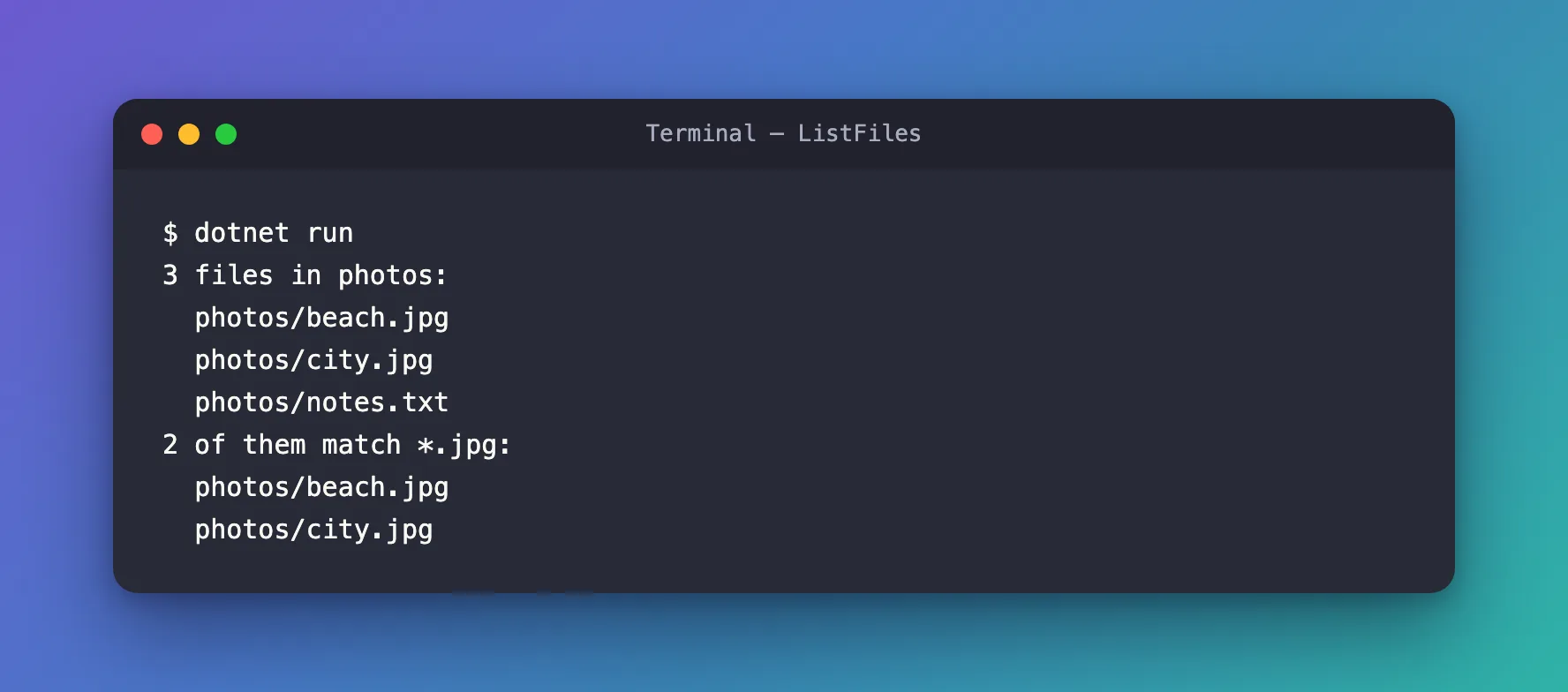
GetFiles found all 3 files, and each entry is a path that starts with photos/, the folder passed in, not a bare file name. The pattern returned 2 of the 3, because notes.txt doesn't end in .jpg.
The Complete File
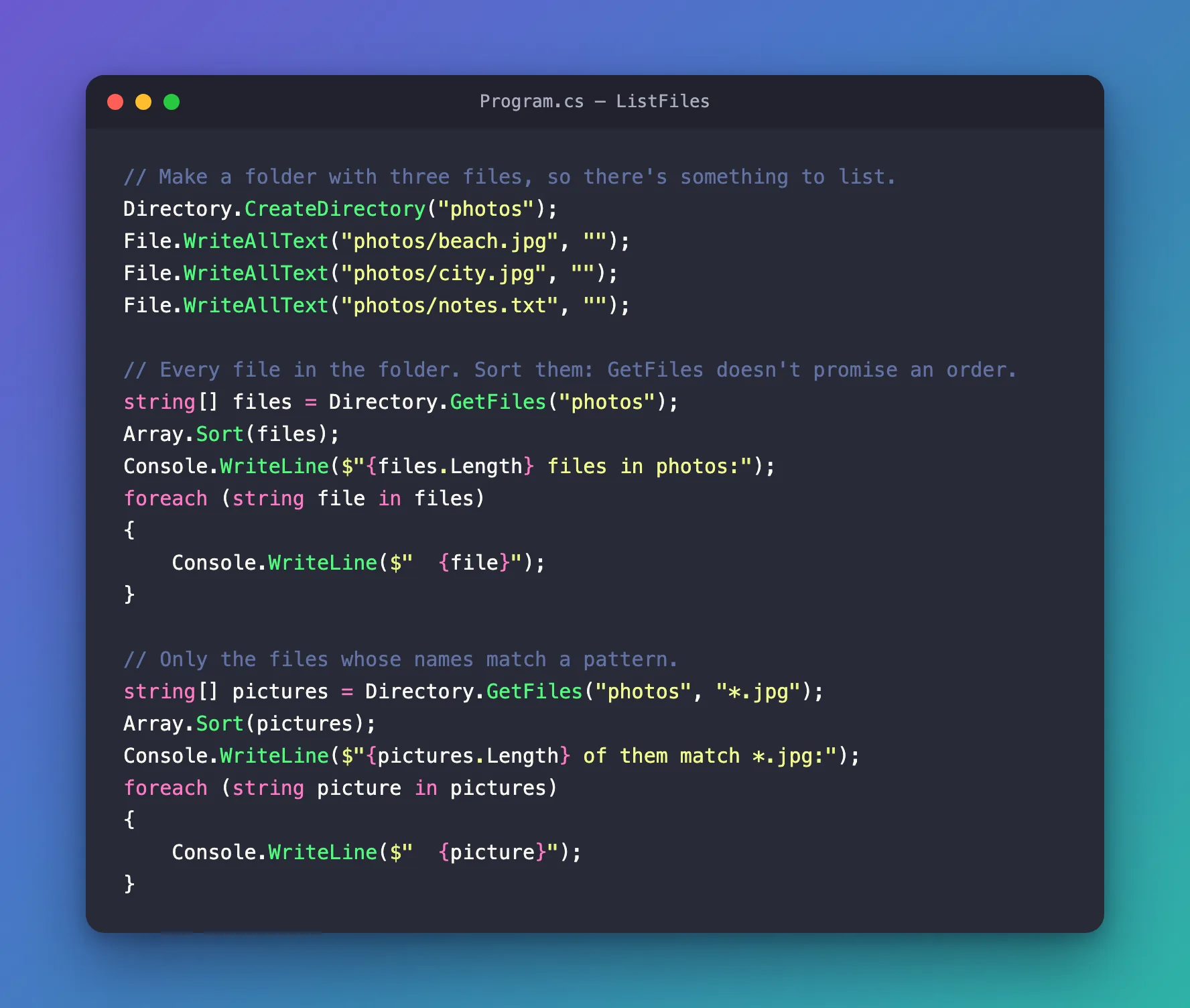
// Make a folder with three files, so there's something to list.
Directory.CreateDirectory("photos");
File.WriteAllText("photos/beach.jpg", "");
File.WriteAllText("photos/city.jpg", "");
File.WriteAllText("photos/notes.txt", "");

// Every file in the folder. Sort them: GetFiles doesn't promise an order.
string[] files = Directory.GetFiles("photos");
Array.Sort(files);
Console.WriteLine($"{files.Length} files in photos:");
foreach (string file in files)
{
    Console.WriteLine($"  {file}");
}

// Only the files whose names match a pattern.
string[] pictures = Directory.GetFiles("photos", "*.jpg");
Array.Sort(pictures);
Console.WriteLine($"{pictures.Length} of them match *.jpg:");
foreach (string picture in pictures)
{
    Console.WriteLine($"  {picture}");
}
Common Mistakes
| Mistake | What happens | Do this instead |
|---|---|---|
| Listing a folder that doesn't exist | Directory.GetFiles("videos") stopped the app with Unhandled exception. System.IO.DirectoryNotFoundException: Could not find a part of the path '/Users/you/source/ListFiles/videos'. | Check with Directory.Exists first, or create the folder with Directory.CreateDirectory |
| Expecting the files in subfolders | With photos/2025/old.jpg added, GetFiles("photos") still returned 3 files | Pass "*" and SearchOption.AllDirectories: that returned 4, including photos/2025/old.jpg |
| Expecting bare file names | Every entry starts with the folder, such as photos/beach.jpg, as the example shows | Use Path.GetFileName(file): it turned photos/city.jpg into city.jpg |
| Relying on the order | Without Array.Sort, the same folder came back as photos/notes.txt, photos/city.jpg, photos/beach.jpg. The reference: The order of the returned file names is not guaranteed; use the Sort method if a specific sort order is required. | Sort the array with Array.Sort, as the example does |
FAQ
What does it return for an empty folder?
An empty array, not an error: Directory.GetFiles("empty") on an empty folder had a Length of 0. So a foreach over it simply runs zero times.
Should I use GetFiles or EnumerateFiles?
The reference: When you use EnumerateFiles, you can start enumerating the collection of names before the whole collection is returned; when you use GetFiles, you must wait for the whole array of names to be returned before you can access the array. Therefore, when you are working with many files and directories, EnumerateFiles can be more efficient. For a folder with a handful of files, as here, GetFiles is the simpler of the two, because you get an array with a Length.
Conclusion
Directory.GetFiles(folder) returns the path of every file in a folder, and Directory.GetFiles(folder, "*.jpg") only the ones that match. The paths start with the folder you passed, they come in no promised order, and subfolders need SearchOption.AllDirectories.
Additional Resources
- Directory.GetFiles — every overload, the wildcards and the exceptions.
- Directory.EnumerateFiles — the version that returns files one at a time.
- SearchOption — searching the folder only, or every subfolder too.
