How to List Resource Groups in Azure CLI (az group list)

The command is az group list. Add --output table and you get a clean, readable list instead of a wall of JSON. Everything else on this page is a variation on that one command.
The Short Answer
az group list --output table
That is it. If you just wanted the command, you can stop reading. The rest of this page covers filtering, counting, and the flags that save you time.
Before You Start
- Azure CLI installed. Check with
az version. - Logged in. Run
az loginif you are not. It opens a browser window.
If you have more than one subscription, the CLI uses your default. Check which one you are on:
az account show --output table
List All Resource Groups
This is the command you will use most:
az group list --output table
You get three columns — name, location, and status:
Name                        Location      Status
--------------------------  ------------  ---------
rg-web-prod                 centralindia  Succeeded
rg-web-dev                  centralindia  Succeeded
rg-data-prod                eastus        Succeeded
rg-analytics-dev            eastus        Succeeded
DefaultResourceGroup-CID    centralindia  Succeeded
NetworkWatcherRG            centralindia  Succeeded
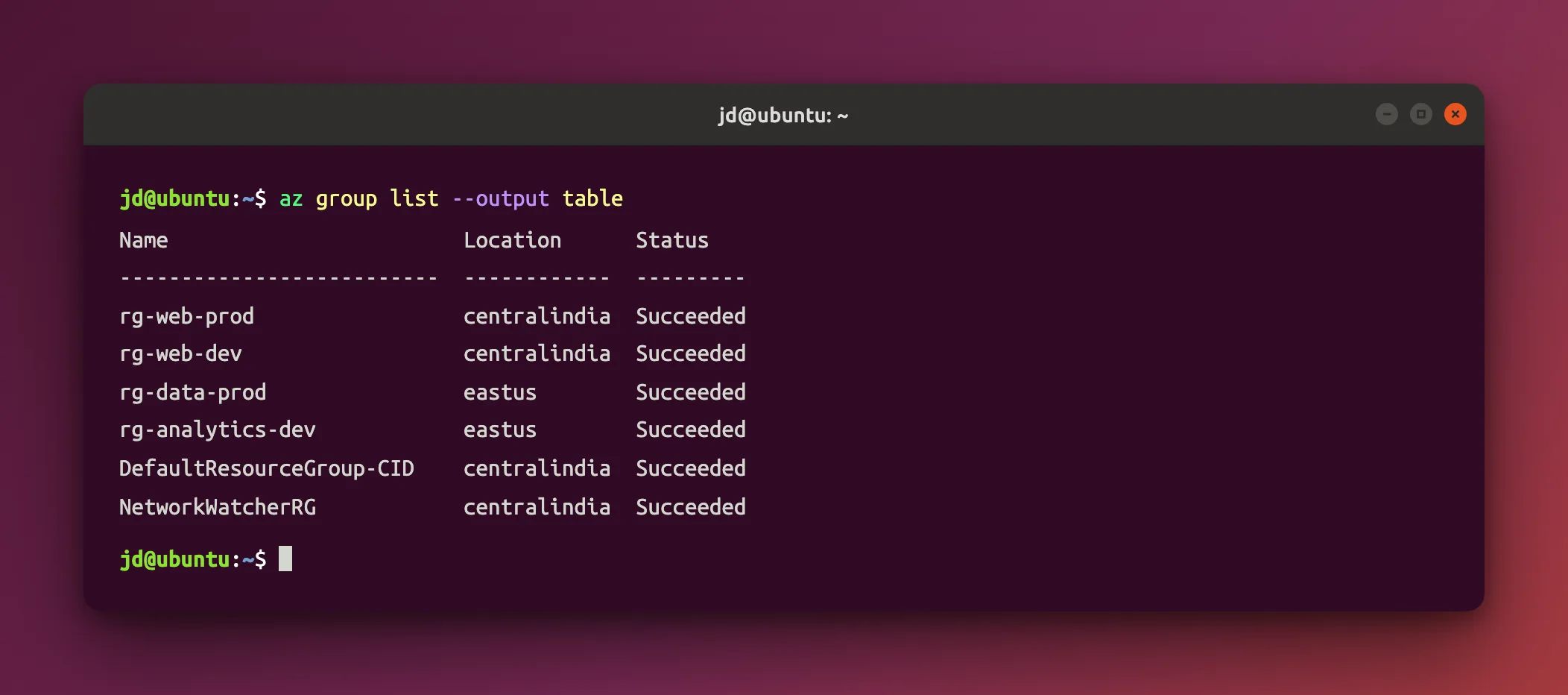
The resource group names above are examples. You will see your own. Groups like NetworkWatcherRG and DefaultResourceGroup-CID are created by Azure automatically — you did not make them, and you should leave them alone.
Just the Names
When you want to pipe the output into another command, drop everything except the names:
az group list --query "[].name" --output tsv
tsv means tab-separated values. No headers, no quotes, no brackets — just one name per line, ready for a loop or a grep.
Pick Your Output Format
--output (short form -o) accepts four formats:
| Format | Command | Use it when |
|---|---|---|
table | az group list -o table | You are reading it yourself |
tsv | az group list -o tsv | You are piping into another command or a script |
json | az group list -o json | You need the full detail, including tags and IDs |
yaml | az group list -o yaml | You prefer YAML to JSON |
json is the default if you do not pass --output at all.
Filter by Location
Only want the groups in one region?
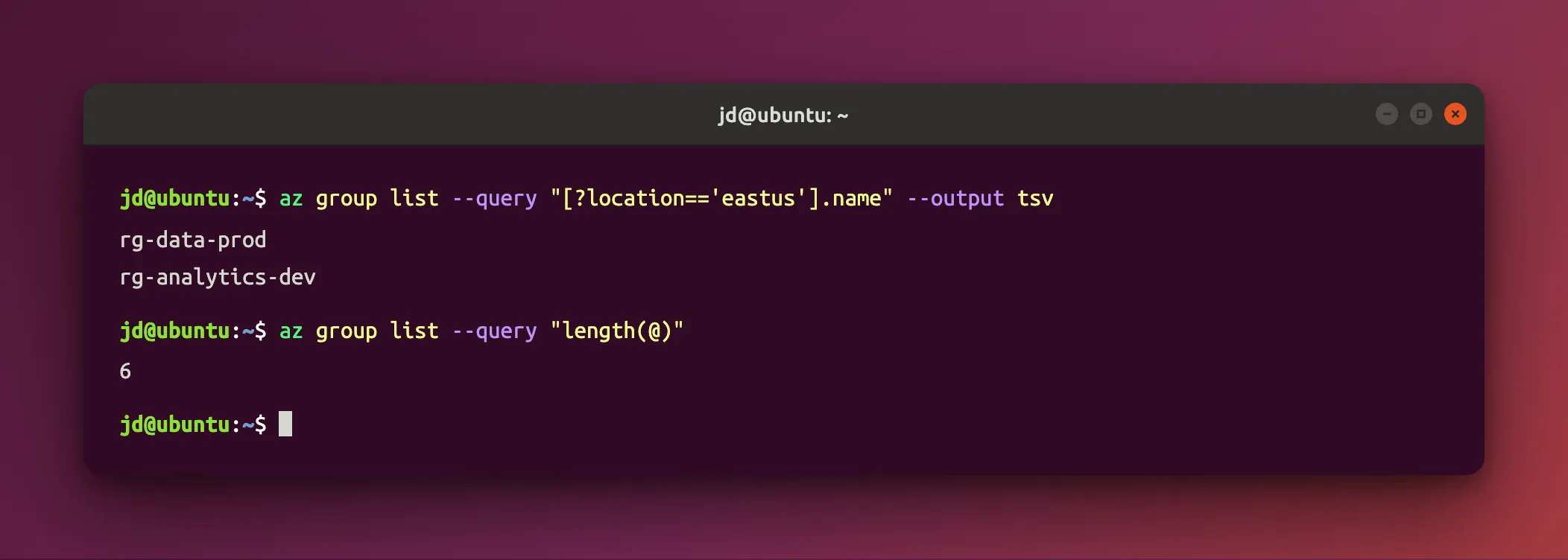
az group list --query "[?location=='eastus'].name" --output tsv
Note the quotes: double quotes around the whole query, single quotes around eastus inside it. Get that backwards and your shell will eat the query.
Filter by Name
To find every group whose name starts with rg-:
az group list --query "[?starts_with(name,'rg-')].name" --output tsv
Swap starts_with for contains to search anywhere in the name:
az group list --query "[?contains(name,'prod')].name" --output tsv
Filter by Tag
If you tag your resource groups, the CLI has a dedicated flag — no query needed:
az group list --tag Environment=Production --output table
You can also match on the tag key alone, ignoring its value:
az group list --tag Environment --output table
--tag accepts one tag only. There is no way to pass two tags to this flag. If you need to match on two tags at once, use --query on the tags object instead.
Count Them
az group list --query "length(@)"
@ means "everything you just got back", so length(@) is simply "how many". It prints a bare number.
Sort the List
Azure returns groups in no particular order. Sort them by name:
az group list --query "sort_by([].{Name:name,Location:location}, &Name)" --output table
The {Name:name,Location:location} part picks which columns you want. The &Name says sort on that column. Change it to &Location to group by region instead.
Check If a Resource Group Exists
Useful in scripts, before you try to create or deploy something:
az group exists --name rg-web-prod
It prints true or false and nothing else.
Look Inside a Resource Group
Listing the groups is one thing; seeing what is in one is another command:
az resource list --resource-group rg-web-prod --query "[].{Name:name,Type:type}" --output table
For the group's own details rather than its contents:
az group show --name rg-web-prod --output table
List Groups in a Different Subscription
Add --subscription to any of the commands above:
az group list --subscription "My Subscription" --output table
Or switch your default first, so you do not have to repeat the flag:
az account set --subscription "My Subscription"
az group list --output table
Cheat Sheet
| What you want | Command |
|---|---|
| Readable list | az group list -o table |
| Names only | az group list --query "[].name" -o tsv |
| One region | az group list --query "[?location=='eastus'].name" -o tsv |
| Name search | az group list --query "[?contains(name,'prod')].name" -o tsv |
| By tag | az group list --tag Environment=Production -o table |
| How many | az group list --query "length(@)" |
| Sorted | az group list --query "sort_by([].{Name:name,Location:location}, &Name)" -o table |
| Does it exist | az group exists --name rg-web-prod |
| What is inside | az resource list -g rg-web-prod -o table |
Common Mistakes
| Mistake | What happens | Fix |
|---|---|---|
az list resource groups | ERROR: 'list' is misspelled or not recognized by the system. | The command is az group list — noun first, then verb |
Single quotes around the whole --query | Your shell strips the inner quotes and the query fails | Double quotes outside, single quotes inside |
Passing two tags to --tag | Only one is used | Use --query on the tags object instead |
| Expecting alphabetical order | Azure returns them unordered | Add sort_by(...) |
Forgetting --output table | A long wall of JSON | Add -o table, or set a default with az configure |
| Wrong subscription | You see the wrong groups, or none | Run az account show first |
Troubleshooting
| Symptom | Cause | Fix |
|---|---|---|
Please run 'az login' to setup account | Not signed in, or the token expired | Run az login again |
| Empty list, no error | You are on a subscription with no resource groups | az account show, then az account set --subscription "..." |
The subscription is not registered | The subscription is disabled or expired | Check it in the Azure portal |
--query returns [] | The filter matched nothing, often a case mismatch | Location values are lowercase with no spaces: eastus, not East US |
| Quoting errors in PowerShell | PowerShell parses quotes differently from Bash | Use the same command in Bash, or see Microsoft's PowerShell quoting notes linked below |
az not found | The CLI is not installed or not on your PATH | Install it, then re-open your terminal |
Frequently Asked Questions
What is the command to list resource groups in Azure CLI?
az group list. Add --output table for a readable list.
Why does az list resource groups not work?
Azure CLI commands are noun-then-verb. The group is az group and the action is list, so it is az group list. The same pattern applies everywhere: az vm list, az storage account list, az webapp list.
How do I list resource groups in a specific region?
az group list --query "[?location=='eastus'].name" --output tsv
Location values are lowercase and unspaced. Run az account list-locations --query "[].name" -o tsv to see the valid values.
How do I count my resource groups?
az group list --query "length(@)" prints the number on its own.
Can I list resource groups across all my subscriptions at once?
Not with az group list — it works on one subscription at a time. Loop over your subscriptions:
for sub in $(az account list --query "[].id" -o tsv); do
  echo "== $sub"
  az group list --subscription "$sub" --output table
done
Does listing resource groups cost anything?
No. Read operations against Azure Resource Manager are free.
Conclusion
az group list --output table covers the everyday case. When you need more, --query does the filtering, --output picks the shape, and --tag handles tags without any query syntax at all.
If you do not have a resource group yet, start with How to Create a Resource Group in Microsoft Azure using Azure CLI — then come back here to list what you made.
Additional Resources
- az group list — Azure CLI reference — the official command reference, including the
--tagparameter. - How to manage Azure resource groups with the Azure CLI — Microsoft's guide to the whole
az groupcommand set. - How to query Azure CLI command output using a JMESPath query — the full
--querysyntax, with Bash, PowerShell, and Cmd examples. - Apply tags with Azure CLI — tagging resource groups so
--tagbecomes useful. - How to Create a Resource Group in Microsoft Azure using Azure CLI — creating the groups you are listing here.
