How to Limit Text Length and Show a Character Count in Power Apps

Long text needs a limit, and people need to see how close they are to it. Set the text input's MaxLength, and add a label that counts what's typed: 247 of 4,000 characters.
Prerequisites
- A text input (How to Add a Multi-Line Text Input in Power Apps).
- A Text control under it for the count (How to Add a Text Control in Power Apps).
The example is the Career Development Plan app's Response screen.
Step 1: Name the Limit Once
The limit appears in two places, the input and the count, so give it a name in App.Formulas (How to Use Named Formulas in Power Apps):
ResponseMaxLength = 4000;
Step 2: Set MaxLength
ResponseMaxLength
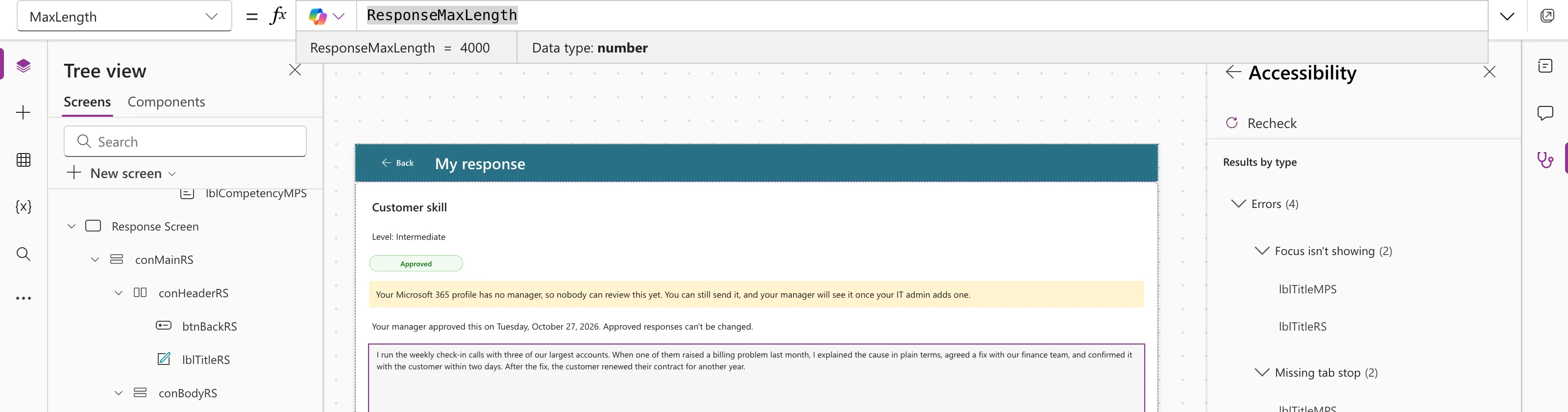
Microsoft's reference: MaxLength is "the maximum number of characters allowed in the input field. Users cannot type beyond this limit" (Text Input modern control). In the example it was empty until set.
Step 3: Count the Characters
Len counts the characters typed (How to Count Characters in Power Apps with Len), and Text writes the limit with a thousands separator (Convert Number to Text):
Len(txtResponseRS.Text) & " of " & Text(ResponseMaxLength, "#,##0") & " characters"
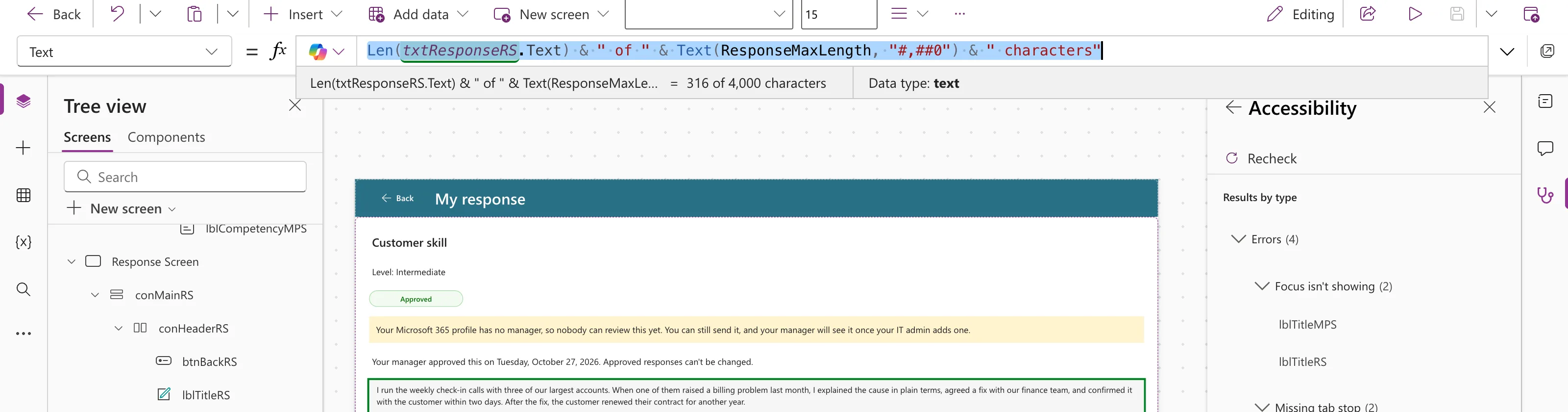
The input's TriggerOutput is Keypress by default, so the count follows every key. In preview, with a paragraph typed:
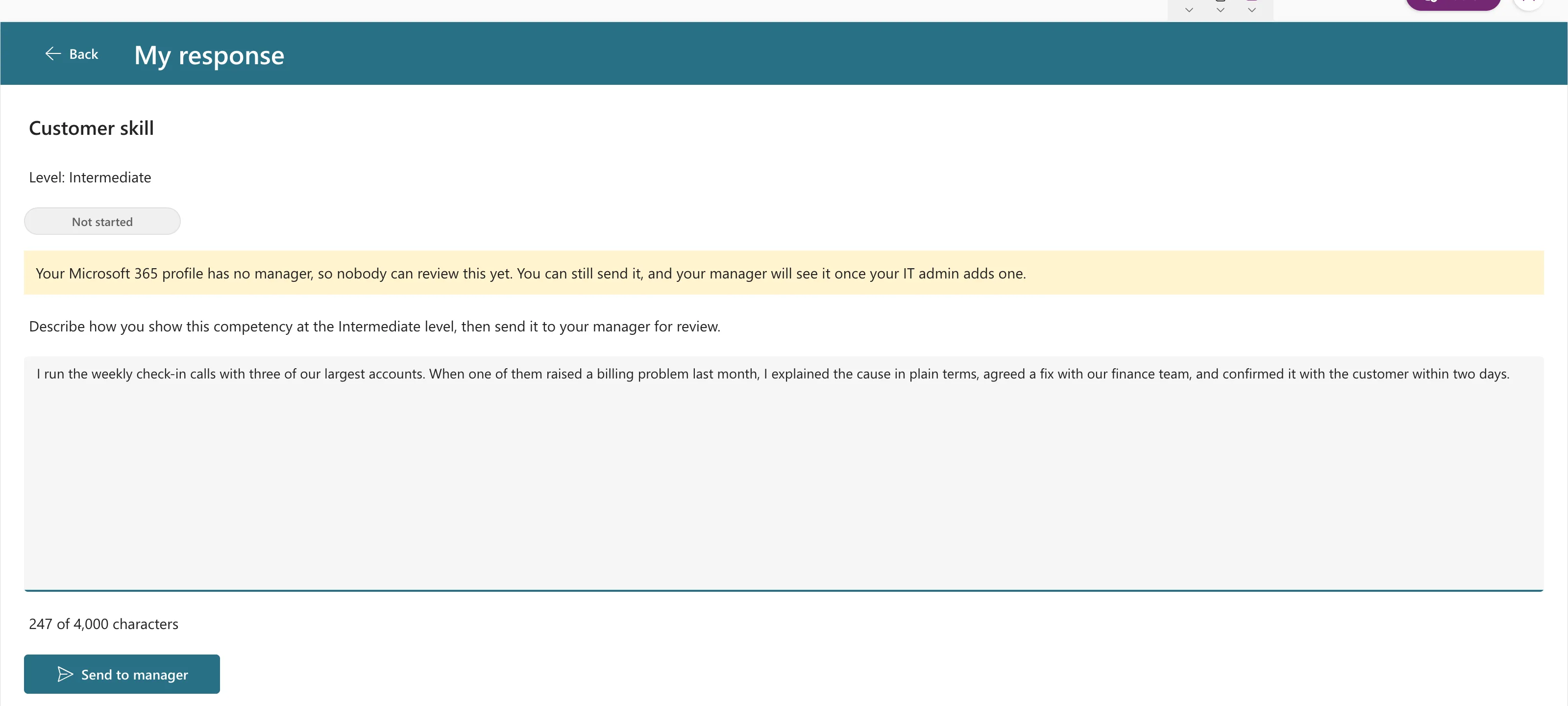
Set the count's AccessibleLabel to Self.Text so screen readers read the same words.
Variations
| Show | Formula |
|---|---|
| Characters left | (ResponseMaxLength - Len(txtResponseRS.Text)) & " characters left" |
| Only near the limit | Put the count's Visible on Len(txtResponseRS.Text) > ResponseMaxLength - 200 |
Common Mistakes
| Mistake | What happens | Do this instead |
|---|---|---|
4000 typed in both places | They drift apart when one changes | One named formula |
Text(4000) without a format | 4000, harder to read | Text(ResponseMaxLength, "#,##0") |
| Counting Default | The count doesn't move | Count txtX.Text |
Troubleshooting
| Symptom | Likely cause | Fix |
|---|---|---|
| The count updates only when leaving the box | TriggerOutput isn't Keypress | Set it back to TriggerOutput.Keypress |
| The count is hidden | A Visible formula hides it | Check its Visible |
FAQ
Should the limit match the SharePoint column?
It should be no larger than what the column can store. The example's Response column is multiple lines of plain text; the app chose 4,000 characters as a sensible length for one answer.
Does Len count spaces?
Yes. It counts every character, including spaces and line breaks.
Conclusion
Name the limit once, set MaxLength to it, and show Len(txtX.Text) & " of " & Text(Limit, "#,##0") & " characters" under the box.
Additional Resources
- Text Input modern control: MaxLength and the character-counter best practice.
- Len function
