How to Let Users See Only Their Own Items in a SharePoint List

A SharePoint list can hide each person's items from everyone else. In the list's Advanced settings, Item-level Permissions has two choices: let people read only the items they created, and let them create items but edit only their own. Turn both on and a shared list behaves like a private one for each person.
The Overtime Timesheet series keeps everyone's overtime in one list, OvertimeEntries. Nobody should see a colleague's hours, so this guide turns item-level permissions on and tests them as two staff members and the site's owner.
Prerequisites
- Owner of the site.
- People who can add items to the list, for example a group with Contribute or a level like it: How to Give a Group Access to One SharePoint List.
Step 1: Open Advanced Settings
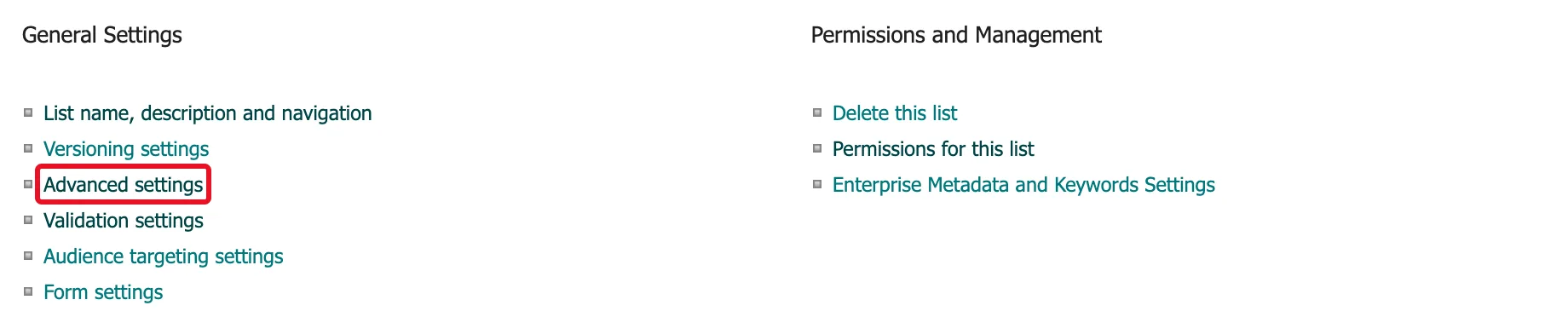
Open the list, then Settings → List settings. Under General Settings, select Advanced settings:
Step 2: Find Item-level Permissions
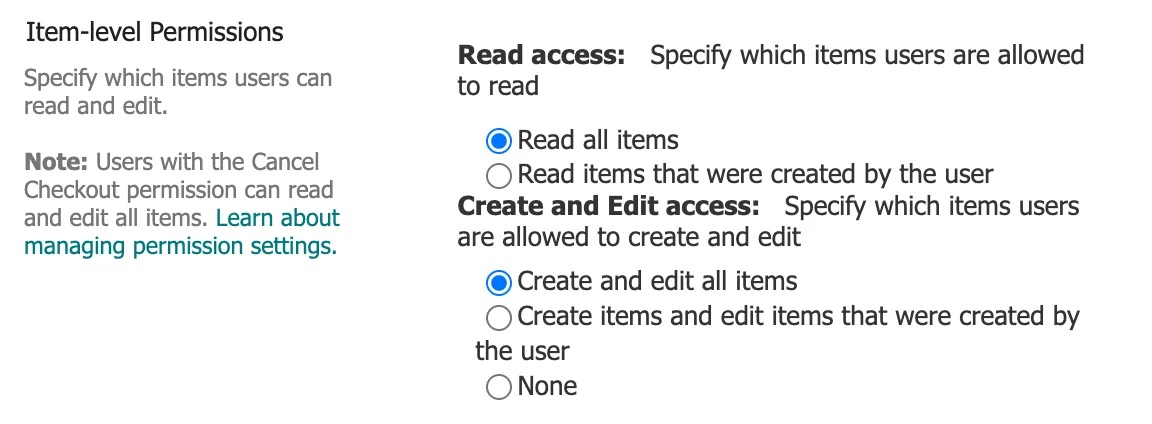
The second section is Item-level Permissions: "Specify which items users can read and edit." By default everyone reads and edits everything their permission level allows:
Step 3: Choose Own Items
- Read access: Read items that were created by the user
- Create and Edit access: Create items and edit items that were created by the user
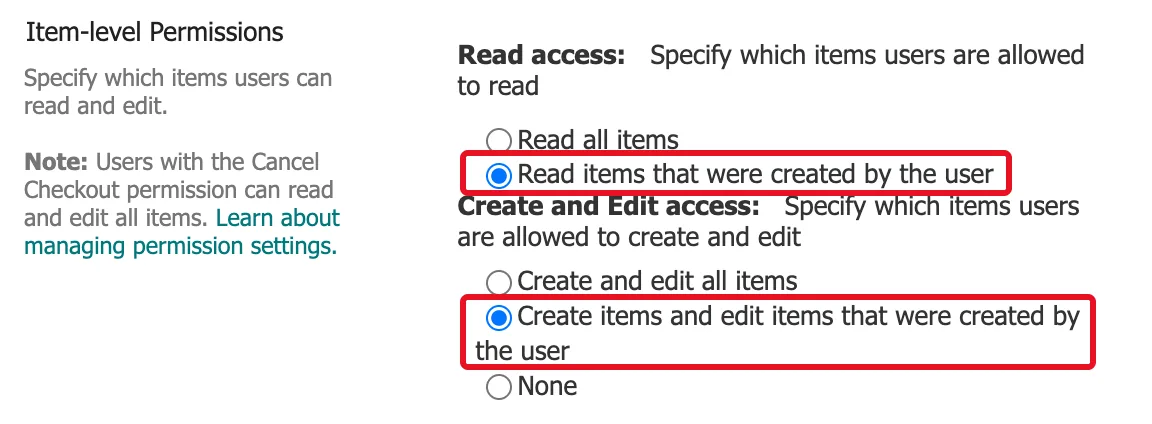
The third Create and Edit access choice, None, makes the list read-only for everyone without the override described below.
Step 4: Save with OK
Scroll to the bottom of the page and select OK. SharePoint goes back to the list's Settings page without a message:
Behind the scenes these are the list's ReadSecurity and WriteSecurity settings. Microsoft's Security element reference lists them as "Read only my items" and "Write only my items."
The Result, as Three People
To test it, two members of the staff group each added an overtime entry for the same Saturday, signed in as themselves.
Aisha Khan sees only her own entry, 07:00 to 11:00 in the Emergency Department:

Maya Patel sees only hers, 08:00 to 12:00 in Radiology:

The site owner sees both:

Who Still Sees Everything
The page's own note says: "Users with the Cancel Checkout permission can read and edit all items." The site's Permission Levels page has no permission by that name; the one that matches is Override List Behaviors, described as able to "Discard or check in a document which is checked out to another user, and change or override settings which allow users to read/edit only their own items." On this communication site only Design and Full Control include it, and the owner, with Full Control, saw both entries. How to Create a Custom Permission Level in SharePoint shows that page.
So give the people whose items must stay private a level without it, such as Contribute, Edit or Read, and keep Design and Full Control for the people who are allowed to see everything.
What "Created by the User" Means
The setting follows the list's Created By column. An item belongs to whoever created it, even if someone else's name is in one of its own columns. If a flow or an import creates items under another account, those items belong to that account, not to the person they're about.
Common Mistakes
| Mistake | What happens | Do this instead |
|---|---|---|
| Giving the staff group Design or Full Control | They see and edit every item anyway | Give Contribute or a level like it |
| Changing only one of the two settings | The other still applies to all items | Set both |
| Creating items for people under your own account | The items belong to you, so they can't see them | Let people create their own, or set Created By when importing |
| Relying on views to hide items | A view only filters what's shown; people can switch views or make their own | Use item-level permissions |
Troubleshooting
| Symptom | Likely cause | Fix |
|---|---|---|
| Someone still sees everyone's items | Their level includes Override List Behaviors | Check their permissions with Check Permissions |
| People see nothing after adding an item | It didn't save, or it was created under another account | Check Created By as an owner |
| No Advanced settings link | You can't manage the list | Ask a site owner |
FAQ
Can a manager see their team's items?
Not with this setting alone: it's own items or all items. The Overtime Timesheet series shows approvers their departments' entries through a flow instead.
Should the list also be hidden from search?
The Overtime Timesheet series hides it too, so its entries don't turn up in search results at all: How to Turn Off Attachments and Hide a SharePoint List from Search.
Conclusion
List settings → Advanced settings → Item-level Permissions: Read items that were created by the user and Create items and edit items that were created by the user → OK. Each person then sees and edits only what they created, and only levels with Override List Behaviors see everything.
