How to Let Users Pick a Time in Power Apps

The modern Power Apps controls include a Date picker but no time picker. A modern Combobox that lists every time of day does the job: people scroll to a time or type a few digits, such as 22, to narrow the list, and formulas read the chosen Time from Selected.
The example is the Log overtime screen of the Overtime Timesheet app, where cmbStartLO and cmbEndLO hold when a shift started and finished.
Why a Combo Box?
Microsoft's own example of choosing a time, in Show text, dates, and times in canvas apps, uses two drop-downs, one for the hour and one for the minute. Among the modern controls, Dropdown is still marked preview in Microsoft's modern controls list, while Combobox isn't. One combo box per time also means one choice instead of two, and it can search.
Prerequisites
- The list of times, here the named formula
TimeChoices: every time from 00:00 to 23:55, five minutes apart. How to Build a Table in Power Apps with ForAll builds it:
TimeChoices = ForAll(Sequence(288, 0, 5), Time(RoundDown(Value / 60, 0), Mod(Value, 60), 0));
- Modern controls turned on: How to Turn On Modern Controls and Themes in Power Apps.
Step 1: Insert a Combo Box
Insert Input → Combobox and rename it, here cmbStartLO. A new combo box starts with sample data:
| Property | Default |
|---|---|
| Items | ComboBoxSample |
| ItemDisplayText | ThisItem.Value1 |
| SelectMultiple | true |
| IsSearchable | true |
| InputTextPlaceholder | "Find items" |
Step 2: Give It the Times
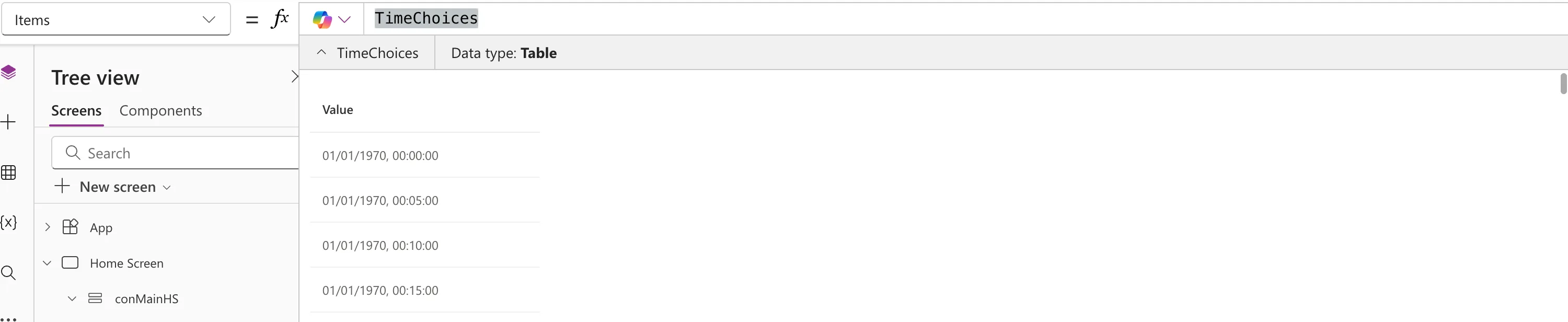
TimeChoices
The preview strip shows a table; expand it, and each row is a time on 1 January 1970, the date a Time value carries:
Step 3: Show Each Time as hh:mm
ItemDisplayText decides what each option shows. Format the time with Text:
Text(ThisItem.Value, "hh:mm")
hh:mm gives hours and minutes on the 24-hour clock (How to Format a Date in Power Apps with Text). The strip can't show a value for this one: This formula uses scope, which is not presently supported for evaluation, because ThisItem only exists for each option. That's expected:

Step 4: Allow One Choice
| Property | Value |
|---|---|
| SelectMultiple | false |
| IsSearchable | true (leave it) |
| InputTextPlaceholder | "Choose a time" |
| AccessibleLabel | "Start time" |
Microsoft's Combo box modern control reference says SelectMultiple now defaults to true, so turn it off. Search stays on: with 288 times, typing is quicker than scrolling.
Step 5: Try It
Preview the app and select the box. With all 288 times, the list opened as a tall panel beside the field:
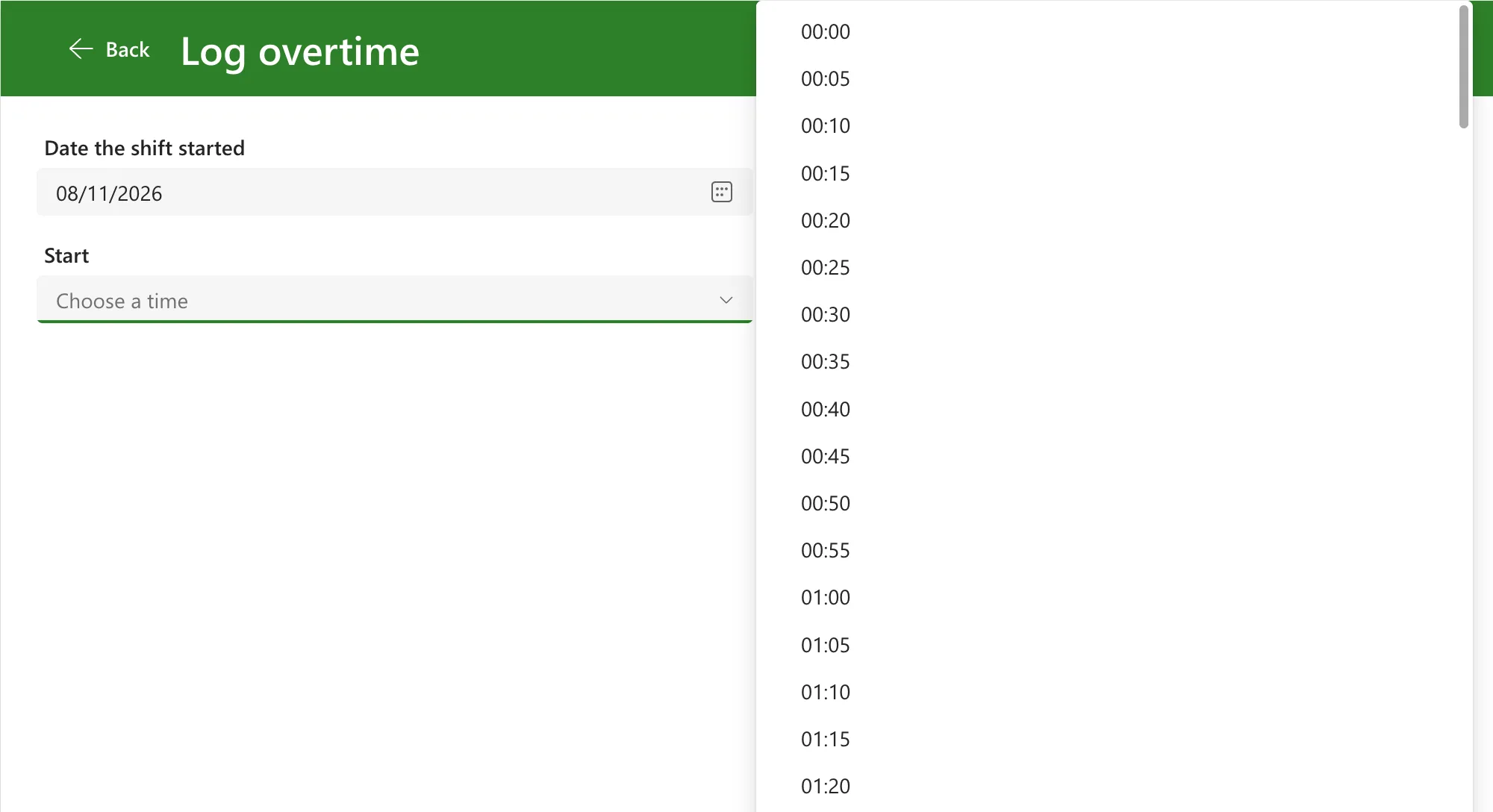
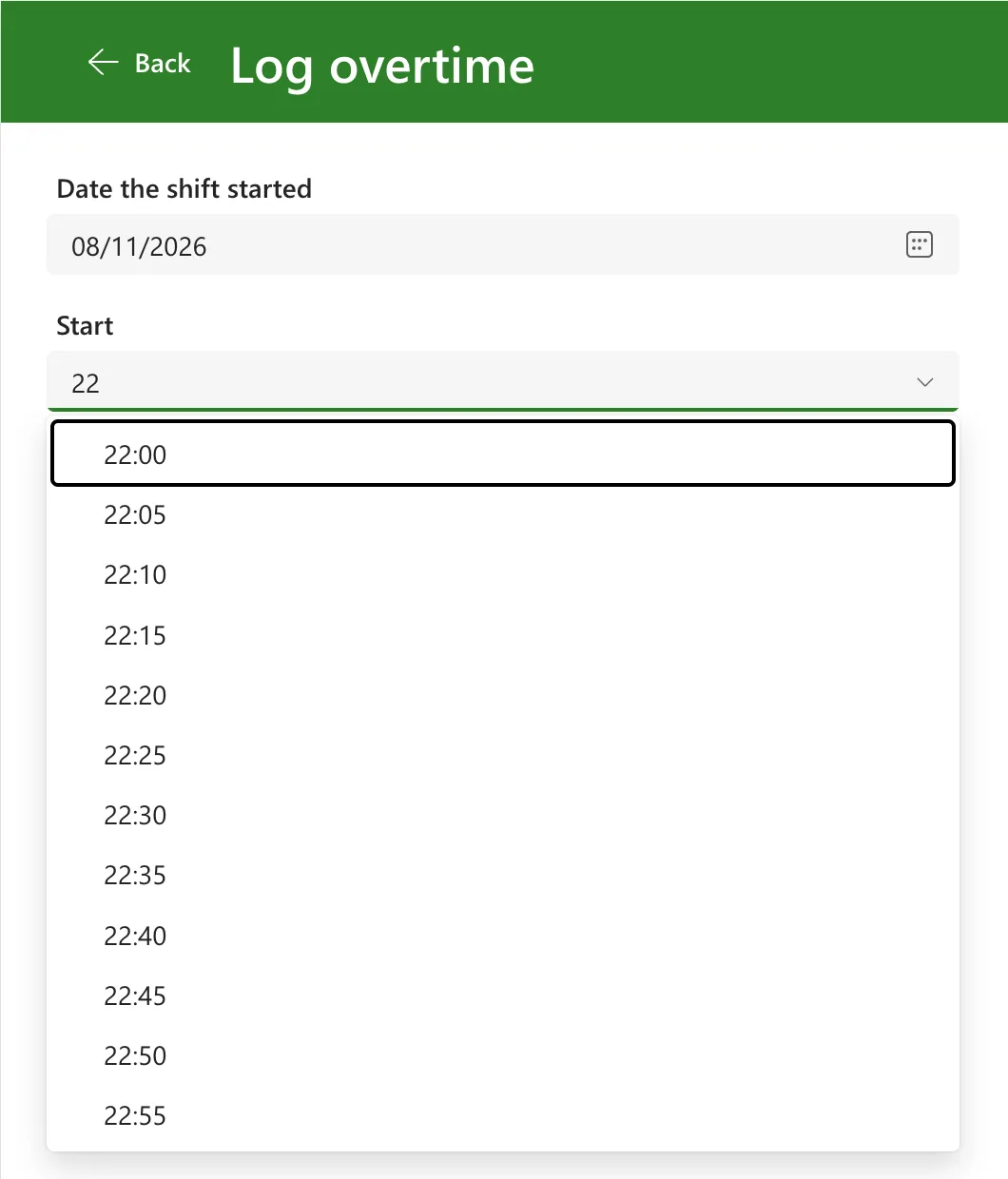
Type 22, and the list narrows to the twelve times from 22:00 to 22:55, now under the field:
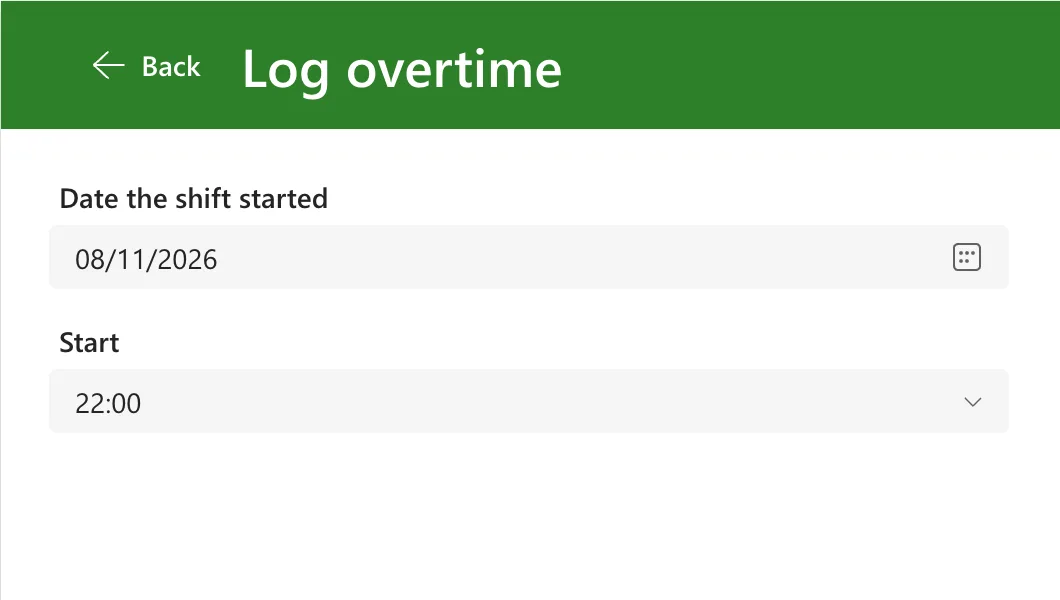
Choose 22:00, and the box shows it:
Step 6: Read the Time
With one choice allowed, Selected is the chosen record, and its Value is the Time:
cmbStartLO.Selected.Value
Check that a time has been chosen with IsBlank(cmbStartLO.Selected). IsEmpty(cmbStartLO.SelectedItems) returned false before anything was chosen: Fixed: IsEmpty Returns False When Nothing Is Selected in a Power Apps Combo Box.
To turn the time and a date into a full date and time, see How to Combine a Date and a Time in Power Apps with DateTime.
Step 7: Copy It for the Finish Time
A second time works the same way. In the example, the label and combo box sit in a small container; I copied the container, pasted it into the screen's body and renamed the copies lblEndLO and cmbEndLO (How to Copy and Paste Controls Between Screens in Power Apps). Only the label's text and the accessible label change: "Finish" and "Finish time".
Common Mistakes
| Mistake | What happens | Do this instead |
|---|---|---|
| Leaving SelectMultiple on | People can pick several times | Set it to false |
Leaving the sample Items and ThisItem.Value1 | The box offers sample data, not times | TimeChoices and the Text formula |
Checking IsEmpty(...SelectedItems) | It's false before anything is chosen | IsBlank(...Selected) |
| Turning search off for a long list | People scroll through 288 times | Leave IsSearchable on |
Troubleshooting
| Symptom | Likely cause | Fix |
|---|---|---|
| The options are blank | ItemDisplayText still reads Value1 | Use the Text formula from Step 3 |
| A formula gets midnight although no time was chosen | It uses Selected.Value without checking it | Check IsBlank(cmbStartLO.Selected) first |
| Times show AM or PM | The format includes AM/PM | Use "hh:mm" |
| Typing doesn't narrow the list | IsSearchable is off | Turn it on |
FAQ
Can I offer times every 15 minutes instead?
Yes. Change the step of Sequence: Sequence(96, 0, 15) gives 96 times, a quarter of an hour apart.
Why not two boxes, one for hours and one for minutes?
That's Microsoft's own example and it works too. One box per time means one choice instead of two, and typing 22 jumps straight to the right part of the day.
Should I use the modern Dropdown control?
Microsoft's list of modern controls marks Dropdown as preview. The combo box isn't, and it searches.
Conclusion
A modern Combobox with Items: TimeChoices, ItemDisplayText: Text(ThisItem.Value, "hh:mm") and SelectMultiple off is a searchable time picker. Read the time from Selected.Value, and check IsBlank(Selected) first.
Additional Resources
- Combo box modern control in canvas apps: Items, ItemDisplayText, SelectMultiple and IsSearchable.
- Show text, dates, and times in canvas apps: Microsoft's hour and minute example.
