How to Keep Several Fields from Each Item with Select in Power Automate

SharePoint items come into a flow with dozens of fields. Select with Map in key and value mode builds a new object for each item with only the fields you list, under names you choose. Send that to an app, and it gets what it needs and nothing else.
Microsoft's data operations article describes it: Use the Data Operation – Select action to change the shape of objects in an array. For example, you can add, remove, or rename elements in each object in an array. Keeping one field, with Map in text mode, is in How to Pick One Field from Each Item with Select in Power Automate.
The example is Get Waiting Approvals, a flow of the Overtime Timesheet app. It returns the overtime entries waiting for an approver, and the app shows seven things about each.
Prerequisites
- An array of items. Here, the filtered entries from Entries waiting for the caller (How to Filter an Array by Two Conditions in Power Automate).
Step 1: Add Select and Choose the Array
Add Select under Data Operation. I named it Waiting entries. In From, pick the Body of Entries waiting for the caller.
Step 2: Add One Row per Field
Leave Map in key and value mode. In each row, type a key on the left, the name the field gets in the new object. On the right, insert an expression that reads the field from the current item, item() (How to Add an Expression in Power Automate):
| Key | Value (expression) | What it is |
|---|---|---|
id | item()?['ID'] | The item's ID |
employee | item()?['Author']?['DisplayName'] | Who logged the overtime (Created By) |
department | item()?['Department'] | The department's name |
startTime | item()?['StartTime'] | When the shift started |
endTime | item()?['EndTime'] | When it ended |
breakMinutes | item()?['BreakMinutes'] | The unpaid break |
savedOn | item()?['Modified'] | When it was last saved |
The designer showed each expression as a token named after its field:
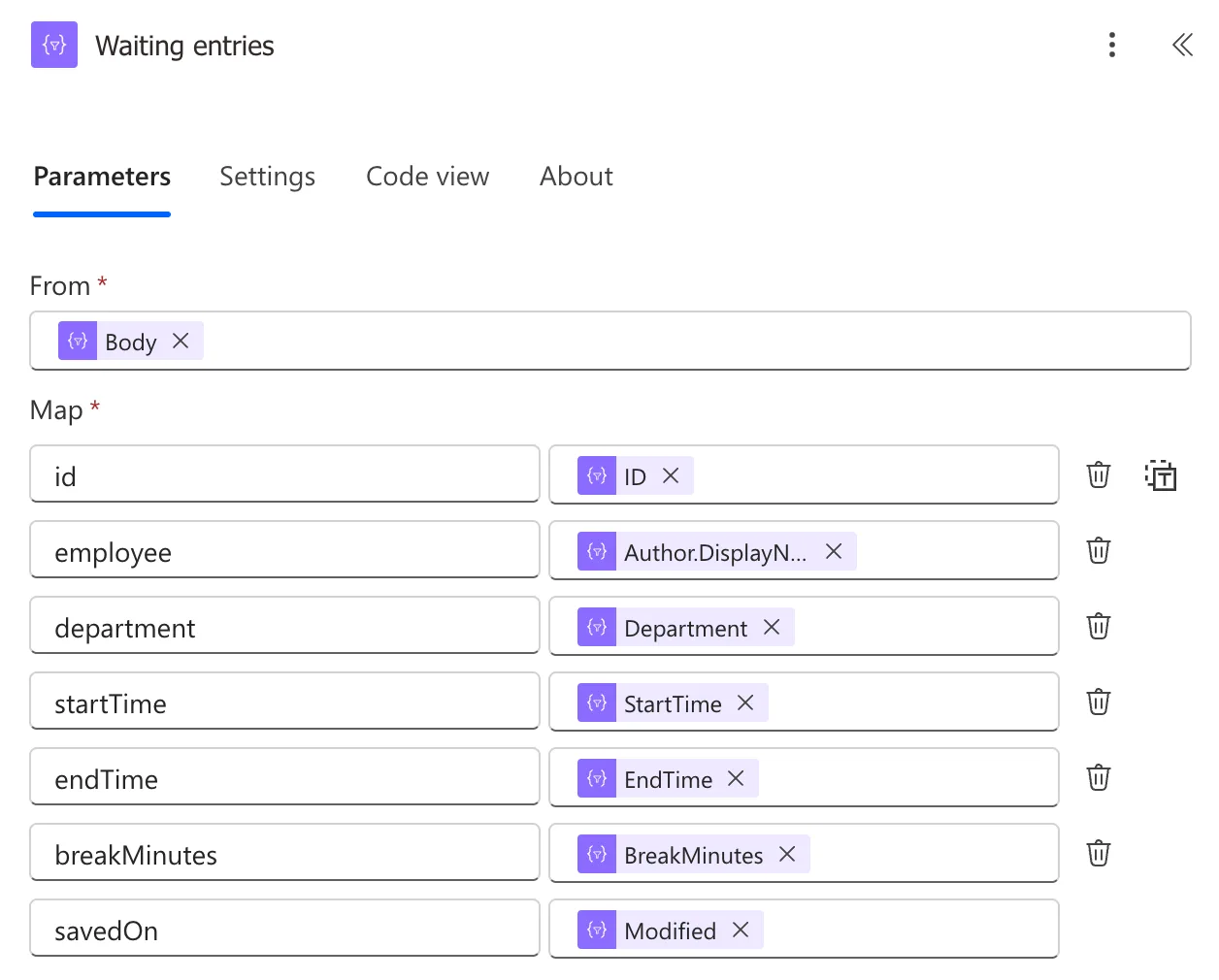
The keys are short and start in lower case, the way the app reads them. Created By, whose internal name is Author, is a Person field, so the row reads one part of it, the display name.
Step 3: Check Code View
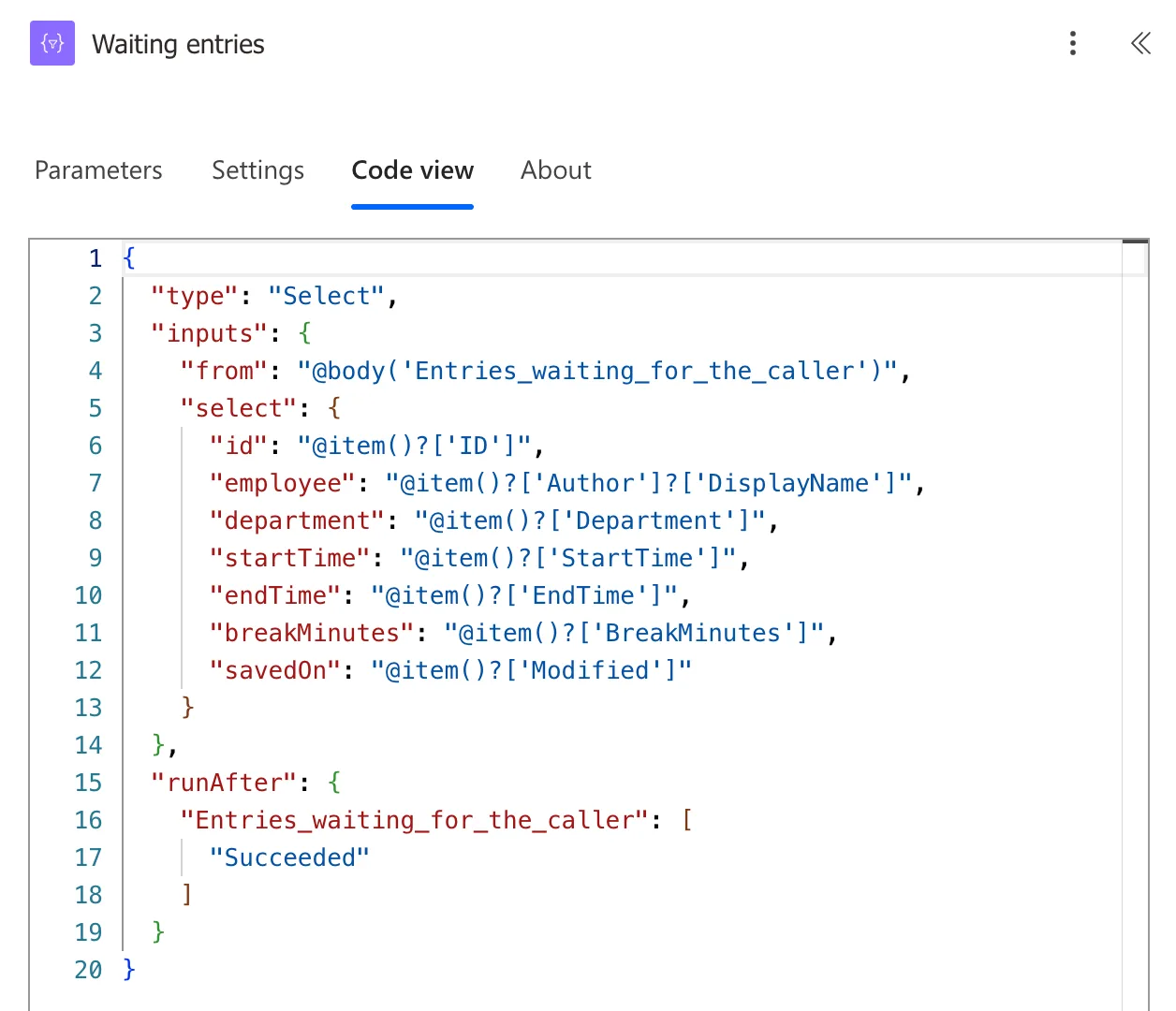
Code view shows exactly what each key reads:
{
  "from": "@body('Entries_waiting_for_the_caller')",
  "select": {
    "id": "@item()?['ID']",
    "employee": "@item()?['Author']?['DisplayName']",
    "department": "@item()?['Department']",
    "startTime": "@item()?['StartTime']",
    "endTime": "@item()?['EndTime']",
    "breakMinutes": "@item()?['BreakMinutes']",
    "savedOn": "@item()?['Modified']"
  }
}
It's worth checking. While I built the action, one token on the pane was labelled Approvers Depa… although it read item()?['Department']. Code view showed the truth, and after the flow was saved and opened again, the labels matched.
Keep Only What's Needed
At first, the action also had a reason key, the entry's free-text reason. The screen doesn't show it, so I removed the row and published the flow again. Every field a flow returns to an app travels to the person's device, so returning only what the screen shows keeps the rest in SharePoint.
The Result
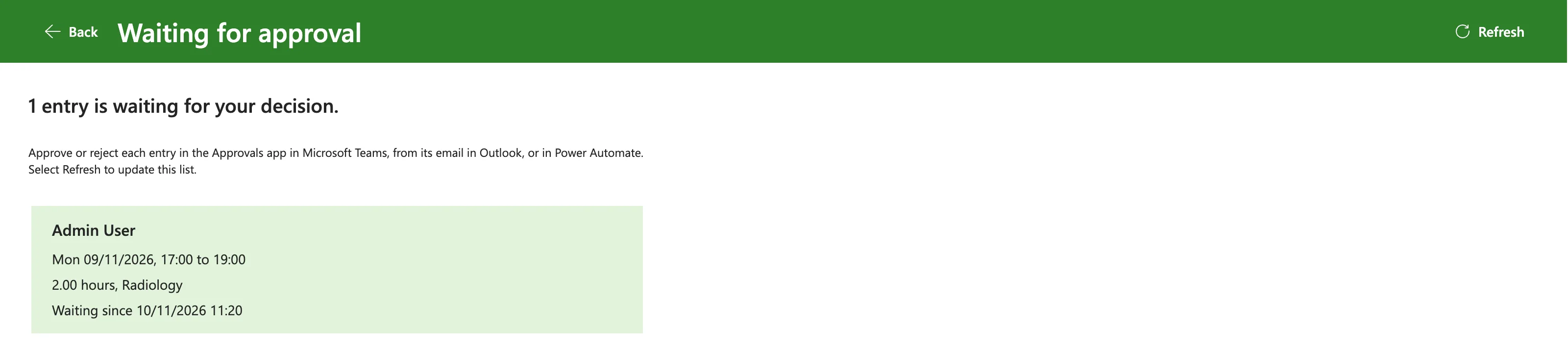
Each item became an object with seven fields, which the flow returned to the app (How to Return a Table from a Flow to Power Apps as JSON in Power Automate). One card on the app's screen uses all of them except id:
Common Mistakes
| Mistake | What happens | Do this instead |
|---|---|---|
| Returning whole SharePoint items | Dozens of fields reach the app | Select the fields it uses |
| Picking Created By itself for a name | The value is an object, not text | Its DisplayName |
| Trusting the token labels on the pane | A label can name the wrong field | Check Code view |
| Changing keys after the app uses them | The app reads a field that no longer exists | Change the app at the same time |
Troubleshooting
| Symptom | Likely cause | Fix |
|---|---|---|
| A key is empty in the output | The value's field name doesn't match | Compare with the input in the run |
| The output has one string per item | Map is in text mode | Switch back to key and value mode |
| A token shows another column's name | A designer label | Read Code view |
FAQ
Can a key read a nested field?
Yes. item()?['Author']?['DisplayName'] reads DisplayName inside Author. Add ? before each step, so a missing field gives an empty value instead of an error.
Can I compute a value in a row?
Yes. A row's value can be any expression, such as toLower(item()?['Department']).
Conclusion
Select with Map in key and value mode turns each item into an object with only the fields you list, under your own names. Check Code view, and return to an app only what it shows.
