How to Join Table Values into Text in Power Apps with Concat

Sometimes you want a table as a sentence: "Aisha Khan, Leo Martin" rather than a gallery with two rows. Concat goes through every row of a table, works out some text for each, and joins the results with a separator you choose. It's also the quickest way to see what's in a table while you build.
Syntax
Concat( Table, Formula [, Separator ] )
Formula is worked out for each row, usually a column name; the results are joined, with Separator between them (Concat reference).
Prerequisites
- A table. The examples use a SharePoint list and the Office 365 Users connector in the Career Development Plan app; see Part 3 of the series.
Example 1: People's Names
The direct reports of Daniel, a manager in the example's demo organization:
Concat(Office365Users.DirectReportsV2("daniel.brooks@example.com").value, displayName, ", ")
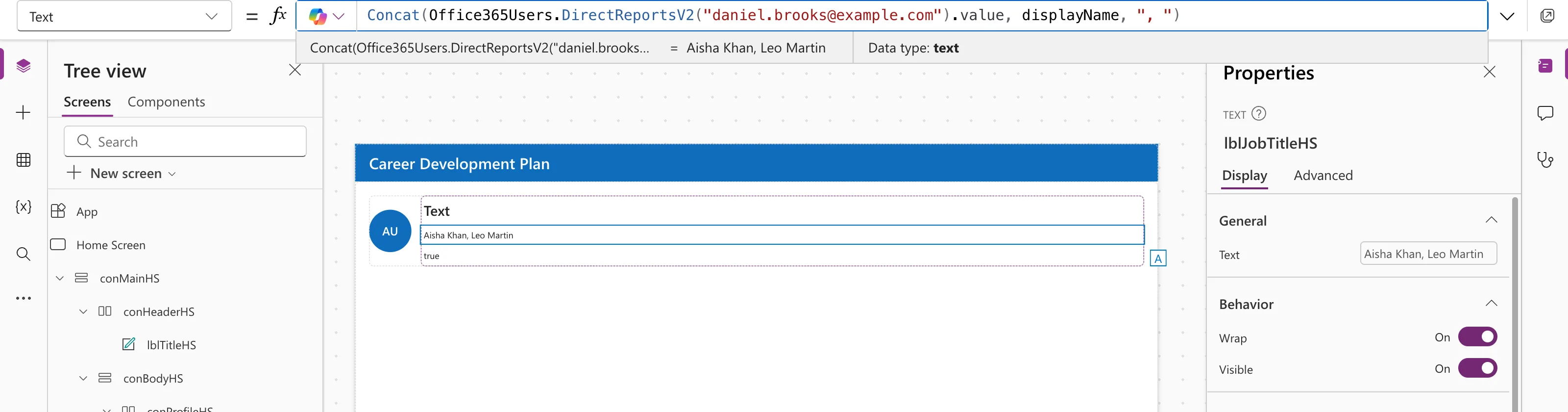
Example 2: A Filtered SharePoint List
The competencies for one job title, from the RoleCompetencies list:
Concat(Filter(RoleCompetencies, JobTitle = "Sales Engineer"), Competency, ", ")
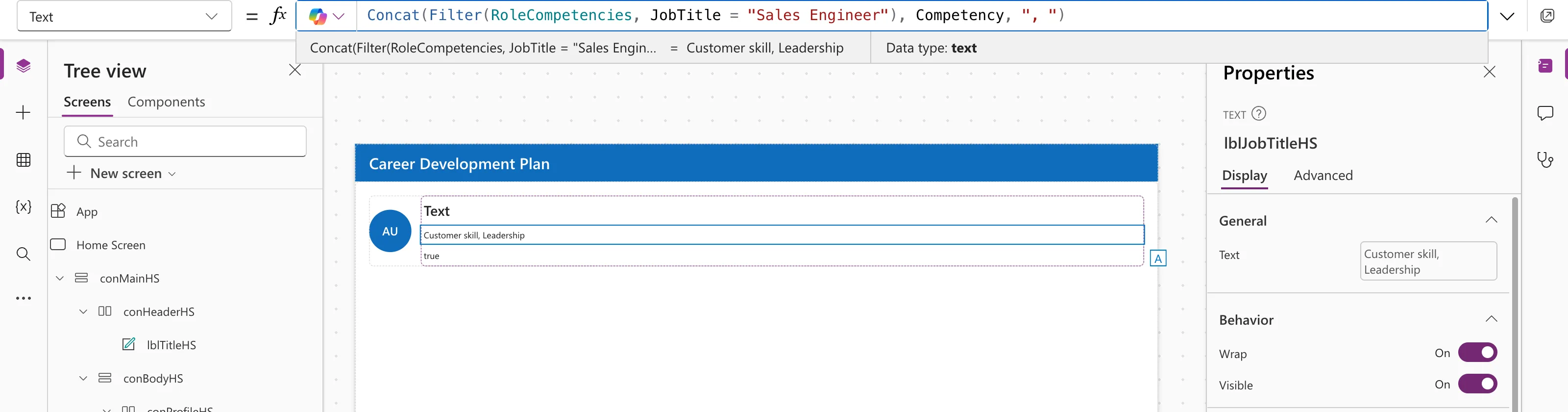
See How to Filter a Table in Power Apps with Filter.
Formatting Each Item
The formula can build text for each row. Microsoft's examples include wrapping each name in quotes:
Concat( Products, "'" & Name & "'", ", " )
Concat, Concatenate or &?
| Use | When | Example |
|---|---|---|
| Concat | Joining the values of a table | Concat(Team, displayName, ", ") |
| & | Joining a few pieces of text | "Welcome, " & FirstName |
| Concatenate | Same as &, as a function | Concatenate("Welcome, ", FirstName) |
See How to Join Text in Power Apps with & and String Interpolation. To go the other way, from text back to a table, use Split.
Common Mistakes
| Mistake | What happens | Do this instead |
|---|---|---|
| Passing a record instead of a table | Invalid argument type | Pass the table, for example a connector's .value |
| Forgetting the separator | Names run together: "Aisha KhanLeo Martin" | Add ", " |
| Using Concatenate on a table | A table of results, not one string | Use Concat |
FAQ
Is Concat delegated to SharePoint?
No; it works on the rows Power Apps has downloaded. Filter first so only the rows you need are involved.
Can I put each item on a new line?
Yes. Use a line break as the separator, for example Char(10).
Is Concat useful for debugging?
Very. Showing Concat(SomeTable, SomeColumn, ", ") in a Text control is a quick way to see what a table holds.
Conclusion
Concat(table, formula, separator) turns a table into one line of text. Use it for short lists and quick checks, and & for joining individual pieces of text.
Additional Resources
- Concat and Concatenate functions: syntax and examples.
- Split function: the reverse of Concat.
