How to Install dotnet-ef as a Local Tool in a .NET C# Project

dotnet ef, the command-line tools for Entity Framework Core, is usually installed once for the whole computer. Installed as a local tool instead, it's pinned to an exact version in a small file inside your repository, so every developer and every build machine runs the same version as the project's EF Core packages. This guide installs it that way with .NET 10, shows every command's real output, and adds the one package the tools need in your project.
Local or Global?
A .NET tool is a console program delivered as a NuGet package. Microsoft's .NET tools page describes the two common ways to install one:
| Global tool | Local tool | |
|---|---|---|
| Installed with | dotnet tool install --global dotnet-ef | dotnet tool install dotnet-ef --local |
| Where it applies | Every folder on the computer | The folder with the manifest and every folder below it |
| Versions | One version for the whole computer | "Different directories can use different versions of the same tool" |
| Recorded in | Nowhere in your project | A dotnet-tools.json file you commit with the code |
| A teammate gets it by | Installing it themselves, any version | Running dotnet tool restore |
EF Core's tools reference says most developers install dotnet ef globally, and that works. A local tool is better when several projects on the same computer use different EF Core versions, or when a build machine must use exactly the version the project was written with. The tool's version then lives in the repository, next to the EF Core package versions it belongs with.
Prerequisites
- The .NET SDK. This guide uses SDK 10.0.403. Check yours with
dotnet --version. - A .NET project in a Git repository, with EF Core packages. The examples use the solution from How to Create a .NET C# Web API Solution with a Class Library, which keeps its
DbContextinsrc/Dewiride.Inventory.Dataand its web API insrc/Dewiride.Inventory.Api, and uses EF Core 10.0.14.
Run every command from the folder with the solution file, the root of the repository. The commands work unchanged in bash, zsh and PowerShell.
Step 1: Check What's Already Installed
Many computers already have a global copy. Check before adding another one:
dotnet tool list --global dotnet-ef
Package Id      Version      Commands
--------------------------------------
dotnet-ef       10.0.9       dotnet-ef
dotnet ef --version
Entity Framework Core .NET Command-line Tools
10.0.9
This computer had a global dotnet ef 10.0.9, installed for an earlier project. The project uses EF Core 10.0.14, so the global copy is older than the packages it would work with. If dotnet tool list prints only its headings, nothing is installed globally, which is fine too.
Step 2: Install dotnet-ef as a Local Tool
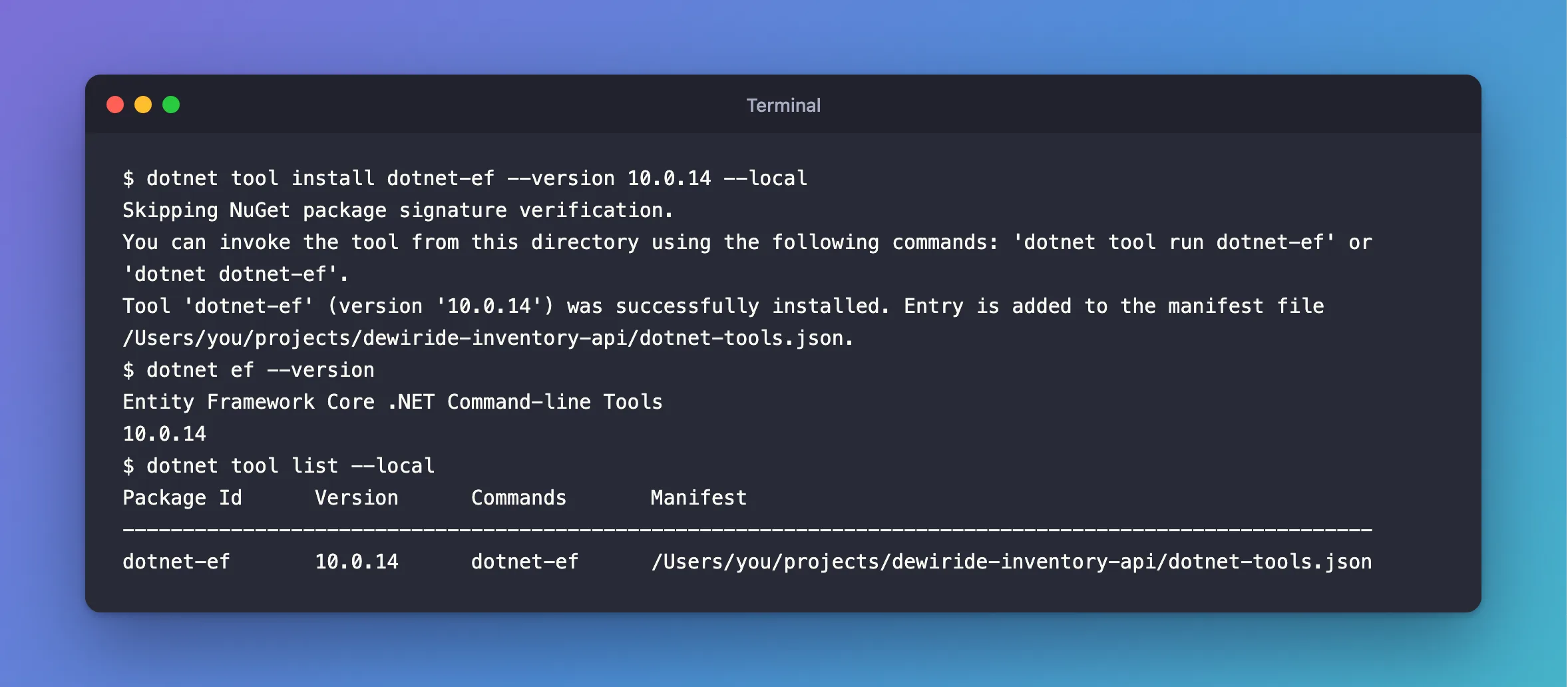
dotnet tool install dotnet-ef --version 10.0.14 --local
| Part of the command | What it does |
|---|---|
dotnet tool install | Installs a .NET tool from NuGet |
dotnet-ef | The package that holds the EF Core command-line tools |
--version 10.0.14 | The exact version: the same as the project's EF Core packages |
--local | Records the tool in this repository's manifest instead of installing it for the whole computer |
Skipping NuGet package signature verification.
You can invoke the tool from this directory using the following commands: 'dotnet tool run dotnet-ef' or 'dotnet dotnet-ef'.
Tool 'dotnet-ef' (version '10.0.14') was successfully installed. Entry is added to the manifest file /Users/you/projects/dewiride-inventory-api/dotnet-tools.json.
The three lines mean:
Skipping NuGet package signature verification.appears on macOS and is expected. Microsoft's signed-package verification page says that on macOS, "Verification is disabled by default during package restore operations", and recommends leaving it that way.- The two ways to run it.
dotnet tool run dotnet-efanddotnet dotnet-efboth work. The usualdotnet efworks too, as Step 4 shows. - The manifest file. There was no manifest yet, and .NET 10 created one. The dotnet tool install page explains where: it walks "up the directory tree searching for a directory that has a
.gitsubfolder" and creates the manifest there. That's the root of the repository. Before .NET 10, this command failed withCannot find a manifest file.until you randotnet new tool-manifest, which creates the file in a.configfolder instead. Either place works.
Step 3: Look at the Manifest
The new file at the root of the repository:
{
  "version": 1,
  "isRoot": true,
  "tools": {
    "dotnet-ef": {
      "version": "10.0.14",
      "commands": [
        "dotnet-ef"
      ],
      "rollForward": false
    }
  }
}
| Setting | What it means |
|---|---|
"isRoot": true | Stop looking in parent folders for more manifests |
"tools" | One entry per local tool, by package name |
"version" | The exact version every developer gets |
"commands" | The command the package provides, here dotnet-ef |
"rollForward": false | The tool was installed without --allow-roll-forward, the option that lets a tool run on a newer .NET runtime when the one it targets isn't installed |
Commit this file with your code. The tool itself isn't in the repository: the same page says local tools "are stored in the NuGet global directory", the shared package cache in your user profile. The manifest only says which tool and which version.
dotnet tool run starts whatever program the manifest names. Microsoft warns: "If the manifest is modified by an untrusted party, it could cause the CLI to run malicious code." Review changes to dotnet-tools.json the way you review changes to your code, and don't run tool commands from your Downloads folder, where a stray manifest could be picked up.
Step 4: Run the Local Tool
Inside the repository, the same command now runs the local copy:
dotnet ef --version
Entity Framework Core .NET Command-line Tools
10.0.14
The global 10.0.9 is still installed, but the local tool wins here. The .NET tools page covers this case, where "A global tool and a local tool have the same command prefixed by dotnet-": inside the repository, dotnet ef invokes the local tool. List the local tools to see which manifest each one comes from:
dotnet tool list --local
Package Id      Version      Commands       Manifest
--------------------------------------------------------------------------------------------------------
dotnet-ef       10.0.14      dotnet-ef      /Users/you/projects/dewiride-inventory-api/dotnet-tools.json
Outside the repository, nothing changed. In any other folder, the same command still finds the global copy:
dotnet ef --version
Entity Framework Core .NET Command-line Tools
10.0.9
The global copy keeps serving other folders, and this repository always gets 10.0.14.
Step 5: Add the Design Package to the Startup Project
The tools need one package in your project. EF Core's tools reference says: "Before you can use the tools on a specific project, you'll need to add the Microsoft.EntityFrameworkCore.Design package to it."
Which project? The reference names two roles. The target project is "where the commands add or remove files", such as migrations. The startup project is "the one that the tools build and run", because "the tools have to execute application code at design time" to read the connection string and the model. Here the target is the class library with the DbContext, and the startup project is the web API, so the Design package goes into the web API:
dotnet package add Microsoft.EntityFrameworkCore.Design --version 10.0.14 --project src/Dewiride.Inventory.Api
The output is long; these are the lines that matter:
info : Adding PackageReference for package 'Microsoft.EntityFrameworkCore.Design' into project '/Users/you/projects/dewiride-inventory-api/src/Dewiride.Inventory.Api/Dewiride.Inventory.Api.csproj'.
…
info : Installed Microsoft.EntityFrameworkCore.Design 10.0.14 from https://api.nuget.org/v3/index.json to /Users/you/.nuget/packages/microsoft.entityframeworkcore.design/10.0.14 with content hash …
…
info : PackageReference for package 'Microsoft.EntityFrameworkCore.Design' added to '/Users/you/projects/dewiride-inventory-api/src/Dewiride.Inventory.Api/Dewiride.Inventory.Api.csproj' and PackageVersion added to central package management file '/Users/you/projects/dewiride-inventory-api/Directory.Packages.props'.
The solution uses central package management, so the version went into Directory.Packages.props and the project file got the package name, with two extra settings:
    <PackageReference Include="Microsoft.EntityFrameworkCore.Design">
      <IncludeAssets>runtime; build; native; contentfiles; analyzers; buildtransitive</IncludeAssets>
      <PrivateAssets>all</PrivateAssets>
    </PackageReference>
dotnet package add wrote those settings itself, because the package is marked as a development dependency. EF Core's 3.0 breaking-changes page explains what that means: "the dependency won't flow transitively into other projects, and that you can no longer, by default, reference its assembly", because "This package is only intended to be used at design time." Your code can't call it by accident, and nothing that references the web API inherits it.
Use the same version as the tool and your other EF Core packages, so all of them come from the same release.
Step 6: Check the Tools Find Your DbContext
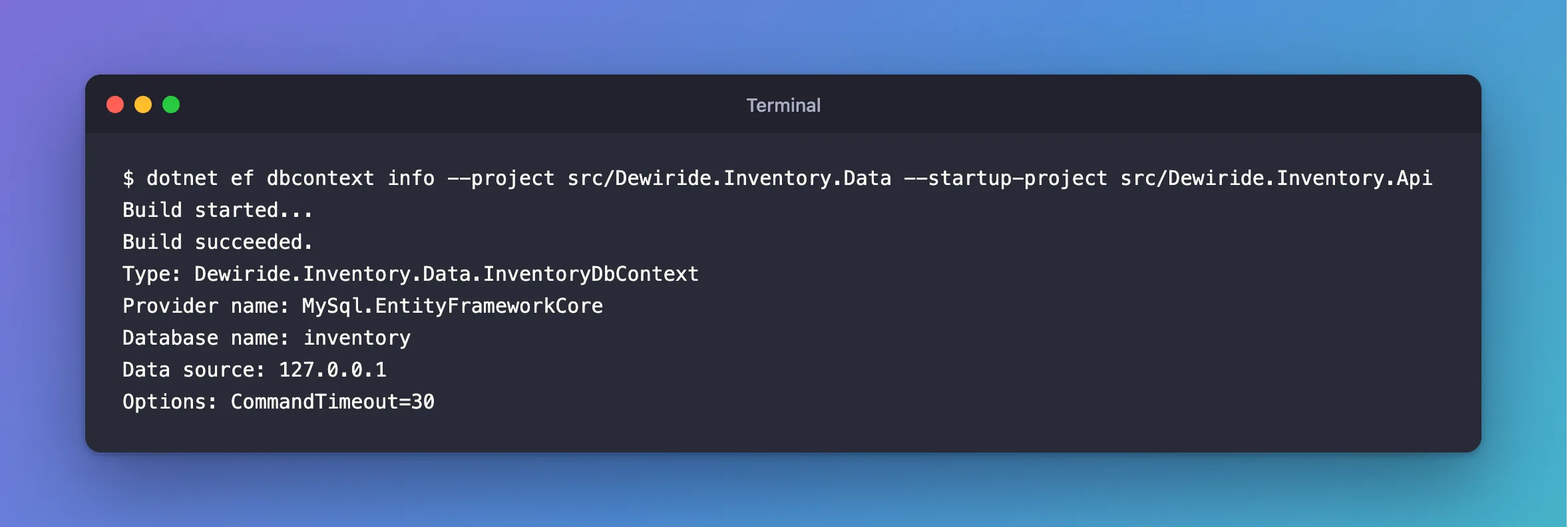
dotnet ef dbcontext info builds the startup project, runs the app's startup code until its services are ready, and reports the DbContext it found. It doesn't start the web server and changes nothing:
dotnet ef dbcontext info --project src/Dewiride.Inventory.Data --startup-project src/Dewiride.Inventory.Api
Build started...
Build succeeded.
Type: Dewiride.Inventory.Data.InventoryDbContext
Provider name: MySql.EntityFrameworkCore
Database name: inventory
Data source: 127.0.0.1
Options: CommandTimeout=30
--project is the target project and --startup-project is the startup project from Step 5. The tools found the DbContext, its database provider and the database from the app's own configuration. Every other dotnet ef command, such as migrations add, uses the same two options.
When Someone Else Clones the Repository
A fresh clone has dotnet-tools.json but not the tool itself. One command installs every tool the manifest lists, at the listed versions:
dotnet tool restore
Tool 'dotnet-ef' (version '10.0.14') was restored. Available commands: dotnet-ef

Restore was successful.
Put dotnet tool restore in your build scripts too, before the first dotnet ef command.
Update the Tool Later
When you move the project's EF Core packages to a new version, move the tool with them. EF Core's tools reference gives the command for a local tool:
dotnet tool update dotnet-ef
It moves the tool to the newest stable version and updates the entry in dotnet-tools.json. Today that's the version already installed, so nothing changes:
Tool 'dotnet-ef' is up to date (version '10.0.14' manifest file /Users/you/projects/dewiride-inventory-api/dotnet-tools.json) .
To match packages that aren't on the newest version, add --version with their exact version, as in Step 2. Commit the changed manifest together with the package updates.
In Visual Studio
Run the same commands in Visual Studio's terminal (View › Terminal), from the folder with the solution file. EF Core also ships PowerShell commands for Visual Studio's Package Manager Console, such as Add-Migration, in the Microsoft.EntityFrameworkCore.Tools package. They're a different tool from dotnet ef, so this guide doesn't use them.
Common Mistakes
| Mistake | What happens | Do this instead |
|---|---|---|
Running dotnet ef outside the repository and trusting the version | A global copy, possibly older, runs instead | Run it from the repository, or check dotnet ef --version |
Not committing dotnet-tools.json | Teammates and build machines don't get the tool | Commit it with the code |
| Installing a tool version that doesn't match the EF Core packages | Tools and runtime come from different releases | Use the same version for both |
| Adding the Design package to the class library only | The tools build the startup project and don't find it there | Add it to the startup project |
Running dotnet tool install with sudo | Files in your profile end up owned by the root account | Never use sudo for local tools |
Microsoft's elevated access page explains the last row: on Linux and macOS, running local tools elevated "results in files being set with root user-only access", and "installing tools that require elevation as local tools isn't recommended."
Troubleshooting
| Symptom | Likely cause | Fix |
|---|---|---|
dotnet ef --version shows an older version inside the repository | The manifest isn't in this folder or a parent folder, or the tool isn't restored | Run dotnet tool list --local, then dotnet tool restore |
Cannot find a manifest file. | An SDK older than .NET 10 | Run dotnet new tool-manifest first, then install again |
Could not execute because the specified command or file was not found. | No local or global dotnet-ef | Install it as in Step 2, or run dotnet tool restore |
Your startup project 'Dewiride.Inventory.Data' doesn't reference Microsoft.EntityFrameworkCore.Design. This package is required for the Entity Framework Core Tools to work. | Step 5 was skipped, or --startup-project points at a project without the package | Point --startup-project at the web API, or add the Design package to it |
FAQ
Do I need to uninstall the global tool?
No. Inside the repository, dotnet ef uses the local tool. Keep the global one if other projects use it, or update it with dotnet tool update --global dotnet-ef.
Is the local tool installed again for every repository?
No. The tool's files are downloaded once into your NuGet package cache and shared. Each repository's manifest only records which version it uses.
Can a manifest hold other tools?
Yes. Each dotnet tool install … --local adds an entry to the same dotnet-tools.json, and dotnet tool restore installs them all.
Conclusion
dotnet tool install dotnet-ef --version <EF Core version> --local pins the EF Core command-line tools to your project. .NET 10 creates dotnet-tools.json at the root of the Git repository automatically, dotnet ef inside the repository runs that exact version, and dotnet tool restore gives it to everyone who clones the code. Add Microsoft.EntityFrameworkCore.Design to the startup project, and dotnet ef dbcontext info confirms the tools can find your DbContext.
Additional Resources
- Entity Framework Core tools reference - .NET CLI — every
dotnet efcommand, and the target and startup projects. - How to manage .NET tools — global, tool-path and local tools.
- dotnet tool install — options, and where .NET 10 creates the manifest.
- dotnet tool install --local creates manifest by default — the .NET 10 change.
