How to Install an npm Package

npm, the package manager that comes with Node.js, installs other people's code into your project with one command. npm install downloads the package, records it in package.json and makes it ready to import.
Syntax
npm install <package>[@<version>]
| Part | What it does |
|---|---|
npm install | Downloads a package into the project in the folder you're in and records it as a dependency. |
<package> | The package's name on the npm registry, such as nanoid. |
@<version> | Optional. A version or range, such as @6.0.2. Without it, npm installs the newest version. |
The Example
The example builds a small project, id-maker, that prints a random ID with nanoid, a package that generates short unique IDs, the kind used in links and database keys.
Prerequisites
- Node.js, which comes with npm. Check it with
npm --version. This guide uses npm 12.2.3 and Node.js 26.
Step 1: Create the Project
mkdir id-maker
cd id-maker
npm init -y
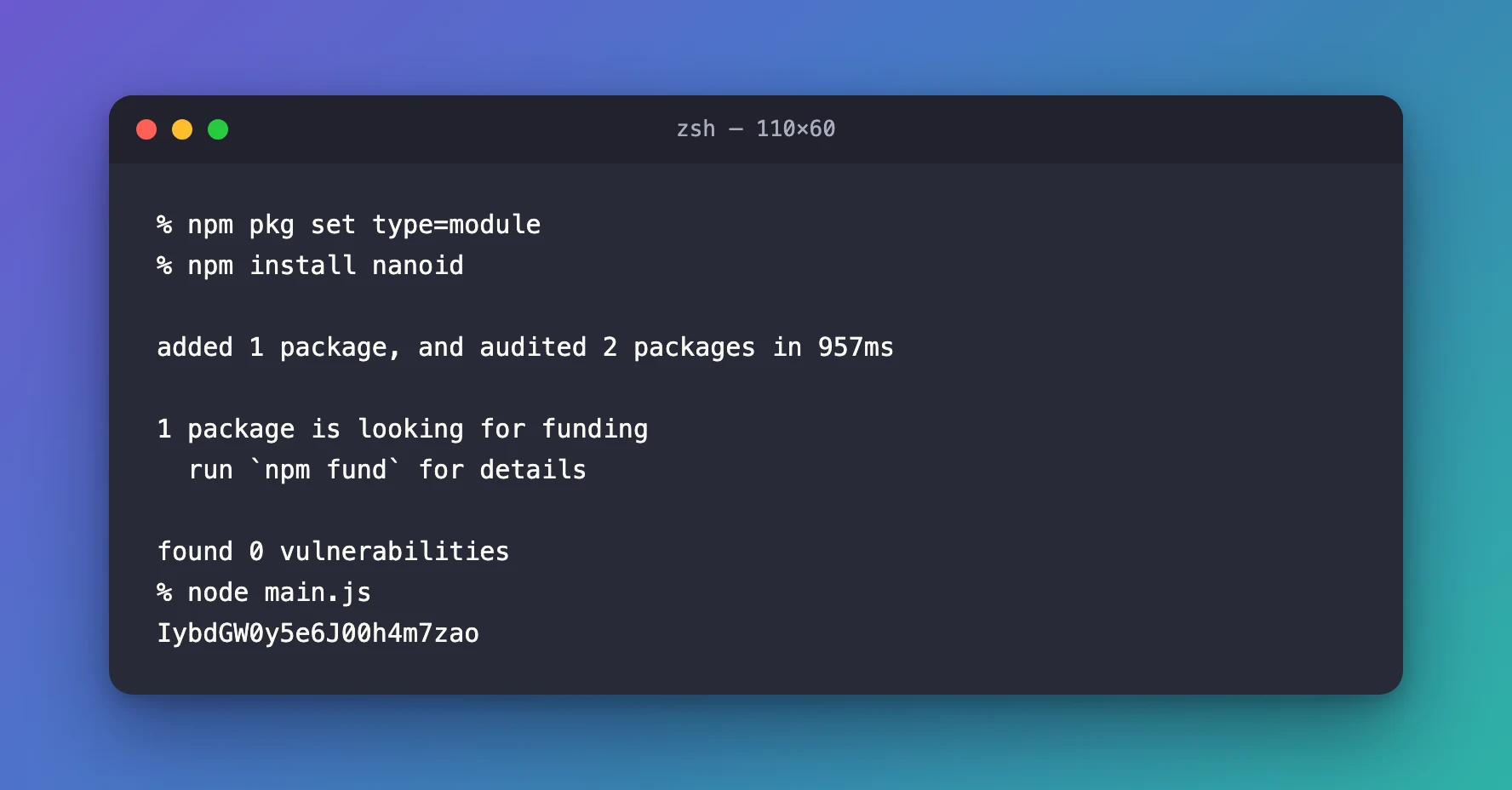
npm pkg set type=module
npm init -y creates the project's package.json, and npm pkg set type=module lets its code use import. These commands, like the rest, are the same in zsh, bash and PowerShell.
Step 2: Install the Package
npm install nanoid
added 1 package, and audited 2 packages in 957ms

1 package is looking for funding
  run `npm fund` for details

found 0 vulnerabilities
npm added one package and checked the project's packages against its list of known security problems, and found none. npm fund lists packages whose authors ask for donations. It's information only, and you don't need to run it.
Three things changed in the folder:
node_modules, a new folder, holds the package's code.package.jsonnow lists it underdependencies.package-lock.json, a new file, records the exact version that was installed, so everyone who installs the project gets the same one.
{
  "name": "id-maker",
  "version": "1.0.0",
  "description": "",
  "main": "index.js",
  "scripts": {
    "test": "echo \"Error: no test specified\" && exit 1"
  },
  "keywords": [],
  "type": "module",
  "dependencies": {
    "nanoid": "^6.0.2"
  }
}
^6.0.2 means 6.0.2 or any newer 6.x release. A later npm install on another computer can pick up 6.1.0, but never 7.0.0, which could change how the package works.
Step 3: Use It
Create main.js:
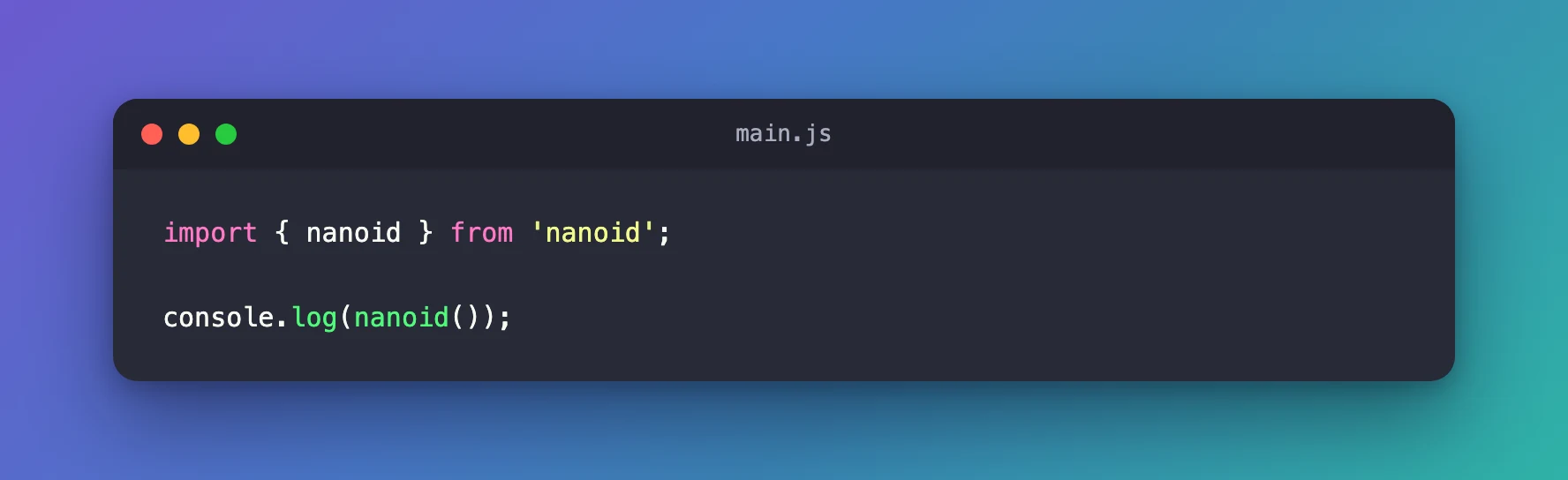
import { nanoid } from 'nanoid';

console.log(nanoid());
An import from a bare name such as 'nanoid', with no ./ in front, loads an installed package from node_modules.
node main.js
IybdGW0y5e6J00h4m7zao
Your ID will differ: it's random every time.
Common Mistakes
| Mistake | What happens | Do this instead |
|---|---|---|
Running npm install <package> outside the project folder | npm installs it wherever you are | cd into the project first |
Committing node_modules to Git | The repository fills with code anyone can download again | Commit package.json and package-lock.json, and add node_modules to .gitignore |
Deleting package-lock.json | The next install may pick different versions | Keep it, and commit it |
Troubleshooting
| Symptom | Likely cause | Fix |
|---|---|---|
Cannot find package 'nanoid' when the code runs | It isn't installed in this project | Run npm install nanoid in the project's folder |
SyntaxError: Cannot use import statement outside a module | The project is still "type": "commonjs" | npm pkg set type=module |
FAQ
How do I install every package a project lists?
Run npm install with no package name in the project's folder. npm reads package.json and package-lock.json and installs exactly those versions.
How do I install an exact version?
Add it after an @, as in npm install nanoid@6.0.2. How to Pin Exact npm Package Versions shows how to record it without the ^.
Conclusion
npm install <package> downloads a package into node_modules, adds it to package.json and fixes its exact version in package-lock.json. After that, import loads it by its name.
Additional Resources
- npm install, in the npm documentation.
- About semantic versioning, including what
^accepts. - package-lock.json, the file that fixes exact versions.
