How to Install a Teams App for Specific Users in the Teams Admin Center

A Teams admin can install an app for chosen people, so they don't have to add it themselves. On the app's page in the Teams admin center, select Users and groups > Installs > Install app, choose Specific users or groups, pick them and select Apply.
The example is Hello App, a custom app in the organization's catalog, installed for one person, Maya Patel. For a whole team, pick a security group instead of a person.
Microsoft's article on preinstalling apps describes this route, for organizations using app centric management: The app is made available to the selected users and groups and there's no need to separately make the app available for the same users and groups.
Prerequisites
- The Teams Administrator or Global Administrator role.
Step 1: Open Installs
At admin.teams.microsoft.com, go to Teams apps > Manage apps, search for the app and select its name. On its page, select Users and groups. The box at the top switches between Installs and Availability; choose Installs.
A new app shows Installed for no one and an Install app button. Select Install app.
Step 2: Choose the People
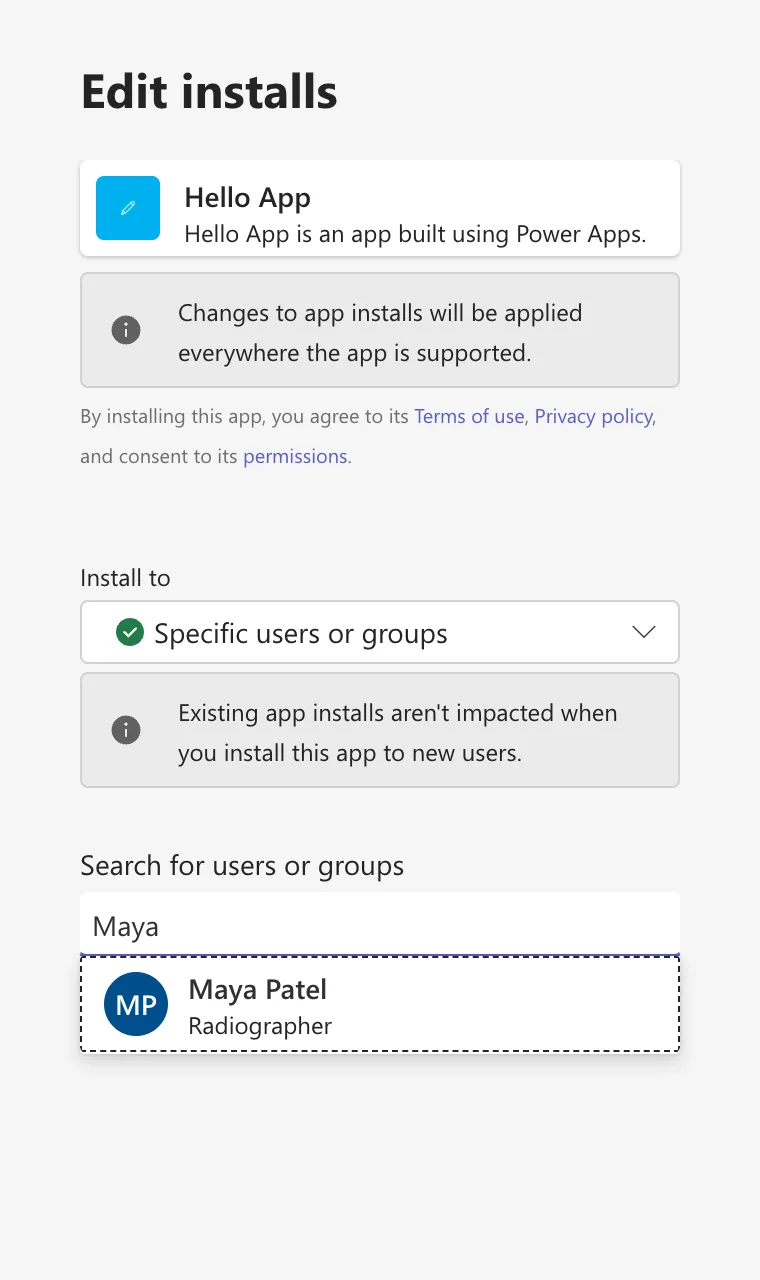
The Edit installs panel says Changes to app installs will be applied everywhere the app is supported, and that by installing the app you agree to its terms of use, privacy policy and permissions. Under Install to, choose Specific users or groups. The panel adds that Existing app installs aren't impacted when you install this app to new users.
In Search for users or groups, type a name and select the person or group:
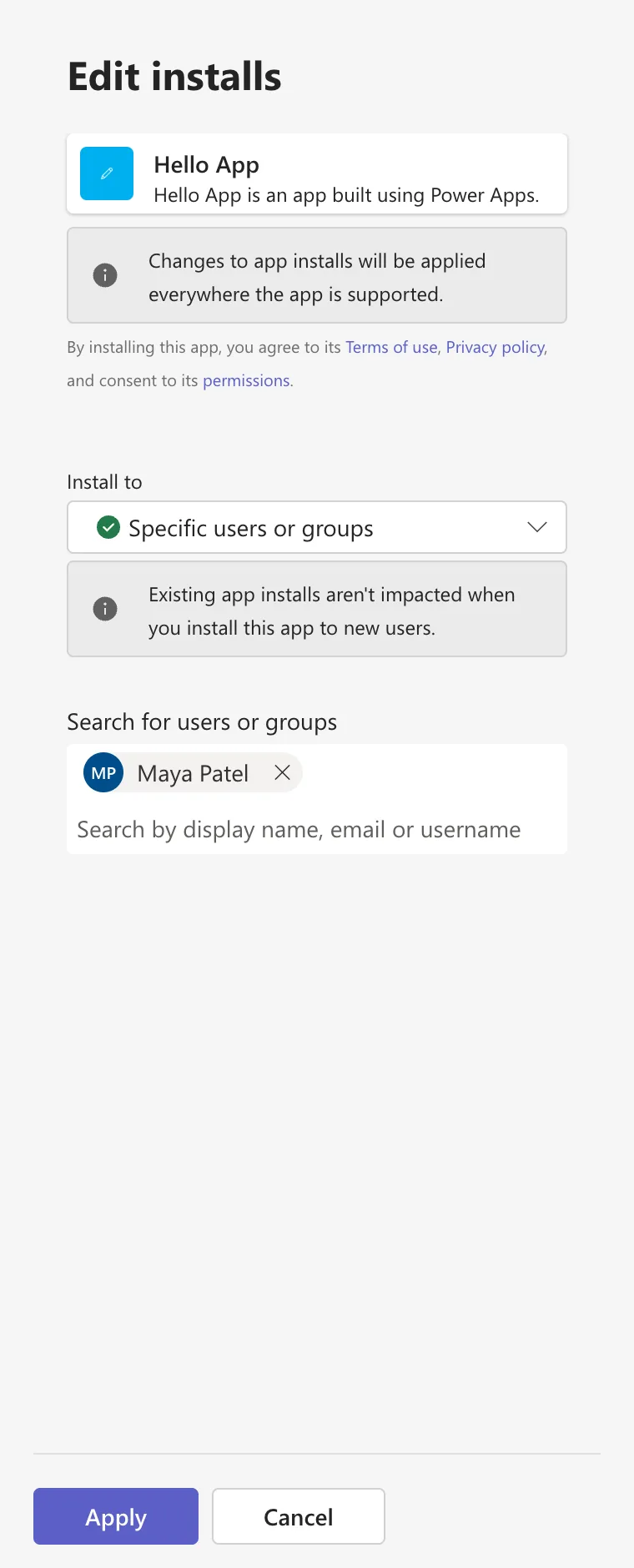
The person appears in the box. Add more if you need to, then select Apply:
The Result
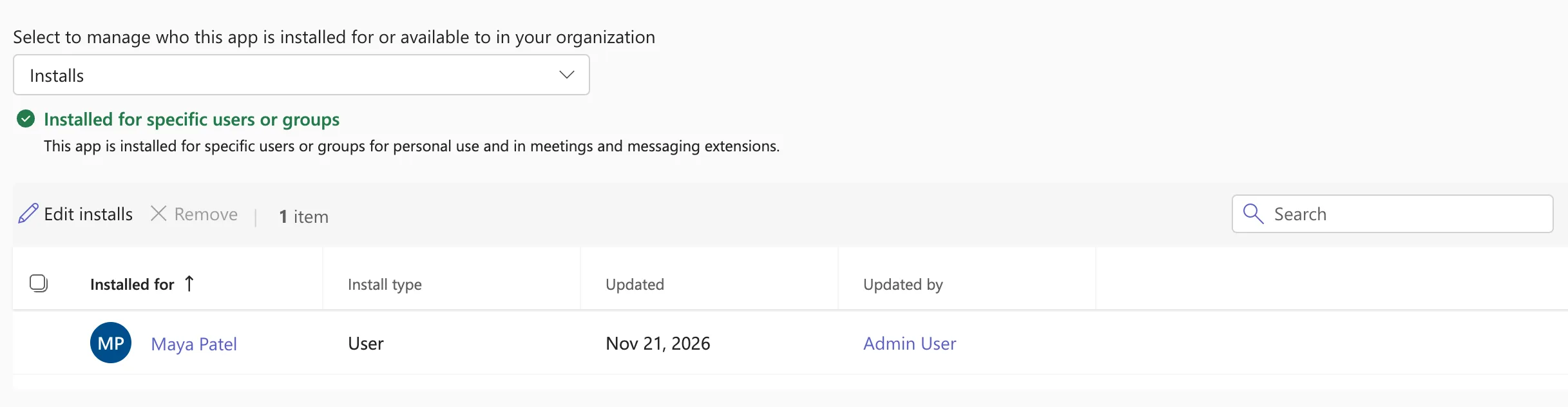
Installs now says Installed for specific users or groups, and lists who, with when and by whom:
How Long It Takes
Not long in the admin center, but longer in Teams. Microsoft's app centric management article says it takes up to 24 hours for the availability changes to take effect and, in rare cases, up to six days. A few minutes after installing Hello App for Maya, it wasn't in her Teams yet; another app I installed for a group hadn't reached a member's Teams after 90 minutes. People can add the app themselves meanwhile (How to Find an App Built for Your Organization in Microsoft Teams).
Common Mistakes
| Mistake | What happens | Do this instead |
|---|---|---|
| Choosing Everyone | The app is installed for the whole organization, guests included | Specific users or groups |
| Installing for people one by one | Every new joiner needs the admin | A security group |
| Expecting the app to be pinned | Installing and pinning are separate | Pin it with a setup policy's Pinned apps |
Troubleshooting
| Symptom | Likely cause | Fix |
|---|---|---|
| We can't get installs right now | Not documented; it happened right after an upload | Fixed: "We Can't Get Installs Right Now" in the Teams Admin Center |
| The app isn't in the person's Teams | The install hasn't reached them | Wait up to 24 hours, or let them add it |
| Manage apps shows -- for the app's installs | The app doesn't support being installed by an admin | Microsoft's article says such apps can't be preinstalled |
FAQ
Does installing also make the app available to them?
Yes, Microsoft's article says so: no separate availability step is needed for the same people.
Does installing for some people stop others using it?
No. Who else can add it depends on Availability (How to Make a Teams App Available to Specific Users in the Teams Admin Center).
Conclusion
On the app's page, Users and groups > Installs > Install app, choose Specific users or groups, pick them and select Apply. The app reaches their Teams within 24 hours, by Microsoft's account.
