How to Index a Column in a SharePoint List

A SharePoint list can hold millions of items, but SharePoint blocks any single query that has to work through more than about 5,000 of them at once. An index on the column you filter by lets SharePoint jump straight to the matching items instead. It takes a minute to add, and the best time to add it is while the list is still small.
What You Will Build
In this guide you'll index the JobTitle column of a list called RoleCompetencies. The Career Development Plan app always looks up competencies by job title, so that's the column its queries filter on. The app's other list, CompetencyResponses, gets an index on EmployeeId the same way.
The steps work for any list and any column you filter on.
When a List Needs an Index
The list view threshold. SharePoint limits how many items one database operation, such as a query, can process at a time. By default that limit, the list view threshold, is about 5,000 items, and in SharePoint in Microsoft 365 it can't be changed. Operations that go past it are blocked. Lists themselves can hold up to 30 million items. The limit is on what a single query looks through, not on how many items the list holds.
What an index changes. Without an index, filtering a 20,000-item list for one job title means looking through all 20,000. With an index on that column, SharePoint finds the matching items directly. Microsoft's guidance for SharePoint Online is to filter on indexed columns, so that each view or query returns 5,000 items or fewer.
Index early. In SharePoint Online, you can only add or remove an index while the list has 20,000 items or fewer. Indexing a list that's still empty, or small, avoids that wall altogether.
Index only what you filter on. A list can have up to 20 indexes, but each one adds some overhead whenever items change. Index the columns your views and apps actually filter or sort by.
Which columns can be indexed:
| Can be indexed | Can't be indexed |
|---|---|
| Single line of text | Multiple lines of text |
| Choice (single value) | Choice (multiple values) |
| Number, Currency | Calculated |
| Date and Time | Hyperlink or Picture |
| Yes/No | Person or Group (multiple values) |
| Person or Group (single value) | Custom columns |
| Lookup, Managed Metadata | External data |
Indexing a Lookup column doesn't stop a lookup from exceeding the threshold, so filter on a different kind of column where you can.
Apps benefit too. Microsoft's Power Apps guidance on query performance says the columns an app filters or sorts on should be indexed in the data source.
Prerequisites
- A list with the column you want to index. See How to Create a List and Add Columns in SharePoint Online.
- Edit, Design or Full Control on the site, the level that can manage lists.
Step 1: Open Indexed Columns
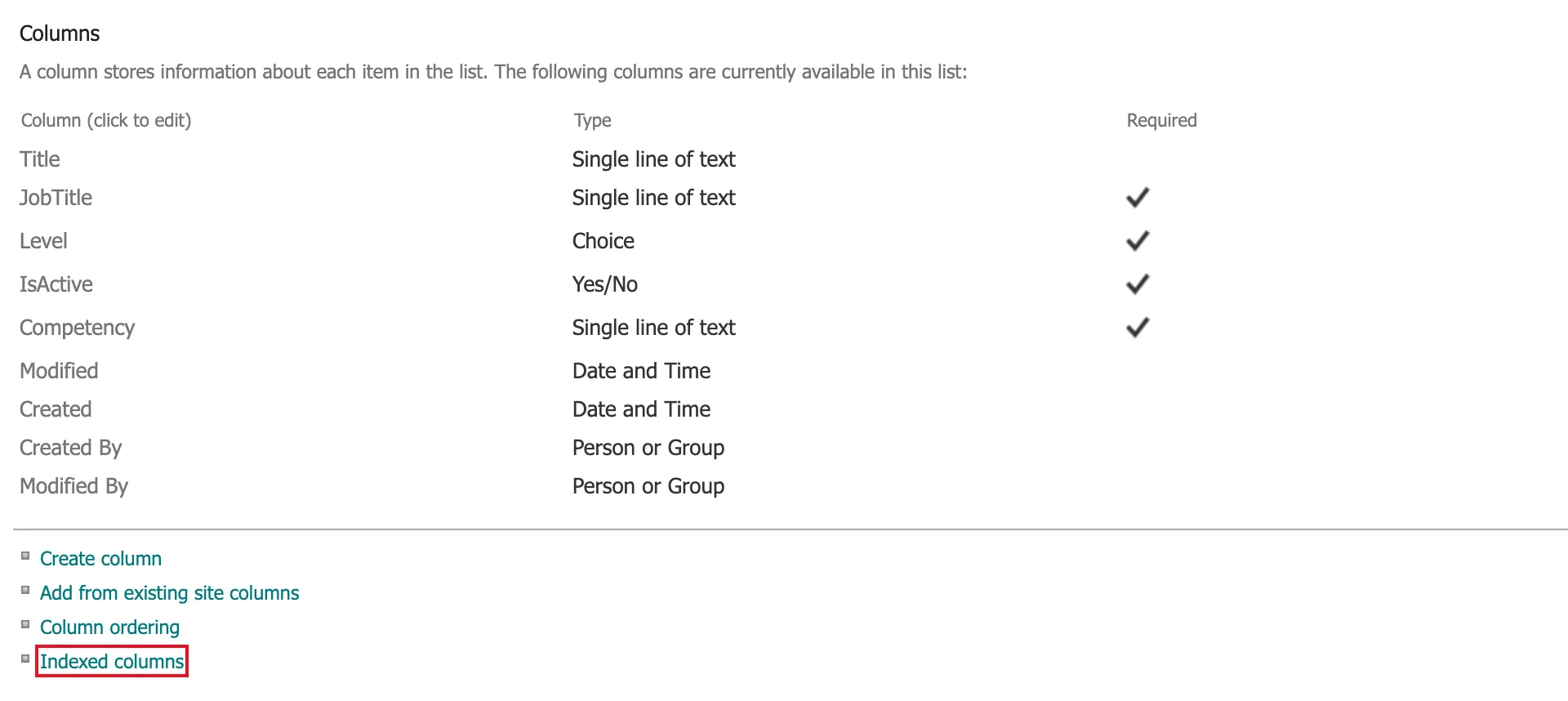
Open the list and select Settings (the gear) → List settings. On the settings page, scroll to the Columns section. Below the column table, select Indexed columns.
Step 2: Create a New Index
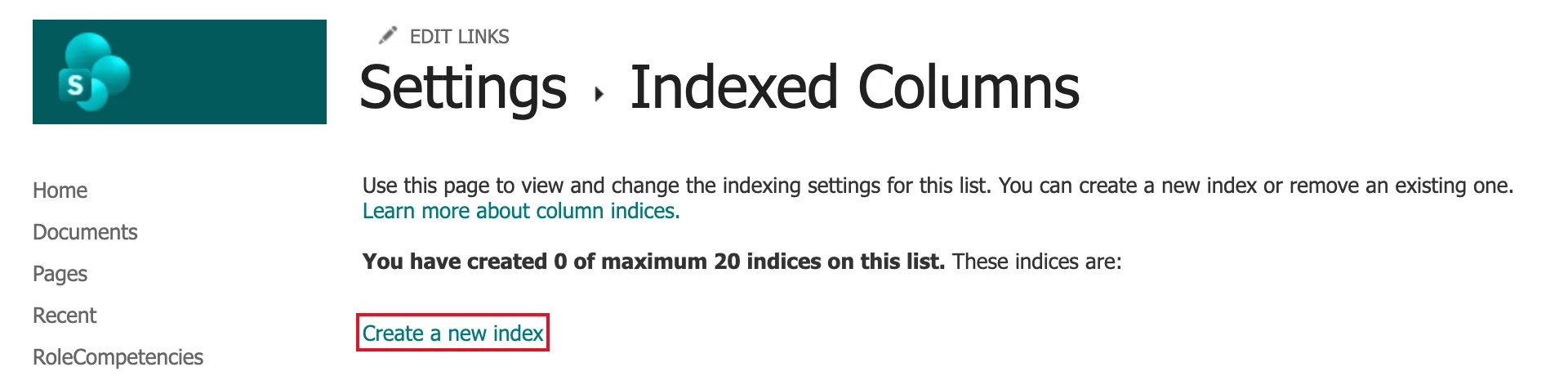
The Indexed Columns page lists the indexes you've created: 0 of maximum 20 for a new list. Select Create a new index.
Step 3: Pick the Column
On Edit index, open Primary column for this index and choose JobTitle. The list starts on Color Tag, a built-in column, so make sure you change it.

Leave Secondary column for this index empty. It stays greyed out unless the primary column is one that can start a compound index, an index over two columns that SharePoint builds from a Lookup column. A single-column index is what you need to filter by one column.
Select Create.
Step 4: Check the Index
You're back on Indexed Columns, which now reads 1 of maximum 20 and lists JobTitle.
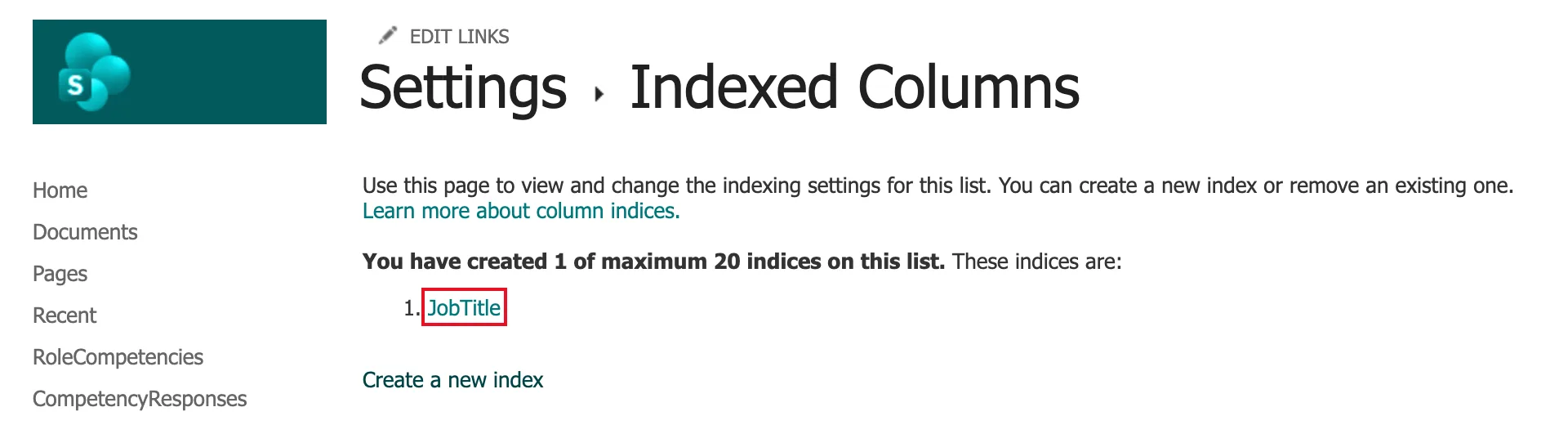
On an empty or small list, the index is ready straight away. To index another column, select Create a new index again. To remove an index, select its name and choose Delete; that removes only the index, not the column or its data.
Automatic Index Management
SharePoint can also create indexes by itself. On the list's Advanced settings page, Allow automatic management of indices? is set to Yes for new lists.
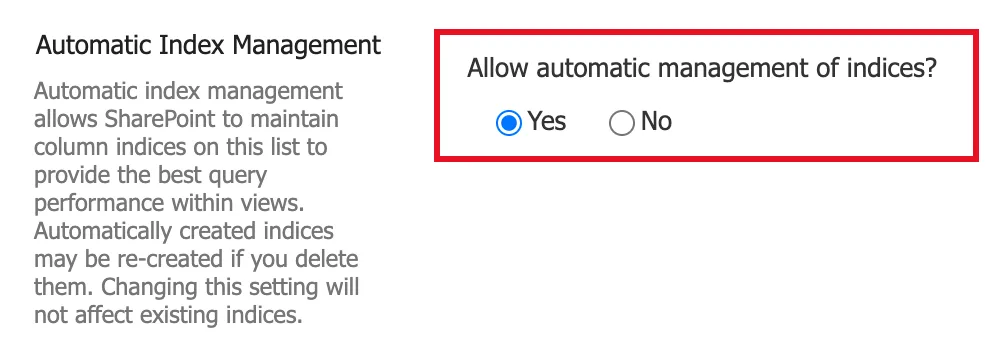
With it on, SharePoint can add indexes for the list's views that sort or filter, while the list has fewer than 20,000 items. Leave it on, but don't rely on it for an app. Microsoft describes it in terms of the list's views, and an app's queries aren't views. Create the indexes your app needs yourself, as above.
Common Mistakes
| Mistake | What happens | Do this instead |
|---|---|---|
| Waiting until the list is big | Past 20,000 items, you can't add or remove an index | Index while the list is small |
| Leaving Color Tag as the primary column | You index the wrong column | Pick the column you filter on |
| Indexing every column | Each index adds work whenever items change | Index only the columns you filter or sort by |
| Relying on automatic indexing for an app | It's built around the list's views, not an app's queries | Create the app's indexes yourself |
| Filtering a large list on a column that can't be indexed | The query hits the threshold | Filter first on an indexed column, such as a single-line text or number column |
Troubleshooting
| Symptom | Likely cause | Fix |
|---|---|---|
| Indexed columns isn't on the settings page | You don't have permission to manage lists | Ask an owner for Edit or higher |
| The column isn't in Primary column for this index | Its type can't be indexed | Check the table above, or filter on a different column |
| A view or query fails once the list grows | It filters on a column without an index | Index that column, while the list has 20,000 items or fewer |
| You can't add an index to a big list | The list is over 20,000 items | See Microsoft's article on the filter error in Additional Resources, and add indexes to new lists while they're small |
FAQ
Does an index change my data?
No. An index only helps SharePoint find items. Adding or removing one doesn't change any item.
Is the 5,000 limit a limit on the list's size?
No. It limits how many items one query works through. A list can hold up to 30 million items, as long as its views and queries stay under the threshold.
Can I raise the list view threshold?
Not in SharePoint in Microsoft 365. It's fixed at about 5,000 items.
How many indexes should a list have?
As many as the columns you filter or sort on, and no more. Many lists need one or two.
Conclusion
Index the columns your views and apps filter on, and do it early. SharePoint blocks a query that has to work through more than about 5,000 items, and an index is what lets it find the right items without that. List settings → Indexed columns → Create a new index → pick the column → Create: a minute's work, and it can only be done while the list has 20,000 items or fewer.
Additional Resources
- Build a Career Development Plan App in Power Apps — Part 1: the app whose queries these indexes serve.
- Add an index to a list or library column: Microsoft's steps, the 20-index limit and the column types.
- List View Threshold for large lists and libraries: what the threshold is and why it exists.
- "Cannot show the value of the filter" error in SharePoint Online: filtering with indexed columns, and the 20,000-item limit for indexing.
- Optimized query data patterns: Microsoft's Power Apps guidance on indexing the columns you query.
