How to Import a Solution in Power Apps

Importing is how a solution gets into an environment: you upload the zip, Power Apps shows what's in it, asks for anything it needs from this environment, and installs it. This guide imports a managed solution in Power Apps, then does the same with the Power Platform CLI.
Before You Import
From Microsoft's Import solutions:
- Only import solutions from a trusted source.
- Managed or unmanaged. A managed solution arrives published and can't be edited where it's installed. An unmanaged one arrives as a draft you publish, its components stay if you delete the solution, and it overwrites existing customizations of the same components (How to Export a Solution explains the two).
- Privileges. You need the create privilege for what's in it; System Administrator has all of them.
- Size. A solution file can be up to 95 MB.
If one solution relies on another, import that one first.
Prerequisites
- An environment with Dataverse, and the System Administrator role in it. The example is a trial environment (How to Create a Free Trial Environment).
- Power Apps switched to that environment (How to Switch Environments in Power Apps).
- The solution zip. The example is
CareerDevelopmentPlanSetup_1_0_0_0_managed.zip, the Career Development Plan series' setup flow (Part 12).
Step 1: Select Import Solution
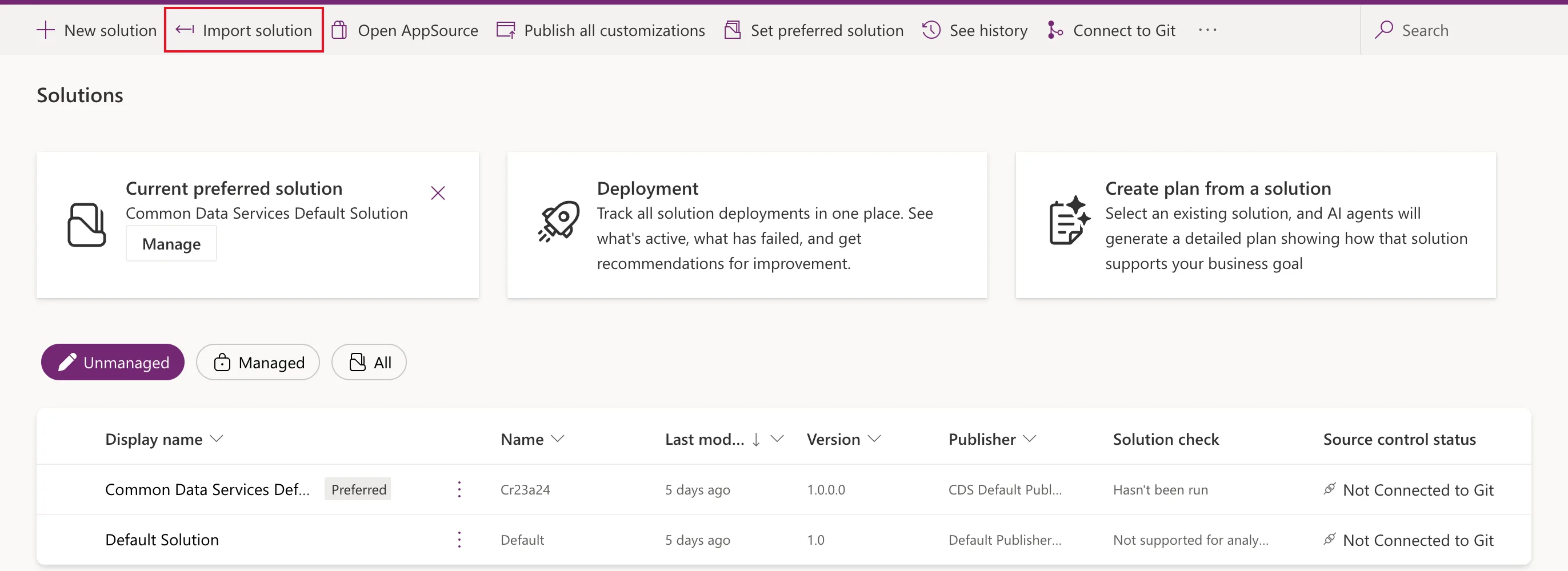
In Power Apps, select Solutions, then Import solution in the command bar:
Step 2: Choose the File
The Import a solution pane shows the environment it imports into. Under Select a file, select Browse and choose the zip:
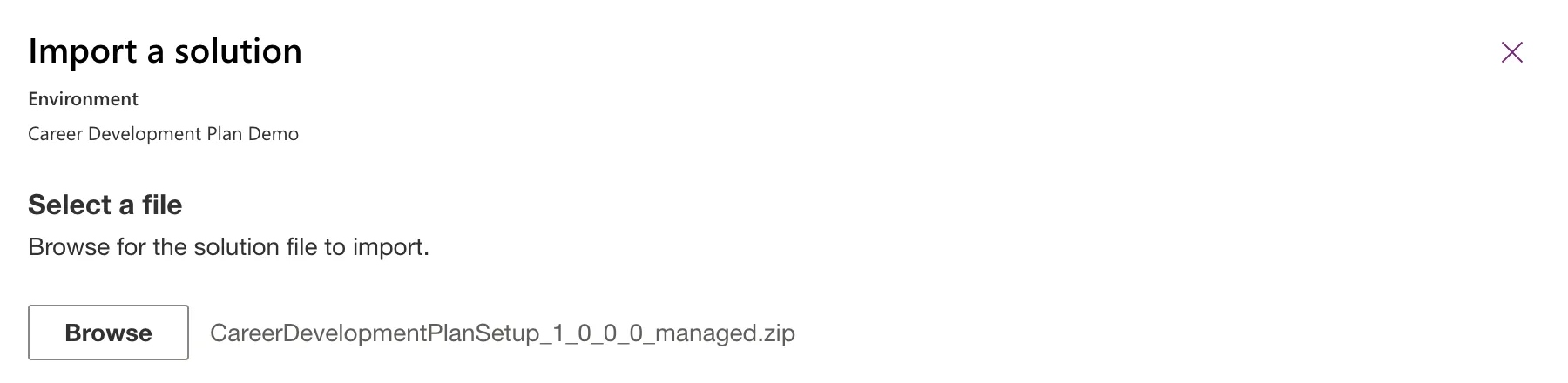
Check the environment's name once more, and select Next.
Step 3: Check the Details
Details shows what the zip says about itself: Name, Type, Publisher, Description, Version and Patch. Expand Advanced settings:
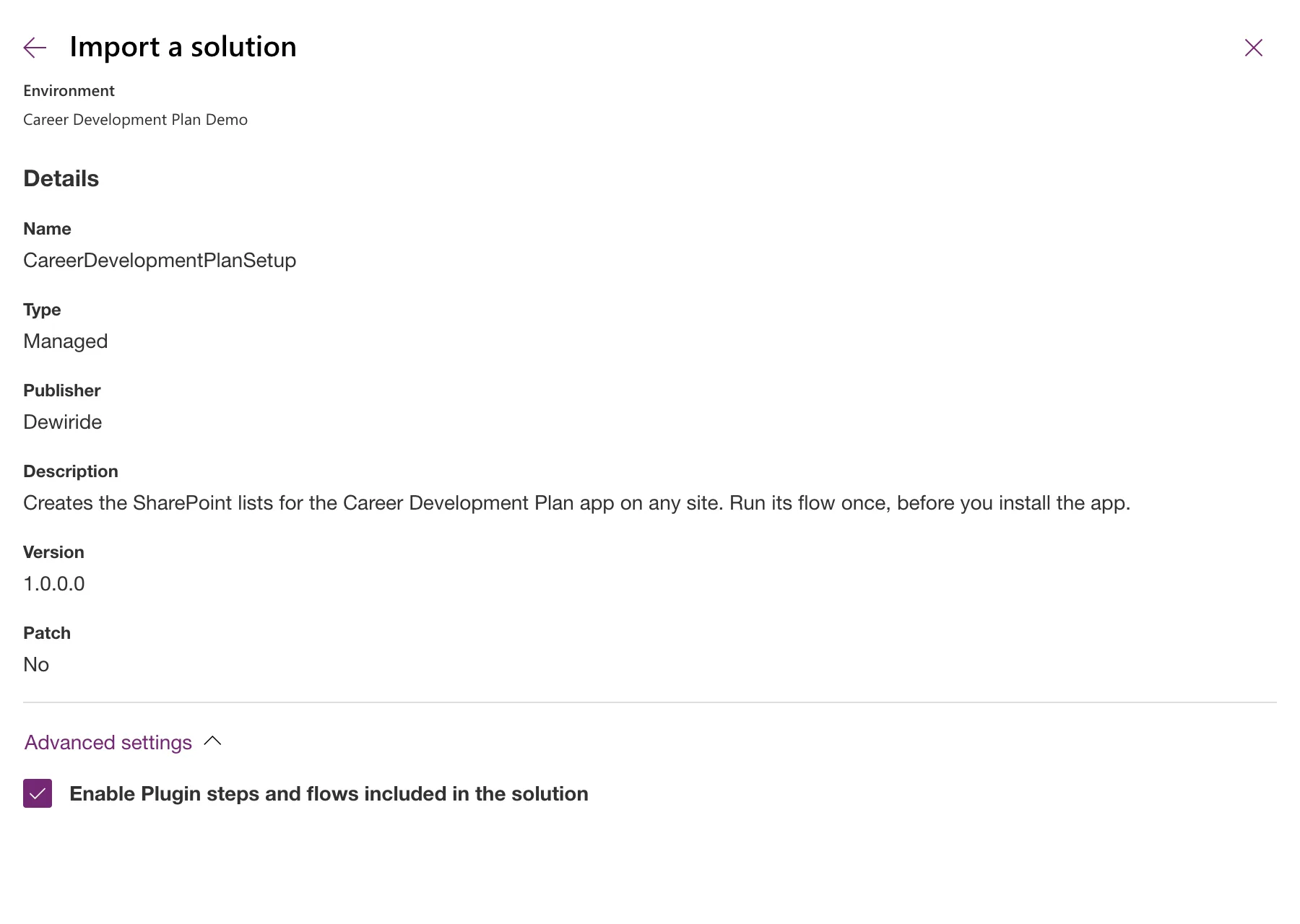
Enable Plugin steps and flows included in the solution is ticked by default. Microsoft's article says clearing it stops the import from turning on plug-in steps that arrive turned off, and that it doesn't turn flows off. I left it ticked, and the setup flow was On after the import. Select Next.
Step 4: Connections
If the solution has connection references, the Connections step asks for a connection for each: Re-establish connections to activate your solution. Here, the setup flow's SharePoint connection reference:
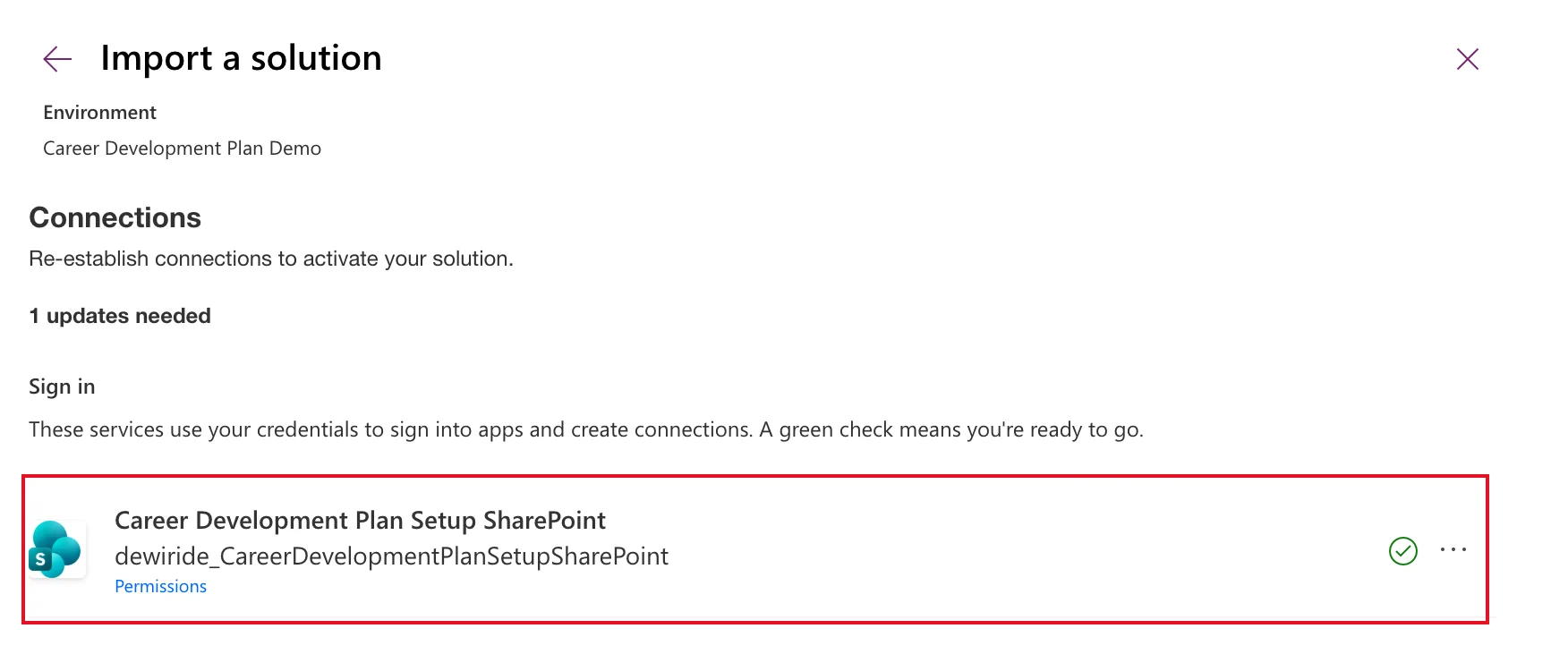
It showed a spinner for a few seconds, then a green check: Power Apps used my account to make the SharePoint connection, with no sign-in window. The ... next to it offers Switch account, to use a different account. Select Next, or Import if it's the last step.
A solution whose environment variables have no value adds an Environment Variables step after this one. How to Set Environment Variable Values When Importing a Solution covers it.
Step 5: Import and Check the Result
Select Import. The pane closes, and a message says Currently importing solution "Career Development Plan Setup". About a minute later:
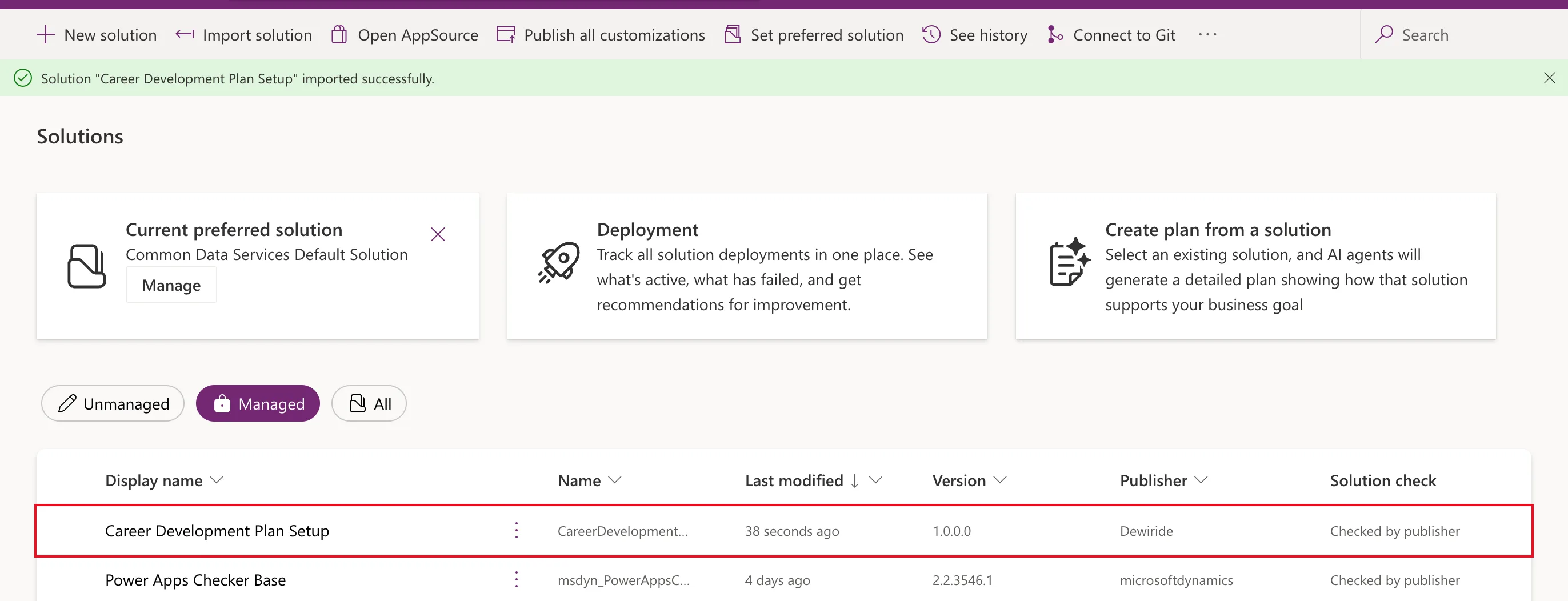
A managed solution isn't on the Unmanaged tab, which Power Apps shows first. Select Managed to see it. Open it to check what it brought: here a cloud flow and a connection reference.
If the import fails, Microsoft's article says a notification lists the errors and warnings, with Download Log File; See history lists every import.
Do It with the CLI
The Power Platform CLI imports a zip with pac solution import. Sign it in first (How to Sign In to the Power Platform CLI).
Select the environment
pac env select --environment "Career Development Plan Demo"
Connected as admin@example.com
Looking for environment ''Career Development Plan Demo''
Validating connection...
Connected to... Career Development Plan Demo
Selected org 'Career Development Plan Demo' 'https://org00000000.crm.dynamics.com/' for current authentication profile.
pac env list lists the environments you can choose from. Without this step, the CLI uses the environment your profile has selected, which may not be the one you want; --environment on the import command overrides it for that one command.
Import
pac solution import --path release/CareerDevelopmentPlan_1_0_0_0_managed.zip --settings-file cdp-settings.json
Connected as admin@example.com
Connected to... Career Development Plan Demo

Solution Importing...

Solution Imported successfully.
--pathis the zip.--settings-filegives the values the portal would ask for, connections and environment variables, because the CLI can't ask. How to Set Environment Variable Values When Importing a Solution creates this file withpac solution create-settings.
It took 35 seconds. In my case the same version of this solution was already installed from the portal, so this run updated it in place; --skip-lower-version skips the import instead when the same or a higher version is there. Microsoft's pac solution import reference lists the rest of the options.
Check
pac solution list
Connected as admin@example.com
Connected to... Career Development Plan Demo

Listing all Solutions from the current Dataverse organization...
Unique Name                Friendly Name                         Version Managed
CareerDevelopmentPlan      Career Development Plan               1.0.0.0 True
CareerDevelopmentPlanSetup Career Development Plan Setup         1.0.0.0 True
Cr23a24                    Common Data Services Default Solution 1.0.0.0 False
Default                    Default Solution                      1.0     False
Managed is True for both imported solutions.
Common Mistakes
| Mistake | What happens | Do this instead |
|---|---|---|
| Importing in the wrong environment | It's installed where you didn't want it | Check the environment in the pane before Next |
| Importing the unmanaged zip into a test or customer environment | It can be changed there, and deleting the solution leaves its components | Import the managed zip |
| Looking for a managed solution on the Unmanaged tab | It seems missing | Select Managed or All |
| Importing a solution before the one it depends on | The import reports missing dependencies | Import the other one first |
Troubleshooting
| Symptom | Likely cause | Fix |
|---|---|---|
| Import is unavailable on the Connections step | A connection has no green check | Sign in, or pick a connection, for each |
| The import failed | A missing dependency or privilege | Read the notification, or Download Log File |
FAQ
Can I import the same version again?
Yes: the CLI run above did. Use a higher version for real updates, so you can tell releases apart.
Can I import a managed solution into the environment it was built in?
No. Microsoft's Solution concepts says a managed solution can't be imported into the environment that holds its unmanaged original.
Where do I see what an import did?
See history on the Solutions page lists the imports.
Conclusion
Solutions → Import solution, Browse to the zip, check Details, make sure every connection has a green check, give any environment variables a value, and Import. With the CLI, select the environment and run pac solution import with a settings file.
Additional Resources
- Import solutions: every step of the import pane.
- pac solution import: all the options.
- Solution concepts: managed and unmanaged solutions.
