How to Hide the Title Column in a SharePoint List

Every SharePoint list starts with a Title column. When your list has its own columns for what Title would hold, hiding Title keeps the view and the form clean. It takes two separate steps: one for the list view, one for the item form.
Both lists of the Overtime Timesheet series hide Title. Departments has a Department column instead, and OvertimeEntries doesn't need a title at all.
Why Hide It Instead of Renaming It
Renaming Title looks like the quicker fix, but only the name you see changes. Microsoft's troubleshooting article Default column name shown in list settings after name change says that after a rename, "the original default name is still shown in the list settings." And its Field element (List) reference says Title can have a different display name in each list "but the same internal field name of Title". That internal name is the one apps and flows use. A column of your own, with Title hidden, has one name everywhere. How to Create a List and Add Columns in SharePoint Online covers that approach in full.
Prerequisites
- A SharePoint list with its own columns, and permission to change it.
Step 1: Check That Title Isn't Required
A required column can't be hidden from the form. Open Settings (the gear) → List settings and look at Title under Columns:
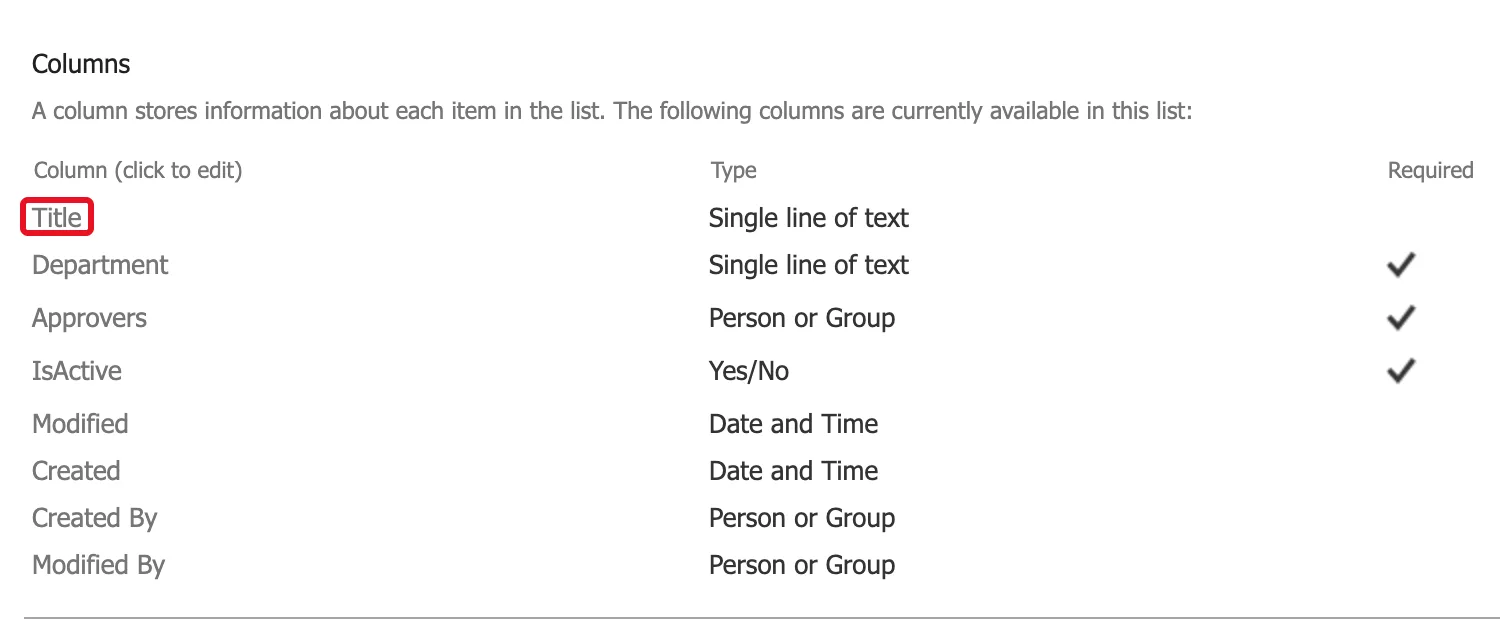
In both lists created for the series with + New → List, Title had no tick under Required, so there was nothing to change. If yours has one, select Title and set Require that this column contains information to No.
Step 2: Hide It from the List View
Select the Title column header → Column settings → Hide this column:
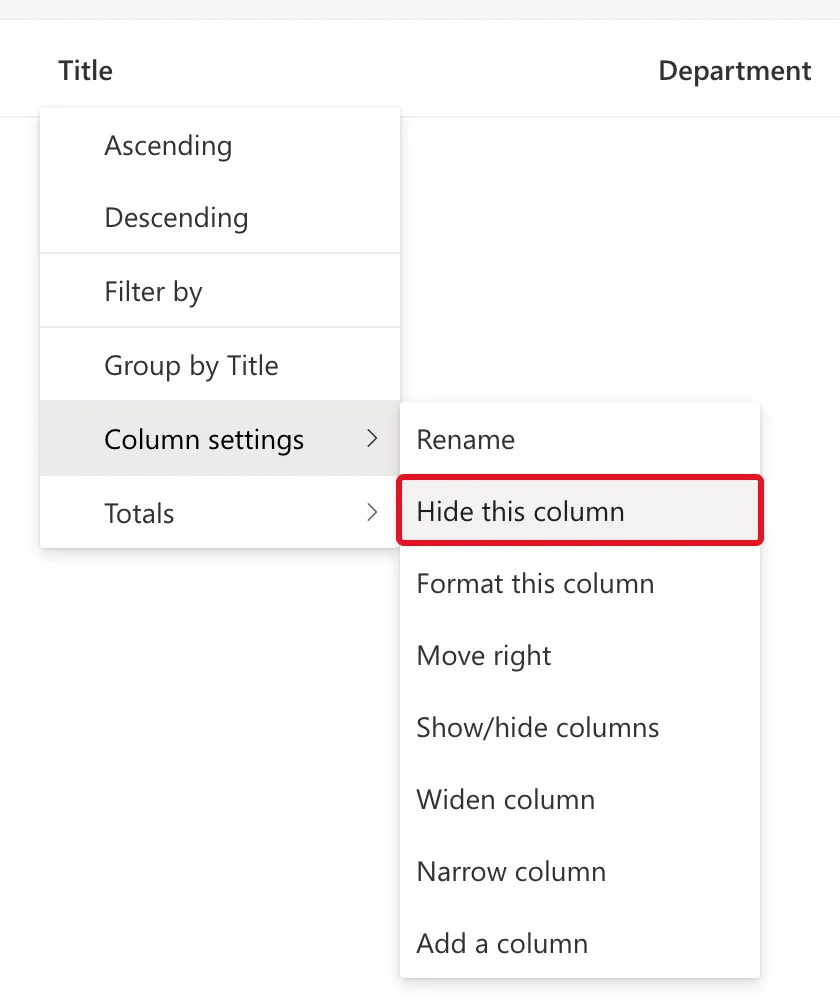
The view now starts with the list's own columns:
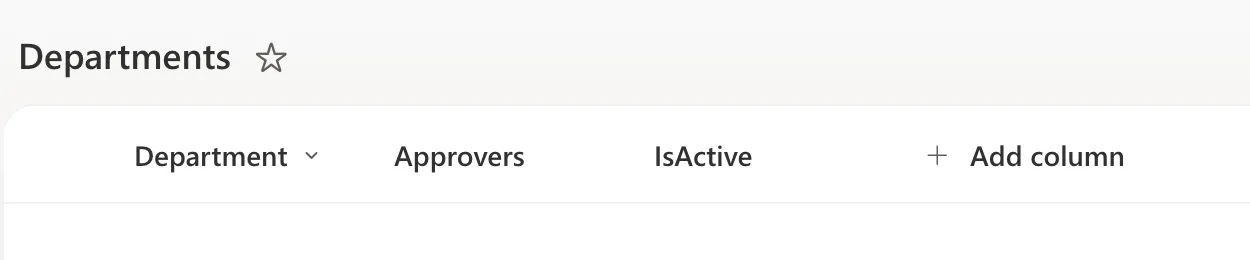
This changes the current view only. If the list has other views, hide Title in each of them.
Step 3: Hide It from the Item Form
The form for new items still shows Title. Select + New, then at the top of the form select Edit form (the pencil icon) → Edit columns.
The Edit columns in the form pane lists every column with a box. Clear Title:
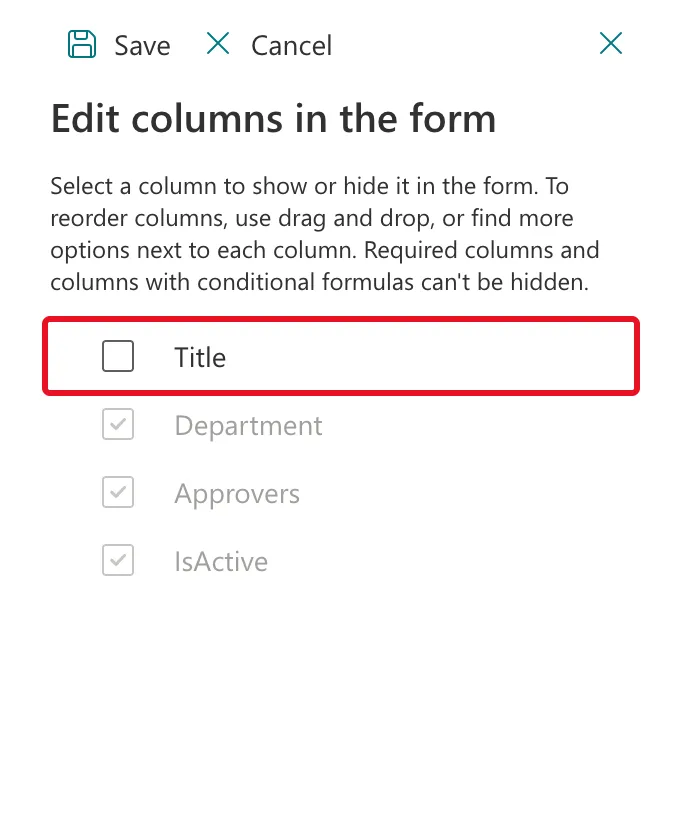
The other boxes are greyed out because their columns are required; the pane says so: "Required columns and columns with conditional formulas can't be hidden." Select Save at the top of the pane.
Step 4: Reopen the Form
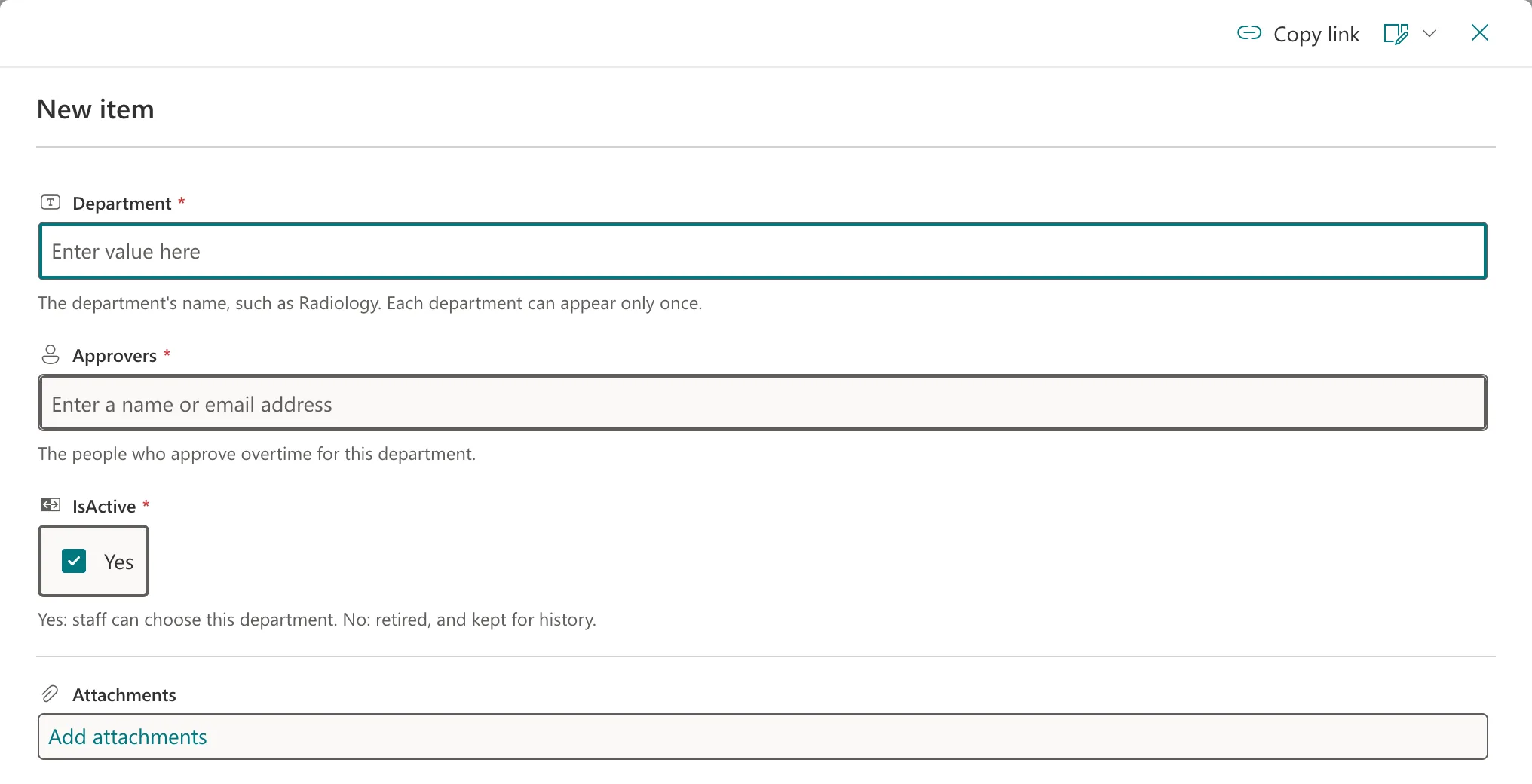
The form that's already open still shows Title. Close it with Cancel and select + New again. It now starts with the list's first column:
What Hiding Doesn't Do
- The column stays in the list. It's still in List settings, and apps and flows can still read and write it.
- Existing values stay. Hiding a column changes what you see, not what's stored.
- Other views aren't touched. Step 2 changes one view at a time.
Common Mistakes
| Mistake | What happens | Do this instead |
|---|---|---|
| Renaming Title instead | Apps and flows still call it Title | Add your own column and hide Title |
| Hiding it in the view only | The form still asks for a title | Clear it in Edit columns too |
| Judging the form without reopening it | The open form still shows Title | Close it and select + New again |
Troubleshooting
| Symptom | Likely cause | Fix |
|---|---|---|
| Title's box is greyed out in Edit columns | Title is required | Set Require to No in its settings |
| Title still shows in the form | The form was open before you saved | Close it and open + New again |
| Title is back in another view | Hiding is per view | Hide it in that view as well |
FAQ
Do Power Apps apps still see the Title column?
Yes. Hiding it in SharePoint changes the SharePoint view and form, not the list's columns. An app ignores it if its screens don't use it.
Can I show it again later?
Yes. In the view, use Column settings → Show/hide columns on any column. In the form, tick Title in Edit columns.
Conclusion
Check that Title isn't required, then hide it twice: Column settings → Hide this column in the view, and Edit form → Edit columns in the form. Reopen the form to see the change.
Additional Resources
- Default column name shown in list settings after name change
- Show or hide columns in a list or library
- Show or hide columns in a list form
